Linux System Boot Process
When Linux boots, we see a lot of boot information.
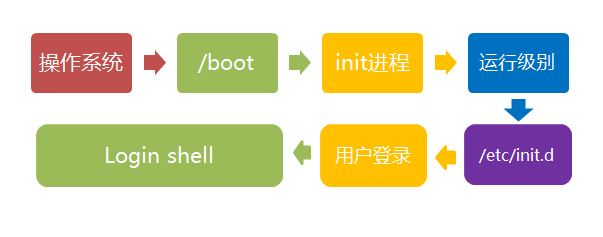
The Linux boot process is not as complicated as people might imagine. It can be divided into 5 stages:
- Kernel booting.
- Running init.
- System initialization.
- Terminal setup.
- User login.
Types of init programs:
- SysV:init, before CentOS 5, configuration file: /etc/inittab.
- Upstart:init, CentOS 6, configuration files: /etc/inittab, /etc/init/*.conf.
- Systemd:systemd, CentOS 7, configuration files: /usr/lib/systemd/system, /etc/systemd/system.
Kernel Booting
After the computer is powered on, the BIOS first performs a power-on self-test, and then boots according to the boot device set in the BIOS (usually the hard disk).
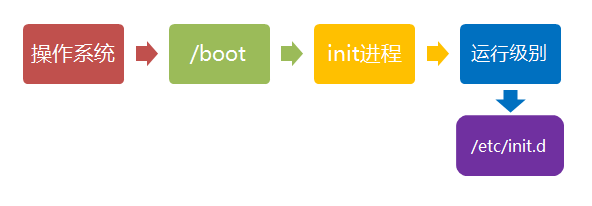
After the operating system takes over the hardware, it first reads the kernel files in the /boot directory.

Running init
The init process is the starting point of all system processes. You can compare it to the ancestor of all system processes. Without this process, no process in the system would start.
The init program first needs to read the configuration file /etc/inittab.

Runlevels
Many programs need to start at boot. They are called "services" in Windows and "daemons" in Linux.
A major task of the init process is to run these boot-time programs.
However, different situations require different programs to be started. For example, when used as a server, Apache needs to be started, but not when used as a desktop.
Linux allows different boot programs to be assigned for different situations, which is called "runlevel". That is, at boot time, the runlevel determines which programs to run.

Linux systems have 7 runlevels:
- Runlevel 0: System halt state. The default runlevel cannot be set to 0, otherwise the system cannot boot normally.
- Runlevel 1: Single-user working state, root privileges, used for system maintenance, remote login is prohibited.
- Runlevel 2: Multi-user state (without NFS)
- Runlevel 3: Full multi-user state (with NFS), enters console command-line mode after login.
- Runlevel 4: Unused by the system, reserved.
- Runlevel 5: X11 console, enters graphical GUI mode after login.
- Runlevel 6: System shuts down normally and reboots. The default runlevel cannot be set to 6, otherwise the system cannot boot normally.
System Initialization
In init's configuration file, there is a line like this: si::sysinit:/etc/rc.d/rc.sysinit. It calls and executes /etc/rc.d/rc.sysinit. rc.sysinit is a bash shell script that mainly performs some system initialization work. rc.sysinit is an important script that must be run first at every runlevel.
The main tasks it completes include: activating the swap partition, checking disks, loading hardware modules, and other tasks that need to be executed first.
l5:5:wait:/etc/rc.d/rc 5
This line means running /etc/rc.d/rc with 5 as the parameter. /etc/rc.d/rc is a Shell script that accepts 5 as a parameter and executes all the rc startup scripts in the /etc/rc.d/rc5.d/ directory. The startup scripts in the /etc/rc.d/rc5.d/ directory are actually all link files, not the real rc startup scripts. The real rc startup scripts are actually placed in the /etc/rc.d/init.d/ directory.
These rc startup scripts have similar usage; they generally accept parameters such as start, stop, restart, status, etc.
The rc startup scripts in /etc/rc.d/rc5.d/ are usually link files starting with K or S. For startup scripts starting with S, they will be run with the start parameter.
If a corresponding script with a K-prefixed link is found, and it is already in the running state (marked by files under /var/lock/subsys/), the already-started daemons will first be stopped with the stop parameter, and then re-run.
This is done to ensure that when init changes the runlevel, all related daemons will be restarted.
As for which daemons will run at each runlevel, users can set them via chkconfig or "System Services" in setup.
Terminal Setup
After rc finishes executing, it returns to init. At this point, the basic system environment has been set up, and various daemons have also been started.
init then opens 6 terminals so users can log into the system. The following 6 lines in inittab define the 6 terminals:
1:2345:respawn:/sbin/mingetty tty1
2:2345:respawn:/sbin/mingetty tty2
3:2345:respawn:/sbin/mingetty tty3
4:2345:respawn:/sbin/mingetty tty4
5:2345:respawn:/sbin/mingetty tty5
6:2345:respawn:/sbin/mingetty tty6
From the above, we can see that in runlevels 2, 3, 4, and 5, the mingetty program will run in respawn mode. The mingetty program can open terminals and set modes.
At the same time, it displays a text login interface, which is the login interface we often see. In this login interface, the user is prompted to enter a username, and the username entered by the user is passed as a parameter to the login program to verify the user's identity.
User Login
Generally speaking, there are three ways for users to log in:
- (1) Command-line login
- (2) SSH login
- (3) Graphical interface login
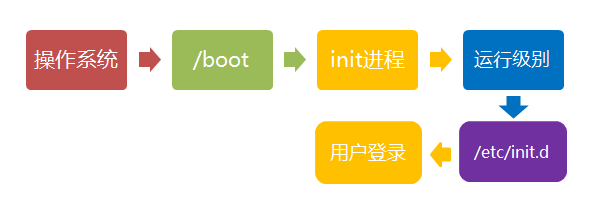
For users in graphical mode with runlevel 5, their login is through a graphical login interface. After successful login, they can directly enter window managers such as KDE, Gnome, etc.
This article mainly discusses text-mode login: when we see mingetty's login interface, we can enter the username and password to log into the system.
Linux's account verification program is login. login receives the username passed by mingetty as the username parameter.
Then login analyzes the username: if the username is not root and the /etc/nologin file exists, login will output the contents of the nologin file and then exit.
This is usually used to prevent non-root users from logging in during system maintenance. Only terminals registered in /etc/securetty are allowed for root user login. If this file does not exist, the root user can log in on any terminal.
The /etc/usertty file is used to impose additional access restrictions on users. If this file does not exist, there are no other restrictions.
Switching Between Graphical and Text Modes
Linux provides six command-line terminal consoles by default for us to log in.
By default, we log into the first window, which is tty1. The six windows are tty1, tty2 ... tty6. You can press Ctrl + Alt + F1 ~ F6 to switch between them.
If you have installed a graphical interface, you will enter the graphical interface by default. At this point, you can press Ctrl + Alt + F1 ~ F6 to enter one of the command-line window interfaces.
When you want to return to the graphical interface from a command-line window interface, just press Ctrl + Alt + F7.
If you are using a VMware virtual machine, the shortcut keys for switching command windows are Alt + Space + F1~F6. If you are in the graphical interface, press Alt + Shift + Ctrl + F1~F6 to switch to a command window.
Linux Shutdown
In the Linux field, it is mostly used on servers, so shutdown operations are rarely encountered. After all, a service running on a server is endless; unless under special circumstances, shutdown is only used when absolutely necessary.
The correct shutdown process is: sync > shutdown > reboot > halt
The shutdown command is: shutdown. You can run man shutdown to view the help documentation.
For example, you can run the following command to shut down:
sync 将数据由内存同步到硬盘中。

shutdown 关机指令,你可以man shutdown 来看一下帮助文档。例如你可以运行如下命令关机:

shutdown –h 10 ‘This server will shutdown after 10 mins’ 这个命令告诉大家,计算机将在10分钟后关机,并且会显示在登陆用户的当前屏幕中。

shutdown –h now 立马关机

shutdown –h 20:25 系统会在今天20:25关机

shutdown –h +10 十分钟后关机

shutdown –r now 系统立马重启

shutdown –r +10 系统十分钟后重启

reboot 就是重启,等同于 shutdown –r now

halt 关闭系统,等同于shutdown –h now 和 poweroff
Finally, to summarize, whether restarting or shutting down the system, first run thesynccommand to write the data in memory to disk.
Shutdown commands includeshutdown –h now halt poweroffand init 0, restart commands includeshutdown –r now reboot init 6。