ASP.NET Web Pages - Folders
This chapter introduces knowledge about folders and folder paths.
In this chapter, you will learn:
- Logical folder structure and physical folder structure
- Virtual names and physical names
- Web URLs and web paths
Logical Folder Structure
Below is a typical ASP.NET website folder structure:
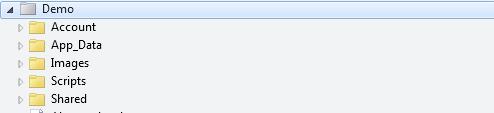
- The "Account" folder contains login and security files
- The "App_Data" folder contains databases and data files
- The "Images" folder contains images
- The "Scripts" folder contains browser scripts
- The "Shared" folder contains shared files (such as layout and style files)
Physical Folder Structure
The physical folder structure of the "Images" folder in the above website on the computer might look like this:
C:\Documents\MyWebSites\Demo\Images
Virtual Names and Physical Names
Take the above example:
The virtual name of a website image might be "Images/pic31.jpg".
The corresponding physical name is "C:\Documents\MyWebSites\Demo\Images\pic31.jpg".
URLs and Paths
URLs are used to access files in a website:http://www.example.com/html/html-tutorial.html
The URL corresponds to a physical file on the server: C:\MyWebSites\example\html\html-tutorial.html
A virtual path is a shorthand representation of a physical path. If you use virtual paths, you do not need to update the paths when you change domain names or move your web pages to other servers.
| URL | http://www.example.com/html/html-tutorial.html |
| Server name | EXAMPLE |
| Virtual path | /html/html-tutorial.html |
| Physical path | C:\MyWebSites\example\html\html-tutorial.html |
The root of a disk drive is written as C:, but the root of a website is / (slash).
The virtual path of a web folder is usually not the same as the physical folder.
In your code, decide whether to use physical paths or virtual paths based on your coding needs.
ASP.NET has 3 tools for folder paths: the ~ operator, the Server.MapPath method, and the Href method.
The ~ Operator
Use the ~ operator to specify virtual paths in programming code.
If you use the ~ operator, you do not need to change any of your code when your site is moved to a different folder or location:
var myStyleSheet = "~/styles/StyleSheet.css";
The Server.MapPath Method
The Server.MapPath method converts a virtual path (/index.html) into a physical path that the server can understand (C:\Documents\MyWebSites\Demo\default.html).
When you need to open data files on the server, you can use this method (data files can only be accessed when you provide the complete physical path):
var fileName = Server.MapPath(pathName);
In the next chapter of this tutorial, you will learn more about reading (and writing) data files on the server.
The Href Method
The Href method converts paths used in code into paths that browsers can understand (browsers cannot understand the ~ operator).
You can use the Href method to create paths for resources (such as image files and CSS files).
This method is generally used in <a>, <img>, and <link> elements in HTML:
<!-- This creates a link to the CSS file. -->
<link rel="stylesheet" type="text/css" href="@Href(myStyleSheet).html" />
<!-- Same as : -->
<link rel="stylesheet" type="text/css" href="../Shared/Site.css.html" />
The Href method is a method of the WebPage object.
Other Extensions