ASP.NET MVC - SQL Database
To learn ASP.NET MVC, we will build an Internet application.
Part 6: Adding a Database.
Create Database
Visual Web Developer comes with a free SQL database named SQL Server Compact.
The database required for this tutorial can be created in a few simple steps:
- Right-clickSolution Explorerin the windowApp_Datafolder
- selectAdd, New Item
- selectSQL Server Compact Local Database *
- Name the databaseMovies.sdf
- clickAddbutton
*If SQL Server Compact Local Database is not among the options, it means you have not installed SQL Server Compact on your computer. Please install it via the following link:SQL Server Compact
Visual Web Developer will automatically create the database in the App_Data folder.
Note:In this tutorial, you need to have some basic knowledge of SQL databases. If you want to learn this topic first, please visit ourSQL Tutorial。
Add Database Table
Double-clickApp_Datain the folderMovies.sdffile, will openDatabase Explorerwindow.
To create a new table in the database, right-clickTablesfolder, then selectCreate Table。
Create the following columns:
| Column | Type | Allow Nulls |
|---|---|---|
| ID | int (primary key) | No |
| Title | nvarchar(100) | No |
| Director | nvarchar(100) | No |
| Date | datetime | No |
Explanation of the columns:
IDAn integer (numeric) used to identify each record in the table.
TitleA text column of 100 characters used to store the movie's title.
DirectorA text column of 100 characters used to store the director's name.
DateA date column used to store the movie's release date.
After creating the above columns, you must set the ID column as the primary key (record identifier) of the table. To do this, click the column name (ID), and selectPrimary Key. In the Column Propertieswindow, setIdentityproperty to True:
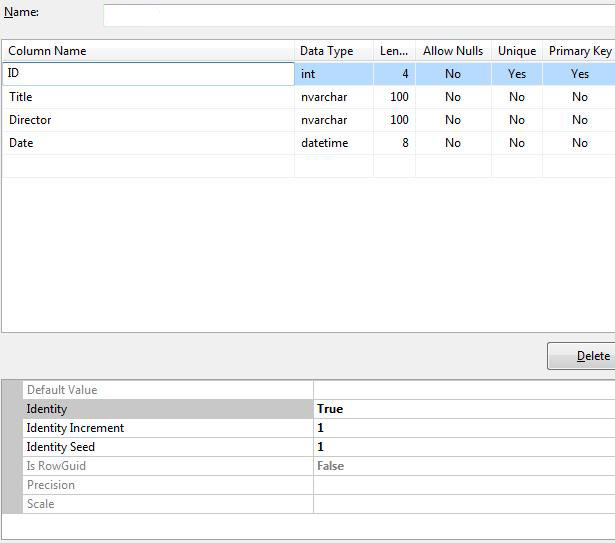
After you have created the table columns, save the table and name itMovieDBs。
Note:
We deliberately named the table "MovieDBs" (ending with an s). In the next chapter, you will see "MovieDB" used for the data model. This looks a bit strange, but this naming convention ensures that the controller connects to the database table, and you must use it this way.
Add Database Record
You can use Visual Web Developer to add some test records to the movie database.
Double-clickApp_Datain the folderMovies.sdffile.
Right-click in the Database Explorer windowMovieDBstable, and selectShow Table Data。
Add some records:
| ID | Title | Director | Date |
|---|---|---|---|
| 1 | Psycho | Alfred Hitchcock | 01.01.1960 |
| 2 | La Dolce Vita | Federico Fellini | 01.01.1960 |
Note:The ID column will automatically update, and you do not need to edit it.
Add Connection String
To yourWeb.configin the file<connectionStrings>element, add the following element:
connectionString="Data Source=|DataDirectory|Movies.sdf"
providerName="System.Data.SqlServerCe.4.0"/>
Other Extensions