The First Vibe Coding
There are many Vibe Coding platform tools. Some focus on no-code drag-and-drop, others emphasize engineering customization, and many are dedicated to business process orchestration and multi-agent collaborative development.
Different tool platforms have different use cases. This chapter introduces four tools: two online tools and two local tools:
| Tool Name | Tool Type | Core Features and Applicable Scenarios |
|---|---|---|
| Miaoda | No-code / Natural Language | Directly input text to generate applications; pure dictation-based generation, suitable for quick onboarding and experiencing Vibe Coding |
| MoneyCode | AI Executes Coding Tasks Online | Online application: directly input text, create tasks in the platform, let AI code, and use terminal, file management, and preview in the cloud development environment |
| Claude Code | Terminal Command Line | CLI interaction with extremely strong logical reasoning; a geek's weapon for cross-file refactoring |
| Copilot | Classic IDE Plugin | Intelligent code completion (Tab key), suitable for semi-automatic code fine-tuning |
| Trae | AI-Native Editor | Produced by ByteDance, AI editor |
| Qoder | AI-Native Editor | AI programming IDE produced by Alibaba |
0 Generate Application Code

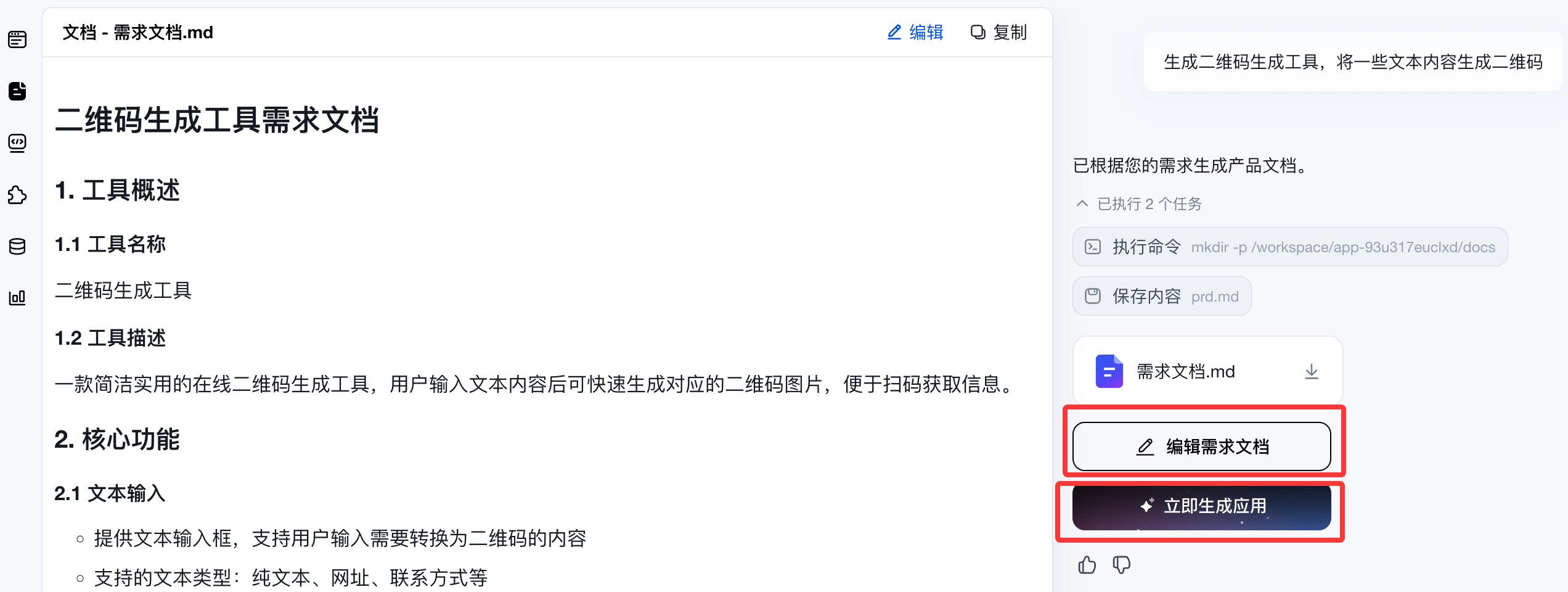
Next, Miaoda will start generating a requirements document, which is quite detailed. Then we can click the "Edit Document" or "Generate Application" button on the right, and it will directly start generating the application based on our requirements:
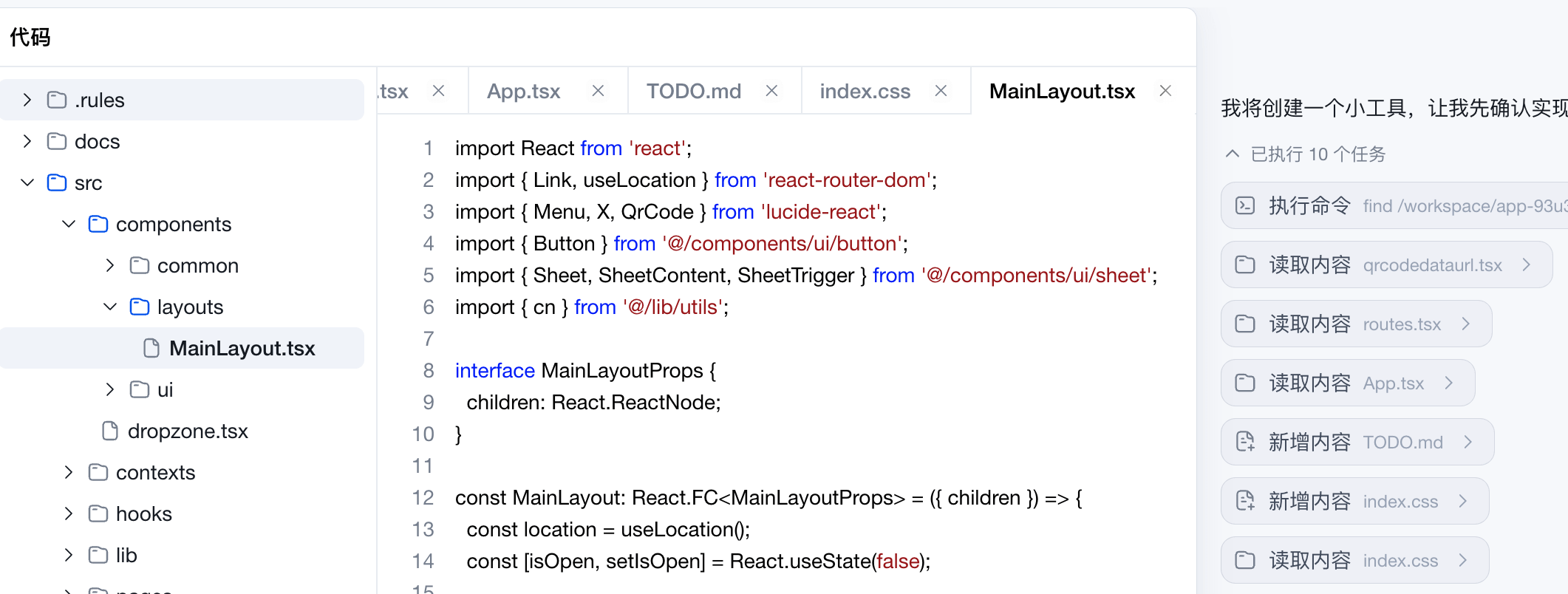
Next, it will start generating code. Throughout the entire process, you don't need to write a single line of code - it generates directly:
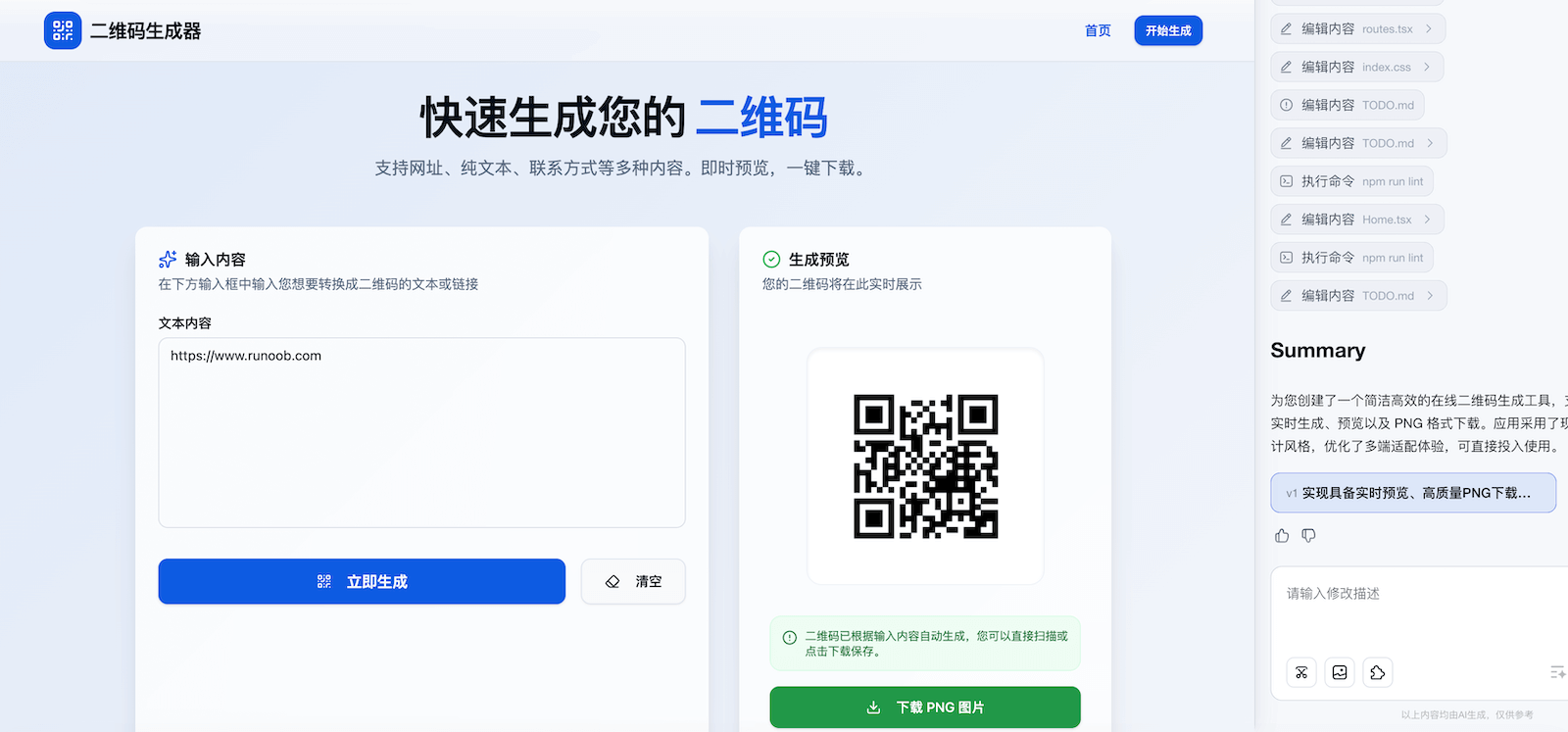
Take a look at the interface and usage effect - it's very easy to use:

If you still don't know what to look at, you can also go to the Application Plaza to see excellent products made by others:

Using MonkeyCode for Vibe Coding
MonkeyCode is not just an AI programming tool for Vibe Coding; it covers the entire process of Requirements → Design → Development → Review. It is free to use, requires no installation, and has a built-in cloud development environment.
Registration and Login
After entering the page, click the upper right cornerRegisterto create a new account. If you already have an account, you can log in and use it directly.

After successful registration, we enter the console and enter our requirements:
帮我写一个 JavaScript 小游戏:程序随机生成 1 到 100 的数字,让我猜,猜大了提示「太大了」,猜小了提示「太小了」,猜中了就结束。
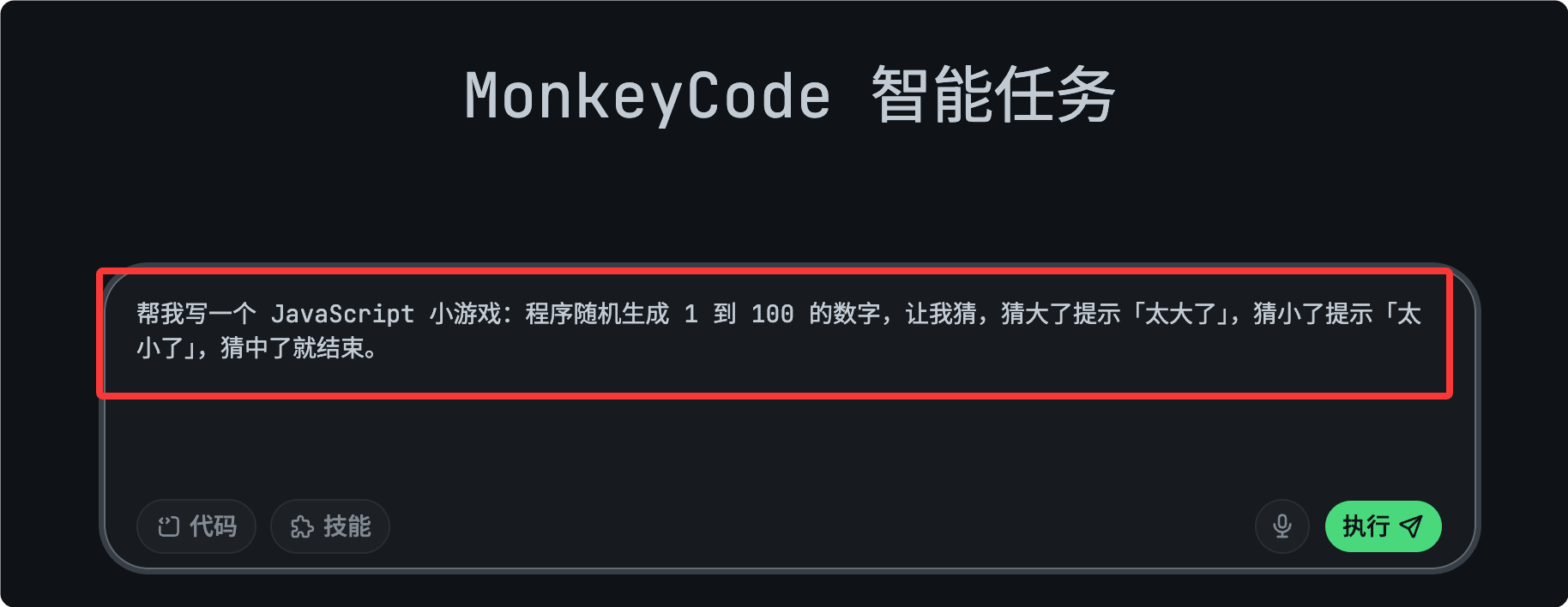
To start execution, we can choose a model:
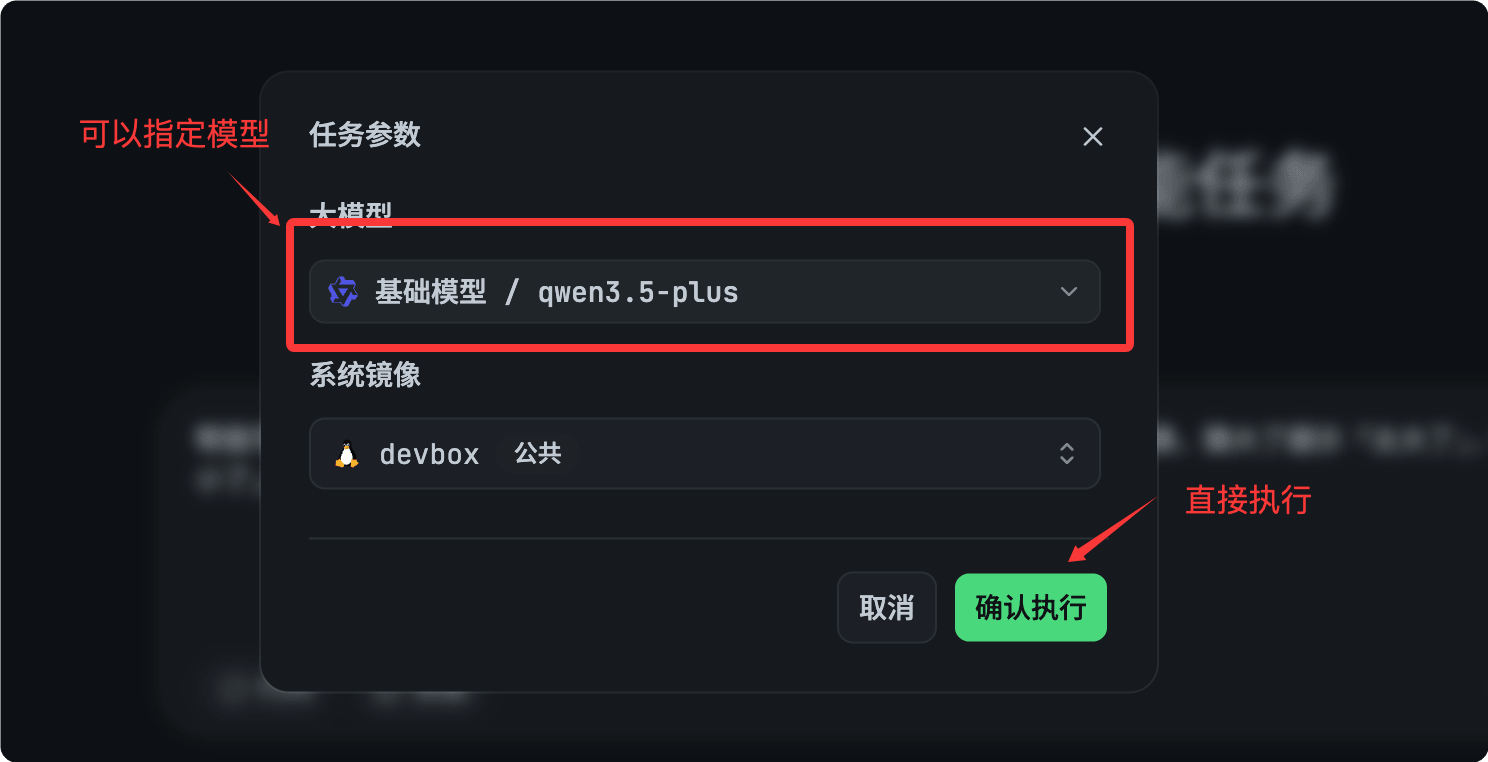

After the task is completed, you can view the generated preview URL:

View the result:

Vibe Coding in VS Code
With its rich AI plugins, VS Code has become the most mainstream editor for implementing Vibe Coding. You can use Copilot for lightweight development, or install a dedicated VIBE agent plugin for fully automatic multi-file development.
VS Code Tutorial:https://www.example.com/vscode/vscode-tutorial.html
The new version of VS Code (1.116+ latest stable release) natively includes Copilot, so you don't need to manually install plugins.
Open the editor and you can see the Copilot entry. You only need to log in with your GitHub account, no need to install plugins from the extension marketplace.
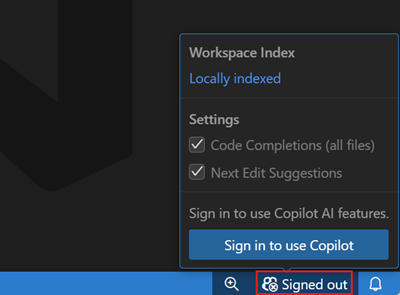

Older versions of VS Code (1.115 and earlier) must manually install two extensions:
- GitHub Copilot: Inline code auto-completion
- GitHub Copilot Chat: Conversational AI coding assistant
Next, let's create a directory folder:
mkdir example-vibe-coding
Enter the directory:
cd example-vibe-coding
Open with VS Code:
code .
Add a file in the editorvibe-coding-example.html :

In the left file menu, we select the created file, click the panel toggle button in the upper right corner to switch out the AI tool, then enter the prompt in the dialog box:
帮我写一个 JavaScript 小游戏:程序随机生成 1 到 100 的数字,让我猜,猜大了提示「太大了」,猜小了提示「太小了」,猜中了就结束。
The AI will start working. Take a look at the final result:

Throughout the entire process, we don't need to participate in coding. The HTML code, CSS style code, and JavaScript code are all automatically generated for us.
CLI Programming Tools
Below, usingClaude Code (Terminal CLI)as an example, we demonstrate a typical Vibe Coding workflow.
Refer to the complete Claude Code tutorial:https://www.example.com/claude-code/claude-code-tutorial.html
First Project: Hello, Vibe World!
Objective:In 5 minutes, use pure natural language to have Claude Code create a personal business card webpage for you.
Step 1: Create a project folder
mkdir my-card && cd my-card
claude
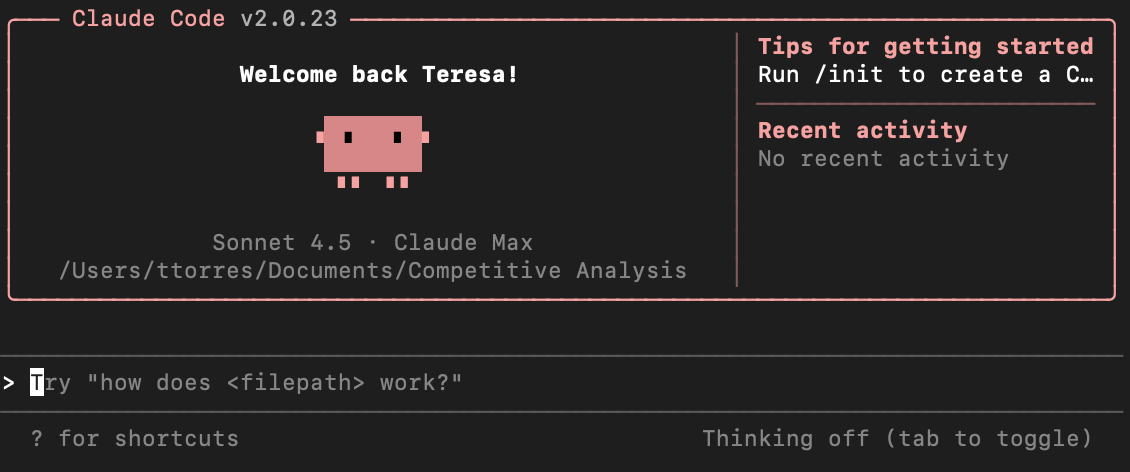
Step 2: Describe what you want to Claude
In the Claude Code interactive interface, enter:
帮我创建一个个人名片网页,要求:
- 显示我的名字(张三)和职业(前端开发者)
- 有一个简短的个人简介区域
- 列出3个技能标签(React、Python、设计)
- 设计风格:简洁现代,深色背景,有轻微的渐变效果
- 单个 HTML 文件,不需要外部依赖
Step 3: Observe Claude working
You will see Claude Code automatically:
分析你的需求
创建 index.html 文件
写入完整的 HTML、CSS 和少量 JavaScript
Step 4: View the result
open index.html   # macOS
# 或
xdg-open index.html   # Linux
Step 5: Iterate and modify
If you're not satisfied, continue the conversation:
把背景色改成深蓝色渐变,字体换成更现代的 sans-serif,
技能标签加上悬停动画效果
Claude Code will directly modify the files without you needing to touch any code.
Other Extensions