Python3 Environment Setup
Python3 has excellent cross-platform compatibility and can run stably on the three major operating systems: Windows, Linux, and Mac OS X. It also supports many other platforms and environments, including:
- Unix series (Solaris, Linux, FreeBSD, AIX, HP/UX, SunOS, IRIX, etc.)
- Traditional Windows systems (9x/NT/2000)
- Classic Macintosh systems (Intel, PPC, 68K architectures)
- Other specialized/niche platforms (OS/2, multiple versions of DOS, PalmOS, Nokia mobile phones, Windows CE, Acorn/RISC OS, BeOS, Amiga, VMS/OpenVMS, QNX, VxWorks, Psion)
In addition, Python can also be ported to run in Java and .NET virtual machine environments.
Python3 Download
The latest Python3 source code, binary documentation, news, and other information can be viewed on Python's official website.
Python official website:https://www.python.org/
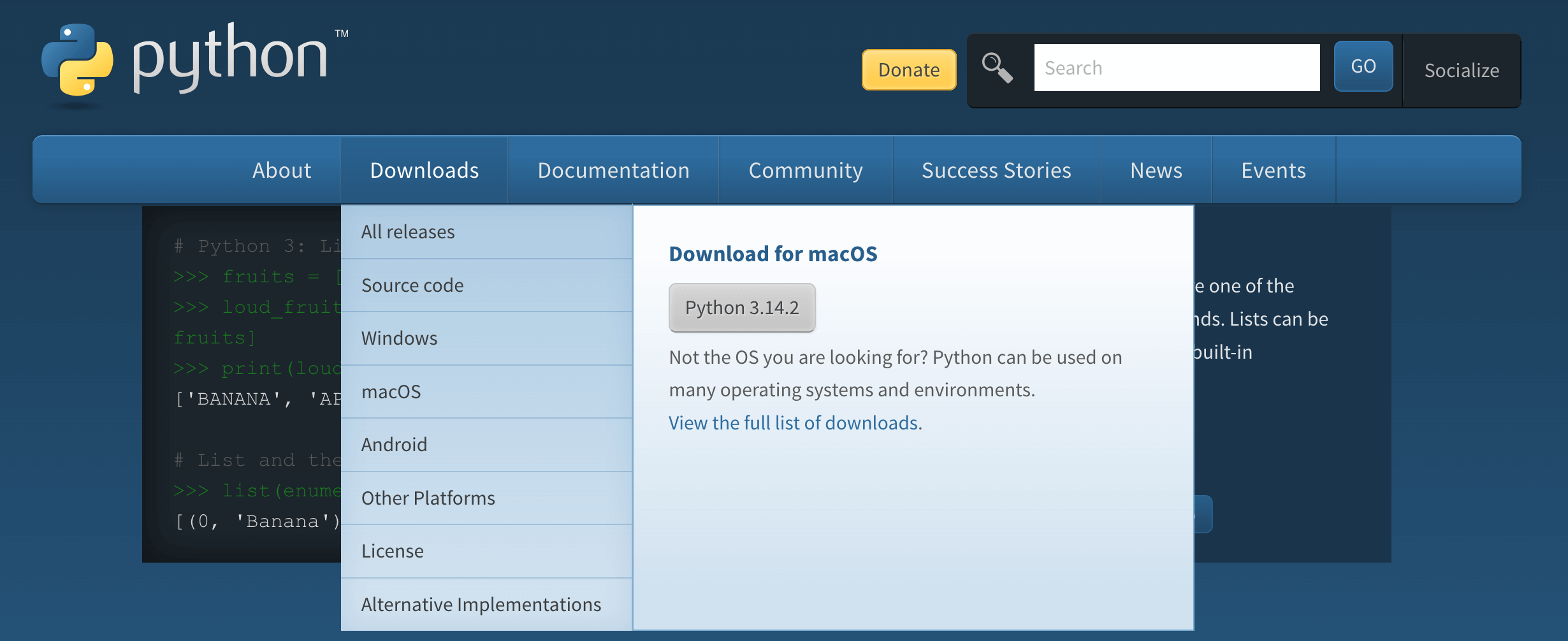
Python3 provides complete Chinese documentation:https://docs.python.org/zh-cn/3/
Python Installation
Python has excellent cross-platform compatibility and has been ported to multiple operating systems, running stably on mainstream platforms such as Windows, macOS, and Linux.
We can prioritize downloading the binary installation package for the corresponding platform and quickly complete the installation through a visual wizard or command line. This is the most convenient and efficient installation method.
If there is no corresponding binary installation package for the operating system, you can obtain the Python source code and manually compile and install it using a C compiler.
Compared to binary package installation, source code compilation provides richer feature customization options, making Python environment configuration more flexible.
The following are the download addresses for Python installation packages corresponding to each platform:
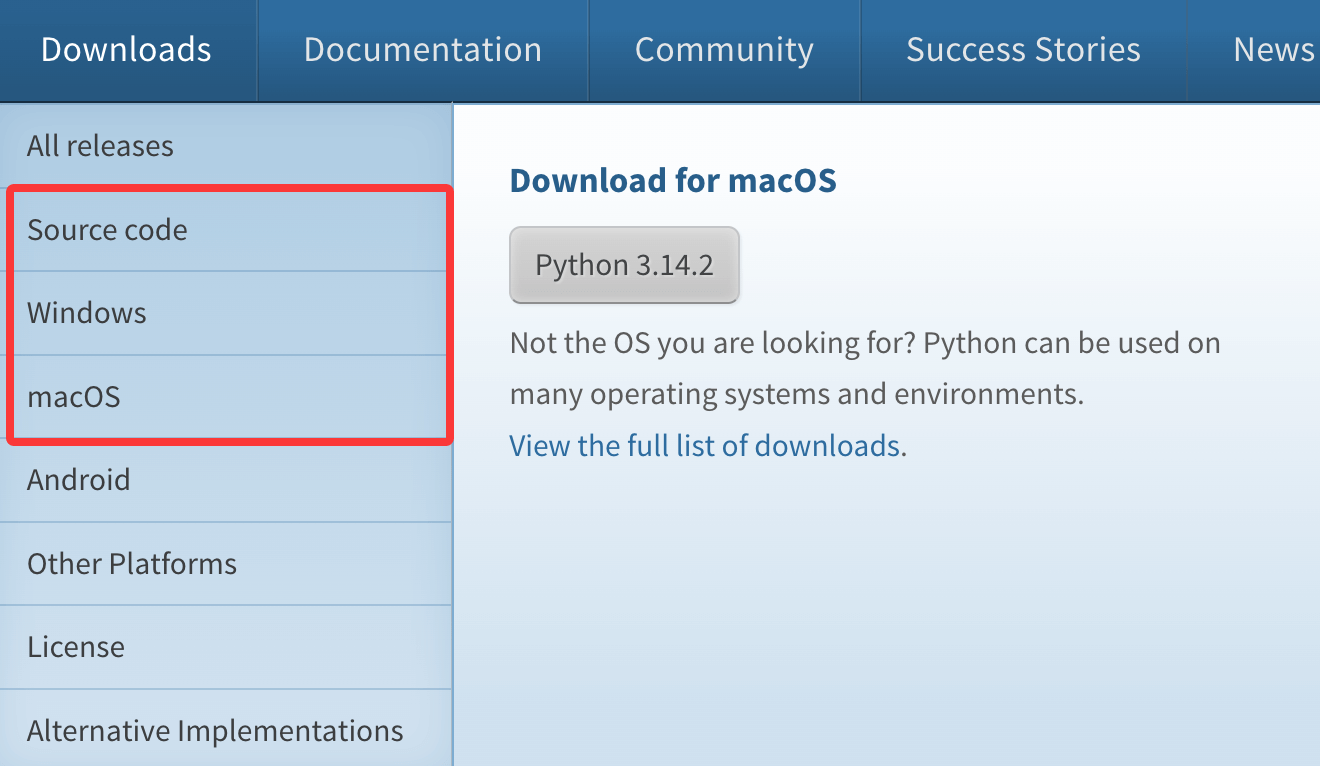
Source CodeCan be used for installation on Linux.
The following are methods for installing Python3 on different platforms.
Install Python on Windows Platform:
The following are the simple steps to install Python on the Windows platform.
Open a web browser and visithttps://www.python.org/downloads/windows/ :
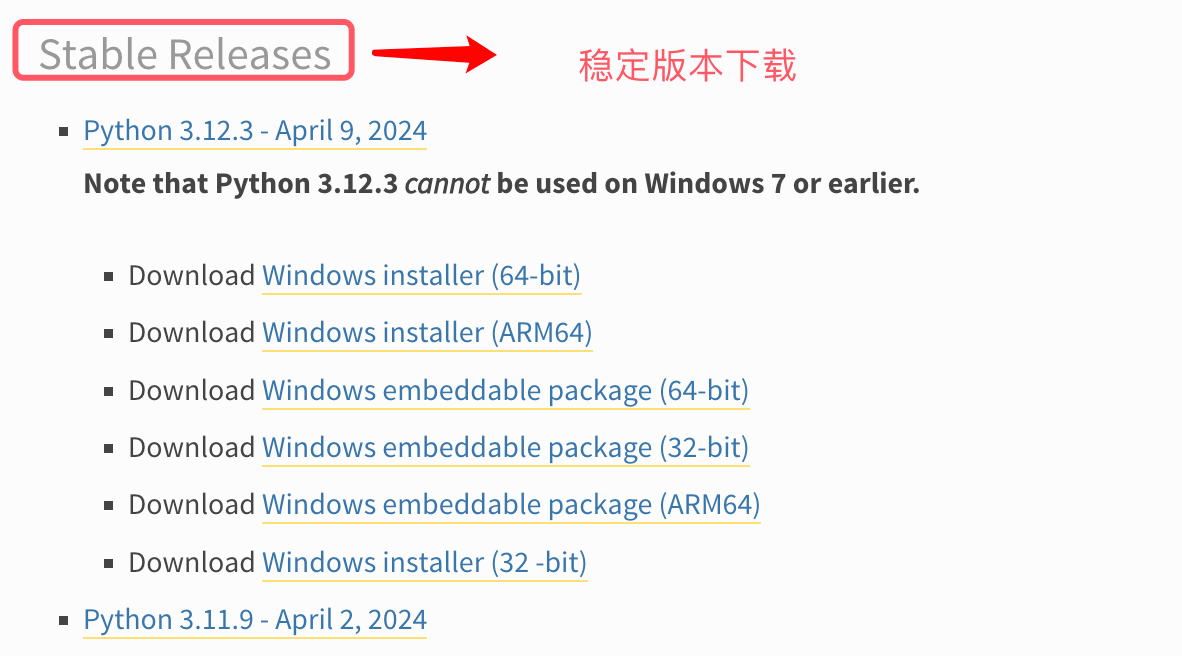
These links provide different types of Python installation files, suitable for different types of Windows systems and usage scenarios:
-
Download Windows installer (64-bit): Installer for 64-bit Windows systems.
-
Download Windows installer (ARM64): Installer for Windows devices with ARM64 architecture.
-
Download Windows embeddable package (64-bit): Embedded package for 64-bit Windows systems, can be used to embed into applications.
-
Download Windows embeddable package (32-bit): Embedded package for 32-bit Windows systems, also can be used to embed into applications.
-
Download Windows embeddable package (ARM64): Embedded package for Windows devices with ARM64 architecture.
-
Download Windows installer (32-bit): Installer for 32-bit Windows systems.
Remember to checkAdd Python 3.6 to PATH。
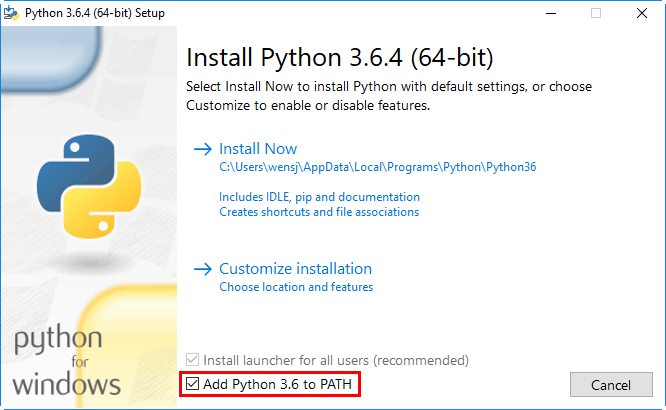
Note: If you do not checkAdd Python3.6 to PATH", it will cause the command line to fail to recognizepython/python3the command, and you need to manually configure environment variables.
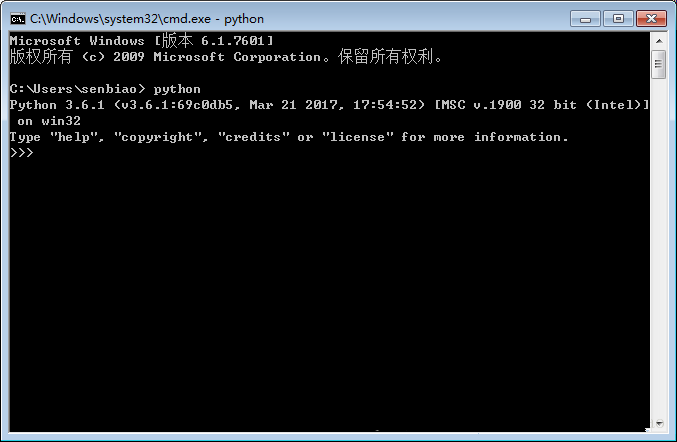
pressWin+Rkey, type cmd to open the command prompt, and enter python:
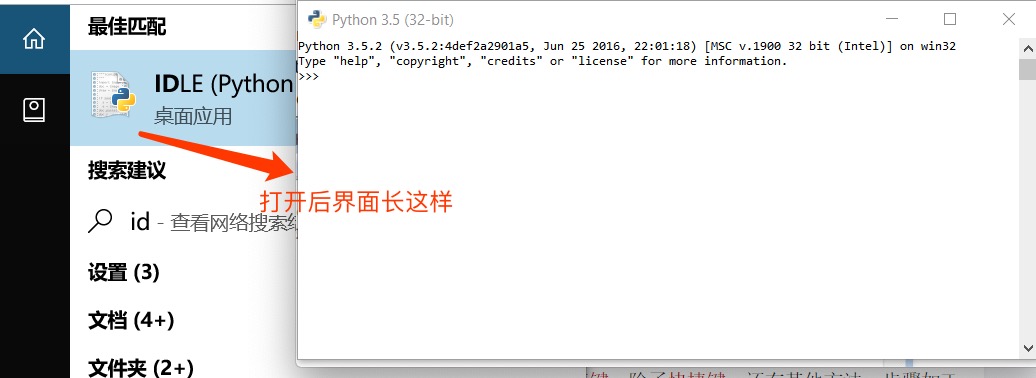
You can also search in the Start menu.IDLE:
Install Python3 on Unix & Linux Platforms
Most Linux distributions come with Python3. If it is not installed or needs an upgrade, you can install it via the package manager.
Source Code Installation
The following are the simple steps to install Python on Unix & Linux platforms:
- Open a web browser and visithttps://www.python.org/downloads/source/
- Choose the source code tarball suitable for Unix/Linux.
- Download and extract the tarballPython-3.x.x.tgz,3.x.xis the corresponding version number you downloaded.
- If you need to customize some options, modifyModules/Setup
with Python3.6.1Take version as an example:
# tar -zxvf Python-3.6.1.tgz
# cd Python-3.6.1
# ./configure
# make && make install
Ubuntu/Debian
Open a terminal and execute the following commands:
# 更新软件源
sudo apt update
# 安装Python3及pip3(Python包管理工具)
sudo apt install python3 python3-pip -y
CentOS/RHEL
Open a terminal and execute the following commands:
# CentOS 7
sudo yum install epel-release -y
sudo yum install python3 python3-pip -y

# CentOS 8/RHEL 8
sudo dnf install python3 python3-pip -y
Check whether Python3 is working properly:
# python3 -V
Python 3.6.1
Install Python on Mac Platform:
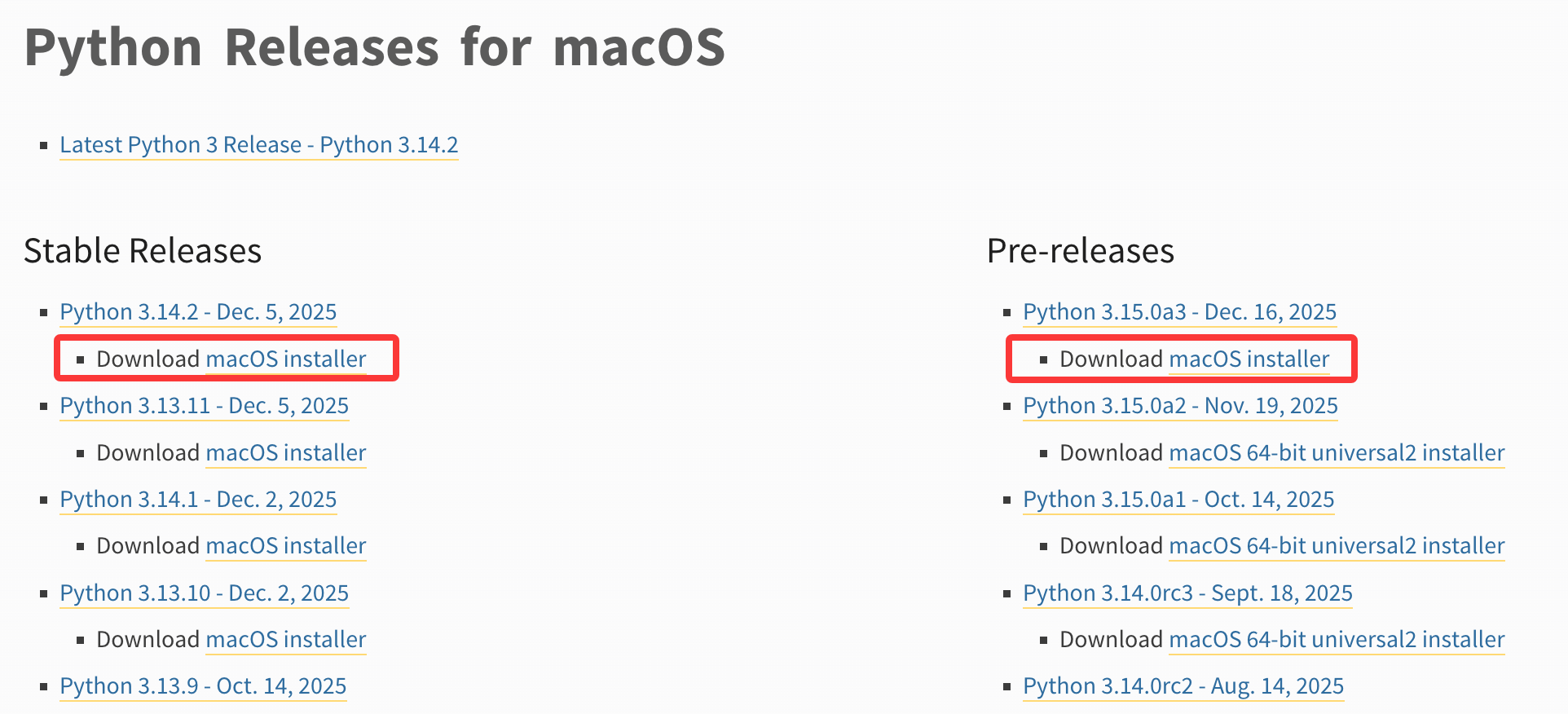
Mac systems come with a Python environment. You can visit the linkhttps://www.python.org/downloads/mac-osx/to download and install the latest version.
You can also install it by referring to the source code installation method.
Verify Whether the Python3 Environment Is Installed Successfully
To verify the Python3 version, open the command prompt (Windows) or terminal (macOS/Linux) and execute the following command:
# 通用命令(推荐,所有系统兼容)
python3 --version
# 补充:Windows系统若已配置PATH,也可执行
python --version
If output similar to Python 3.11.4 appears, Python3 was installed successfully.
Verify pip3 (Python package management tool). pip3 is the default package management tool for Python3, used to install third-party libraries. Verification command:
# 通用命令
pip3 --version
# Windows补充命令
pip --version
If output similar to pip 23.1.2 from xxx (python 3.11) appears, pip3 is available.
Environment Variable Configuration
If the above executionpythoncommand executes successfully, the environment is already configured and no additional configuration is needed. This section can be ignored.
The directory where program executable files are stored is often not in the system's default search path. The system's PATH environment variable (case-sensitive on Unix, case-insensitive on Windows) is used to store the search paths for executable files.
On Mac OS, if you need to reference Python in a non-default directory, you must manually add the Python installation directory to PATH.
Set Environment Variables on Unix/Linux
Note: /usr/local/bin/pythonis the Python installation directory; replace it with your actual path.
bash shell(Linux):
export PATH="$PATH:/usr/local/bin/python"
csh shell:
setenv PATH "$PATH:/usr/local/bin/python"
sh/ksh shell:
PATH="$PATH:/usr/local/bin/python"
Set Environment Variables on Windows
If you did not checkAdd Python.exe to PATH, it will cause the command line to fail to recognizepython/python3command, you need to manually configure environment variables:
- Find the installation path of Python3 (e.g., D:\Python311, C:\Program Files\Python311), and also find the Scripts folder under it (e.g., D:\Python311\Scripts, the directory where pip3 is located).
- Right-click 'This PC' → 'Properties' → 'Advanced System Settings' → 'Environment Variables'.
- In 'User Variables' or 'System Variables', find the Path variable and double-click to edit.
- Click 'New', add the Python3 installation root path and the Scripts folder path respectively, then click 'OK' to save all configurations.
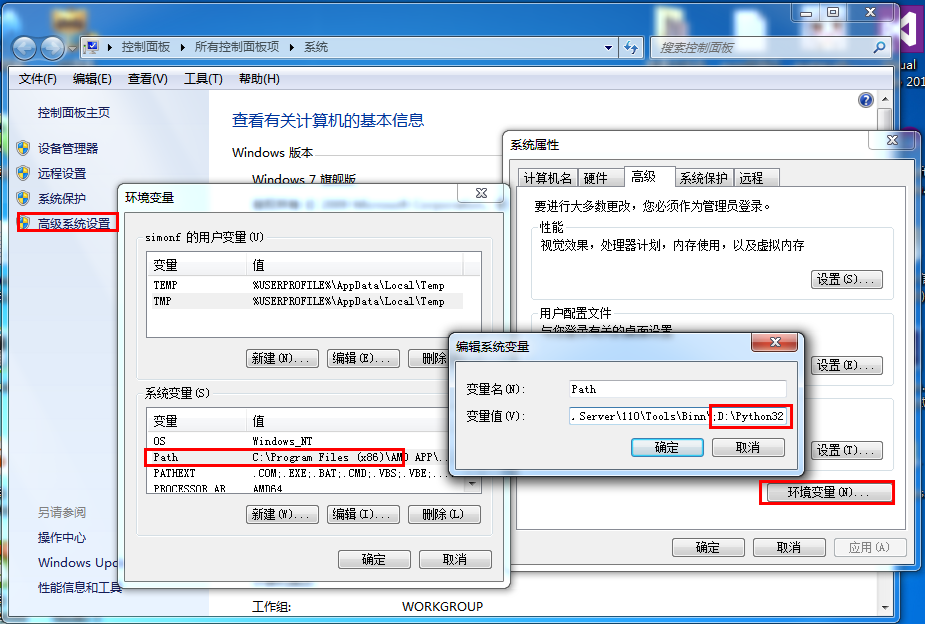
For more detailed configuration, refer to:https://www.example.com/w3cnote/add-python-to-path-on-windows-11.html
Close the original command prompt, reopen it, and execute the verification command for it to take effect.
The following are descriptions of several environment variables applied to Python:
| Environment Variable Name | Core Function |
|---|---|
PATH |
Search path used by the system to find the Python interpreter and executable files. |
PYTHONPATH |
Search path for Python to find third-party libraries and custom modules. |
PYTHONHOME |
Specifies the Python installation root directory, telling the interpreter where the core library/standard library is located. |
PYTHONSTARTUP |
Specifies the path of the script file to be automatically executed when the Python interactive interpreter starts. |
PYTHONCASEOK |
Windows-specific; makes Python ignore case when importing modules. |
PYTHONDONTWRITEBYTECODE |
Prohibit Python from generating at runtime.pyc / .pyobytecode cache files. |
Run Python
There are three ways to run Python:
1. Interactive Interpreter:
You can enter Python through a command-line window and start writing Python code in the interactive interpreter.
You can do Python coding work on Unix, DOS, or any other system that provides a command line or shell.
python
The following are Python command-line arguments:
| Option | Description |
|---|---|
| -d | Enable debug mode, display detailed debugging information during code parsing and interpreter runtime |
| -O | Generate optimized code, generate .pyo optimized bytecode file when compiling script (ignore assertion statements and other debug-related code) |
| -OO | Deeply optimize code, generate .pyo file and remove all docstrings in code, further reduce file size |
| -S | When Python starts, do not automatically import the site module, i.e., do not load related configuration for finding Python module paths (such as site-packages directory) |
| -V / --version | Output the currently installed Python version number and exit the interpreter directly |
| -vv | Output detailed version information (including compilation environment, dependency libraries and other additional information) |
| -X | After Python 1.6, usage based on built-in exceptions (only for string types) is deprecated; this parameter is used for compatibility with old related features |
| -h / --help | View complete help for all Python command-line arguments and exit the interpreter directly |
| -c cmd | Execute the specified Python code snippet directly on the command line (cmd is string-format code), no need to write a .py script file |
| -m module | Run the specified Python module in the form of a module (such as pip, http.server, etc.), automatically find the module path and execute |
| -i | After executing the specified Python script, automatically enter the interactive interpreter environment for subsequent debugging and supplementary code execution |
| -b | When encountering incompatible comparison operations between bytes and str, issue a warning message |
| -bb | When encountering incompatible comparison operations between bytes and str, directly raise an error and terminate the program |
| -u | Disable buffering of standard output (stdout) and standard error (stderr), enabling real-time printing of logs or output content |
| file | Specify the Python script file path to execute (absolute or relative path); the interpreter will load and run the code in the file |
| -q | When entering the interactive interpreter, hide the welcome message and directly display the command prompt |
2. Command-Line Scripts
You can execute Python scripts on the command line by introducing the interpreter in your application, as follows:
python script.py
Note:When executing the script, check whether the script has executable permissions.
3. Integrated Development Environment (IDE): PyCharm
PyCharm is a Python IDE created by JetBrains, supporting macOS, Windows, and Linux systems.
PyCharm features: debugging, syntax highlighting, Project management, code navigation, intelligent hints, auto-completion, unit testing, version control...
PyCharm download address:https://www.jetbrains.com/pycharm/download/
PyCharm installation address:https://www.example.com/pycharm/pycharm-install.html
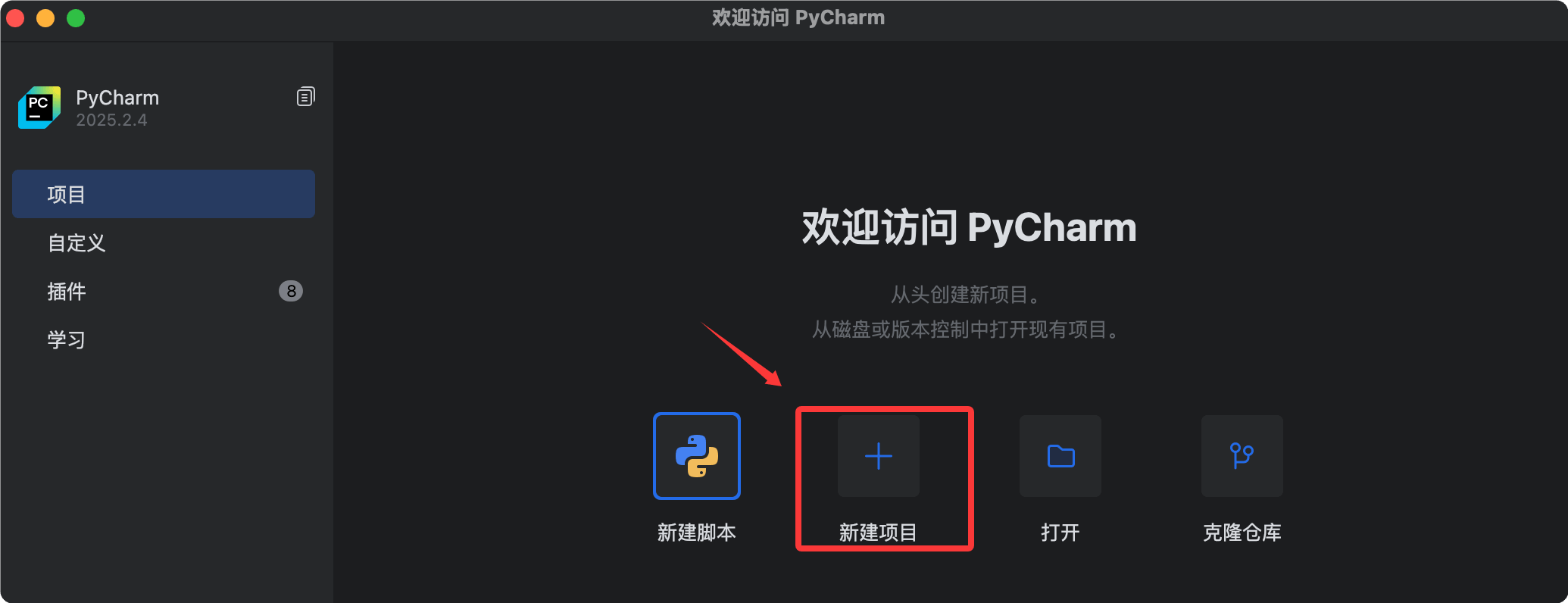
PyCharm interface:
More Essential Tools
Anaconda Integrated Environment
Afor data science and machine learningPython integrated distribution, with built-in:
- Python interpreter
- Common data science libraries (NumPy / Pandas / Matplotlib, etc.)
- Environment and package management tools
conda
Compared topip,conda, more suitable for multi-environment switchingand more stable in data science scenarios.
Installation and usage:Anaconda tutorial
uvPython Package and Environment Management Tools
uvA high-speed Python toolchain developed by Astral, built on Rust.
- High performance: 10~100 times faster than pip
- Dependency management
- Virtual environment management
- Python version management
Can replacepip、virtualenv、pip-toolsan all-in-one solution for tools such as
Installation and usage:uv tutorial
Jupyter NotebookInteractive Computing Tools
AWeb-based interactive programming environmentsuitable for learning, experimentation, and data analysis.
- Run code and view results in real time
- Display data visualization charts
- Write Markdown documentation
- Support mathematical formulas (LaTeX)
Notebook files are in JSON format, composed of multiple Cells, and can mix code and document content.
Installation and usage:Jupyter Notebook tutorial