When you see'python' is not recognized as an internal or external commandthis error, it means Windows cannot find the Python executable in the PATH environment variable.
By adding the correct directory to PATH, you can run Python and pip in any terminal without full paths.
Before you start, make sure you have the following:
| Prerequisites | Description |
|---|---|
| Python installed | from python.org or Microsoft Store on Windows 11 |
| Administrator privileges | Required for modifying system-level variables; user-level modifications do not require administrator privileges |
| Restart terminal | Any PATH change requires reopening a new terminal session to take effect |
For detailed guidance on PATH, installer options, and Python Launcher, see the "Using Python on Windows" chapter in the official Python documentation (docs.python.org).
Method 1: Use the official installer to add PATH (recommended)
The installer from python.org can set PATH for you directly, avoiding manual entry errors, and it also adds the Scripts folder needed for pip.
The same installer can also be used with theModifyoption to add PATH to an existing installation without reinstalling.
Steps
| Step | Action |
|---|---|
| 1 | Download and run the installer from python.org |
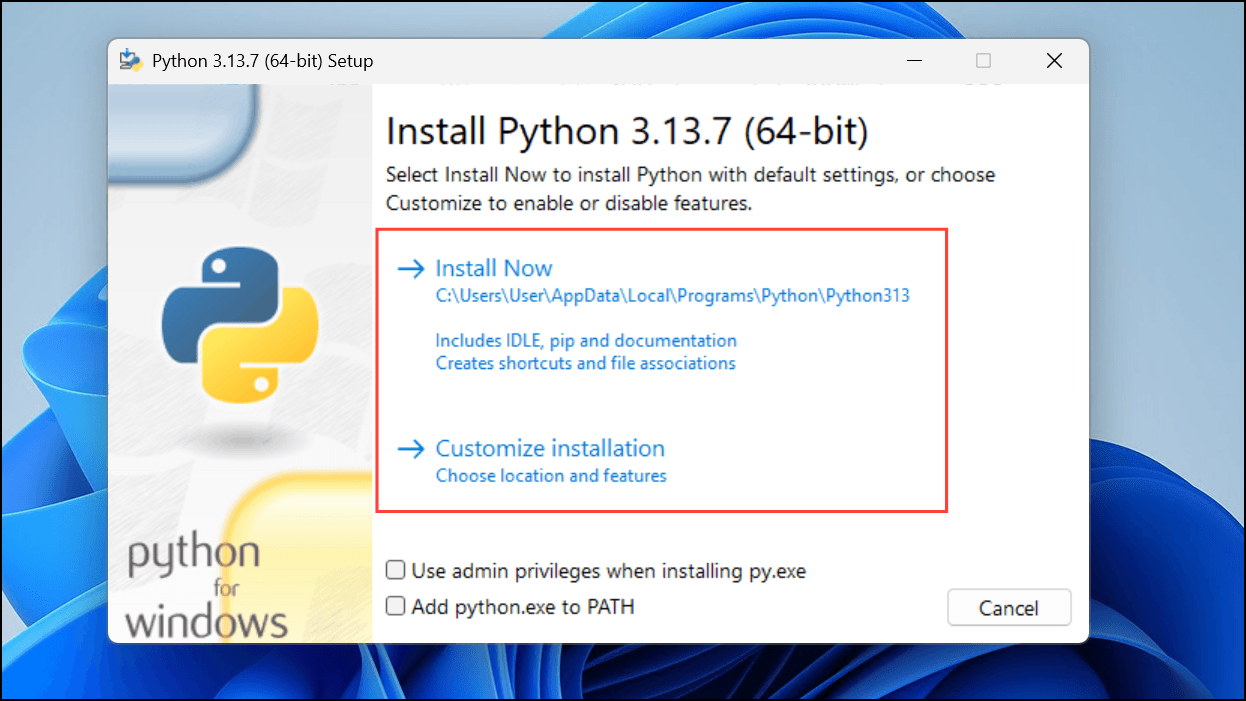
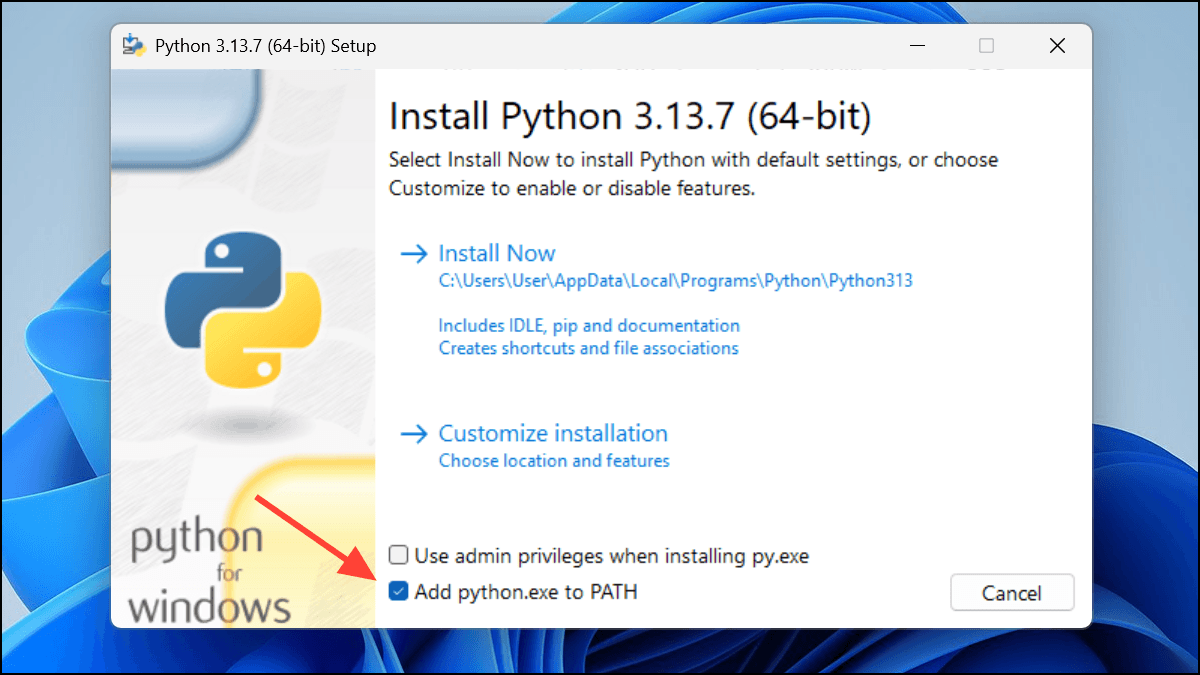
| 2 | On the first screen,check "Add python.exe to PATH"option |
| 3 | For a fresh installation, click "Install Now"; if already installed, choose "Modify" and enable this option |
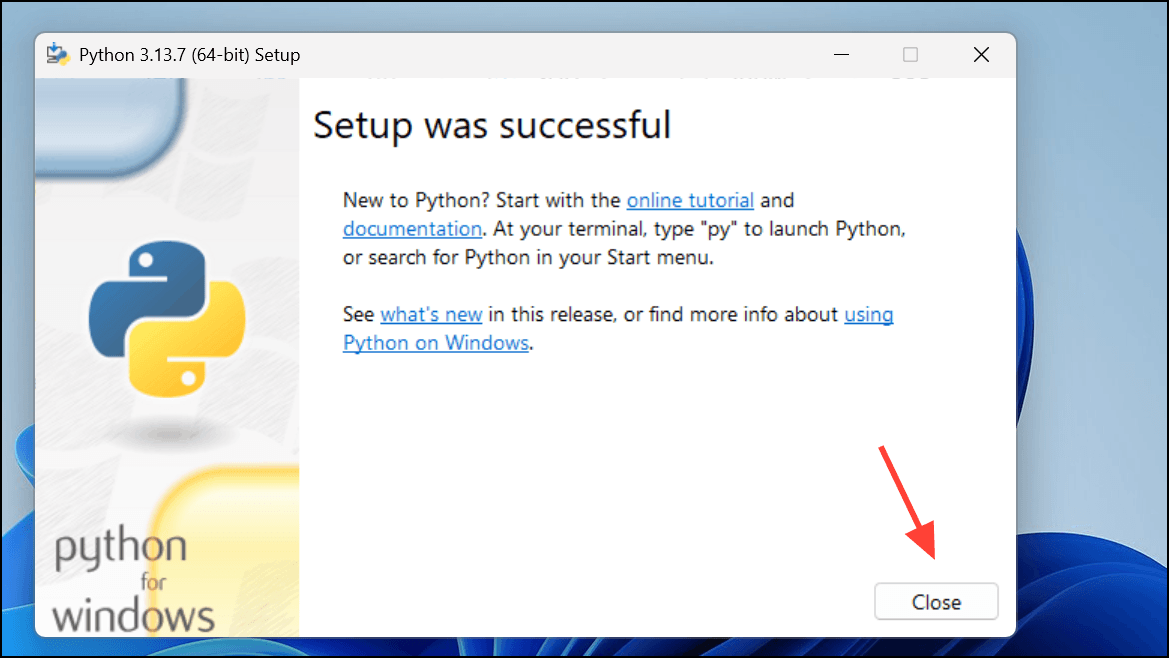
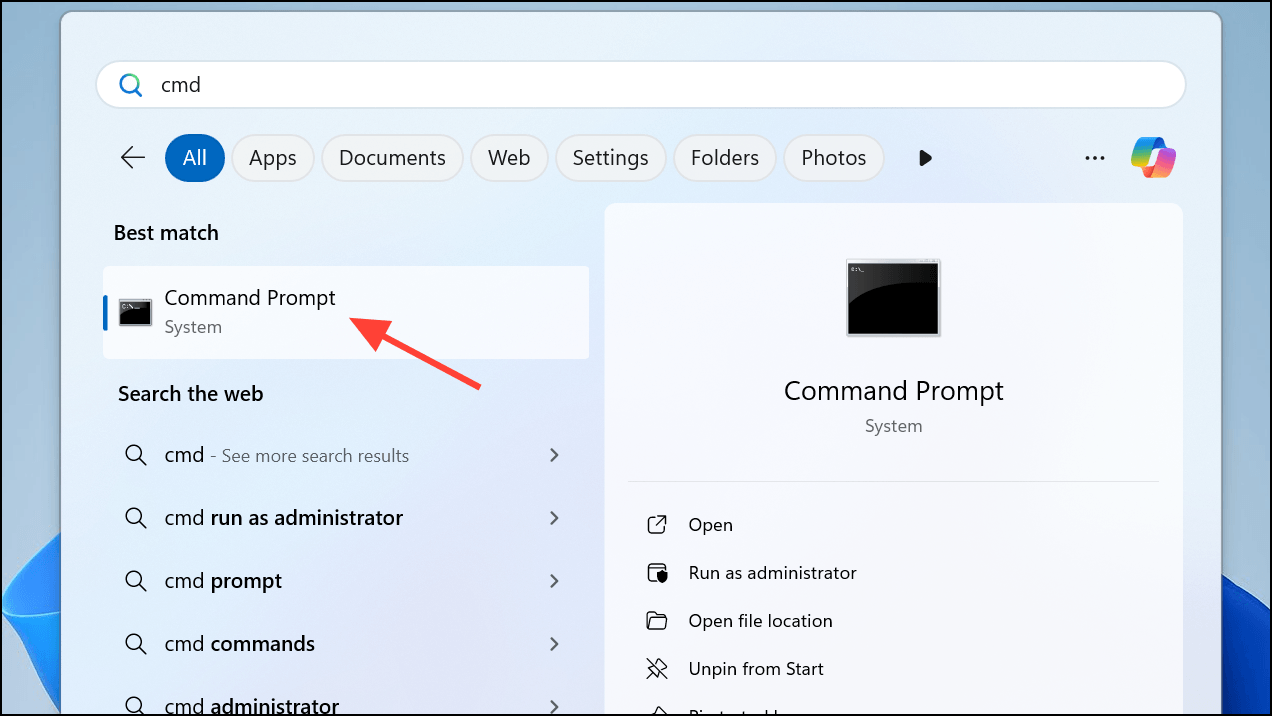
| 4 | After installation is complete,close and reopenCommand Prompt or PowerShell |
| 5 | Use the following command to verify the installation |
Installation screen — be sure to check the PATH option:
If already installed, choose the Modify option:
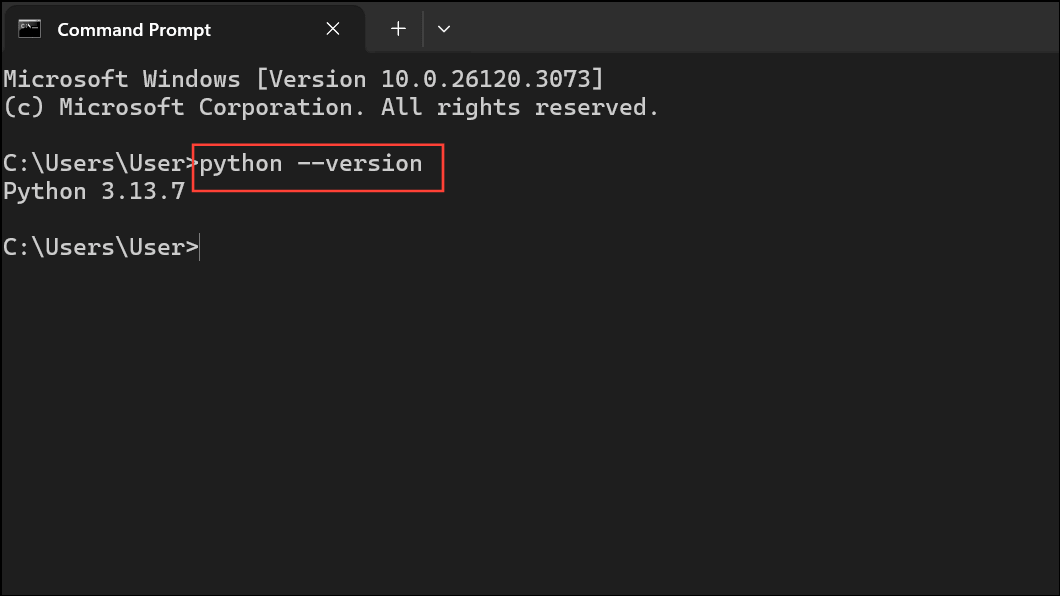
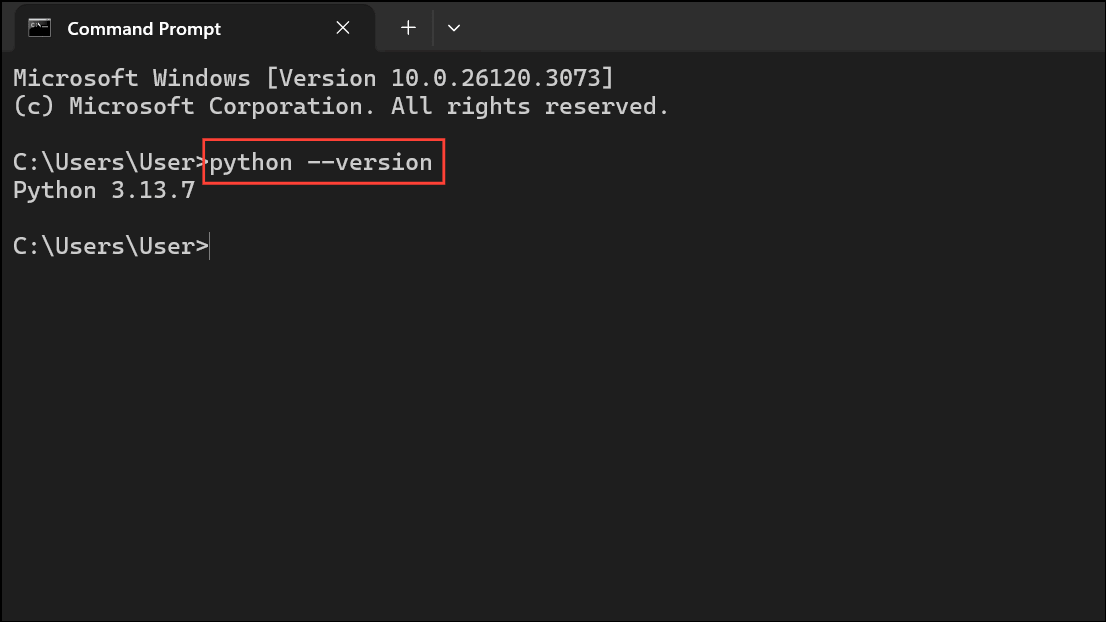
Verify whether the installation succeeded:
python --version
pip --version
where python
where pip
If you already installed Python but did not check the PATH option at the time, simply rerun the installer, chooseModify, then check "Add python.exe to PATH", and reopen the terminal after the installation finishes.
Method 2: Manually add Python to PATH (user level)
If you did not enable the PATH option when installing Python, or you need to adjust only the current user's environment variables without affecting system variables, you can edit PATH manually.
Steps
| Step | Action | Description |
|---|---|---|
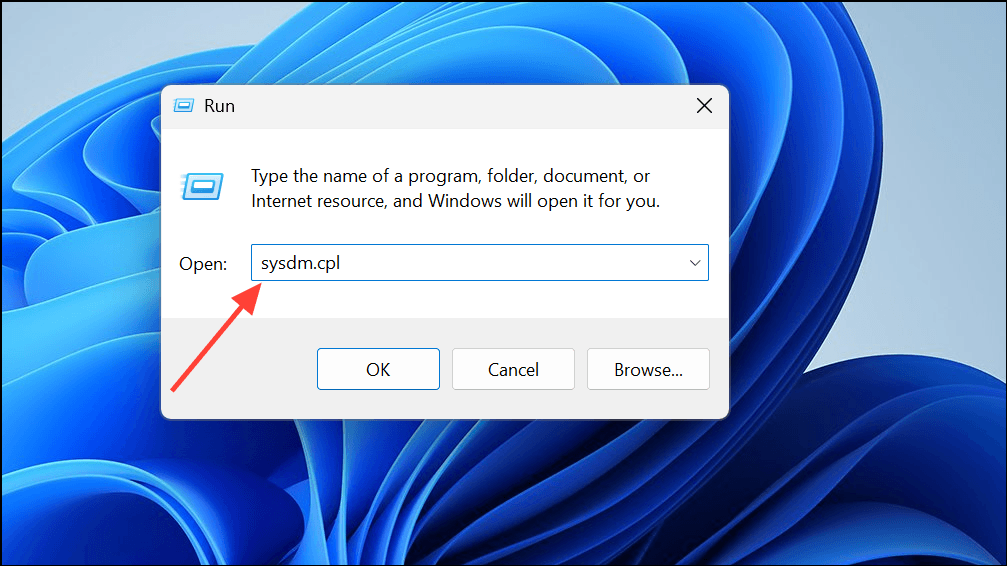
| 1 | pressWin+R, entersysdm.cpl, press Enter |
Open the System Properties window |
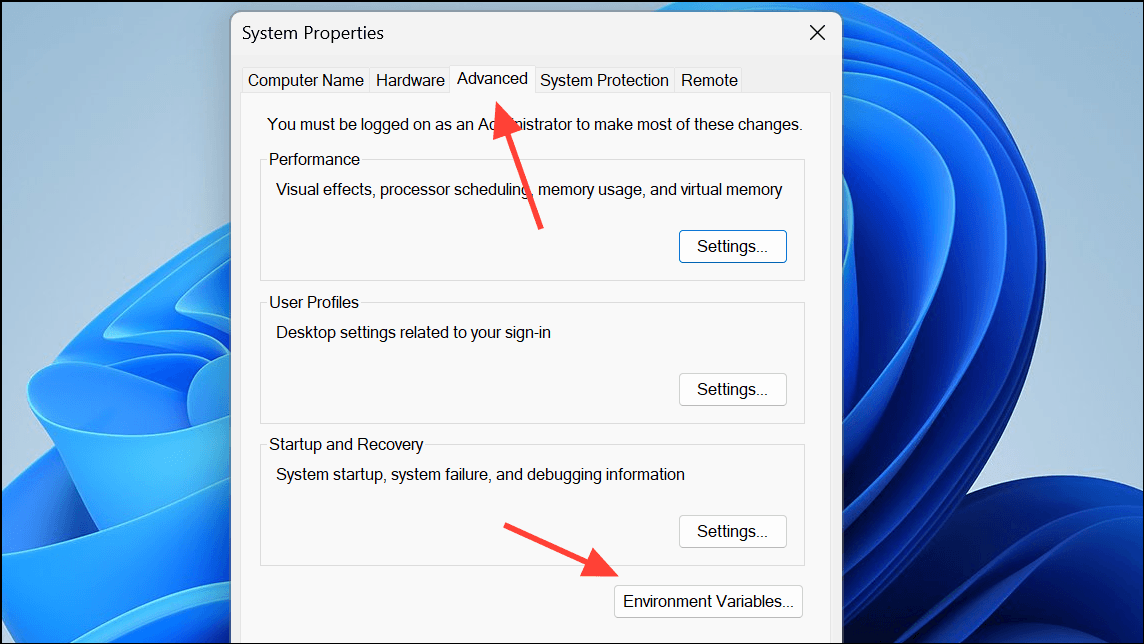
| 2 | Switch to the "Advanced" tab and click "Environment Variables" | Enter the environment variable editing interface |
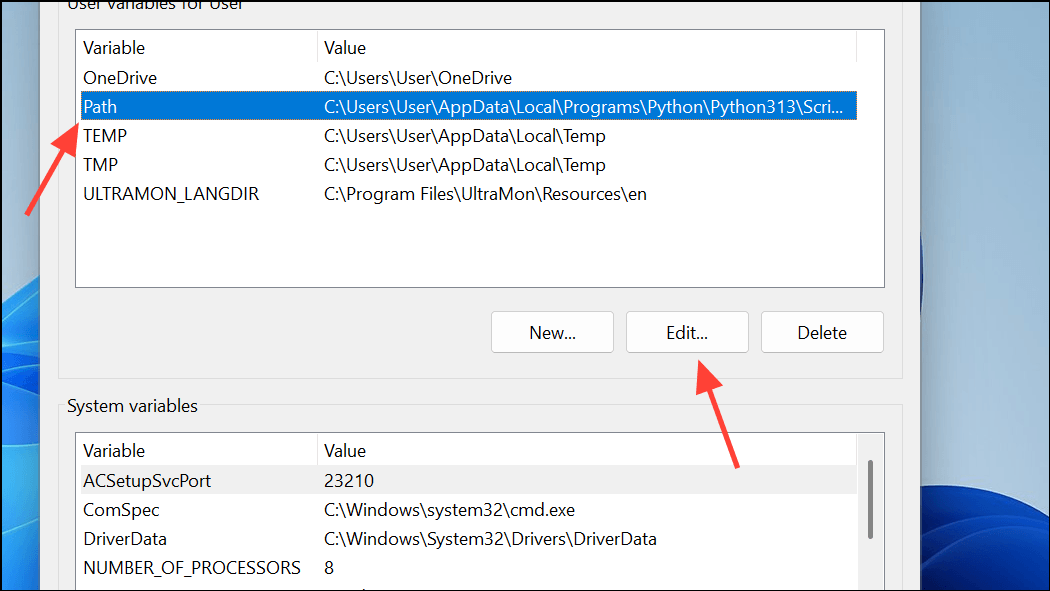
| 3 | In the "User variables" area, selectPath, click "Edit" |
Modify only the current user's PATH, without affecting the system |
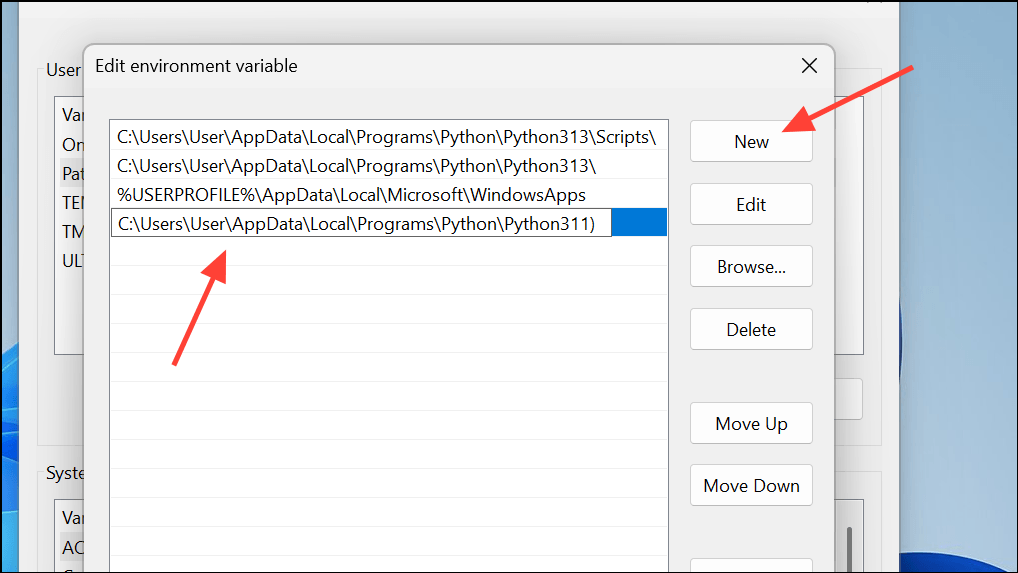
| 4 | Click "New" and add the Python installation directory | For exampleC:\Users\用户名\AppData\Local\Programs\Python\Python311 |
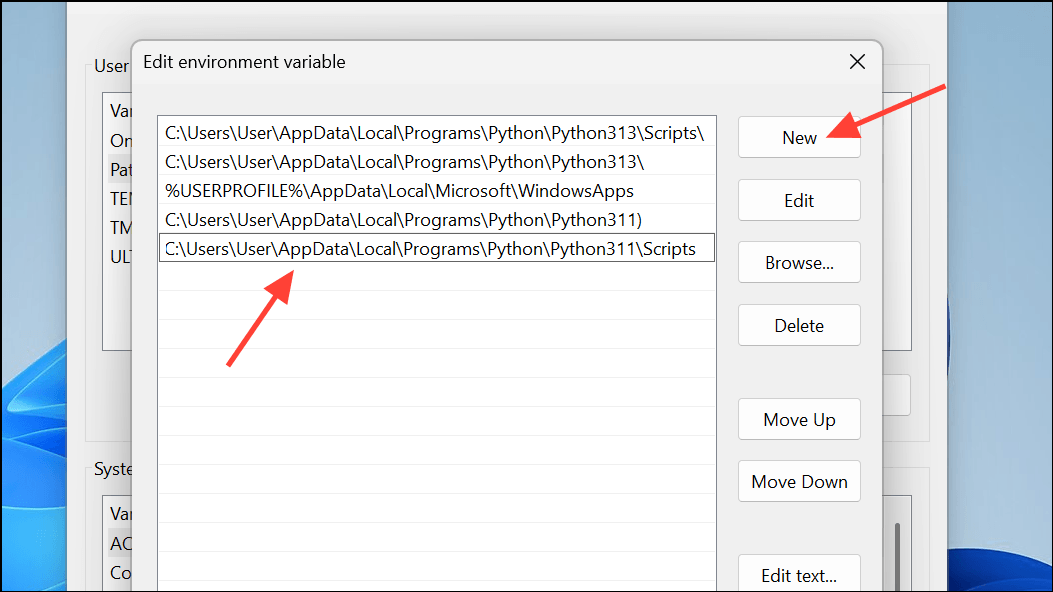
| 5 | Click "New" again and add theScriptssubdirectory |
Add at the end of the same path from the previous step\Scripts |
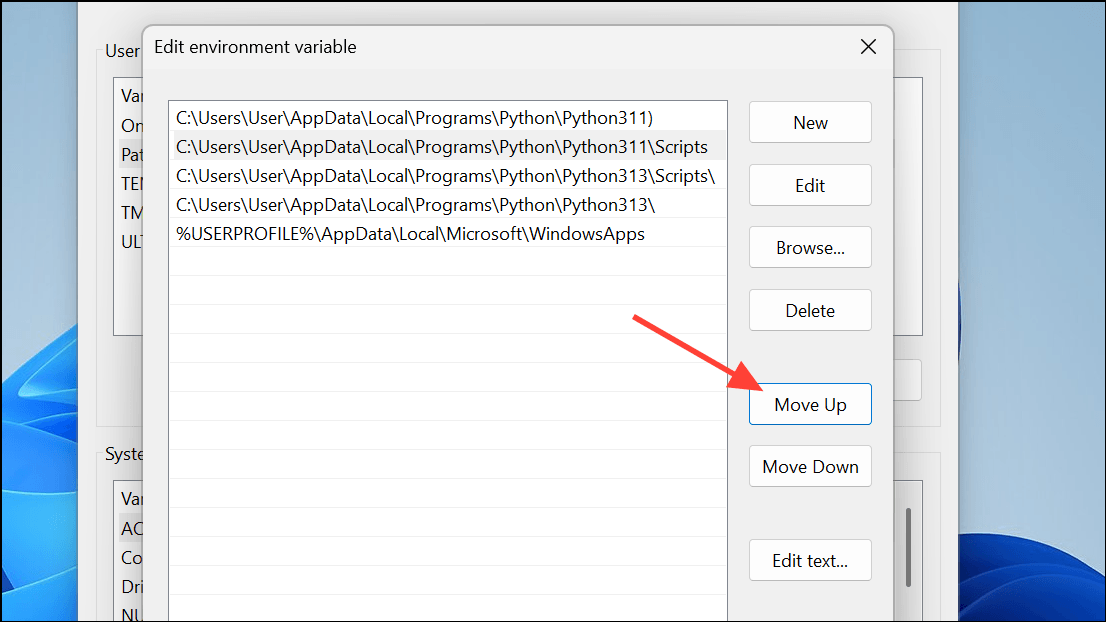
| 6 | Use "Move Up" to move the new entries to the top of the list | Ensure they are found by the system first |
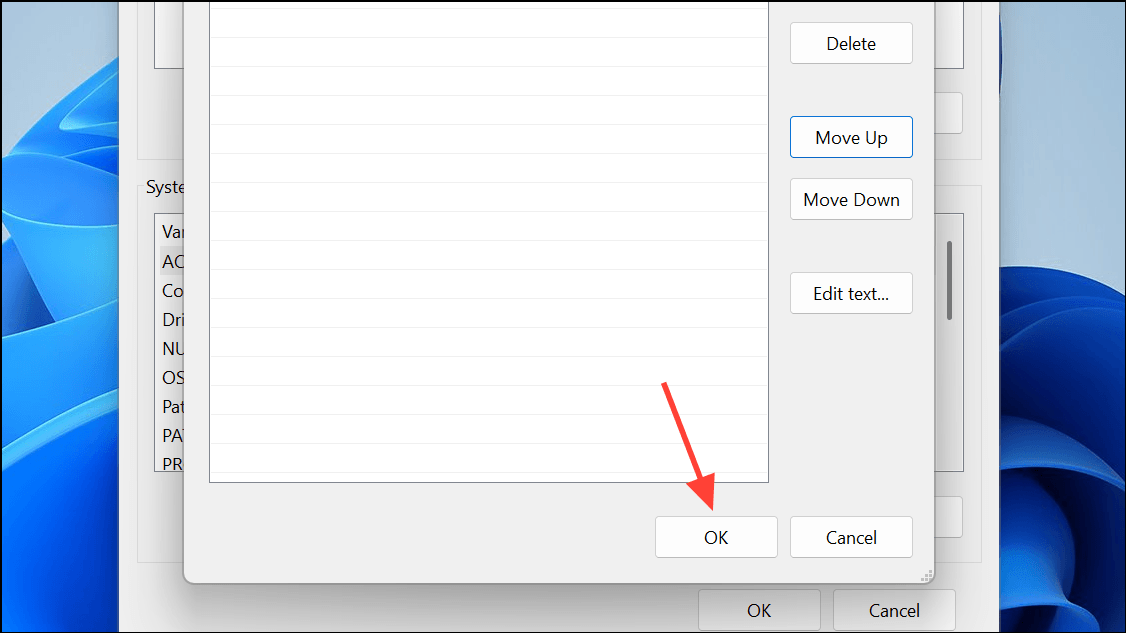
| 7 | Click "OK" in each dialog box to save | Do not miss any dialog box |
| 8 | Completely close all terminal windows and reopen them | PATH modifications will not take effect in already open terminals |
| 9 | Run the verification command | Confirm that both python and pip work correctly |
Step 1 — Open System Properties via sysdm.cpl:
Step 2 — Environment Variables window:
Step 3 — Edit the Path variable:
Step 4 — Create a new Python installation path entry:
Step 5 — Add the Scripts directory:
Step 6 — Move entries up so they are found first:
Step 7 — Confirm and save all dialog boxes:
Step 9 — Verify the result:
python --version
pip --version
where python
where pip
Notes and common pitfalls
| Common mistakes | Correct approach |
|---|---|
| Trailing backslash in path | Should useC:\Path\To\Python311, notC:\Path\To\Python311\ |
| Extra spaces before path | Each entry should be a clean path line without leading or trailing spaces |
| Old entries pointing to invalid folders | Delete or fix non-existent paths to avoid path resolution confusion |
| Terminal not restarted after modification | Completely close all terminal windows and reopen; in some cases, log off or restart |
Method 3: Fix "App execution aliases" for Microsoft Store installations
If you installed Python from the Microsoft Store, it relies on "App execution aliases" and the WindowsApps directory to resolve the python command, rather than traditional PATH editing.
Steps
| Step | Action |
|---|---|
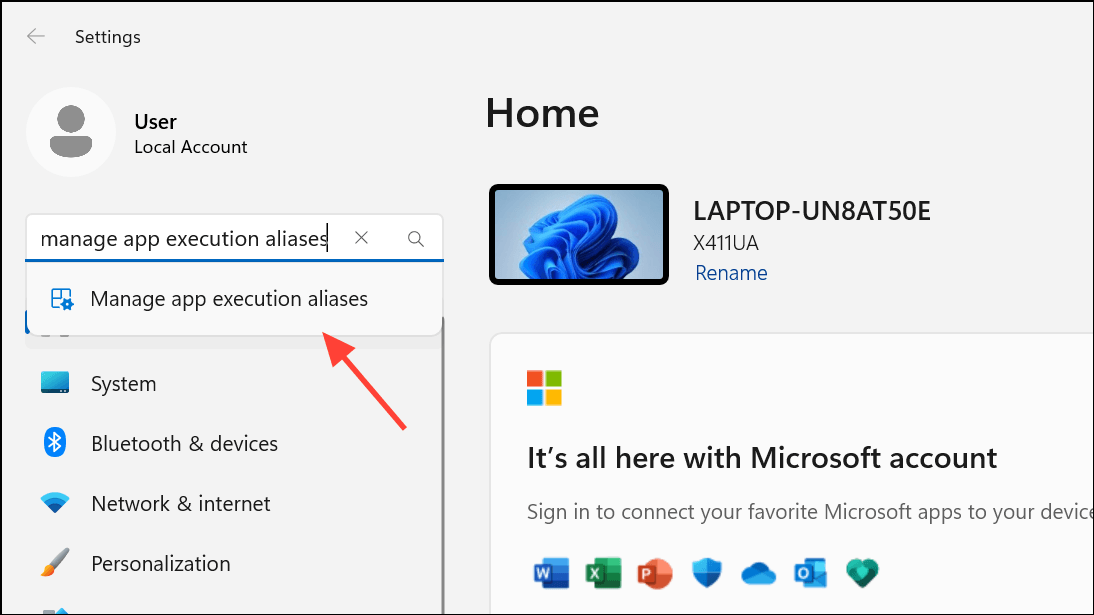
| 1 | Open WindowsSettings, search for "Manage app execution aliases" |
| 2 | Findpython.exeandpython3.exethe toggle switches for:Turn onto enable the alias,Turn offto avoid conflicts with the python.org version |
| 3 | Make sure the user PATH contains%USERPROFILE%\AppData\Local\Microsoft\WindowsApps |
| 4 | Reopen the terminal and verify |
App execution alias settings entry:
python.exe and python3.exe alias toggles:
If entering
pythonopens Microsoft Store instead of running Python, the alias is pointing to the Store. Turn off the alias for the corresponding version, install the python.org version instead, or use the Python Launcher (py command) described below.
Method 4: Use Python Launcher instead of editing PATH
Python Launcher(py.exe) is installed with python.org builds and can automatically locate installed Python versions based on labels, completely avoiding PATH conflicts.
This is the officially recommended multi-version management solution — you can pin a specific Python version for each project without modifying PATH.
Steps
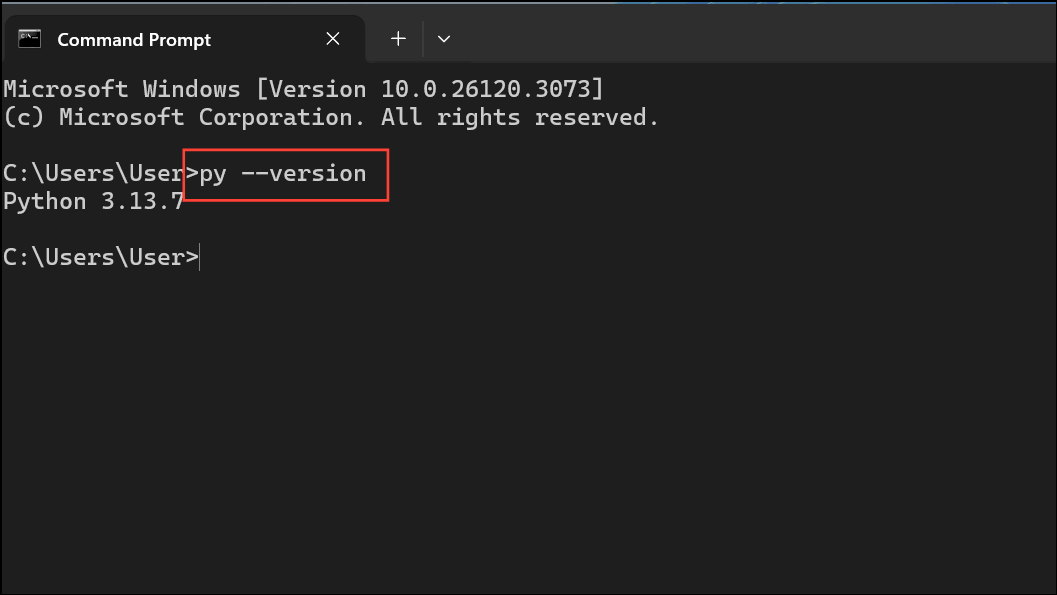
Check the Launcher version:
py --version
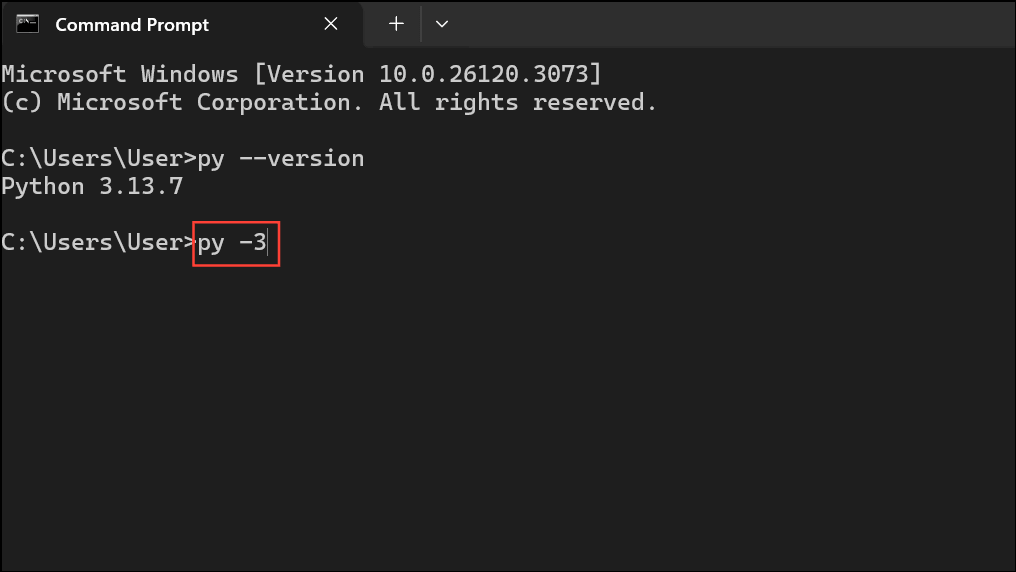
Explicitly run the desired Python version:
py -3
py -3.11
py -3.10 -m pip --version
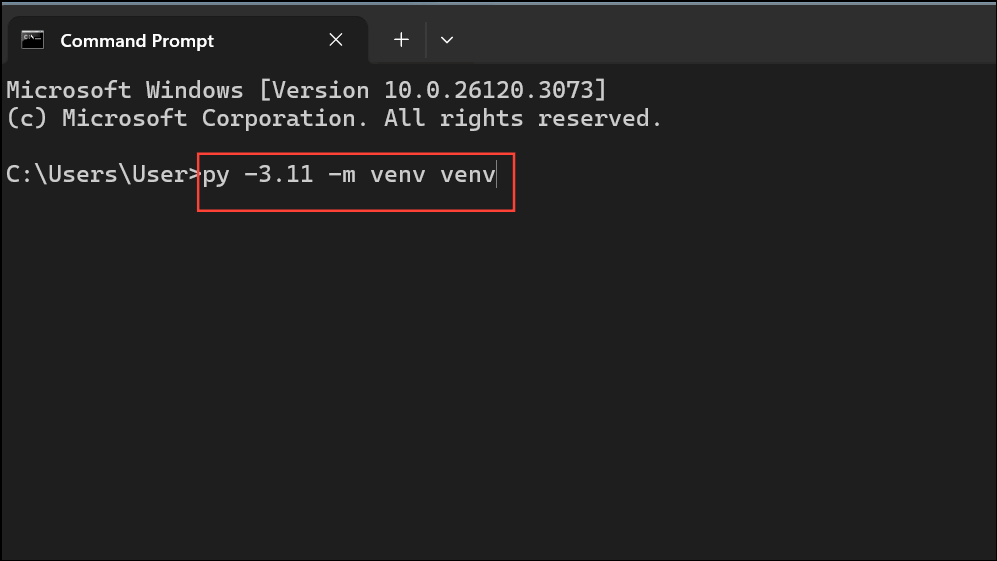
Use the Launcher to create and use virtual environments:
# 使用指定版本创建虚拟环境
py -3.11 -m venv venv

# 激活虚拟环境
venv\Scripts\activate

# 在虚拟环境中确认 Python 版本
python --version
Additional notes
| Command | Purpose |
|---|---|
py --list |
List all detected Python runtime versions |
py -3.11 |
Start the interactive interpreter of the specified Python version |
py -3.11 -m pip install 包名 |
Install third-party packages for the specified Python version |
When using the py Launcher, you can completely skip manual PATH editing. The Launcher automatically discovers all installed Python versions and lets you choose as needed — this is especially convenient for developers who need both Python 3.10 and 3.12.
Quick verification and troubleshooting
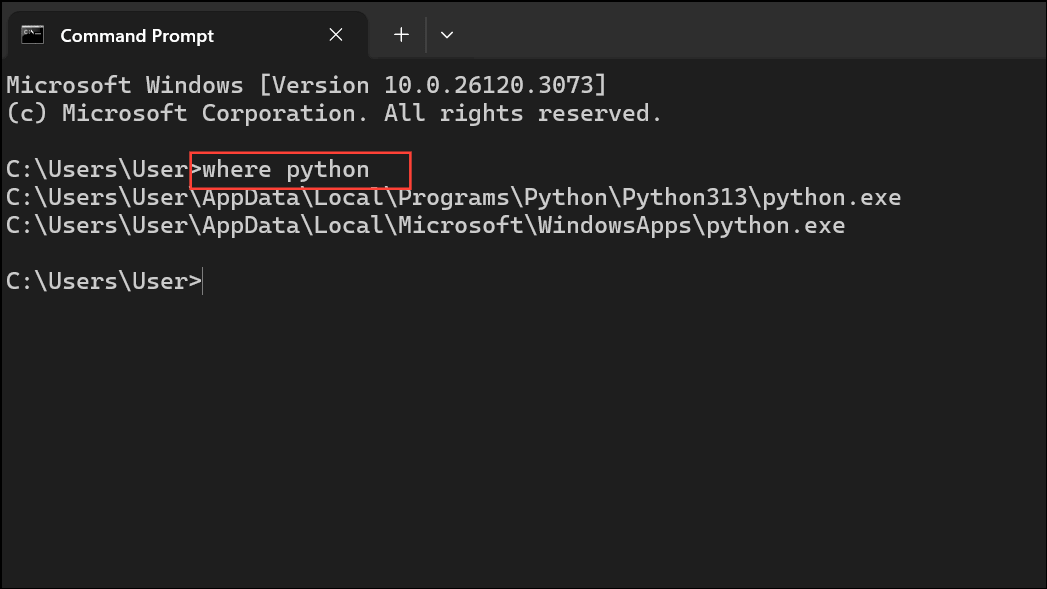
Confirm which executable is running
where python
where python3
where py
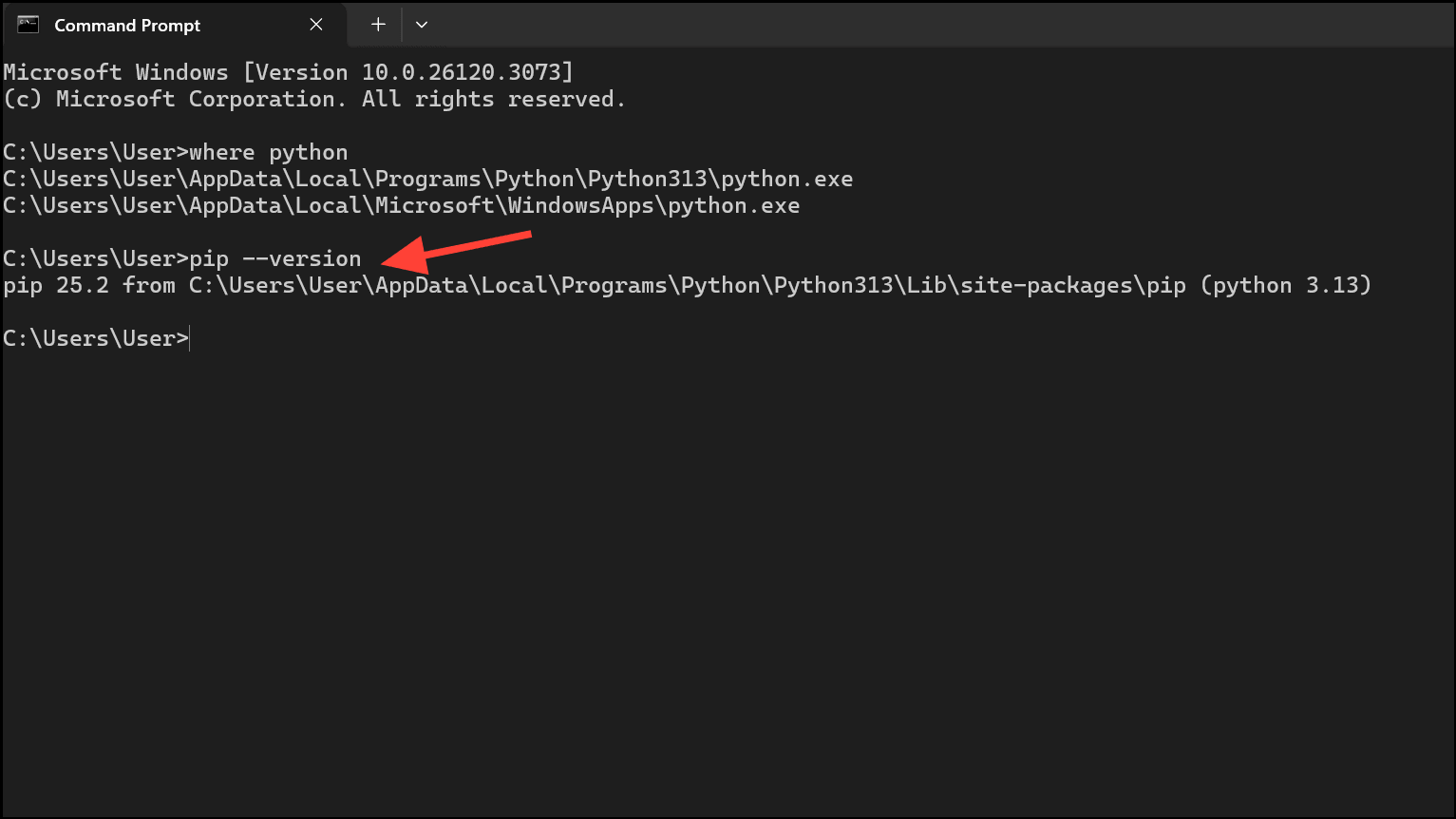
Verify pip and Scripts
pip --version
where pip
Common troubleshooting
| Problem | Solution |
|---|---|
Inputpythonthen open Microsoft Store |
In "App execution aliases", disable the corresponding alias, or switch topycommand-line startup |
| PATH changes not taking effect | Completely close all terminals and IDEs (such as VS Code), and if necessary, log out and log back in |
| Multiple Python version conflicts | Use Python Launcher (py) to precisely select versions, combined with virtual environments to isolate project dependencies |
Summary
Once PATH is set correctly—or you start using Python Launcher—you can run Python and pip from anywhere without typing the full path.
For multi-version environments, it is strongly recommended to use Python Launcher to precisely select versions, combined with virtual environments to maintain dependency isolation for each project.
| Option | Applicable scenario | Recommendation level |
|---|---|---|
| Official installer with PATH checked | First installation or reinstallation of Python | Highest |
| Manually edit user PATH | Already installed but missed PATH configuration | Medium |
| App execution alias | Microsoft Store version of Python | Low (easily conflicts with other versions) |
| Python Launcher (py) | Multiple versions coexisting, project-level version management | Highest |