PostgreSQL pgAdmin Tool
pgAdminis an open-source PostgreSQL database management tool that provides a graphical interface to simplify database management and operations.
pgAdmin is the officially recommended management tool for PostgreSQL, supporting everything from simple queries to complex database management tasks, suitable for developers and database administrators.
Main Features
- Database Management:Supports creating, modifying, and deleting databases, tables, views, indexes, etc.
- SQL Query:Built-in SQL query editor, supporting code highlighting, auto-completion, and query history.
- Data Import and Export:Supports import and export of data in multiple formats such as CSV, Excel, and SQL.
- Backup and Restore:Provides database backup and restore tools, supporting full and incremental backups.
- Visual Design:Supports visual display of ER diagrams to help understand database structures.
- Multi-version Support:Supports multiple versions of PostgreSQL.
- Remote Connection:Supports management of remote databases, facilitating cross-region database maintenance.

Installing pgAdmin
pgAdmin official website:https://www.pgadmin.org/。
pgAdmin GitHub source code address:https://github.com/pgadmin-org/。
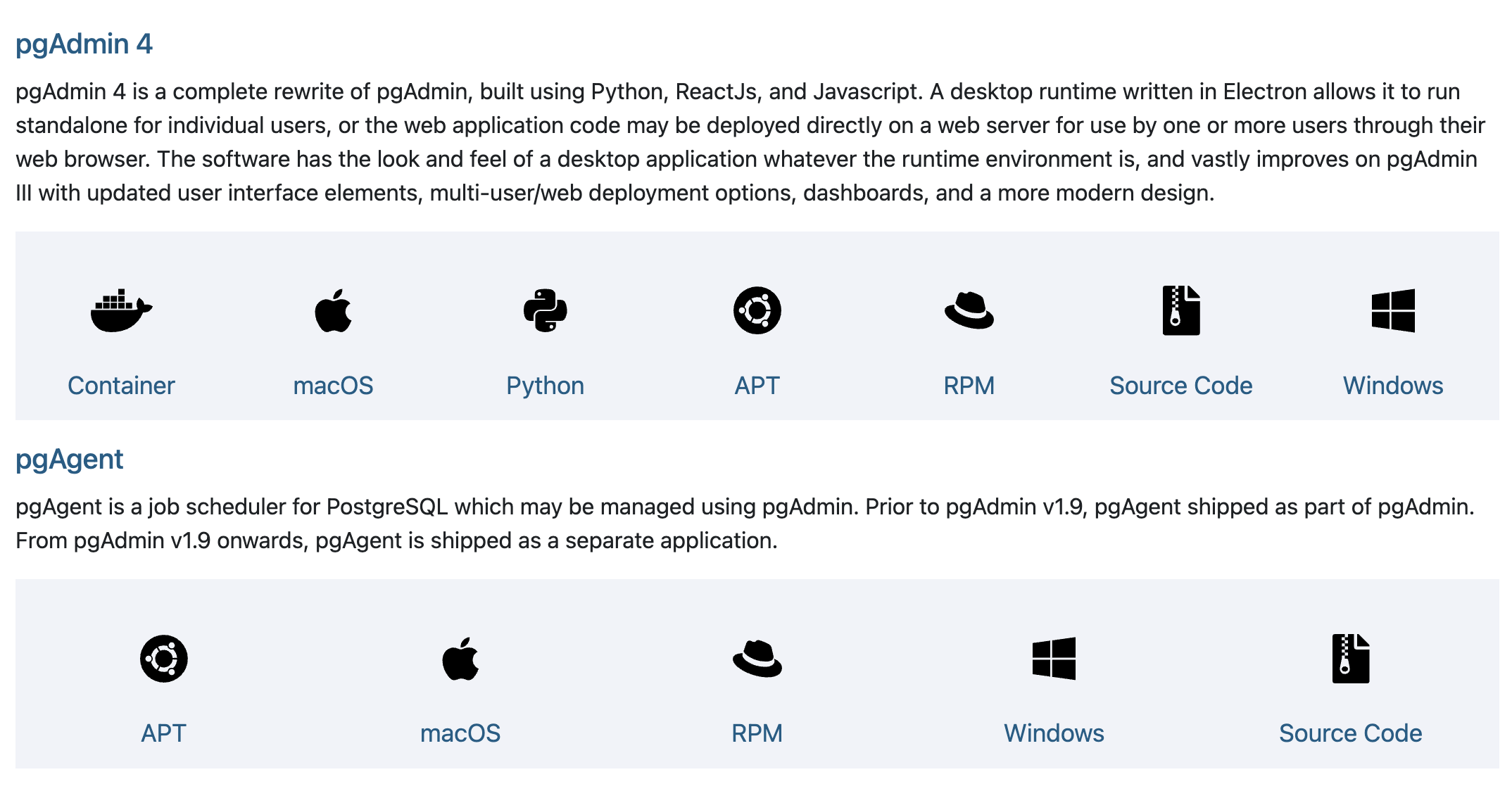
pgAdmin 4 is a complete rewrite of pgAdmin, built on Python, ReactJS, and JavaScript.
pgAdmin 4 supports two running modes:
- Desktop Mode:Packaged with Electron, runs standalone, suitable for personal use.
- Web Mode:Can be deployed on a web server, supporting multi-user access through a browser.
Download address:https://www.pgadmin.org/download/
Windows Installation
- VisitpgAdmin official website
- Download the installer for Windows
- Run the installer and follow the wizard to complete the installation
- After installation, you can find pgAdmin in the Start menu
macOS Installation
- Install using Homebrew:
brew install --cask pgadmin4 - Or download the macOS installer package from the official website
- Drag pgAdmin into the Applications folder
Linux Installation
For Debian-based systems (such as Ubuntu):
sudo apt update
sudo apt install pgadmin4
For Red Hat-based systems (such as CentOS):
sudo yum install pgadmin4
Basic Usage of pgAdmin
Connecting to a PostgreSQL Server
- Open pgAdmin
- In the "Browser" panel on the left, right-click on "Servers"
- Select "Create" > "Server..."
- In the pop-up dialog, fill in the connection information:
- Name: Give a name for the connection
- Host: Database server address (use localhost for local)
- Port: PostgreSQL port (default 5432)
- Maintenance database: Usually use postgres
- UsernameandPassword: Database credentials
Browsing Database Objects
After a successful connection, you can expand the server node to view:
- Database list
- Objects such as tables, views, functions in each database
- Users and roles
- Other server objects
Core Features of pgAdmin
Database Management
Creating a Database:
- Right-click on "Databases" > "Create" > "Database..."
- Fill in the database name and other options
Deleting a Database:
- Right-click the database to delete > "Delete/Drop"
- Confirm the operation
Backup and Restore:
- Right-click on a database > "Backup..." or "Restore..."
- Select the backup file location and options
Table Operations
Creating a Table:
- Expand the database > right-click on "Tables" > "Create" > "Table..."
- Define column names, data types, and constraints
Viewing and Editing Data:
- Right-click on the table > "View/Edit Data" > "All Rows"
- You can edit data directly in the data grid
Executing SQL Queries:
- Click the "SQL" button on the toolbar
- Enter SQL statements in the query editor
- Click the "Execute" button or press F5 to run the query
Advanced Features of pgAdmin
Query Tool
pgAdmin provides a powerful query tool, including:
- Syntax highlighting
- Code auto-completion
- Query execution plan analysis
- Query history
Performance Monitoring
You can monitor the following through the dashboard:
- Server status
- Active sessions
- Lock information
- Database statistics
Import/Export Data
pgAdmin supports importing and exporting data in multiple formats:
- CSV
- JSON
- SQL scripts
- Excel files
pgAdmin Usage Tips
Shortcuts:
- F5: Execute query
- Ctrl+Enter: Execute the selected query
- Ctrl+/: Comment/Uncomment code
Save Frequently Used Queries:
- You can save frequently used queries as favorites in the "Query Tool"
Customize the Interface:
- Customize the interface layout and settings via "File" > "Preferences"
Use the ERD Tool:
- Can generate an entity-relationship diagram (ERD) of the database
Regularly Back Up Configuration:
- pgAdmin's configuration is stored in the user directory; regular backup is recommended
pgAdmin Alternatives
Although pgAdmin is powerful, there are also some alternative tools:
- DBeaver: A universal tool supporting multiple databases
- DataGrip: A professional database IDE released by JetBrains
- TablePlus: A modern, lightweight database client
- psql: PostgreSQL's built-in command-line tool
FAQ
Why is pgAdmin slow to start?
pgAdmin is an application based on Python and web technologies. The first launch may take some time to load. You can try:
- Ensure the system meets the minimum requirements
- Close unnecessary browser tabs
- Update to the latest version
How to reset the pgAdmin password?
- Stop the pgAdmin service
- Delete the pgAdmin configuration file in the user directory
- Restart pgAdmin
What to do if an authentication error occurs when connecting to the database?
- Check the pg_hba.conf file configuration of PostgreSQL
- Ensure the username and password are correct
- Verify whether the server allows remote connections (if connecting from outside)