Installing PostgreSQL on Mac OS
Use EnterpriseDB to download and install. EnterpriseDB is the world's only provider of enterprise-grade products and services based on PostgreSQL.
Download address:https://www.enterprisedb.com/downloads/postgres-postgresql-downloads。
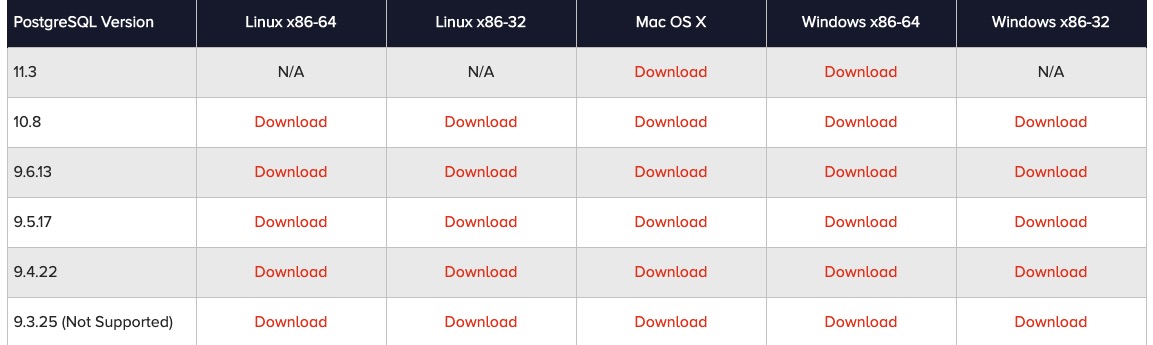
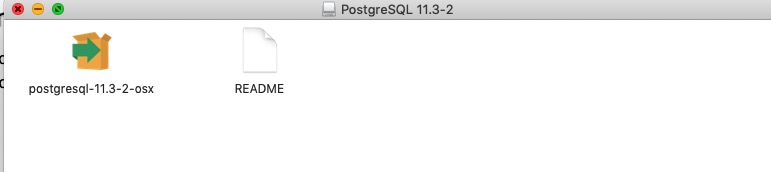
Download the postgresql-****-osx.dmg file and double-click the installer file:
At this point, you will be asked to enter your administrator password. Enter it, and then the installation wizard will pop up:
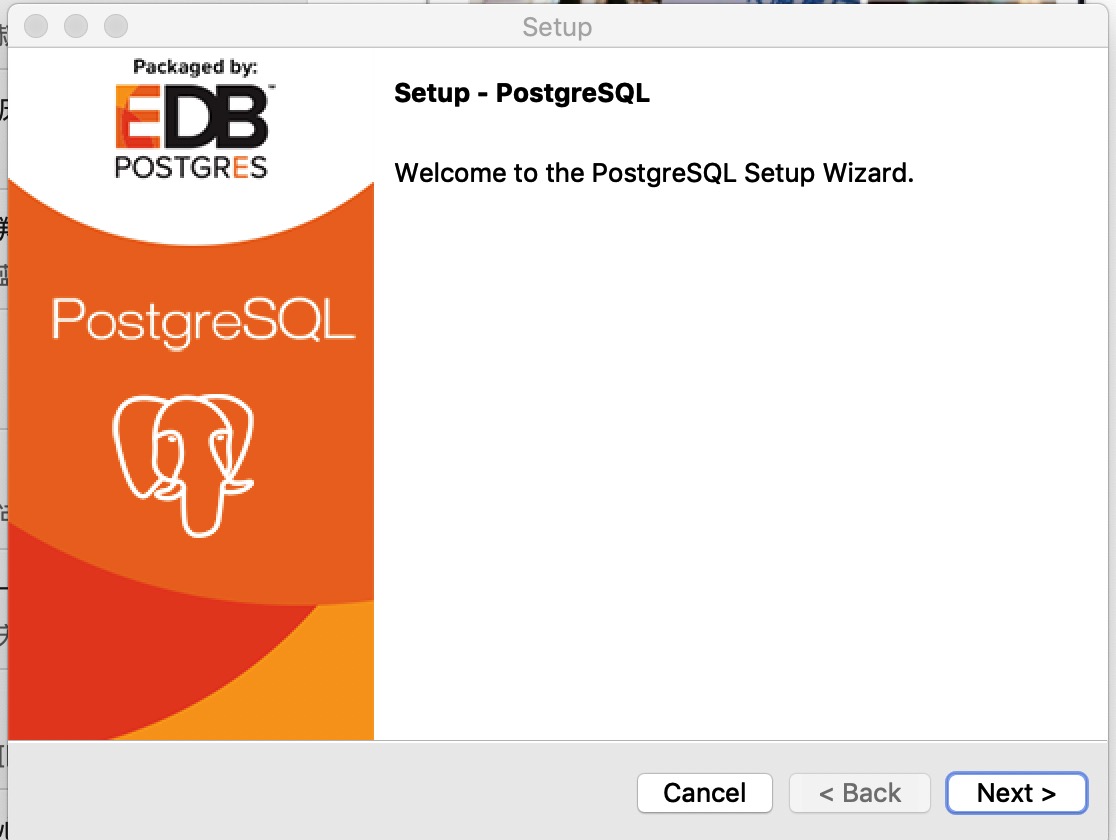
Next are some basic configurations, such as: installation directory, extension installation, database directory, user password, port settings, etc. Generally, just use the defaults and click Next:
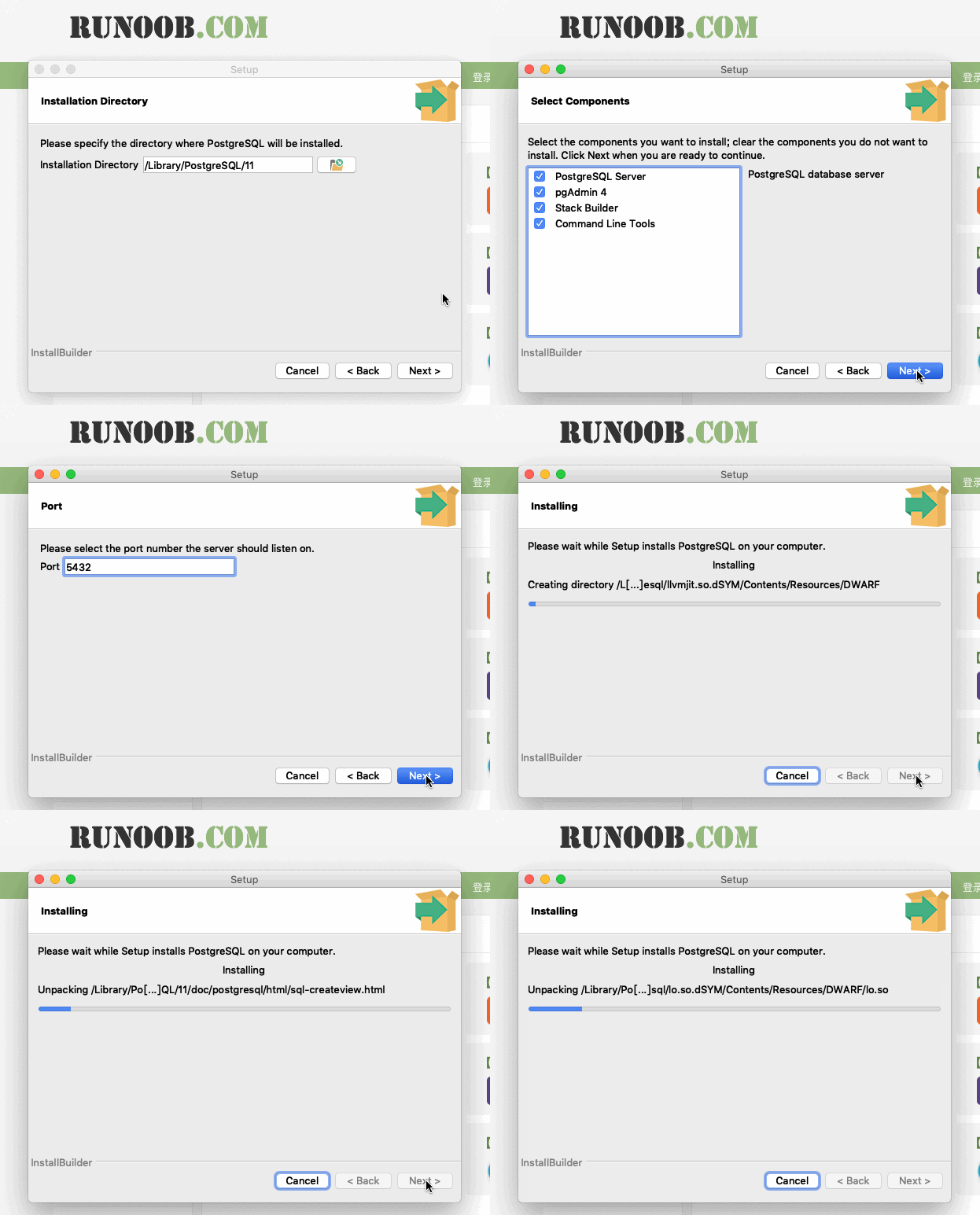
Finally, click Finish:
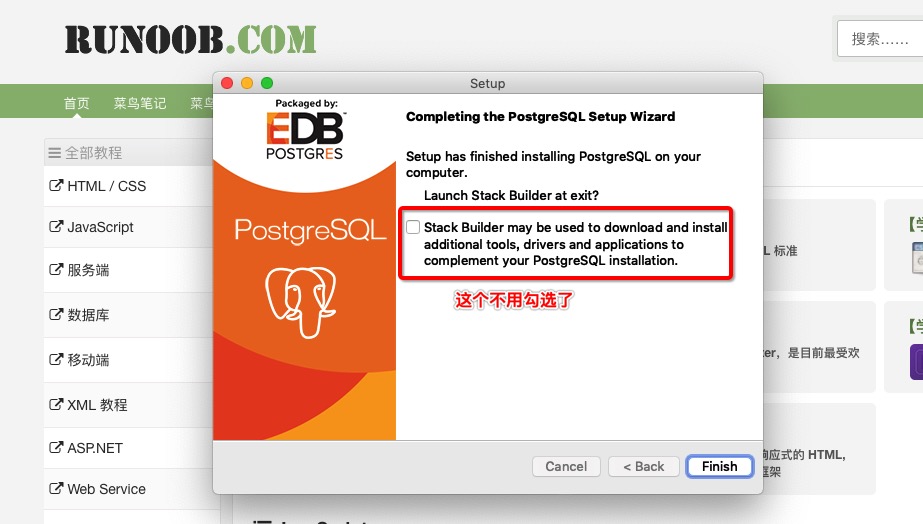
Execute the following script to start PostgreSQL.
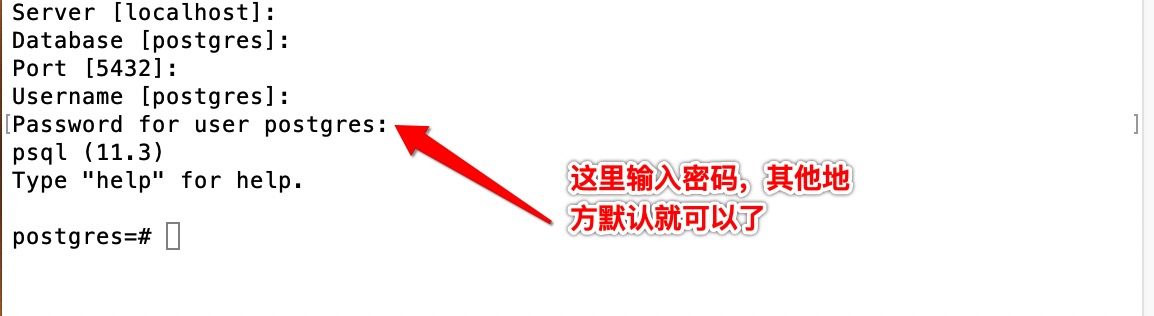
You can enter the following options yourself, or use the defaults. Just press Enter for the defaults. For the password, use the one you set during the installation:
$ /Library/PostgreSQL/11/scripts/runpsql.sh ;exit
Server [localhost]:
Database [postgres]:
Port [5432]:
Username [postgres]:
Password for user postgres:
psql (11.3)
Type "help" for help.

postgres=#
pgAdmin 4
Open pgAdmin 4:
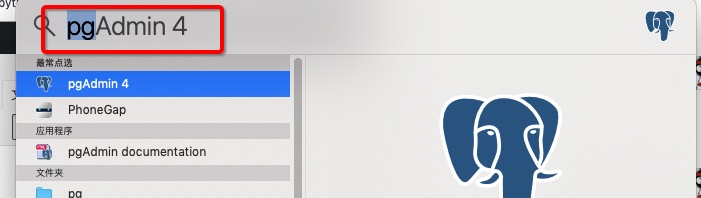
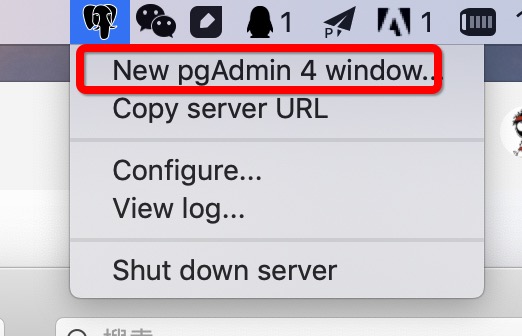
Or click the elephant head icon at the top right of the screen:
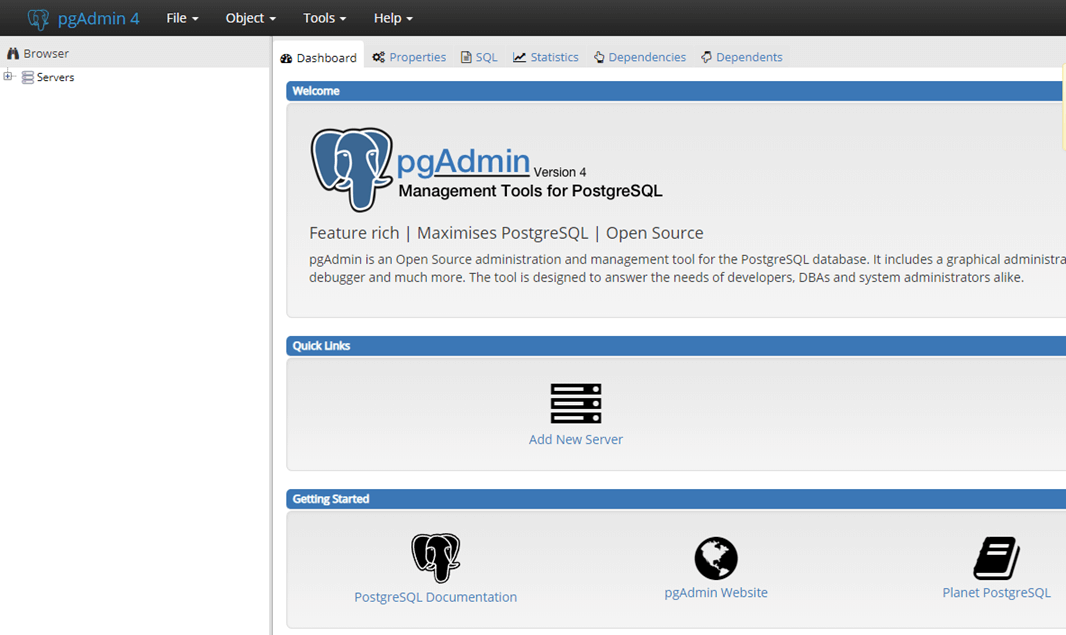
The pgAdmin home page is as follows:
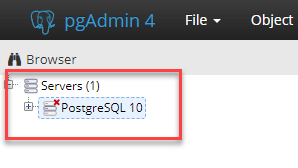
Click Servers > Postgre SQL 10 on the left:
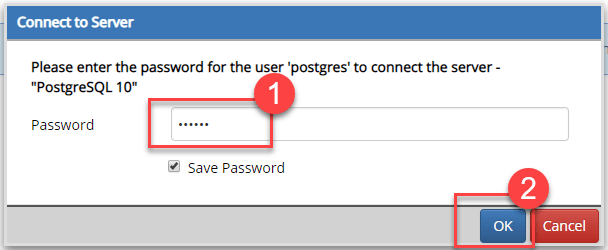
Enter the password and click OK:
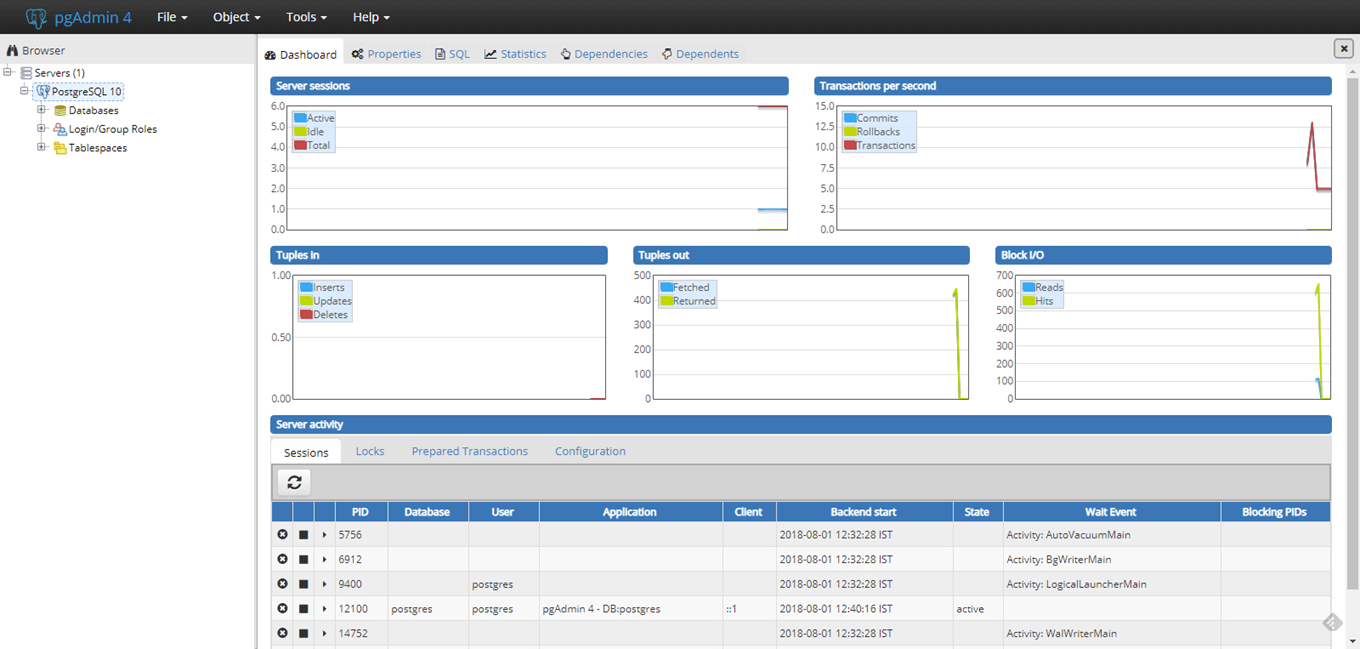
The control panel is as follows: