Playwright Installation
Playwright is a Node.js library, so we need to install Node.js locally. If you already have it installed, you can skip this step.
1. Install Node.js
Playwright officially recommends Node.js.
- OpenNode.js official website
- Download and installLTS (Long-Term Support version)
-
Verify whether the installation succeeded:
node -v
npm -v
As long as you can see the version number.
For more installation options, refer to:https://www.example.com/nodejs/nodejs-install-setup.html
2. Create a new project directory
If Node.js is successfully installed, we can start installing and using Playwright.
Run in the command line:
mkdir example-playwright-demo
cd example-playwright-demo
3. Initialize and install Playwright
Run:
npm init playwright@latest
During installation, you will be prompted:
- Choose a language:JavaScriptorTypeScriptChoose whichever you are familiar with
- Whether to install test examples: Recommended to chooseYes(makes it easier to learn)
- Whether to download browsers: ChooseYes(Playwright will download the three major engines: Chromium, Firefox, WebKit)
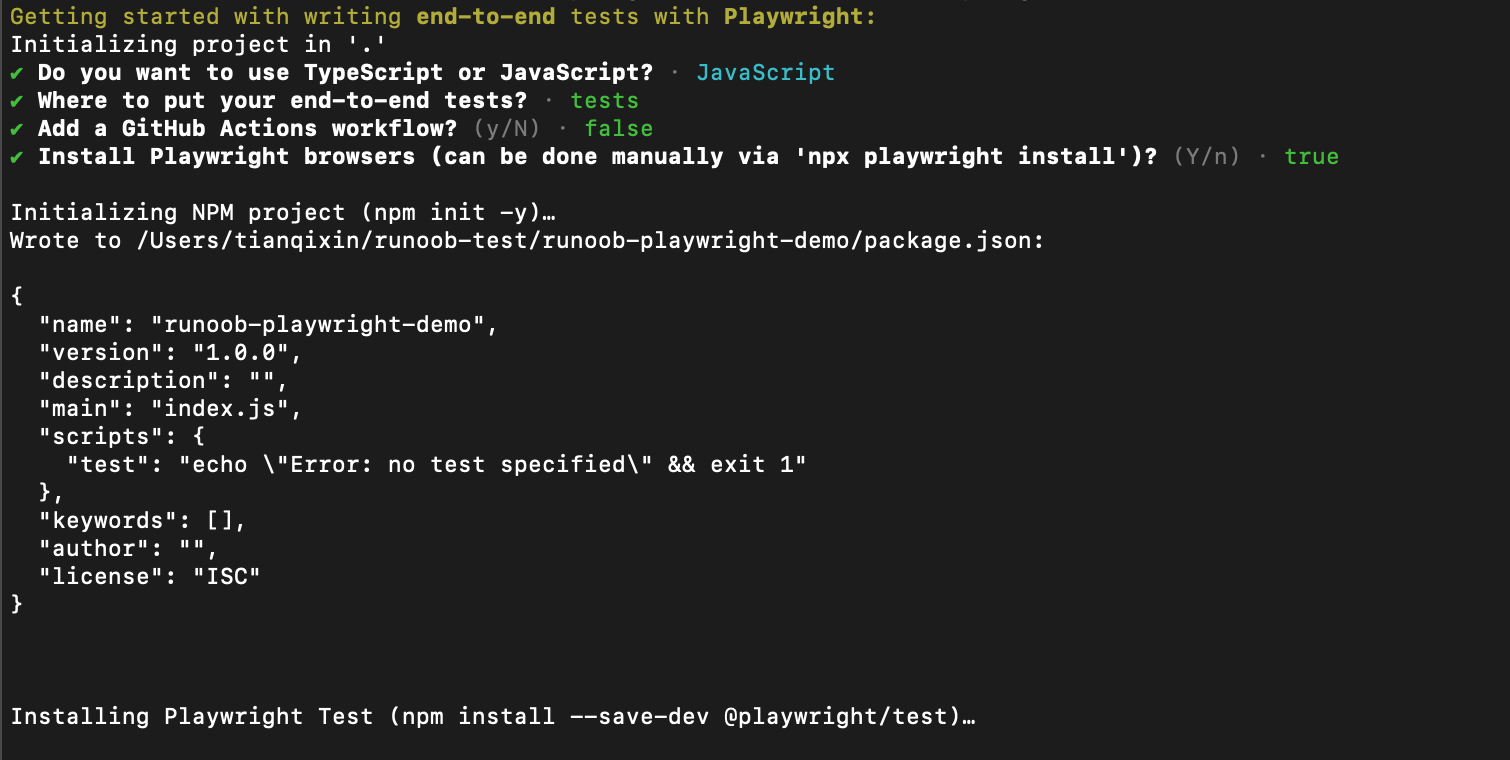
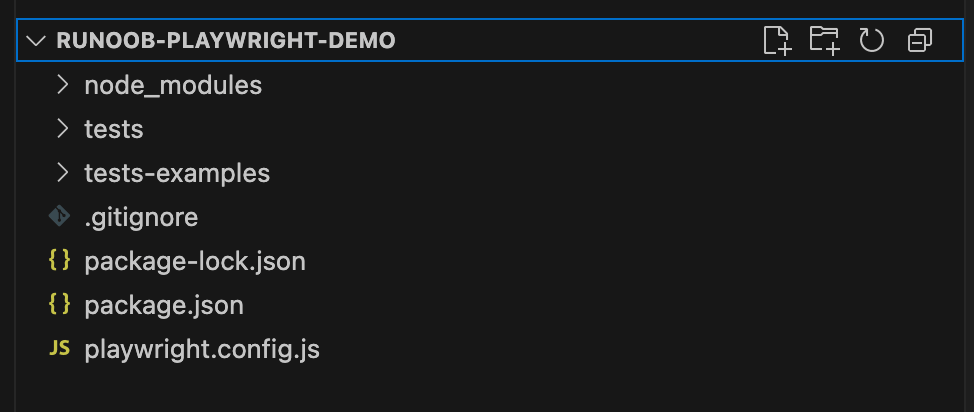
After installation, your project directory will look something like this:
playwright-demo/
├─ tests/                # 示例测试用例
├─ playwright.config.js  # 配置文件
├─ package.json
└─ node_modules/
4. Initialize with yarn
yarn create playwright
5. Initialize with pnpm
pnpm create playwright
The initialization results of the three package managers are exactly the same; just choose the one you are familiar with.
Manual Installation
If you already have a project and want to add Playwright manually, you can do it in two steps.
Step 1: Install the npm package
# 安装 Playwright Test 作为开发依赖
npm i -D @playwright/test

# 如果只需要浏览器自动化库(不用测试运行器)
npm i playwright
Step 2: Install browsers
# 安装所有浏览器(Chromium、Firefox、WebKit)
npx playwright install

# 或者只安装特定浏览器
npx playwright install chromium
npx playwright install firefox
npx playwright install webkit
Browser binaries are downloaded to the operating system cache directory by default (e.g., macOS's~/Library/Caches/ms-playwright/), and they won't take up space in your project.
Browser installation notes
Playwright installs test builds of browsers,test buildsnot the browsers you use daily:
| Name in Playwright | Corresponding browser | Description |
|---|---|---|
| Chromium | The open-source foundation of Google Chrome | Chrome's core engine, behavior is almost identical |
| Firefox | Mozilla Firefox | Official Firefox test build |
| WebKit | Apple Safari's engine | Safari's underlying rendering engine |
These test builds differ slightly from the browsers users use daily, but they behave consistently in the vast majority of test scenarios.
Verify Installation
After installation is complete, run the following command to verify success:
# 查看已安装的 Playwright 版本和浏览器
npx playwright --version
Expected output is roughly as follows:
Version 1.52.0
Run the example tests to verify everything is working:
npx playwright test
If you see the test run output (including passed and failed tests), the installation was successful.
Common Installation Issues
Downloading browsers is slow
The browser binaries are large (about 400-500 MB), and download speed depends on your network environment.
You can use a domestic mirror by setting environment variables:
# 设置下载源为国内镜像
export PLAYWRIGHT_DOWNLOAD_HOST=https://npmmirror.com/mirrors/playwright/
npx playwright install
Linux system missing system dependencies
Running Playwright on Linux requires installing additional system libraries.
# 安装 Playwright 所需的系统依赖
npx playwright install-deps

# 如果只需要某个浏览器对应的依赖
npx playwright install-deps chromium
When using Playwright in a Docker container, use the official Microsoft Docker image (mcr.microsoft.com/playwright), which comes with all dependencies pre-installed.
First script: Hello World
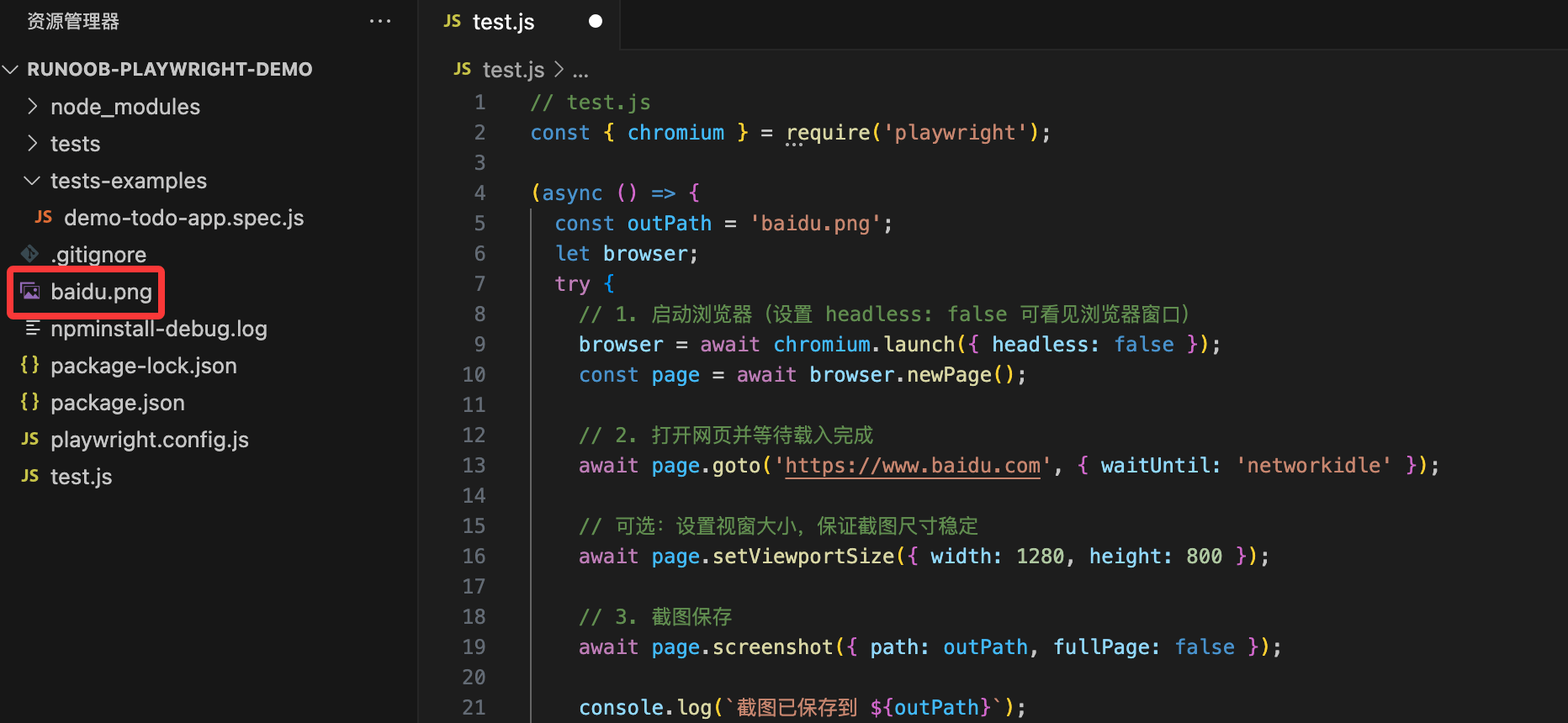
Create a newtest.jsfile and write the following content:
Example
const { chromium } = require('playwright');
(async () => {
// 1. Launch the browser
const browser = await chromium.launch({ headless: false }); // Set to false to see the browser
const page = await browser.newPage();
// 2. Open the webpage
await page.goto('https://www.baidu.com');
// 3. Take a screenshot and save it
await page.screenshot({ path: 'baidu.png' });
// 4. Close the browser
await browser.close();
console.log("Screenshot saved to example.png");
})();
Run:
node test.js
The above is a simple Playwright example that can take a screenshot of Baidu's homepage.