Playwright First Script
Before writing code, it is crucial to understand Playwright's core concepts. The three most important objects are Browser, BrowserContext, and Page. These three objects form the foundation of your interaction with web pages:
-
Browser (browser): This is the starting point of the automation process. A
Browserinstance represents an actual browser, such as Chromium, Firefox, or WebKit. You can launch a browser and then create multiple independent sessions within it. -
BrowserContext (browser context): A
BrowserContextis like an independent browser session. It completely isolates data such as pages, local storage, cookies, etc. This allows you to run multiple automation tasks in one browser without affecting each other, just like opening multiple tabs in incognito mode. -
Page (page):
Pageis where you perform actual operations. It represents a tab or window in a browser context. All operations, such as clicking, typing, navigation, screenshots, etc., are executed on thePageobject.
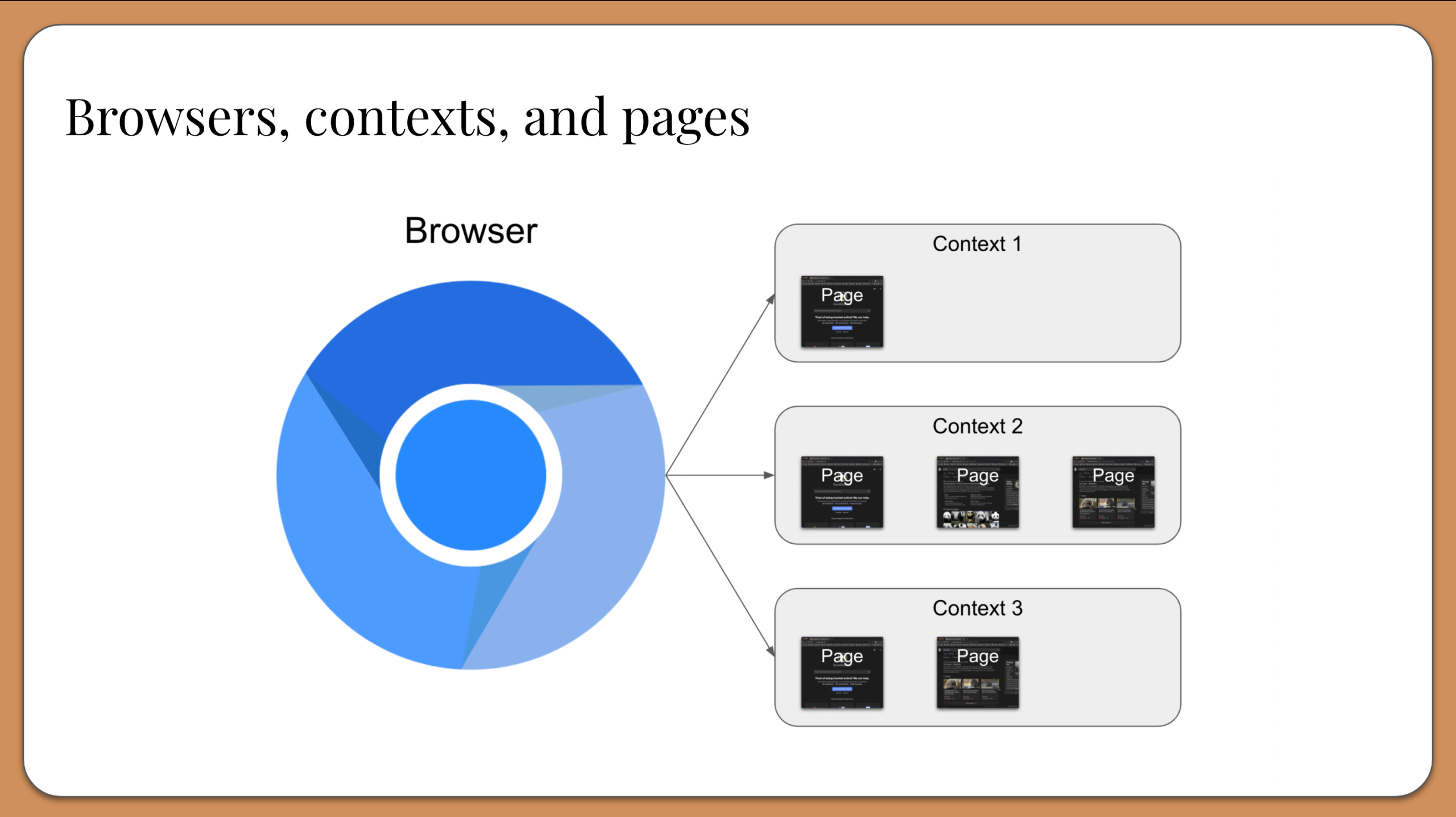
Relationship between the three:
ABrowsercan contain multipleBrowserContext, and aBrowserContextcan contain multiplePage. Usually, we only need oneBrowserand oneBrowserContext, but in scenarios where data isolation is needed,BrowserContextbecomes very useful.
Write Your First Script
Next, we will write a simple script that launches a browser, visits Baidu, and takes a screenshot.
Create a file namedbaidu_script.jsand paste the following code:
Example
(async () => {
// Launch a browser and create a new browser context.
const browser = await chromium.launch({ headless: false }); // headless: false will show the browser window
const context = await browser.newContext();
const page = await context.newPage();
// Navigate to the website you want to visit.
await page.goto('https://www.baidu.com');
// Type text into the search box.
await page.fill('#kw', 'Playwright');
// Press Enter or click the search button.
await page.press('#kw', 'Enter');
// Wait for navigation to complete. This is important to ensure the page has finished loading.
await page.waitForNavigation();
// Take a screenshot and save it.
await page.screenshot({ path: 'baidu_search_results.png' });
// Print the current page title.
console.log(`The page title is: ${await page.title()}`);
// Close the browser.
await browser.close();
})();
Code Explanation:
const { chromium } = require('playwright');: From the Playwright library, importchromiumthe module. You can replace it withfirefoxorwebkit。await chromium.launch({ headless: false });: Launch a Chromium browser instance.headless: falseis a key option that willshow the browser window, allowing you to see the script's execution process.await browser.newContext();andawait context.newPage();: These three lines of code together open a new browser tab.await page.goto('https://www.baidu.com');:Navigateto the specified URL. This is one of the most commonly used methods.await page.screenshot({ path: 'baidu_homepage.png' });: Take a screenshot of the current page and save it to a file.await browser.close();:Closethe browser and release system resources.
Running the Script
Open the terminal or command prompt, go to your project directory, and run the following command:
node baidu_script.js
After execution, you will see a browser window automatically open, load the Baidu homepage, and then the window closes. In your project folder, a file namedbaidu_homepage.pngwill be generated as a screenshot file.
Debug Mode
When writing more complex scripts, you may need to debug.
Playwright provides a powerful debugging tool. We just need to prepend to the command line when running the script:PWDEBUG=1:
PWDEBUG=1 node baidu_script.js
After running, you will see a Playwright debug window. You can step through the code, inspect page elements, and see every step of the script in real time. This is very helpful for locating issues.
Viewing the Results
In addition to command-line output and screenshot files, you can also check the script's results in the following ways:
- console.log(): In the script, add
console.log()statements to print variable values or confirm whether a step was executed. - Screenshot: Use the
page.screenshot()feature to save screenshots at key steps, allowing you to intuitively see the state of the page. - File Operations: You can write the scraped data to a local file for later analysis.