Obsidian + Claude Code
Obsidian is a Markdown note-taking tool focused on local storage. All files are saved in folders on your own computer, which is secure, private, and usable offline. With bidirectional links and a huge number of plugins, it is especially suitable for programmers to store code, take notes, and build long-term knowledge.
Claude Code is an AI programming assistant launched by Anthropic. Optimized based on the Claude large model, it excels at reading code, modifying code, writing code, and troubleshooting.
We can install the Claudian plugin in Obsidian to directly integrate Claude Code, letting the AI help you write documents, organize notes and project progress, automatically push daily AI hot topics, and turn your note vault into an intelligent workspace.

Environment Installation and Configuration
1. Download Obsidian
We need to first go to the Obsidian official websitehttps://obsidian.md/downloadto download Obsidian, which provides versions for various systems:
2. Install Claude Code
Run in the terminal (global installation only needs to be done once):
npm install -g @anthropic-ai/claude-code
After installation, run the authorization once:
claude
It will ask you to log in to your Claude account and complete OAuth authorization (only needs to be done once).
Note:If you don't have a Claude account, you can also use domestic large models instead. See:Claude Code API Configuration。
For details about Claude Code, refer to:https://www.example.com/claude-code/claude-code-tutorial.html
3. Install the Obsidian Community Plugin Claudian
We can download from GitHub Releaseshttps://github.com/YishenTu/claudian/releases/latestdownloadmain.js, manifest.json, and styles.cssthese three files:
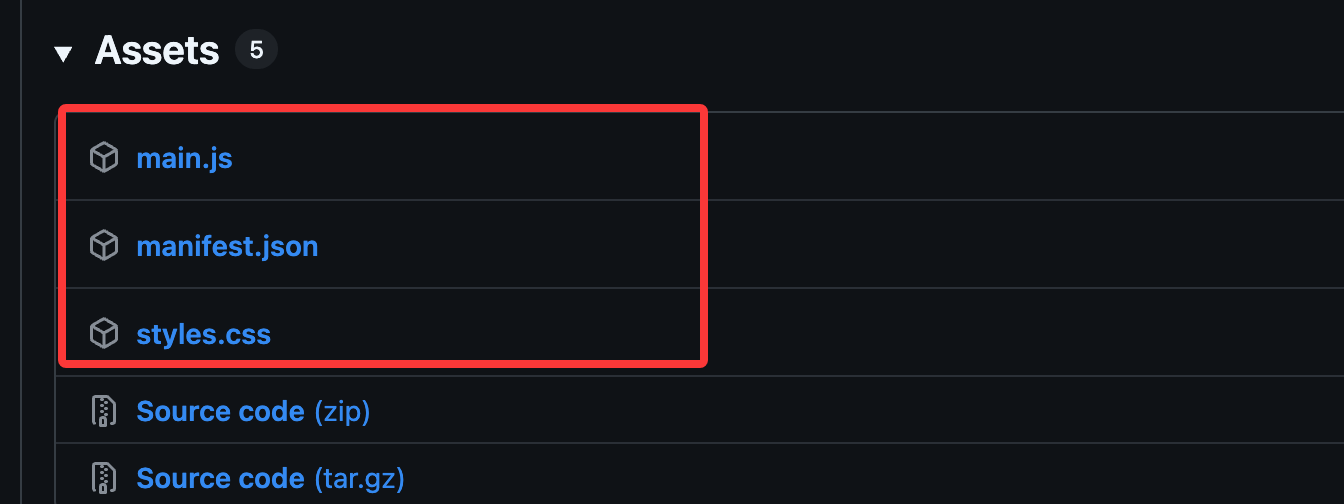
In the plugin folder of your Obsidian vaultplugins(if there isn't one, create one), create a new folder namedclaudianfolder, with an example path:
/path/to/vault/.obsidian/plugins/claudian/
Note:/path/to/vault/It needs to be replaced with the actual path of your own Obsidian vault.
You can see the detailed path in the Vault Management menu:
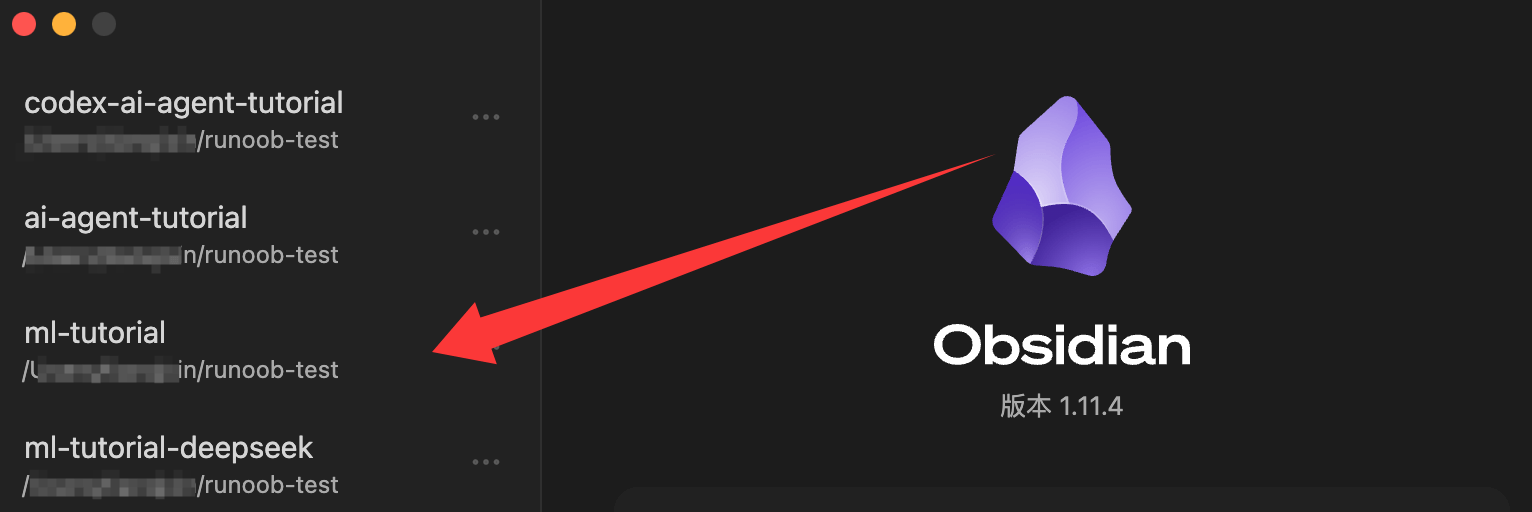
Copy the three downloaded files to thisclaudian/plugins/folder.
.obsidian/
└── plugins/
    └── claudian/
        ├── main.js         # 插件的编译后 JavaScript 主文件(包含所有逻辑)
        ├── manifest.json   # 插件元数据(ID、名称、版本、描述、最低 Obsidian 版本等)
        └── styles.css      # 插件的 CSS 样式
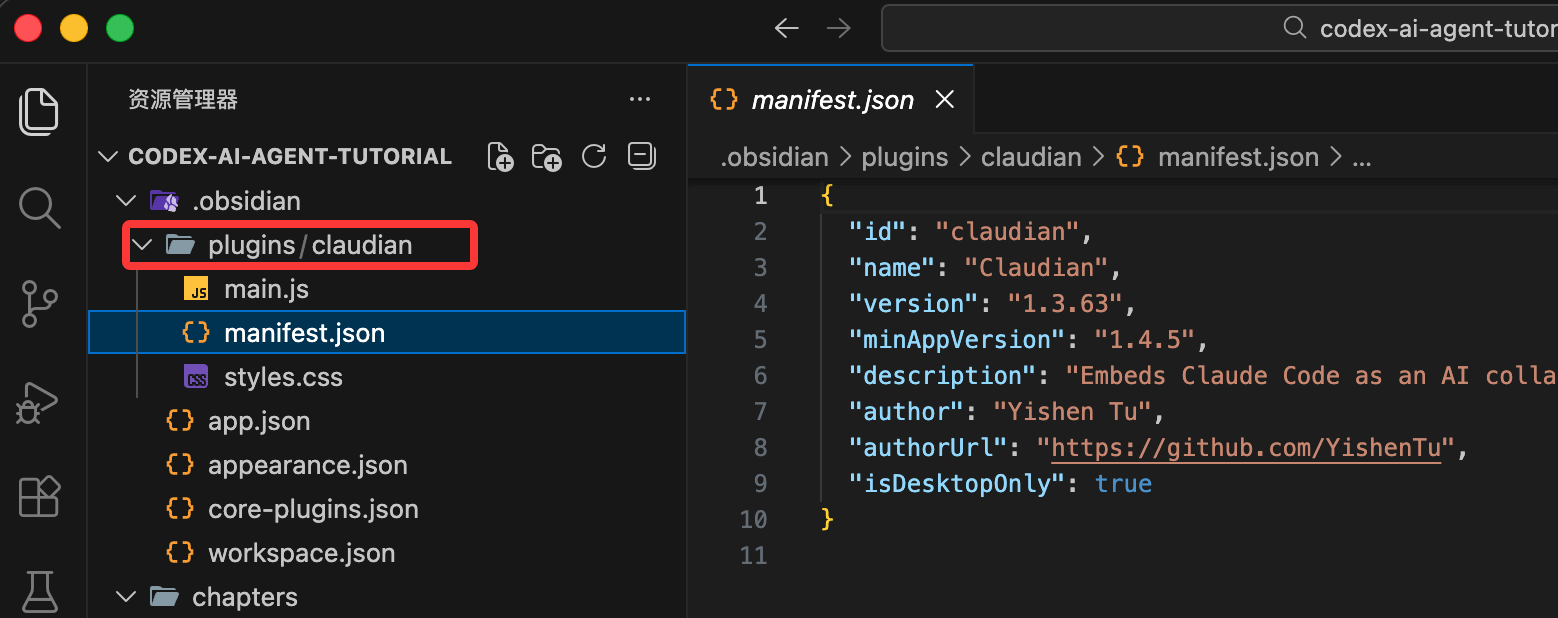
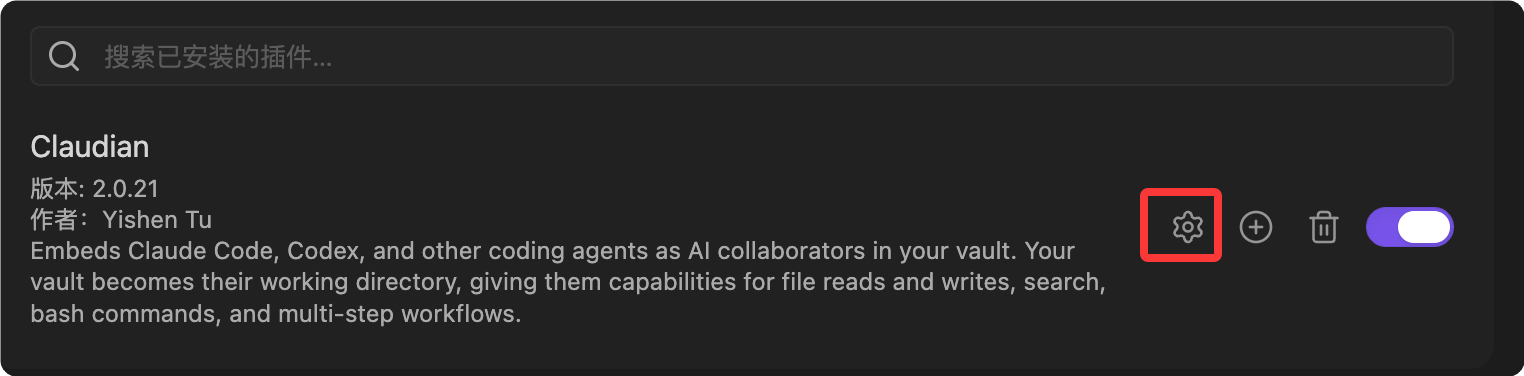
Enable the plugin in Obsidian: Settings → Community Plugins → Turn on the "Claudian" plugin switch.

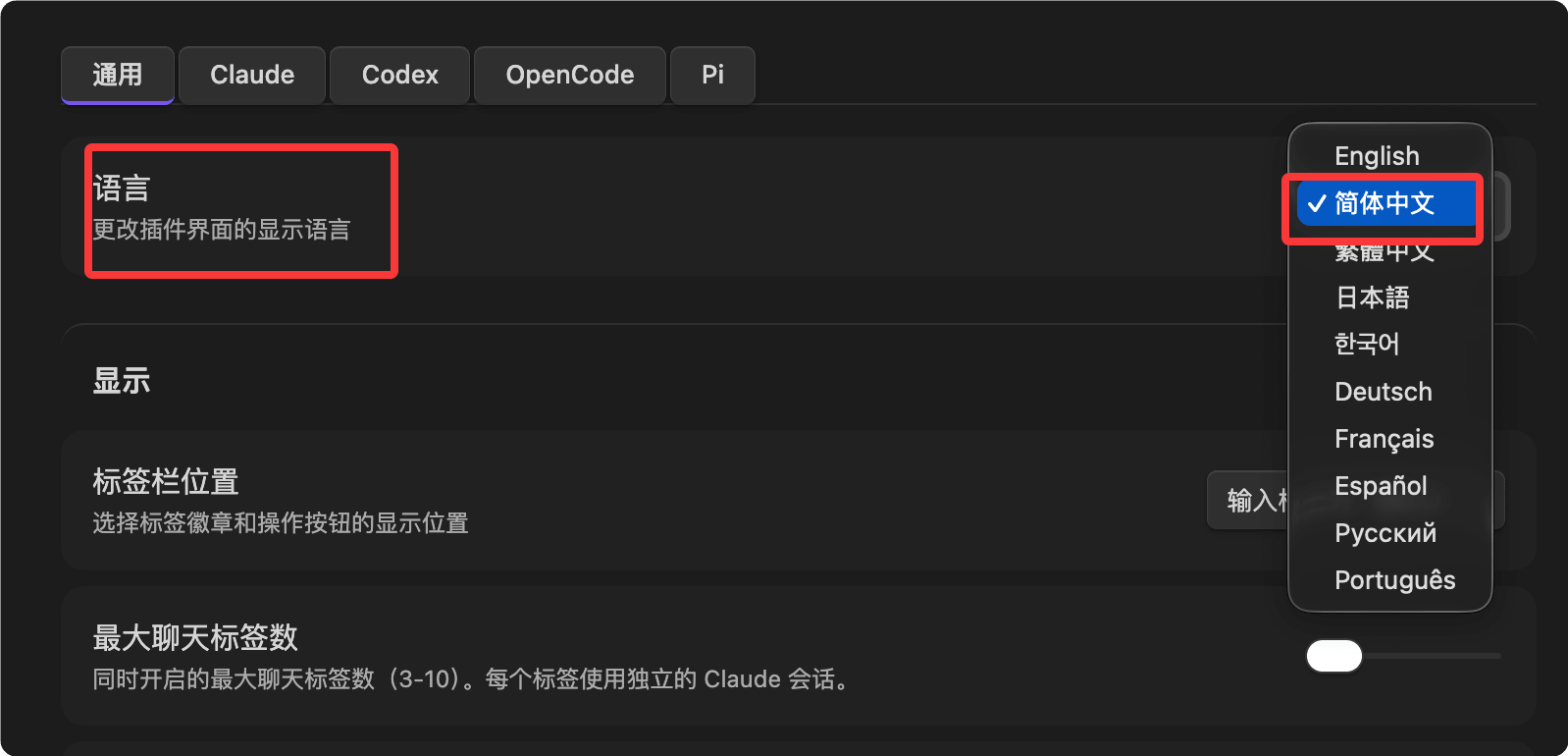
You can set the language to Chinese in Settings:
First Time Using Claudian
Open any note, and a robot icon will appear in the left sidebar (or use the Command Palette Ctrl/Cmd+P and enter "Claudian: Open Chat"):
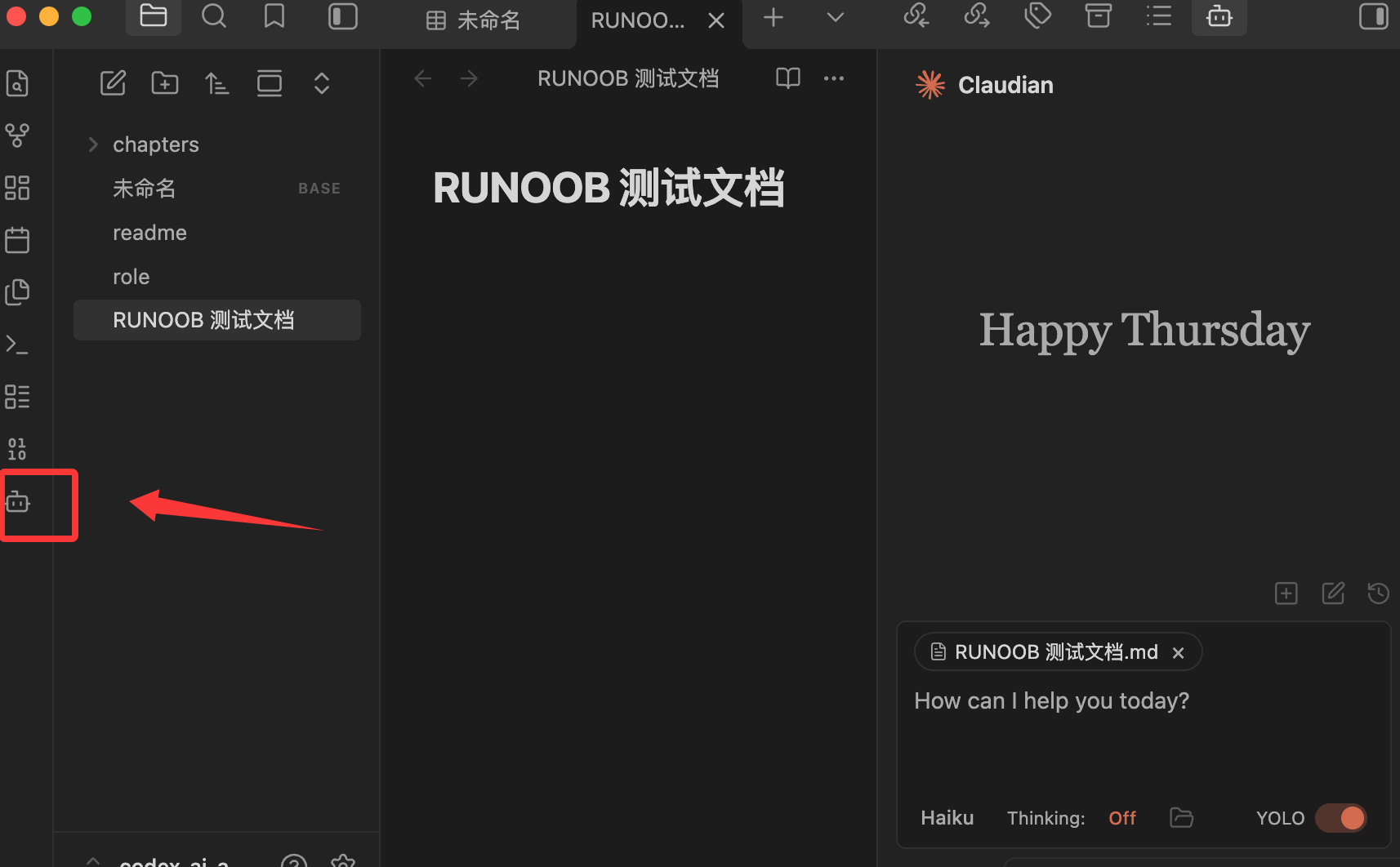
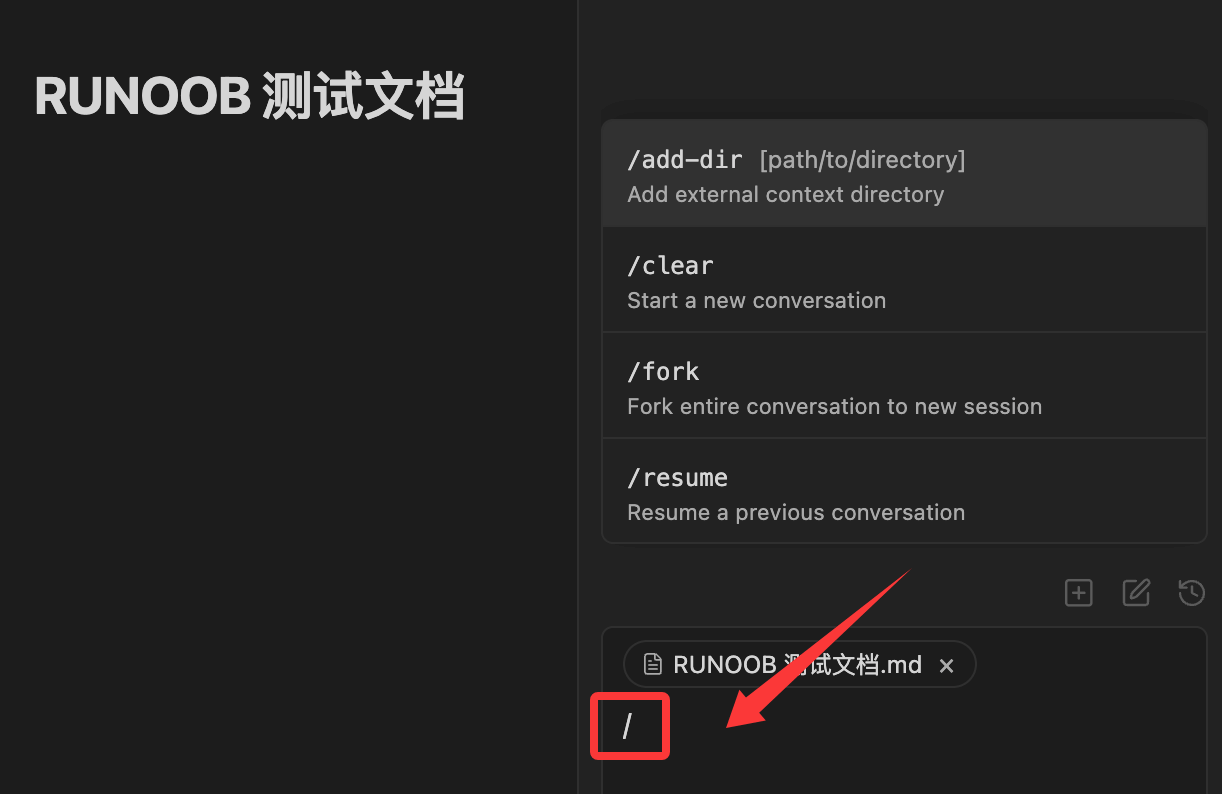
The first time you open it, you will be prompted to choose a Claude model (you can set a domestic large model). Type / in the input box to show all available skills:
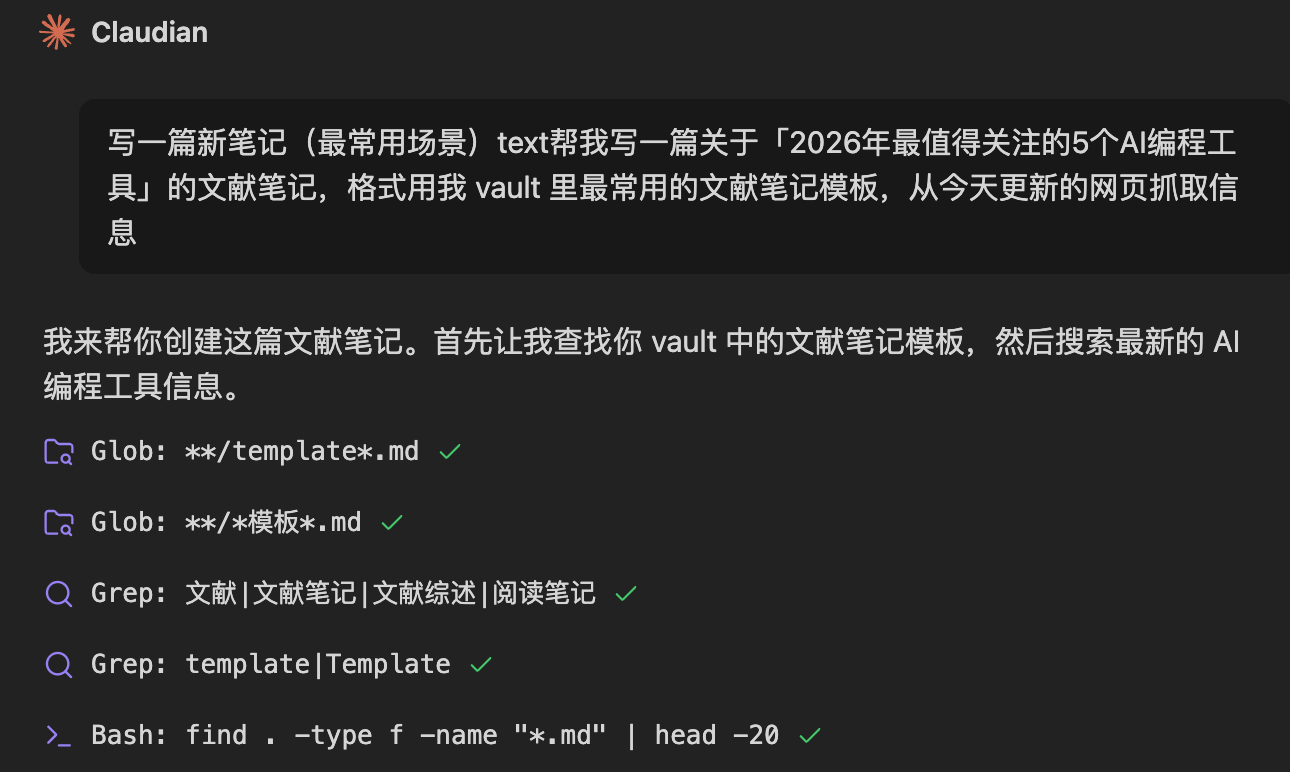
Test:
写一篇新笔记(最常用场景)text帮我写一篇关于「2026年最值得关注的5个AI编程工具」的文献笔记,格式用我 vault 里最常用的文献笔记模板,从今天更新的网页抓取信息
Now you can start working normally:
Features and Usage
Open the chat sidebar via the sidebar ribbon icon or the Command Palette. Select text and use a shortcut key to perform inline editing.
All operations are consistent with the coding agents you know (Claude Code, Codex, Opencode, Pi) — talk to the agent, and it can read, write, edit, and search files in your vault.
- Inline Editing— Select text or place the cursor and press the shortcut to directly edit content in the note, with word-level diff preview.
- Slash Commands and Skills— Type/or$to invoke reusable prompt templates, or from user-level/and vault-level scope skills (Skills).
- @ Mentions- Enter@to mention any object you want the agent to handle, including vault files, sub-agents, MCP servers, or files in external directories.
- Plan Mode— Toggle with Shift+Tab. The agent will first explore design options before executing implementation, then present the plan for you to confirm.
- Instruction Mode#— Allows you to add fine-grained custom instructions in the chat input box.
- MCP Servers— Connect external tools via the Model Context Protocol (supports standard I/O, server-sent events, HTTP). Claude can manage vault-level MCP within the app; Codex uses its separate command-line interface (CLI) to manage MCP configuration.
- Multiple Tabs and Conversations— Supports multiple chat tabs, conversation history, conversation branching, resuming conversations, and compact view mode.