Obsidian Web Clipper
Obsidian Web Clipper is a browser extension officially produced by Obsidian. It can save any web page as a local Markdown note with a single click.
Obsidian Web Clipper is free, open source, and ad-free. It is a powerful tool for building your personal knowledge base.
Installation
Web Clipper supports all major browsers. Simply install it from the corresponding store.
| Browser | Install Link |
|---|---|
| Chrome / Brave / Arc / Vivaldi | Chrome Web Store |
| Firefox | Firefox Add-ons |
| Safari(iOS / macOS) | App Store |
| Edge | Edge Add-ons |
Once installed, click the Obsidian icon in the browser toolbar to open the Clipper panel.
On first use, it automatically detects your running Obsidian vault and completes the connection, requiring no additional configuration.
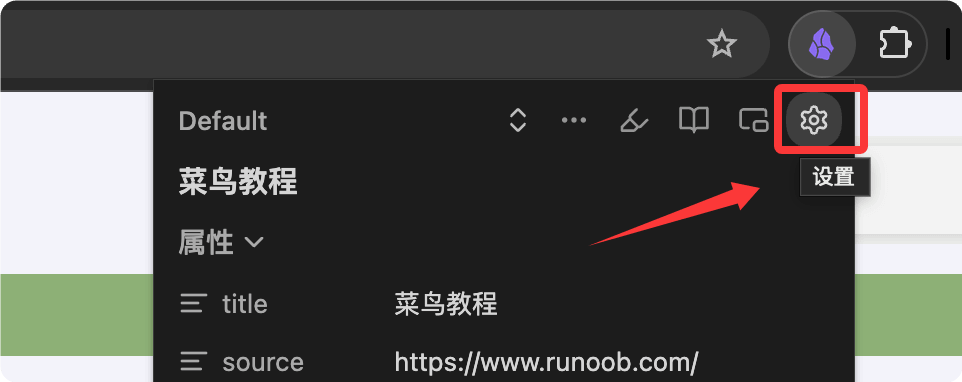
You can set the language to Chinese in the settings. Click the Obsidian icon, then click the settings button:
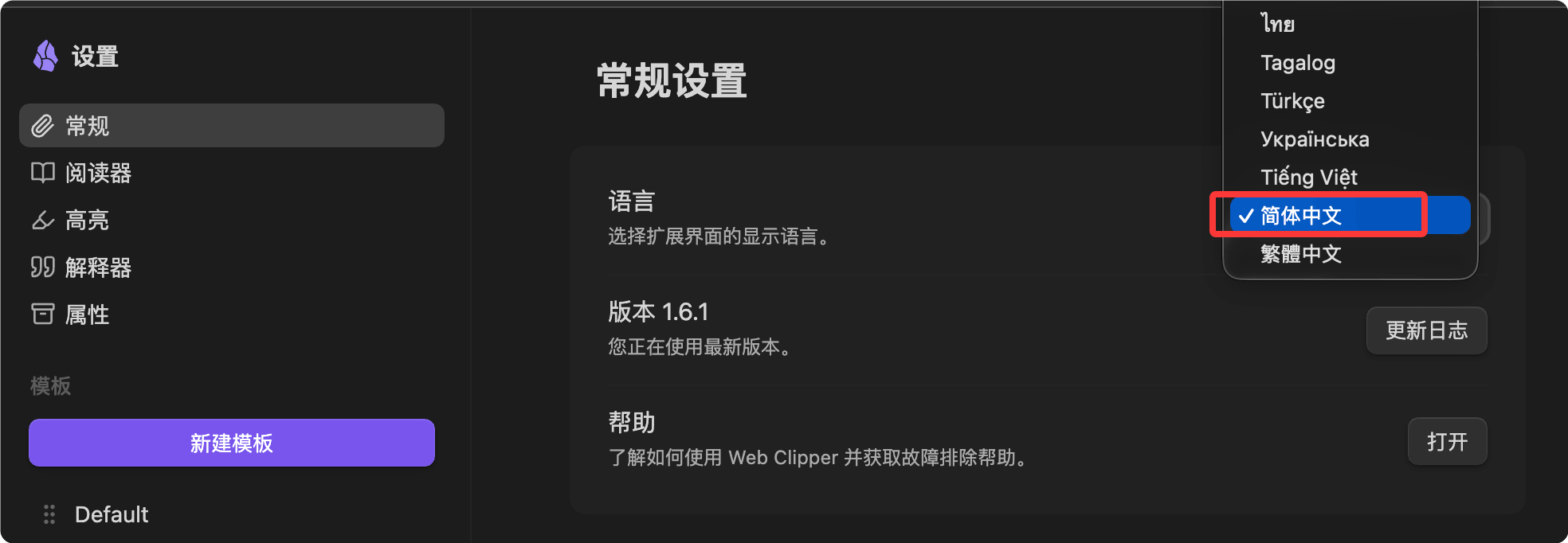
In General options, set the language to Chinese:
Core Features
Web Clipper offers two primary usage modes:Full-Page ClippingandHighlight Clipping。
Full-Page Clipping
Open any webpage, click the extension icon, then click "Add to Obsidian". The page content will be saved to your vault in Markdown format.
Web Clipper automatically extracts the following content:
- Article body (removing ads and sidebars)
- Title, author, publication date, description
- Page URL and source domain
- Code blocks (preserving syntax highlighting markers), mathematical formulas (LaTeX format)

Highlight Clipping
Don't want to save the whole article? Select the paragraphs you're interested in, click the highlight button, and only the marked part will be saved.
Highlighted content will be written into the note as a blockquote (>) format. When you visit the page again, your highlights remain visible.
The workflow is as follows:
- Select text or images on the page with your mouse
- Click the extension icon
- Choose "Highlight selection"
- After you have accumulated all highlights, click "Add to Obsidian" to save at once

You can also right-click and select Obsidian Web Clipper to save:

Templates: Make Clipping Smarter
This is Web Clipper's most powerful feature.
By default, all web pages are saved in the same format, but templates allow you to customize the save structure for different types of web pages.
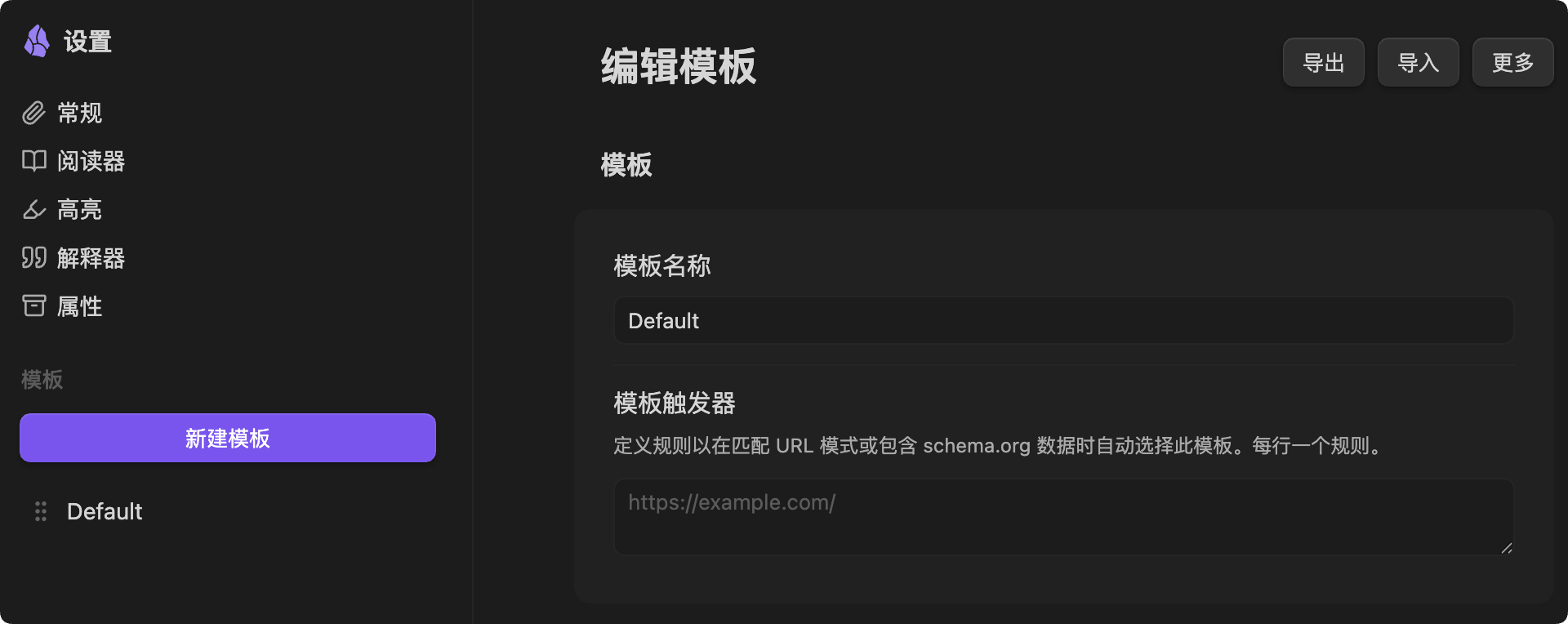
Under the template options on the settings page,Defaultyou can view:
Built-in Template Types
The official Web Clipper website showcases several typical templates suitable for different scenarios:
| Template Type | Extracted Content | Use Case |
|---|---|---|
| Article Template | Automatically fills in author, published, description; the body is saved in article format. | Reading content, blogs, news |
| Recipe Template | Extracts ingredient list (automatically converted to to-do checkboxes - [ ]), steps, nutritional information | Cooking list management, works best with the Tasks plugin. |
| Movie/Book Template | Extracts director, rating, duration, cast, synopsis, etc. | Use with the Dataview plugin to create a movie watching record database. |
| Academic Paper Template | Fully preserves code blocks and LaTeX formulas | arxiv, ACM Digital Library, and other academic websites |
Creating Custom Templates
In Extension Settings → Templates → New Template, you can customize the following:
| Configuration Option | Description | Example |
|---|---|---|
| Template Name | The identifier name of the template | "YouTube Video", "GitHub Repository" |
| Note Name | Supports variables | {{title}}or{{date}}-{{title}} |
| Save Location | Specify a folder in the vault | Clippings/Articles |
| Properties | Structured properties automatically filled at the top of the note (YAML frontmatter) | author, published, tags, etc. |
| Note Body | Fully customizable Markdown template | Can embed variables and arbitrary Markdown content |
Template Auto-trigger
After setting "Template Trigger Conditions", when you visit specific websites, the corresponding template is automatically applied without manual selection.
| Trigger Condition | Auto-applied |
|---|---|
| URL containsyoutube.com | YouTube template |
| URL containsarxiv.org | Paper template |
| URL containsamazon.com | Shopping template |
Template Variable Quick Reference
Templates can use variables to automatically fill in page data, in the format{{variable name}}。
Common Preset Variables
| Variable | Description |
|---|---|
| {{title}} | Page title |
| {{url}} | Current URL |
| {{author}} | Author |
| {{published}} | Publication date |
| {{description}} | Page description |
| {{content}} | Body content (Markdown format) |
| {{highlights}} | All highlighted content |
| {{date}} | Current date |
| {{site}} | Site name |
| {{domain}} | Domain |
| {{image}} | Social share image URL |
| {{words}} | Word count |
Advanced Variables
Meta variablesUsed to extract the page's<meta>content in <meta> tags:
Example
{{meta:property:og:title}} ← Open Graph title
CSS selector variablesUsed to precisely extract specific elements from the page:
Example
{{selector:.author}} ← Extract the element with class "author"
{{selector:img.hero?src}} ← Extract the src attribute of a specific image
Schema.org variablesUsed to extract information from structured data:
Example
{{schema:@Article:author}} ← Article author
{{schema:author.name}} ← Without specifying a type, directly get author.name
AI prompt variables (Prompt variables)Requires enabling the Interpreter feature to use:
Example
{{"Extract all person names from the text and return them as a list"}}
{{"Translate the key arguments into Chinese"}}
Practical Template Example: Article Clipping
The following is a complete article template configuration. You can create and use it directly in the settings.
Note Name
Example
Save Location
Example
Properties (YAML Frontmatter)
Example
category: Clippings
author: "{{author}}"
published: "{{published}}"
source: "{{url}}"
site: "{{site}}"
description: "{{description}}"
tags: [clippings, articles]
Note Body
Example
> Author: {{author}} | Published: {{published}} | [Original link]({{url}})
{{content}}
Privacy and Data Ownership
This is the biggest advantage of Web Clipper compared to services like Pocket and Instapaper.
- All content is stored locally. The clipped notes are .md files on your hard drive, and no content is uploaded to any server.
- Highlights and settings can be exported as JSON, allowing migration at any time with no lock-in risk.
- When using Prompt variables to call AI, data is sent to the AI service provider you configured (such as OpenAI). This is the only scenario that may involve network transmission.
Frequently Asked Questions
The following are common issues and solutions when using Web Clipper.
| Issue | Solution |
|---|---|
| Can't find the file in Obsidian after clipping? | Check whether the "Vault" in the extension settings points to the correct Obsidian vault, and whether the folder set in "Note Location" exists. |
| Body content is extracted inaccurately, with ads and navigation bars mixed in? | In the template body, switch to using{{selector:article}}or{{selector:.post-content}}CSS selectors such as ... to accurately extract content for specific websites. |
| Can I save to multiple vaults at the same time? | You can add multiple vaults on the "General" page in the extension settings, and specify the target vault separately in each template. |
| Does it work on Safari? | Yes. The Safari version is available on both iOS and macOS and can be installed from the App Store. Its features are basically the same as the desktop browser version. |
More Resources
- Official website:obsidian.md/zh/clipper
- Official documentation (full list of variables):help.obsidian.md/web-clipper/variables
- Community template library:github.com/obsidian-community/web-clipper-templates
- Source code (open source):github.com/obsidianmd/obsidian-clipper