Linux gpg Command
 Linux Command Encyclopedia
GPG (GNU Privacy Guard) is an OpenPGP standard implementation tool developed by the GNU Project, used to encrypt and decrypt data as well as create and verify digital signatures. It is an open-source alternative to PGP (Pretty Good Privacy), widely used in scenarios such as file encryption, email security protection, and software package signature verification.
Basic Syntax Structure
The basic syntax format of the gpg command is as follows:
gpg [选项] [命令] [文件名]
Main Components:
- Options: Various parameters that control GPG behavior
- Command: Specifies the type of operation to perform
- Filename: The file to be processed (optional)
Common Command Parameters
Key Management
| Parameter | Description |
|---|---|
--gen-key |
Generate new key pair |
--list-keys |
List all public keys |
--list-secret-keys |
List all private keys |
--delete-key |
Delete public key |
--delete-secret-key |
Delete private key |
--import |
Import key |
--export |
Export key |
Encryption/Decryption Operations
| Parameter | Description |
|---|---|
--encrypt (-e) |
Encrypt file |
--decrypt (-d) |
Decrypt file |
--sign (-s) |
Create signature |
--verify |
Verify signature |
--armor (-a) |
Generate ASCII format output |
Other Common Options
| Parameter | Description |
|---|---|
--recipient (-r) |
Specify recipient key |
--output (-o) |
Specify output file |
--passphrase |
Specify passphrase |
Practical Application Examples
1. Generate Key Pair
gpg --gen-key
After execution, it will interactively ask:
- Key type (usually choose the default RSA and RSA)
- Key length (4096 bits recommended)
- Key validity period
- User ID information (name and email)
- Passphrase
2. Encrypt File
gpg --encrypt --recipient alice@example.com --output secret.txt.gpg secret.txt
--recipientSpecify the recipient's public key (identified by email)--outputSpecify the output file after encryption- The last parameter is the original file to be encrypted
3. Decrypt File
gpg --decrypt --output plain.txt secret.txt.gpg
The system will prompt for the private key passphrase
4. Create and Verify Signature
Create signature:
gpg --sign --output document.sig document.txt
Verify signature:
gpg --verify document.sig document.txt
5. Export Public Key
gpg --armor --export alice@example.com > alice.pub.asc
--armorThe option generates a public key file in ASCII format
Key Management Practices
Keyring Operation Process
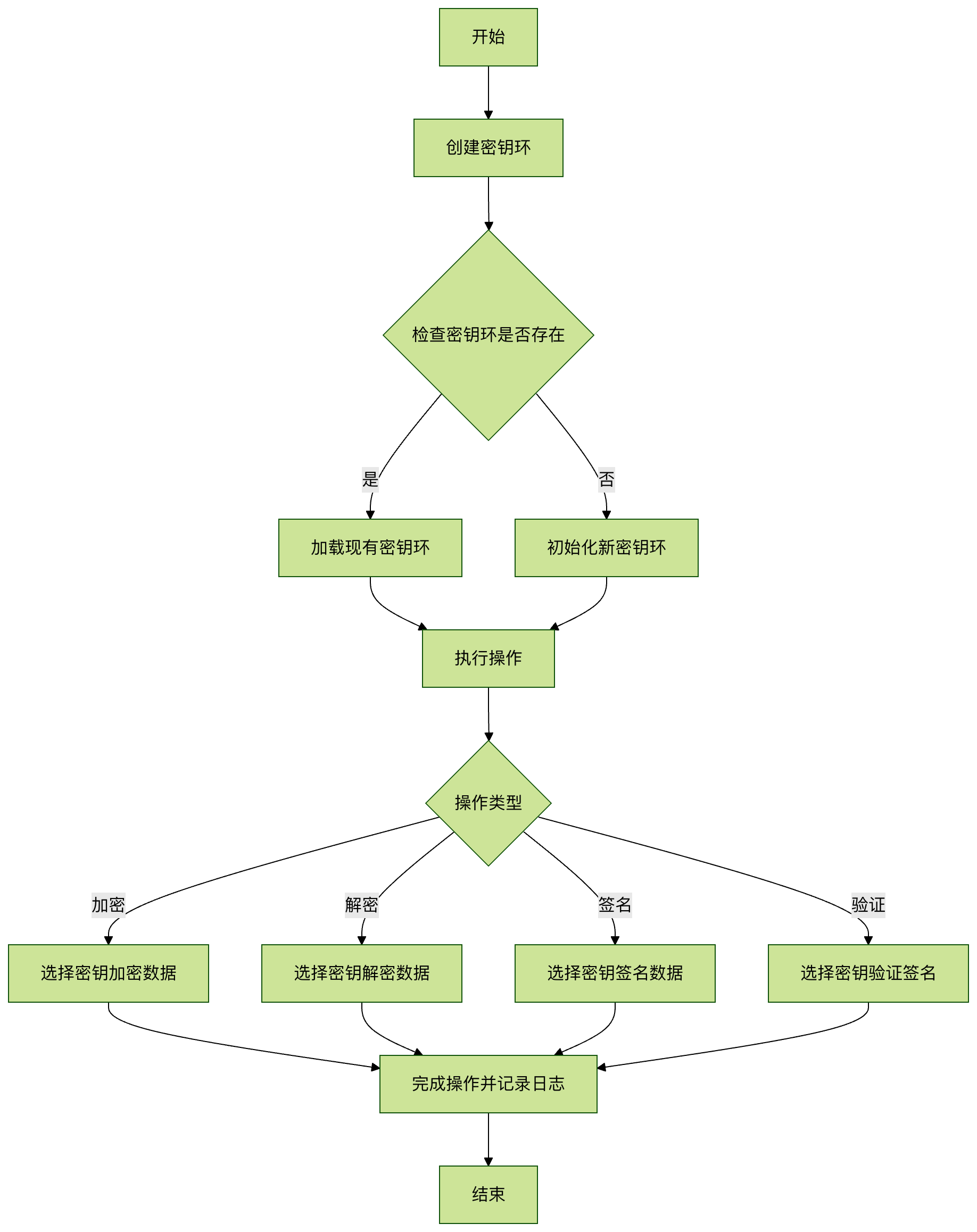
Key Trust Relationship Settings
-
Import someone else's public key:
gpg --import bob.pub.asc
-
Verify key fingerprint:
gpg --fingerprint bob@example.com
-
Sign the key to establish trust:
gpg --sign-key bob@example.com
FAQ
1. How to Avoid Entering Password Every Time When Decrypting?
Use gpg-agent to cache the password:
gpg --use-agent --decrypt file.gpg
2. How to Revoke a Lost Key?
-
Generate a revocation certificate:
gpg --gen-revoke your@email.com > revoke.asc
-
Publish the revocation certificate:
gpg --import revoke.asc
3. Best Practices for Encrypting Large Files?
Use symmetric encryption combined with asymmetric encryption:
gpg --symmetric --cipher-algo AES256 largefile.iso
Security Considerations
- Private key protection: Private key files should be properly stored, and strong passphrases are recommended
- Key backup: Regularly back up the keyring and revocation certificates
- Algorithm selection: Strong encryption algorithms such as AES-256 and RSA-4096 are recommended
- Key expiration: Set a reasonable key validity period and update regularly
- Metadata leakage: Do not retain metadata such as file names when encrypting; you can use the
--throw-keyidsoption
By mastering the gpg command, you can effectively protect the security of sensitive data and achieve secure file transfer and authentication. It is recommended to familiarize yourself with various operations in a test environment before actual use.
Other Extensions