JSP Development Environment Setup
The JSP development environment is where you develop, test, and run JSP programs.
This section will guide you through setting up the JSP development environment, specifically including the following steps.
If you are using the Eclipse environment, you can directly refer to:Eclipse JSP/Servlet Environment Setup。
Configure Java Development Kit (JDK)
This step involves downloading the Java JDK and configuring the PATH environment variable.
You can download the JDK from Oracle's Java page:Java SE Downloads
After the Java JDK is downloaded, please follow the given instructions to install and configure the JDK. Finally, set the PATH and JAVA_HOME environment variables to indicate the folder paths containing java and javac, usually java_install_dir/bin and java_install_dir.
If you are using a Windows system and the JDK installation directory is C::\jdk1.5.0_20, then you need to add the following two lines to the C:\autoexec.bat file:
set PATH=C:\jdk1.5.0_20\bin;%PATH%
set JAVA_HOME=C:\jdk1.5.0_20
Alternatively, under Windows NT/2000/XP, you can right-click the My Computer icon, select Properties, then Advanced, then Environment Variables, and then you can conveniently set the PATH variable and click OK to exit.
On Linux/Unix systems, if the JDK installation directory is /usr/local/jdk1.5.0_20 and you are using C shell, then you need to add the following two lines to the .cshrc file:
setenv PATH /usr/local/jdk1.5.0_20/bin:$PATH
setenv JAVA_HOME /usr/local/jdk1.5.0_20
Alternatively, if you are using an integrated development environment such as Borland JBuilder, Eclipse, IntelliJ IDEA, and Sun ONE Studio, you can try to compile and run a simple program to determine whether the IDE (Integrated Development Environment) already knows the JDK installation directory.
For this step, you can also refer to this site'sJava Development Environment Configurationsection tutorial.
Set Up Web Server: Tomcat
Currently, there are many web servers on the market that support JSP and Servlet development. Some of them can be downloaded and used for free, and Tomcat is one of them.
Apache Tomcat is open-source software that can run JSP and Servlets as a standalone server, and can also be integrated into the Apache Web Server. The following are the configuration methods for Tomcat:
- Download the latest version of Tomcat:http://tomcat.apache.org/。
- After downloading the installation file, extract the archive to a convenient location, such as the C:\apache-tomcat-5.5.29 directory on Windows or the /usr/local/apache-tomcat-5.5.29 directory on Linux/Unix, and then create the CATALINA_HOME environment variable to point to these directories.
On a Windows machine, Tomcat can be started by executing the following command:
%CATALINA_HOME%\bin\startup.bat
或者
C:\apache-tomcat-5.5.29\bin\startup.bat
On a Linux/Unix machine, Tomcat can be started by executing the following command:
$CATALINA_HOME/bin/startup.sh
或者
/usr/local/apache-tomcat-5.5.29/bin/startup.sh
After successfully starting Tomcat, you can use some of the web applications that come with Tomcat by visiting http://localhost:8080/. If all goes well, you should see the following page:
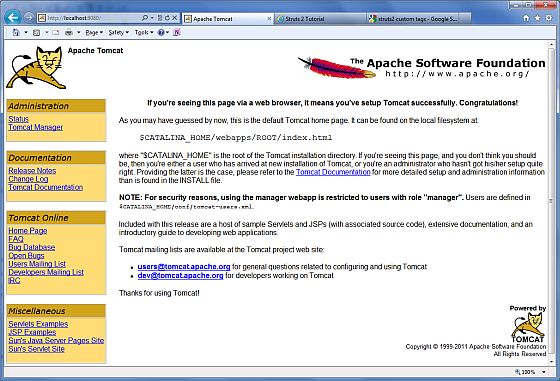
More information about configuring and running Tomcat can be found in the documentation provided by Tomcat, or you can consult the Tomcat official website: http://tomcat.apache.org.
On a Windows machine, Tomcat can be stopped by executing the following command:
%CATALINA_HOME%\bin\shutdown.bat
或者
C:\apache-tomcat-5.5.29\bin\shutdown.bat
On a Linux/Unix machine, Tomcat can be stopped by executing the following command:
$CATALINA_HOME/bin/shutdown.sh
或者
/usr/local/apache-tomcat-5.5.29/bin/shutdown.sh
Set the CLASSPATH Environment Variable
Since servlets are not part of Java SE, you must specify the servlet classes to the compiler.
If you are using a Windows machine, you need to add the following two lines to the C:\autoexec.bat file:
set CATALINA=C:\apache-tomcat-5.5.29
set CLASSPATH=%CATALINA%\common\lib\jsp-api.jar;%CLASSPATH%
Alternatively, under Windows NT/2000/XP, you just right-click My Computer, select Properties, then click Advanced, then click Environment Variables, and then you can set the CLASSPATH variable and click OK to exit.
On a Linux/Unix machine, if you are using C shell, then you need to add the following two lines to the .cshrc file:
setenv CATALINA=/usr/local/apache-tomcat-5.5.29
setenv CLASSPATH $CATALINA/common/lib/jsp-api.jar:$CLASSPATH
Note: If your development path is C:\JSPDev (Windows) or /usr/JSPDev (Linux/Unix), then you need to add these paths to the CLASSPATH variable.
Other Extensions