Developing TypeScript with VS Code
Many IDEs have TypeScript plugin support, such as VS Code, Sublime Text 2, WebStorm/PHPStorm, Eclipse, etc.
This chapter mainly introduces VS Code. VS Code is a cross-platform source code editor developed by Microsoft that runs on Mac OS X, Windows, and Linux, designed for writing modern web and cloud applications.
VS Code natively includes TypeScript language syntax support, but does not include the TypeScript compiler tsc. To transpile TS source code into JS (execute the command tsc HelloWorld.ts), you need to install the TypeScript compiler separately globally or in the project workspace.
VS Code Tutorial:https://www.example.com/vscode/vscode-tutorial.html
In addition, domestic companies Alibaba and ByteDance also have AI IDEs based on VS Code:
Installing the TypeScript Compiler
The simplest installation method is to install via the Node.js package manager npm. With npm installed, run the following command to install globally (-g):
npm install -g typescript
After installation, you can verify by printing the version number:
tsc --version
Installing Visual Studio Code on Windows
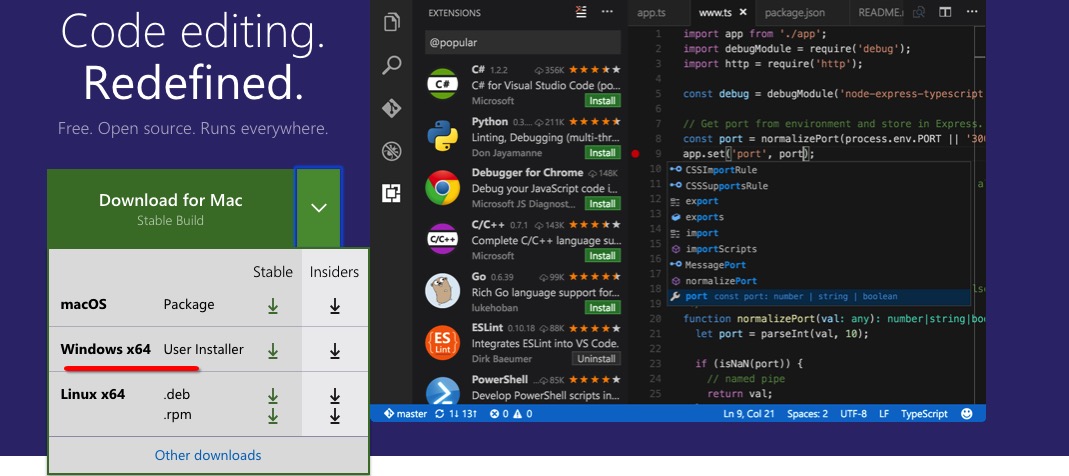
1. DownloadVisual Studio Code。
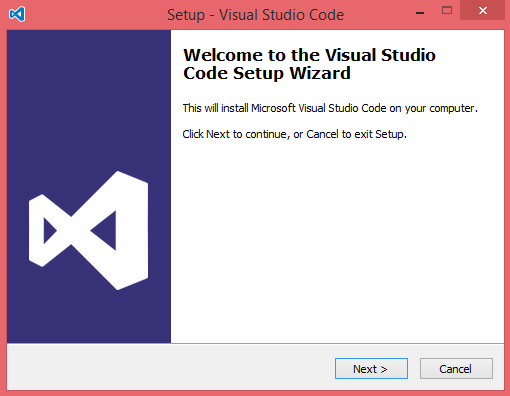
2. Double-click the VSCodeSetup.exe icon to install.
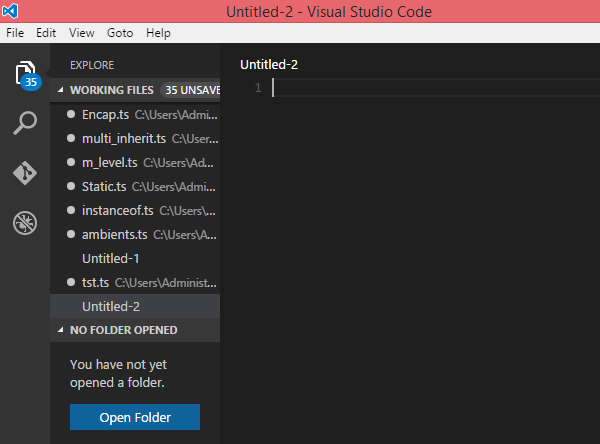
3. After installation, the Visual Studio Code interface looks similar to the following:
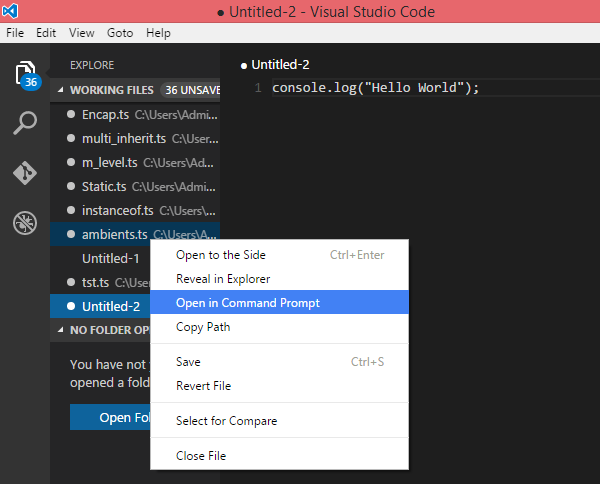
4. In the left window, click the currently edited code file, selectopen in command prompt(Open in Terminal), then we can use thetsccommand in the lower right part of the screen to execute TypeScript file code.
Installing Visual Studio Code on Mac OS X
For installing and configuring Visual Studio Code on Mac OS X, see:https://code.visualstudio.com/Docs/editor/setup
Installing Visual Studio Code on Linux
For installing and configuring Visual Studio Code on Linux, see:https://code.visualstudio.com/Docs/editor/setup
Getting Started: Hello World
Taking a minimal Hello World project in the Node.js environment as an example, create a new project folder and open VS Code:
mkdir HelloWorld
cd HelloWorld
code .
Create a new file helloworld.ts in the Explorer.
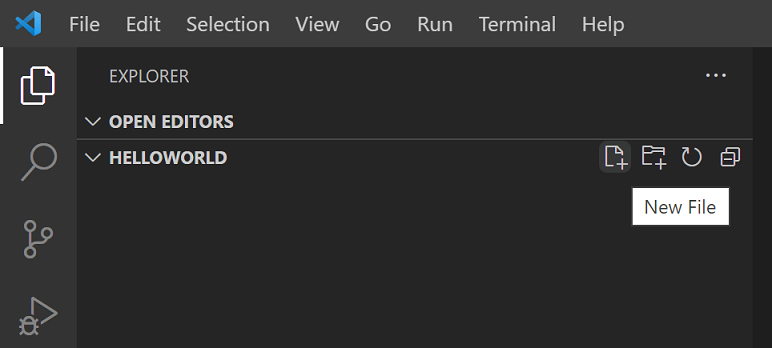
Write the following TS code, and you can see the TS-specific keyword let and the string type annotation:
let message : string = "Hello World";
console.log(message);
Open the Integrated Terminal (shortcut kb(workbench.action.terminal.toggleTerminal)), enter tsc helloworld.ts to compile the code. After successful compilation, a JS file helloworld.js will be automatically generated.

If Node.js is installed on the machine, run node helloworld.js to execute the code.

After opening the compiled helloworld.js, you can find: the code has removed type declarations, and let has been downgraded to ES5's var:
var message = "Hello World";
console.log(message);
IntelliSense
IntelliSense provides code auto-completion, hover documentation, and function parameter signature hints, improving coding efficiency and accuracy.

VS Code provides a full set of IntelliSense for both a single TS file and TS projects withtsconfig.jsonconfiguration.
Hover Documentation
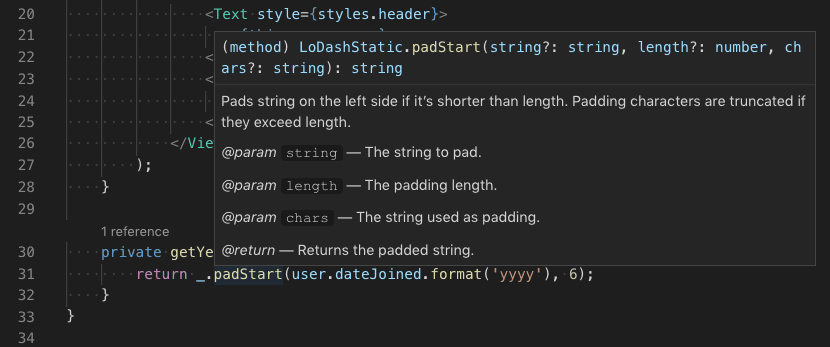
Hover the mouse over any TS identifier to quickly view the type and documentation of the variable/function;
shortcut keykb(editor.action.showHover)can manually trigger the hover tooltip at the cursor position.
Function Signature Hint
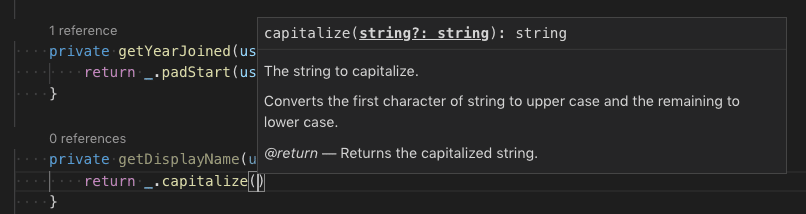
When writing function call code, the editor automatically shows the function parameter description and highlights the currently filled parameter;
Enter left parenthesis(or comma,automatically triggers the signature hint, shortcut keykb(editor.action.triggerParameterHints)manually triggers it.
Snippets
In addition to auto-completion, VS Code includes basic TS code snippets. When entering keywords, quick templates automatically pop up.

You can install third-party extensions to expand the snippet library, and also customize TS code snippets. For details, refer to the "User Custom Code Snippets" document.
Tip: In the configuration file, set
editor.snippetSuggestionsto"none"to disable snippet suggestions; if you want to keep them, you can configure the snippet display priority:top(top),bottom(bottom),inline(mixed with normal suggestions, sorted alphabetically, default configuration).
Error and Warning Notifications
The TS language service validates code in real time, automatically marking syntax and logical issues:
- The editor status bar summarizes the total number of errors and warnings in the current project;
- Click the status bar statistics number, or use the shortcut key
kb(workbench.actions.view.problems)to open the "Problems" panel, listing all errors; - For code lines with exceptions, they are marked in red within the line, and error positions are also marked on the right-side minimap ruler.

Shortcut keykb(editor.action.marker.nextInFiles) / kb(editor.action.marker.prevInFiles)jumps to the next/previous issue in the current file, and a popup displays details and available quick fixes.
Code Navigation and Jump
Rely on navigation features to quickly browse large TS project source code:
- Go to Definition
kb(editor.action.revealDefinition): Locate the source definition of the identifier; - Peek Definition
kb(editor.action.peekDefinition): Preview source in a popup without switching the current file; - Find All References
kb(editor.action.goToReferences): List all locations in the project where the identifier is called; - Go to Type Definition: Locate the type source to which the variable belongs (for class instances, it jumps to the class itself, not the instance creation code);
- Go to Implementation
kb(editor.action.goToImplementation): Find the specific implementation code of an interface/abstract method.
Use the command palette (kb(workbench.action.showCommands)) symbol search for quick navigation:
- Find symbol in current file
kb(editor.action.gotoSymbol) - Search symbol in entire workspace
kb(workbench.action.showAllSymbols)
Code Formatting
VS Code has built-in TS formatting tools, with default rules ready to use out of the box.
Throughjs/ts.format.*series of configurations to customize formatting rules (for example, placing braces on a separate line). When built-in formatting is not needed, set:
"js/ts.format.enable": false
to off.
To align with team-specific coding standards, you can install specialized formatting extensions from the extension marketplace.
Code Refactoring
VS Code comes with common TS refactoring capabilities, such asExtract function, extract constant. Select the code to refactor, click the light bulb icon on the editor side or use the shortcut keykb(editor.action.quickFix)to bring up the refactoring menu.
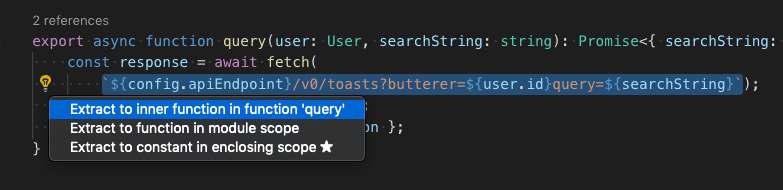
For more refactoring rules and custom refactoring shortcuts, refer to the "TypeScript Code Refactoring" document.
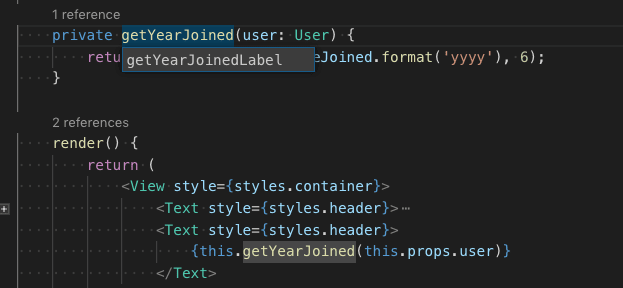
Unified Rename
Select a variable/method, use the shortcut keykb(editor.action.rename)to modify all identifiers with the same name in the project at once.
Debugging
VS Code natively fully supports TS debugging, is compatible with SourceMap, and supports breakpoints, variable inspection, call stack tracing, and debug console interaction; see the "TS Debugging Guide" and general debugging documentation for details.
Front-End Web Debugging
Debug browser-side TS code with the built-in Chrome/Edge debugger extension, or the Firefox debugger extension.
Back-End Node Debugging
Use the built-in debugger to debug Node.js services. The official accompanying tutorial can quickly get you started debugging Express projects.

Linter
Linter is used to check code risks and standardize coding style. VS Code does not have built-in TS checking tools; you can install the corresponding extension from the plugin marketplace.
Mainstream toolsESLintFully compatible with TS. After installing the ESLint plugin, the editor marks errors in real time, and a large number of issues support one-click quick fixes;typescript-eslintDocumentation guides ESLint environment configuration for TS projects.