TypeScript Installation
This article describes how to install the TypeScript environment.
We need to use the npm tool for installation. If you don't know npm yet, you can refer to ourIntroduction to NPM Usage。
Install TypeScript with NPM
If your local environment already has the npm tool installed, you can use the following command to install it.
Use a domestic mirror:
npm config set registry https://registry.npmmirror.com
Install TypeScript:
npm install -g typescript
After installation, we can use thetsccommand to execute TypeScript-related code. The following shows checking the version number:
$ tsc -v
Version 3.2.2
Then we create a new app.ts file, with the code as follows:
Usually we use.tsas the extension for TypeScript code files.
Then run the following command to convert TypeScript to JavaScript code:
tsc app.ts
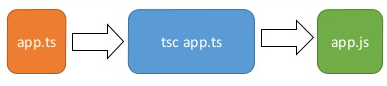
At this point, an app.js file will be generated in the current directory (the same directory as app.ts), with the code as follows:
Use the node command to execute the app.js file:
$ node app.js
Hello World
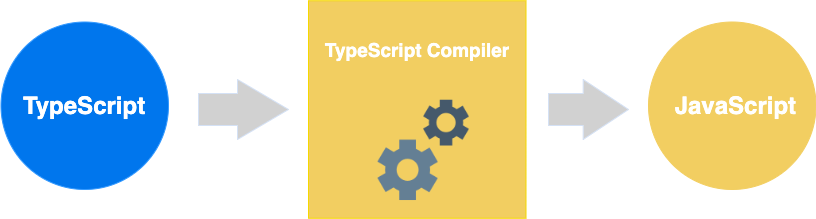
The process of converting TypeScript to JavaScript is shown below:
Introduction to VS Code
Many IDEs have plugins that support TypeScript, such as VS Code, Sublime Text 2, WebStorm / PHPStorm, Eclipse, etc.
This section mainly introduces VS Code. VS Code is a cross-platform source code editor that runs on Mac OS X, Windows, and Linux, designed for writing modern Web and cloud applications, developed by Microsoft.
VS Code Tutorial:https://www.example.com/vscode/vscode-tutorial.html
In addition, domestic Alibaba and ByteDance also have AI IDEs developed based on VS Code:
- Alibaba Qoder:https://qoder.com/
- ByteDance Trae:https://www.trae.cn/
Installing Visual Studio Code on Windows
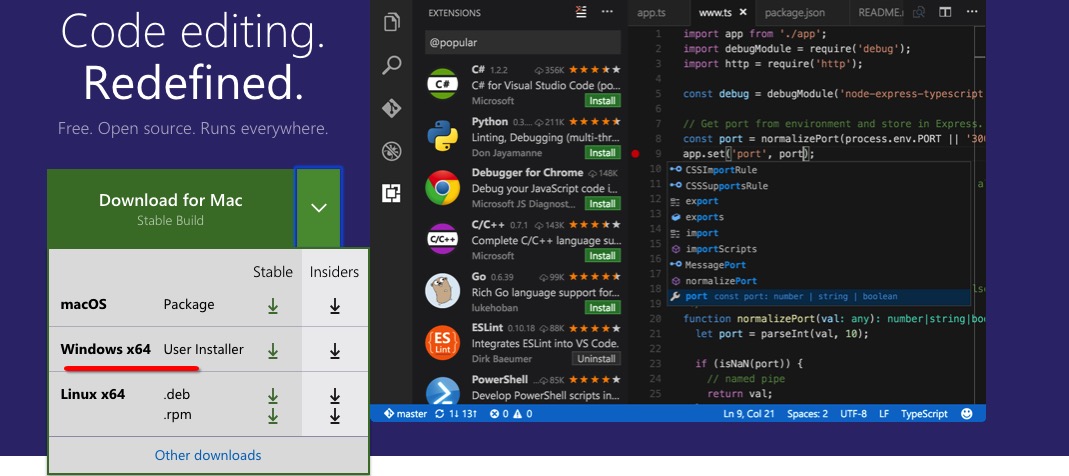
1. DownloadVisual Studio Code。
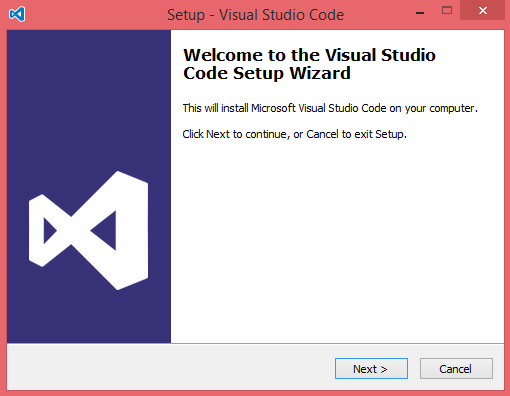
2. Double-click the VSCodeSetup.exe icon Install.
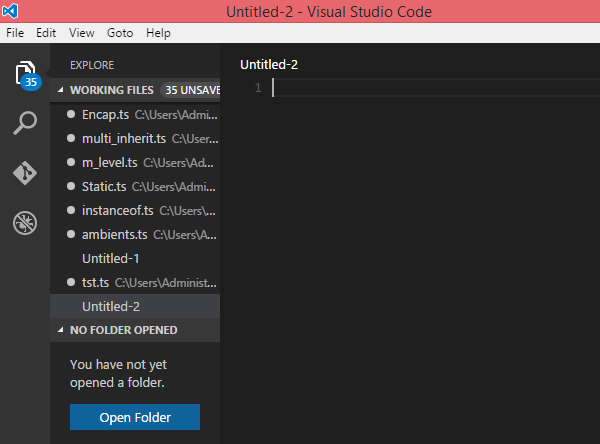
3. After installation is complete, the Visual Studio Code interface looks similar to the following:
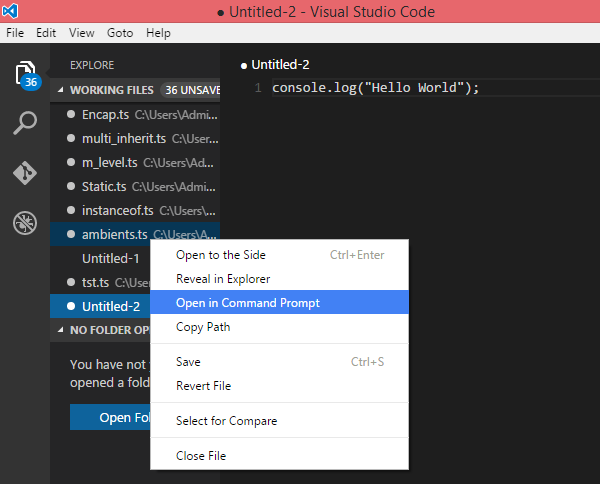
4. In the left window, we can click the current code file being edited and selectopen in command prompt(Open in Terminal). At this point, we can use thetsccommand to execute TypeScript file code.
Installing Visual Studio Code on Mac OS X
You can check the following for installing and configuring Visual Studio Code on Mac OS X:https://code.visualstudio.com/Docs/editor/setup
Installing Visual Studio Code on Linux
You can check the following for installing and configuring Visual Studio Code on Linux:https://code.visualstudio.com/Docs/editor/setup
Other Extensions