Kotlin Android Environment Setup
Install Kotlin Plugin
Starting from version 3.0 (preview), Android Studio will have the Kotlin plugin installed by default.
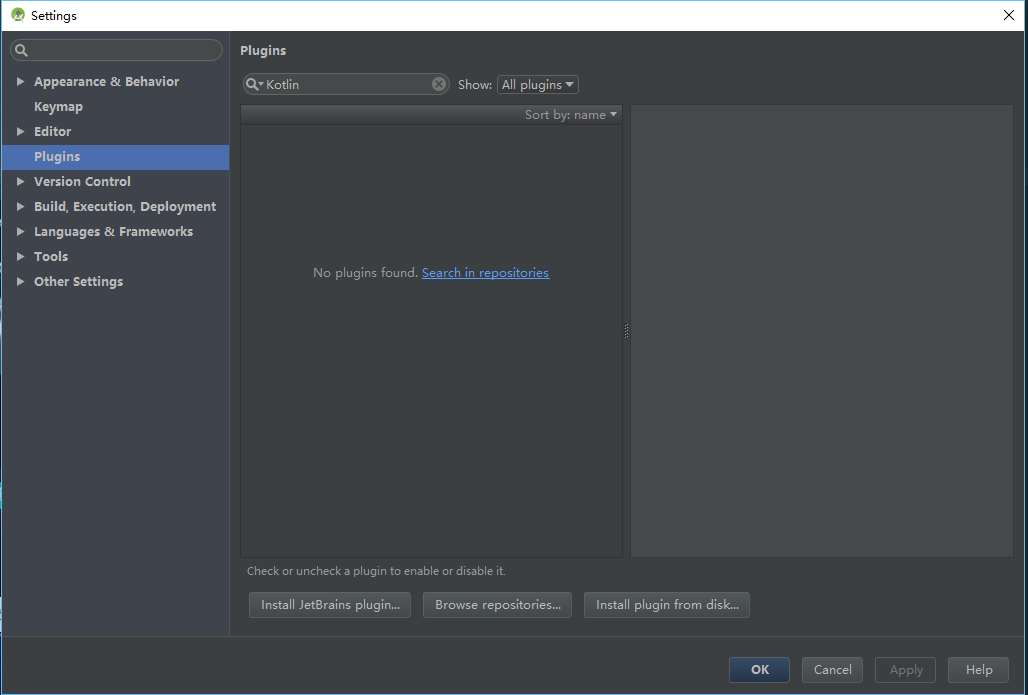
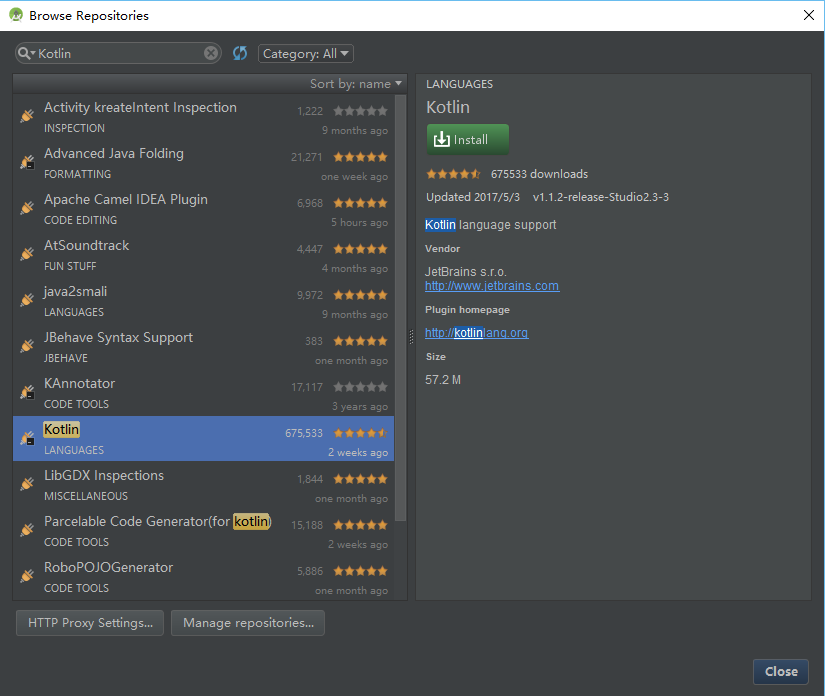
Open the Settings (Preferences on Mac) panel, find the Plugins option on the right side (shortcut Ctrl+, Mac: command+), type "Kotlin" in the search box, click Search in repositories, then install it. After installation, you need to restart Android Studio.
Create New Project
Select Start a new Android Studio project or File | New project. Most options have default values; you just need to press "Enter" a few times.

Android Studio 3.0 provides an option to enable Kotlin support in the current dialog. Checking it allows you to skip the step of "Configuring Kotlin in the project".
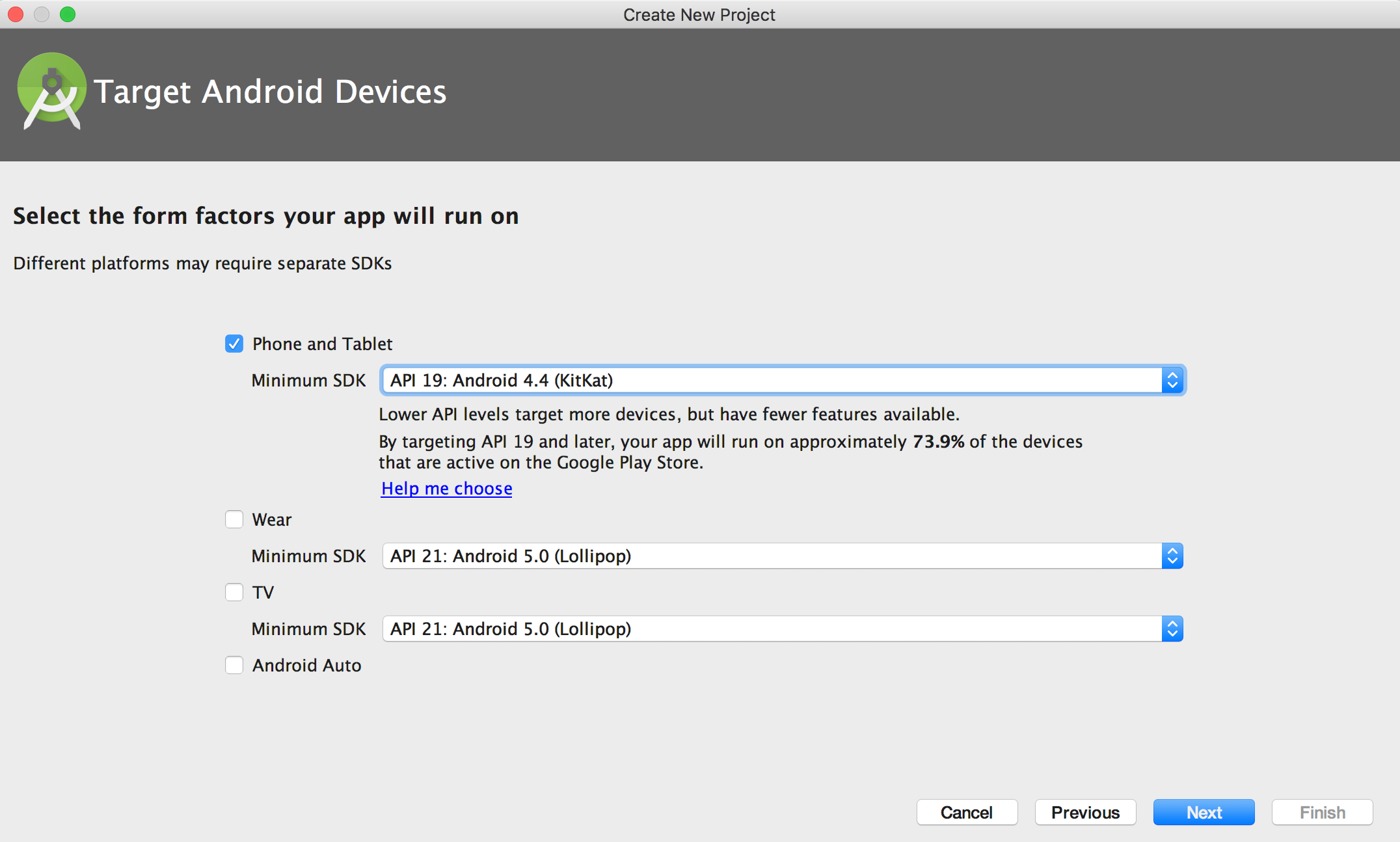
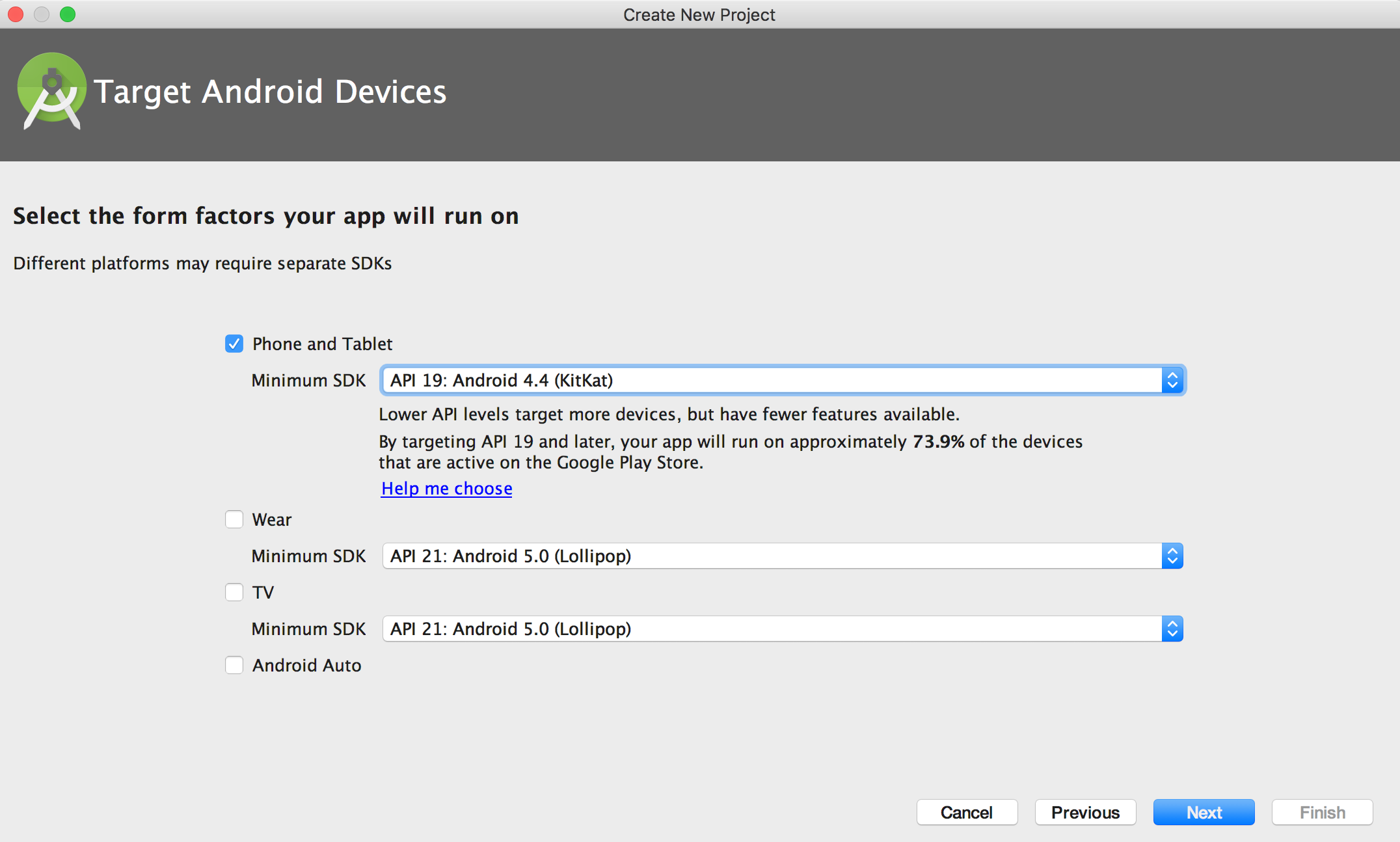
Select Android version:
Select the Activity style you need to create:
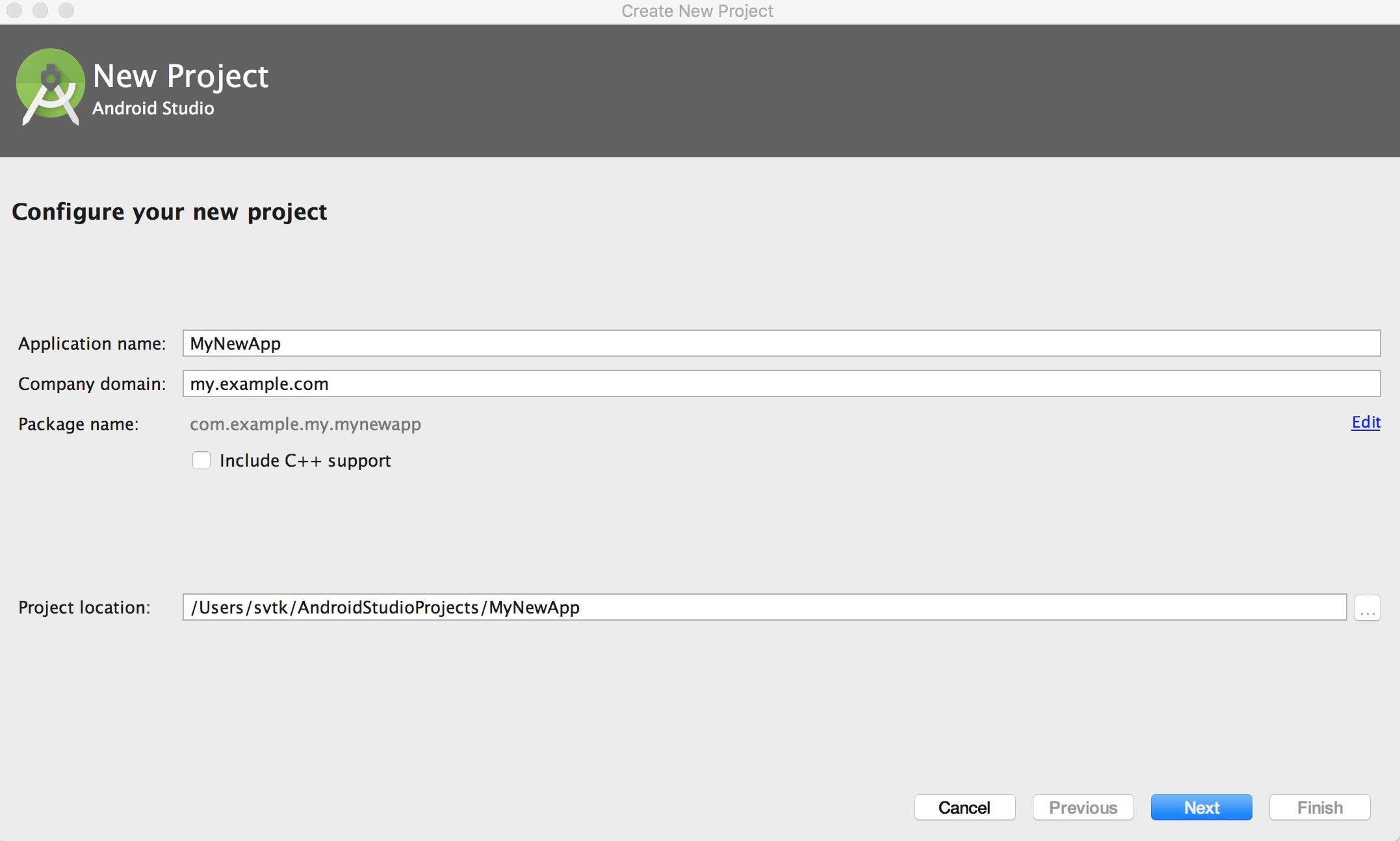
Name the Activity:
In Android Studio 3.0, you can choose to create the activity using Kotlin, so the step of "Converting Java code to Kotlin" is not needed either.
In earlier versions, you would first create the activity using Java, then use the automatic conversion tool to convert it.
Convert Java Code to Kotlin
Reopen Android Studio, create a new Android project, and add a default MainActivity.
Open the MainActivity.java file, then go through the menu bar: Code | Convert Java File to Kotlin File.
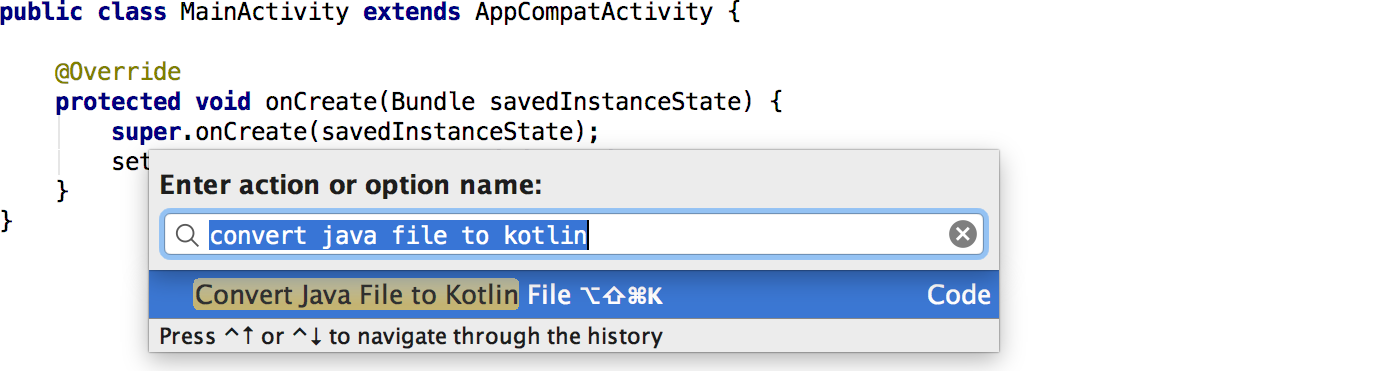
After the conversion is complete, you can see the activity written in Kotlin.

Configure Kotlin in the Project
When you start editing this file, Android Studio will prompt that the current project has not been configured for Kotlin. Follow the prompts to complete the operation, or you can select Tools from the menu bar.
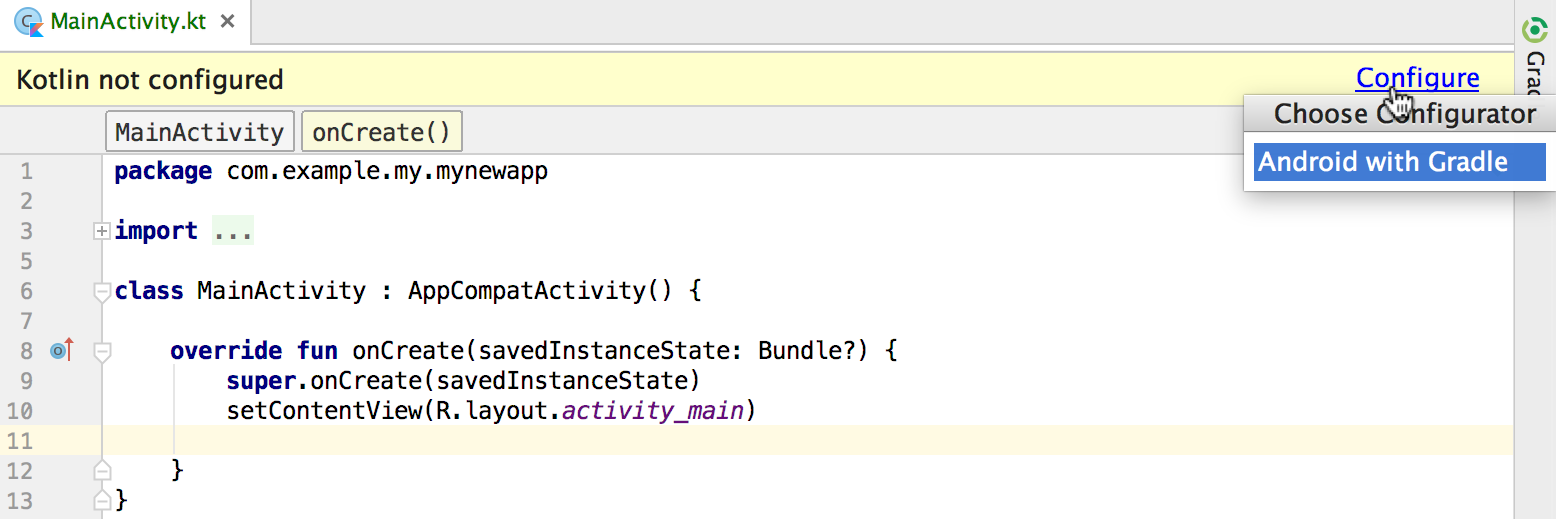
When selecting the configuration, the following dialog appears; just select the latest installed version.
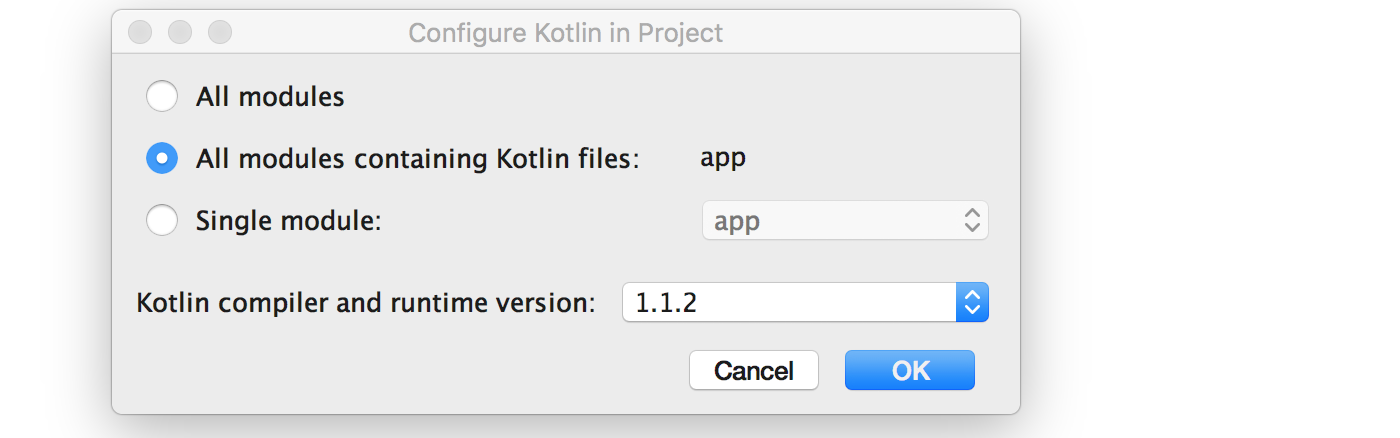
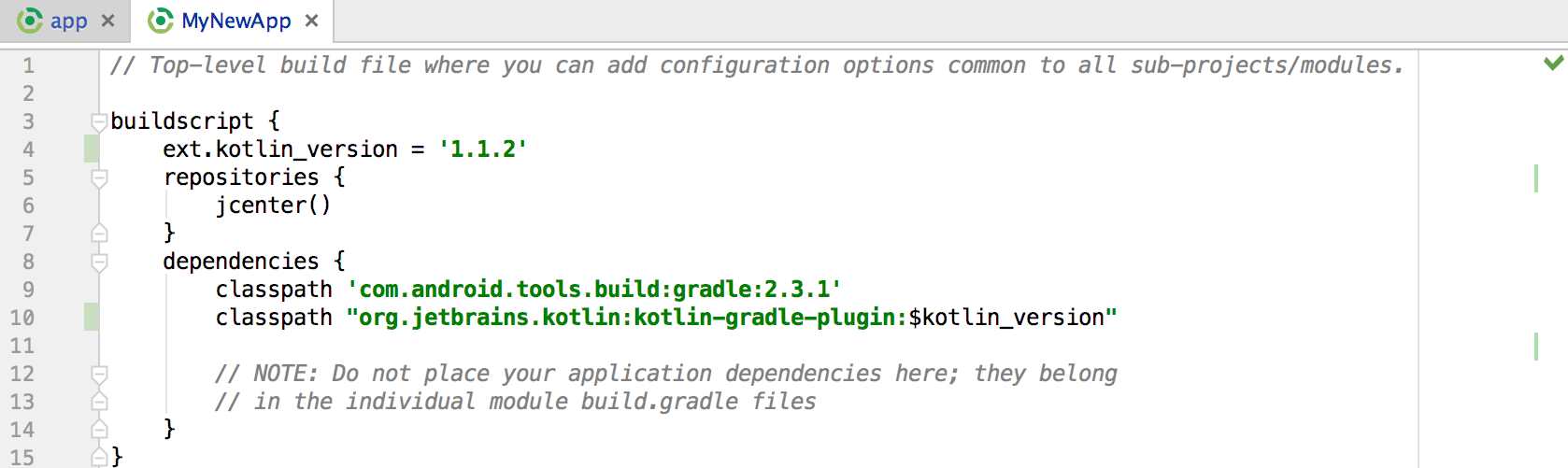
After Kotlin configuration is complete, the application's build.gradle file will be updated. You can see that `apply plugin: 'kotlin-android'` and its dependencies have been added.

Sync the project by clicking "Sync Now" in the prompt box or using the Sync Project with Gradle Files command.