Kotlin IntelliJ IDEA Environment Setup
IntelliJ IDEA free Community Edition download address:https://www.jetbrains.com/idea/download/index.html
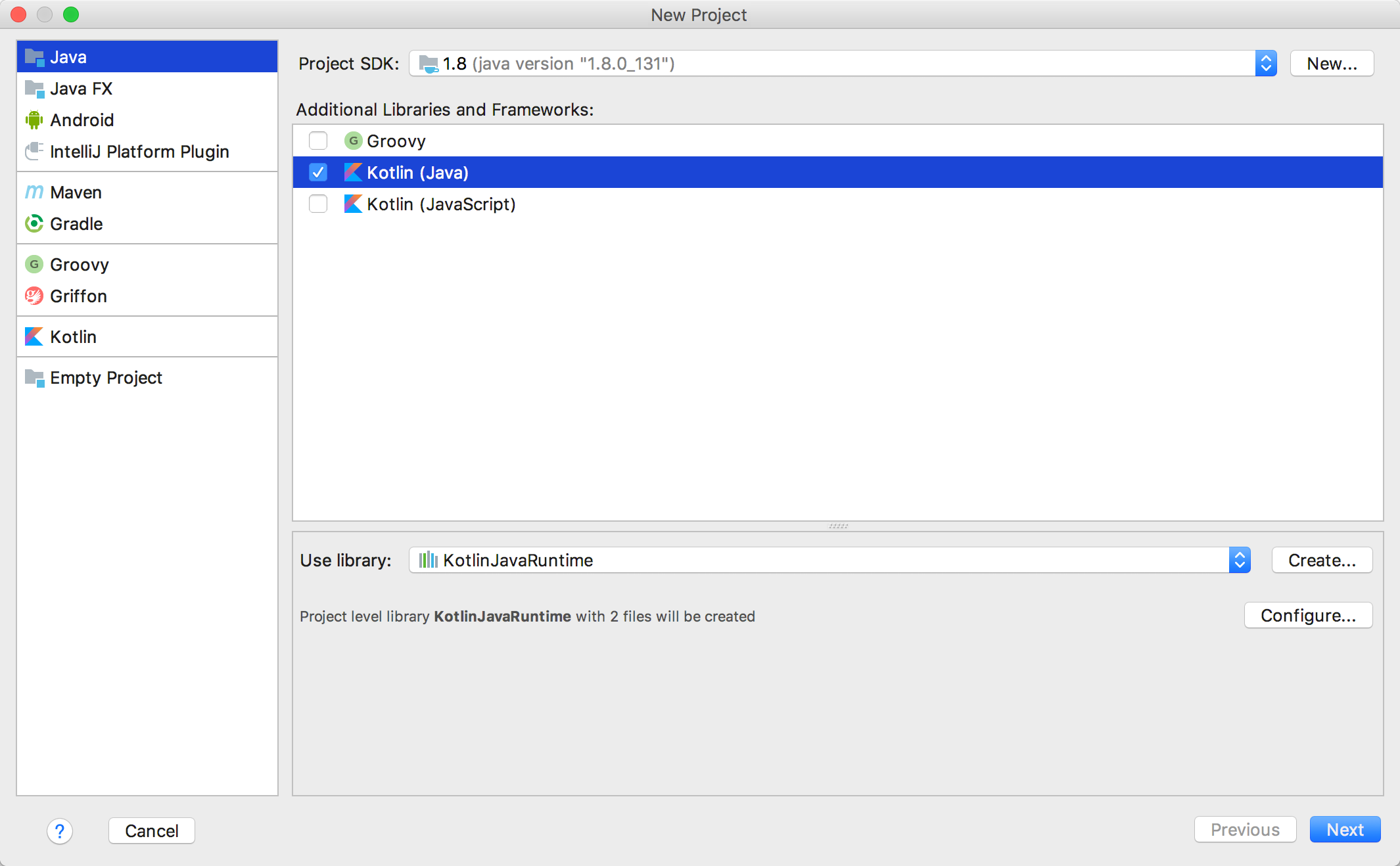
After downloading and installing, we can use this tool to create a project. The creation process requires selecting an SDK. Kotlin works with JDK 1.6+.
In the drop-down menu on the right, check the Kotlin (Java) checkbox.
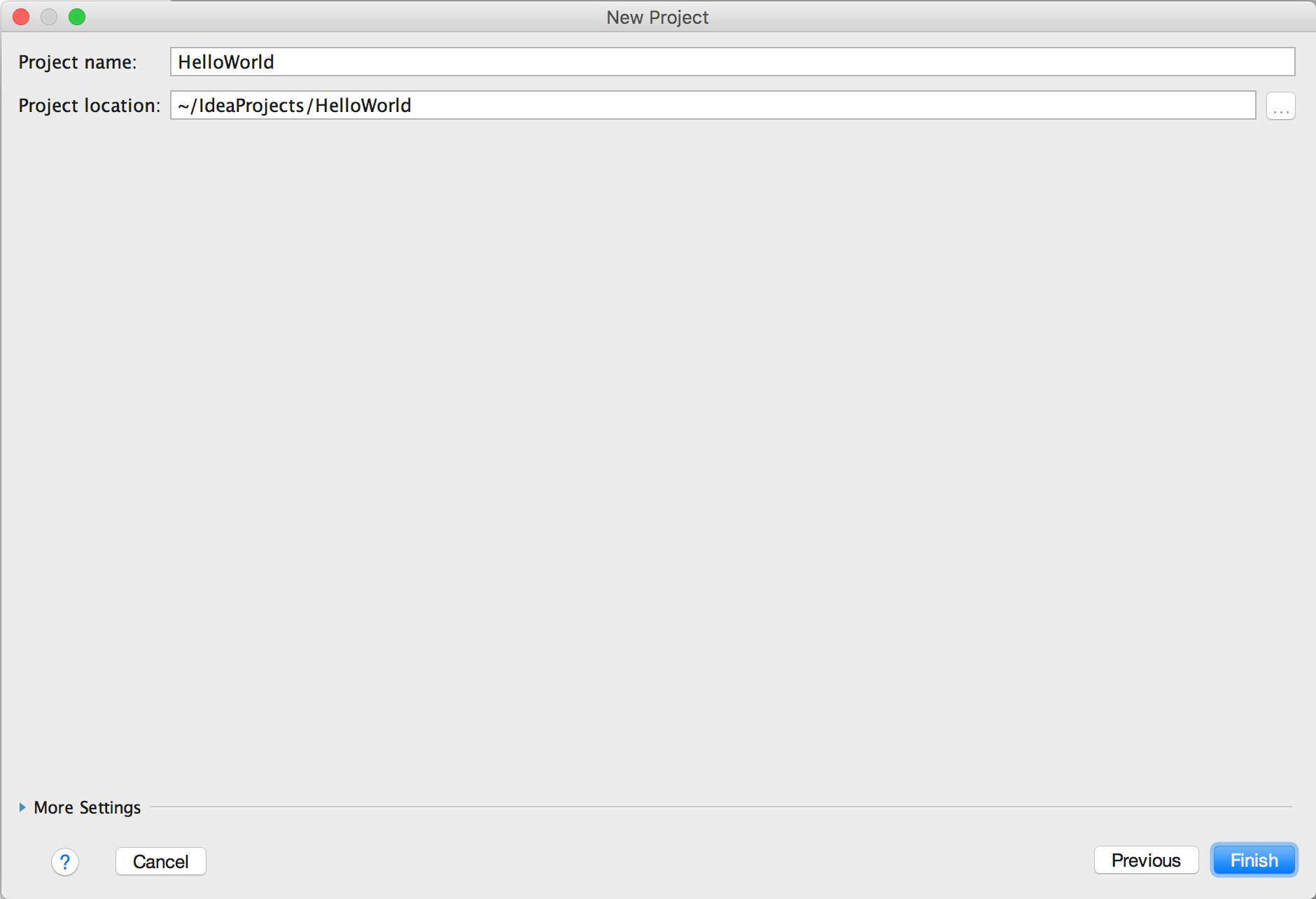
Next, we name the project: HelloWorld
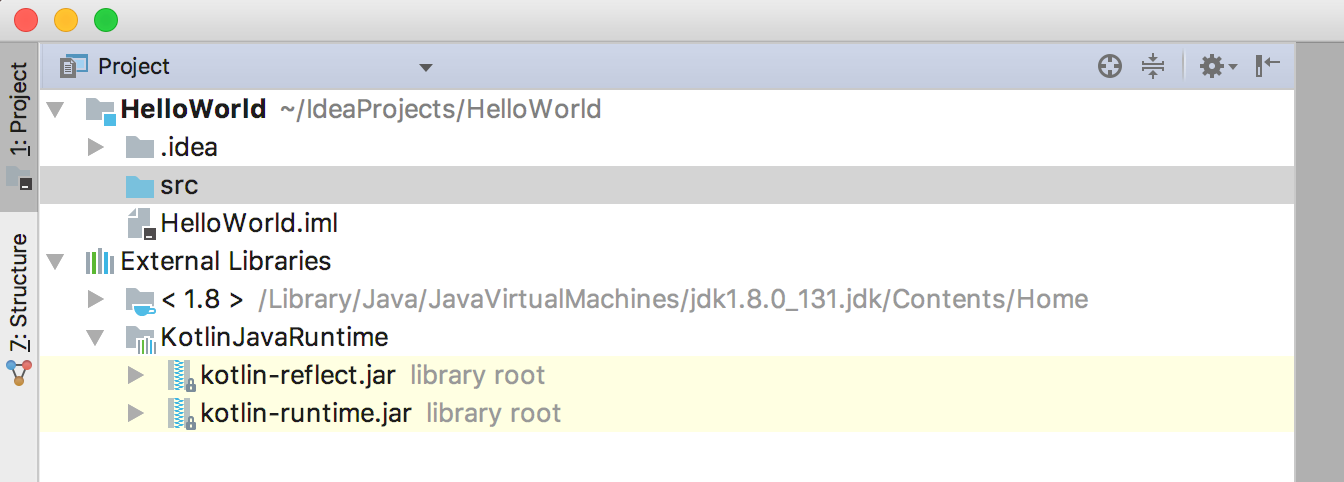
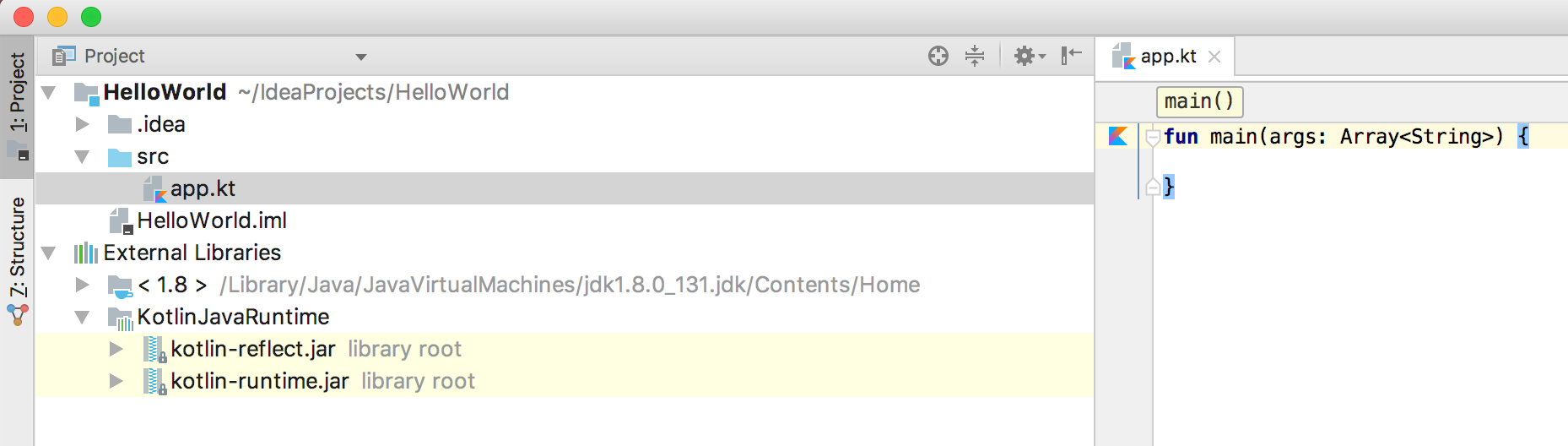
After the project is created, the file structure is as follows, which is quite similar to Java's.
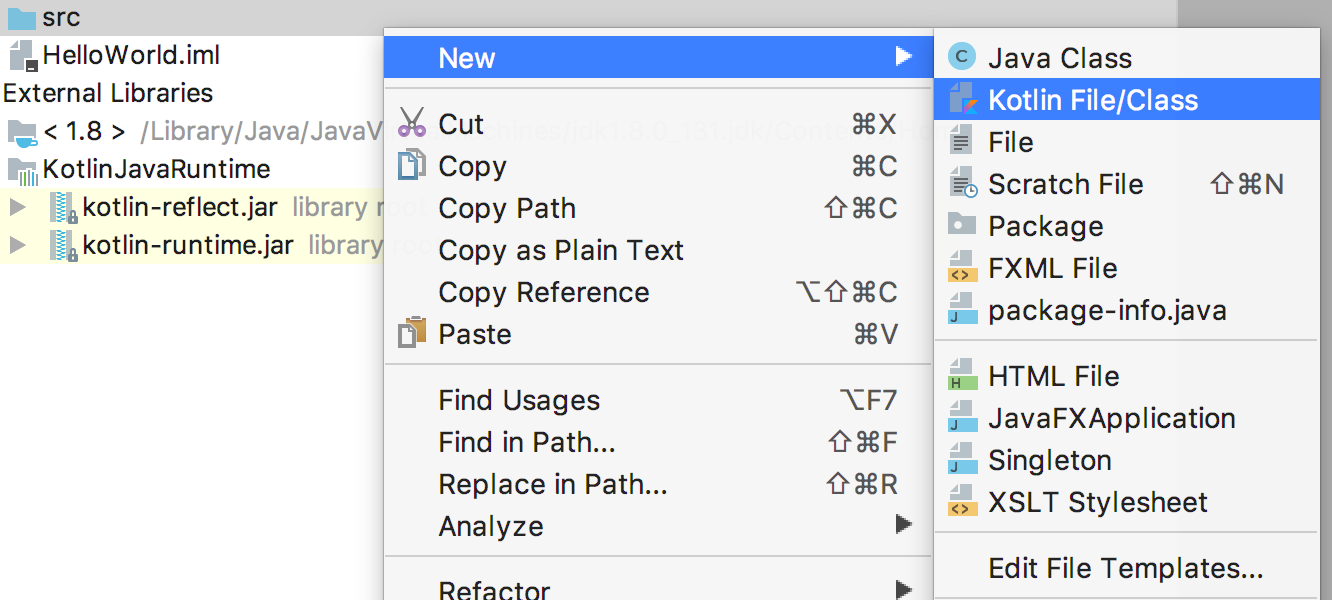
Next, click the src folder to create a Kotlin file. It can be named arbitrarily. Here we create app.kt.
Next, let's write some code in the app.kt file. IntelliJ IDEA provides us with a template to quickly do this. Just type main and press Tab.
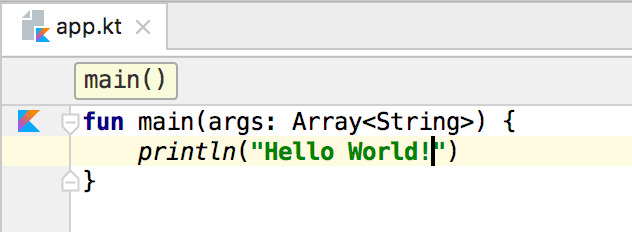
Now let's add a line of code to print "Hello, World!".
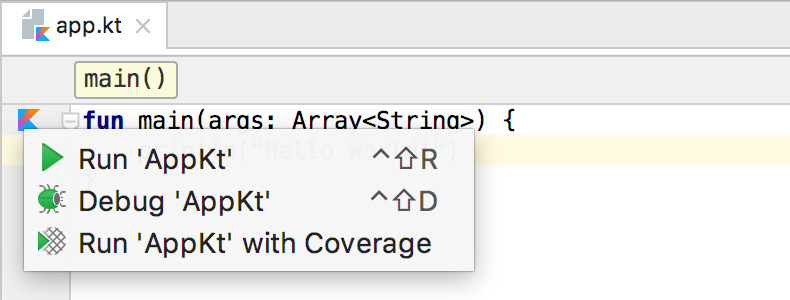
Next, we can click the Kotlin icon in the upper left corner of the editor and select Run 'AppKt' to run the code:
After running successfully, you can see the result in the Run window.
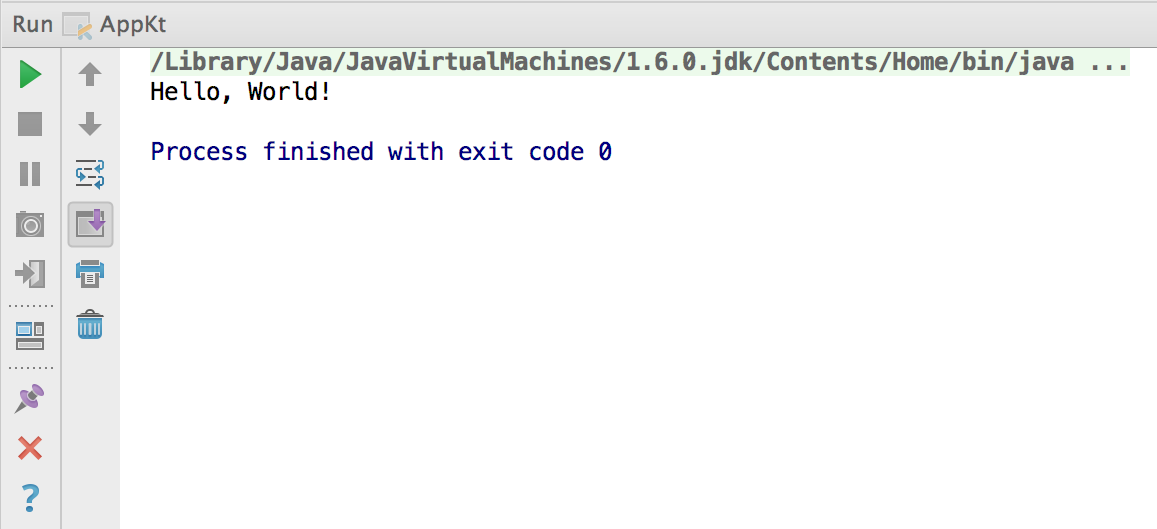
Thus, our first Kotlin code is running.
Other extensions