Kotlin Eclipse Environment Setup
Eclipse viaMarketplaceInstall the Kotlin plugin: Open Eclipse, select Help -> Eclipse Marketplace... menu, search for the Kotlin plugin:
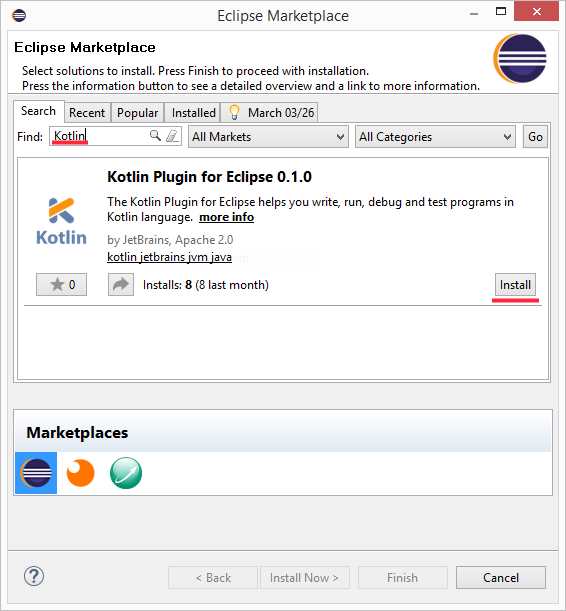
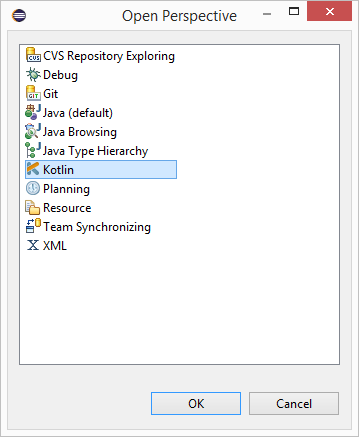
Then restart Eclipse, select Window -> Open Perspective -> Other... If you see the Kotlin option, the installation is successful.
Create a New Project
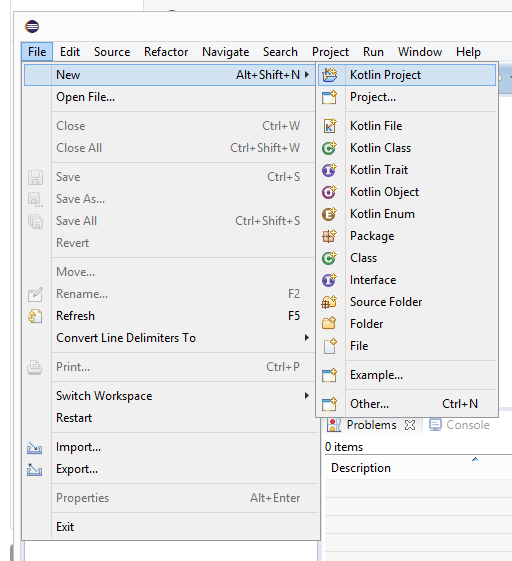
Select File -> New -> Kotlin Project to create a Kotlin project:
After successful creation, the project structure is as follows:
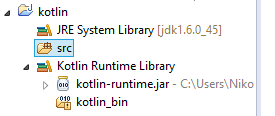
Next, we click the src folder and create a Kotlin file. No need to write ".kt"; it is added automatically by default. It can be named arbitrarily. Here we create "hello".
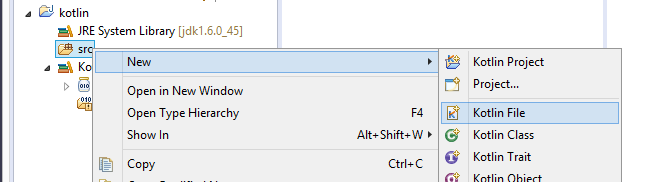
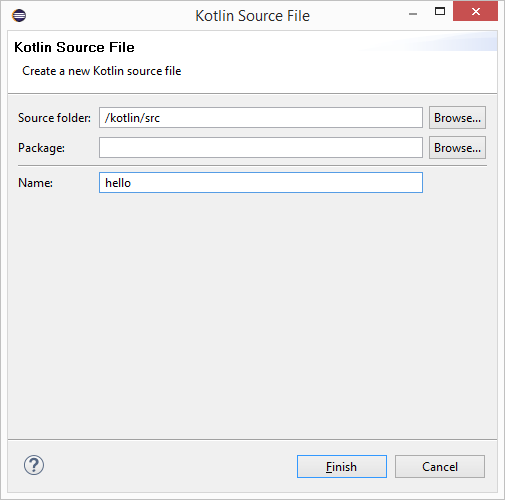
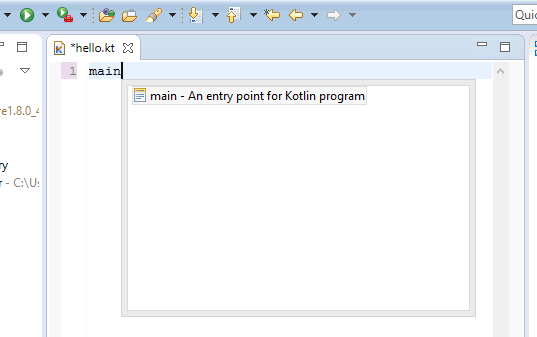
Next, we write some code in the hello.kt file. Eclipse provides a template for us to quickly do this; just type main and press Enter.
Run the Application
Next, right-click inside the editor for hello.kt and select Run As -> Kotlin Application to run it:
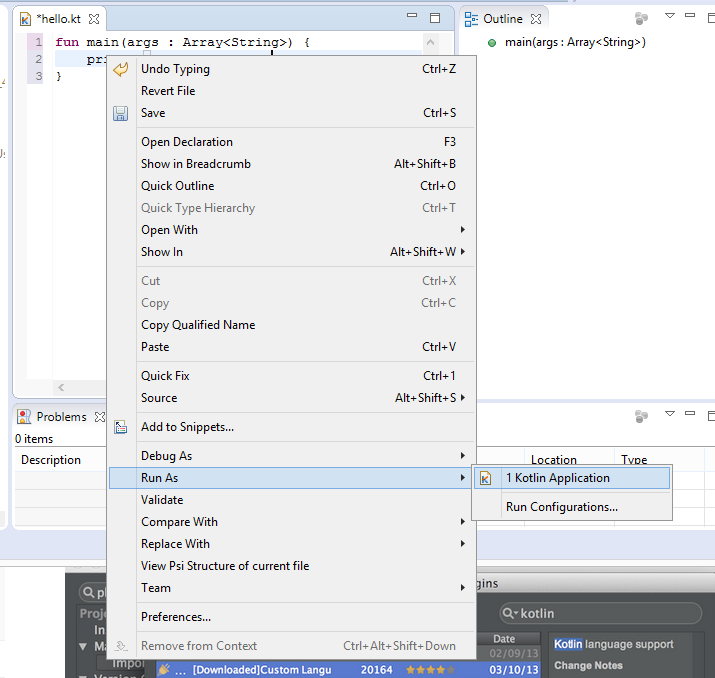
After running successfully, you can see the result in the Console window.
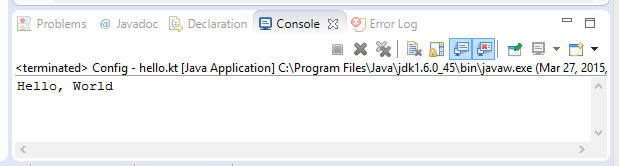
Thus, our first Kotlin code is running.
Other Extensions