Compiling Kotlin from the Command Line
Kotlin command-line compiler download address:https://github.com/JetBrains/kotlin/releases/tag/v1.1.2-2, the latest version is currently 1.1.2-2.
You can choose the latest stable version to download.
After downloading, extract it to the specified directory, and then add thebindirectory to the system environment variables. The bin directory contains the scripts required to compile and run Kotlin.
SDKMAN!
On OS X, Linux, Cygwin, FreeBSD and Solaris systems, a simpler installation method is also available, with the following command:
$ curl -s https://get.sdkman.io | bash

$ sdk install kotlin
Homebrew
On OS X, you can use Homebrew to install:
$ brew update
$ brew install kotlin
MacPorts
If you are a MacPorts user, you can install it with the following command:
$ sudo port install kotlin
Creating and Running Your First Program
Create a file named hello.kt, with the following code:
hello.kt
Use the Kotlin compiler to compile the application:
$ kotlinc hello.kt -include-runtime -d hello.jar
- -d: Used to set the name of the compiled output, which can be a class or .jar file, or a directory.
- -include-runtime: Makes the .jar file contain the Kotlin runtime library, allowing it to run directly.
If you want to see all available options, run:
$ kotlinc -help
Run the application
$ java -jar hello.jar
Hello, World!
Compiling into a Library
If you need the generated jar package for use by other Kotlin programs, you can omit the Kotlin runtime library:
$ kotlinc hello.kt -d hello.jar
Since the .jar file generated in this way does not contain the Kotlin runtime library, you should ensure that when it is used, the runtime is on your classpath.
You can also use the kotlin command to run the .jar file generated by the Kotlin compiler.
$ kotlin -classpath hello.jar HelloKt
HelloKt is the default class name generated by the compiler for the hello.kt file.
Running the REPL (Interactive Interpreter)
We can run the following command to obtain an interactive shell, then enter any valid Kotlin code and immediately see the results.
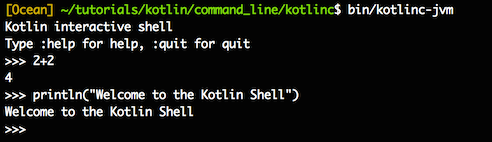
Executing Scripts from the Command Line
Kotlin can also be used as a scripting language, with the file extension .kts.
For example, we create a file named list_folders.kts, with the following code:
import java.io.File

val folders = File(args[0]).listFiles { file -> file.isDirectory() }
folders?.forEach { folder -> println(folder) }
When executing, specify the corresponding script file via the -script option.
$ kotlinc -script list_folders.kts <path_to_folder>$ kotlinc -script list_folders.kts