Julia Language Environment Installation
The Julia language supports the following systems:
- Linux
- FreeBSD
- macOS
- Windows
- Android
The download address for Julia installation packages is:https://julialang.org/downloads/。
Github source code address:https://github.com/JuliaLang/julia。
Domestic mirror address:https://mirrors.tuna.tsinghua.edu.cn/julia-releases/bin/
The package name corresponding to each system:
| Operating System | Package Name |
|---|---|
| Windows | julia-1.7.2-win64.exe |
| Linux | x86_64.tar.gz |
| Mac | julia-1.7.2-mac64.dmg installer or julia-1.7.2-mac64.tar.gz binary file |
| FreeBSD | julia-1.7.2-freebsd-x86_64.tar.gz |
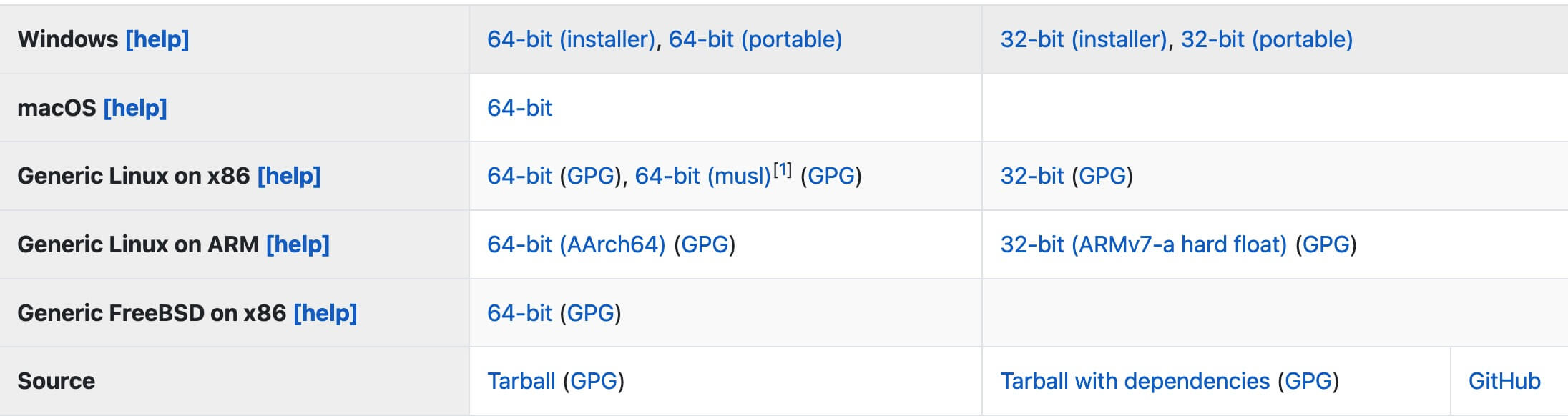
Note:Whether the CPU is X86 or ARM can be checked viauname -mcommand:
$ uname -m
x86_64
Install on Windows
fromhttps://julialang.org/downloads/Download the Windows Julia installer.
Note: 32-bit Julia binaries can run on 32-bit and 64-bit Windows (x86 and x86_64), but 64-bit Julia binaries can only run on 64-bit Windows (x86_64). Now computers are basically 64-bit.
Run the installer, and just click Next during the installation process.
Check Add Julia To PATH to automatically add Julia to the environment variables.
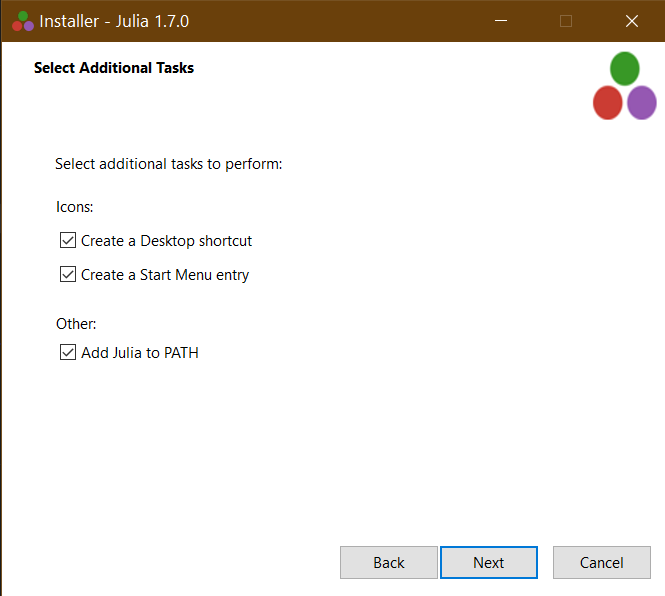
In this way, we can execute in the terminalJuliacommand.
The default Julia installation directory should be similar to C:\Users\EXAMPLE\AppData\Local\Programs\Julia 1.7.2。
Linux/FreeBSD Installation
The following describes how to install using binary packages on Linux/FreeBSD systems. Download the binary package:
wget https://julialang-s3.julialang.org/bin/linux/x64/1.7/julia-1.7.2-linux-x86_64.tar.gz
The above are download addresses provided by the official website. If the speed is slow, you can use a domestic mirror address to download:
wget https://mirrors.tuna.tsinghua.edu.cn/julia-releases/bin/linux/x86/1.7/julia-1.7.2-linux-i686.tar.gz --no-check-certificate
Extract:
tar zxvf julia-1.7.2-linux-i686.tar.gzLinux/FreeBSD binaries do not need to be installed, but our system needs to be able to find the julia executable. This requires adding the julia directory to the system environment.
After extraction, move the julia extraction directory to the /usr/local directory:
mv julia-1.7.2 /usr/local/
After the move, we can use the full julia directory to executeJuliacommand:
# /usr/local/julia-1.7.2/bin/julia -v
julia version 1.7.2
julia -vThe command is used to view the version number.
Use the full path to invoke the julia executable:/usr/local/julia-1.7.2/bin/julia -v
You can also add the julia command to your system PATH environment variable. Edit~/.bashrc(or~/.bash_profile) file, and add the following code on the last line:
export PATH="$PATH:/usr/local/julia-1.7.2/bin/"
After adding, execute the following command to make the environment variables take effect immediately:
source ~/.bashrc
或
source ~/.bash_profile
# julia -v
julia version 1.7.2
macOS Installation
The following describes how to install using binary packages on macOS. Download the binary package:
wget https://julialang-s3.julialang.org/bin/mac/x64/1.7/julia-1.7.2-mac64.tar.gz
The above are download addresses provided by the official website. If the speed is slow, you can use a domestic mirror address to download:
wget https://mirrors.tuna.tsinghua.edu.cn/julia-releases/bin/mac/x64/1.7/julia-1.7.2-mac64.tar.gz
Extract:
tar zxvf julia-1.7.2-mac64.tar.gzmacOS binaries do not need to be installed, but our system needs to be able to find the julia executable. This requires adding the julia directory to the system environment.
After extraction, you can first rename the extracted package to julia-1.7.2:
mv julia-bf53498635 julia-1.7.2
After that, move the julia-1.7.2 directory to the /usr/local directory:
sudo mv julia-1.7.2 /usr/local/
After the move, we can use the full julia directory to executeJuliacommand:
$ /usr/local/julia-1.7.2/bin/julia -v
julia version 1.7.2
julia -vThe command is used to view the version number.
Use the full path to invoke the julia executable:/usr/local/julia-1.7.2/bin/julia -v
You can also add the julia command to your system PATH environment variable. Edit~/.bash_profilefile, and add the following code on the last line:
export PATH="$PATH:/usr/local/julia-1.7.2/bin/"
After adding, execute the following command to make the environment variables take effect immediately:
source ~/.bash_profile
$ julia -v
julia version 1.7.2
Other Extensions