ionic Installation
This site's examples use ionic v1.3.2, and the CDN library address used is:
<link href="https://cdn.staticfile.org/ionic/1.3.2/css/ionic.css" rel="stylesheet">
<script src="https://cdn.staticfile.org/ionic/1.3.2/js/ionic.bundle.min.js"></script>
Latest ionic version download address:http://ionicframework.com/docs/overview/#download。
After downloading and unzipping the archive, it contains the following directories:
css/               =>     样式文件
fonts/             =>     字体文件
js/                =>     Javascript文件
version.json       =>     版本更新说明
You can also download the following resource files on Github:https://github.com/driftyco/ionic(in the release directory).
Next, we only need to include the css/ionic.min.css and js/ionic.bundle.min.js files from the above directories in the project to create an Ionic app.
Examples
Try it »
Click the "Try it" button to view the online example.
This tutorial focuses on the application of the Ionic framework. Most examples run in a browser. Running on mobile devices can be learned in detail in the following command-line installation tutorial.
Note:In mobile apps such as PhoneGap, we just need to add the corresponding js and css files to the resource library.
Command Line Installation
First you need to installNode.js, we will need its NPM tool in the following installation. For more NPM introduction, you can look at ourNPM Usage Introduction。
Then through thecommand-line toolinstall the latest version of cordova and ionic. By referring to theAndroidandiOSofficial documentation to install.
On Windows and Linux, open the command-line tool and execute the following commands:
$ npm install -g cordova ionic
On Mac systems, use the following commands:
sudo npm install -g cordova ionic
Tip: iOS needs to be installed and used under Mac OS X and the Xcode environment.
If you have already installed the above environment, you can execute the following commands to update the version:
npm update -g cordova ionic
or
sudo npm update -g cordova ionic
Create an App
Use the ready-made application templates provided by Ionic official, or a blank project to create an Ionic app:
$ ionic start myApp tabs
Run the Ionic project we just created
Use the ionic tool to create, test, and run your apps (or create directly through Cordova).
Create Android App
$ cd myApp
$ ionic cordova platform add android
$ ionic cordova build android
$ ionic cordova emulate android
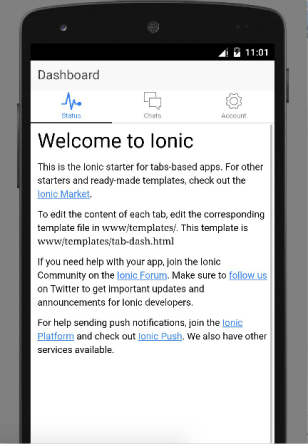
If everything goes well, the emulator will pop up, the interface is as follows:
Create iOS App
$ cd myApp
$ ionic cordova platform add ios
$ ionic cordova build ios
$ ionic cordova emulate ios
If the error "ios-sim was not found." occurs, you can execute the following commands:
npm install -g ios-sim
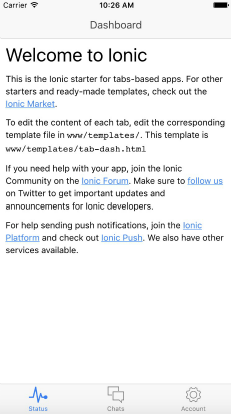
If everything goes well, the emulator will pop up, the interface is as follows:
Ionic Lab
Ionic Lab has stopped updating.
Ionic Lab is a desktop development environment. If you don't like using the command line, Ionic Lab will meet your needs.
Ionic Lab provides developers with an easier way to start, compile, run, and emulate Ionic applications.
Ionic Lab supports platforms: Windows, Mac OS X, Linux. Download address:http://lab.ionic.io/, after downloading, just install it directly. The entire operation interface is as follows:
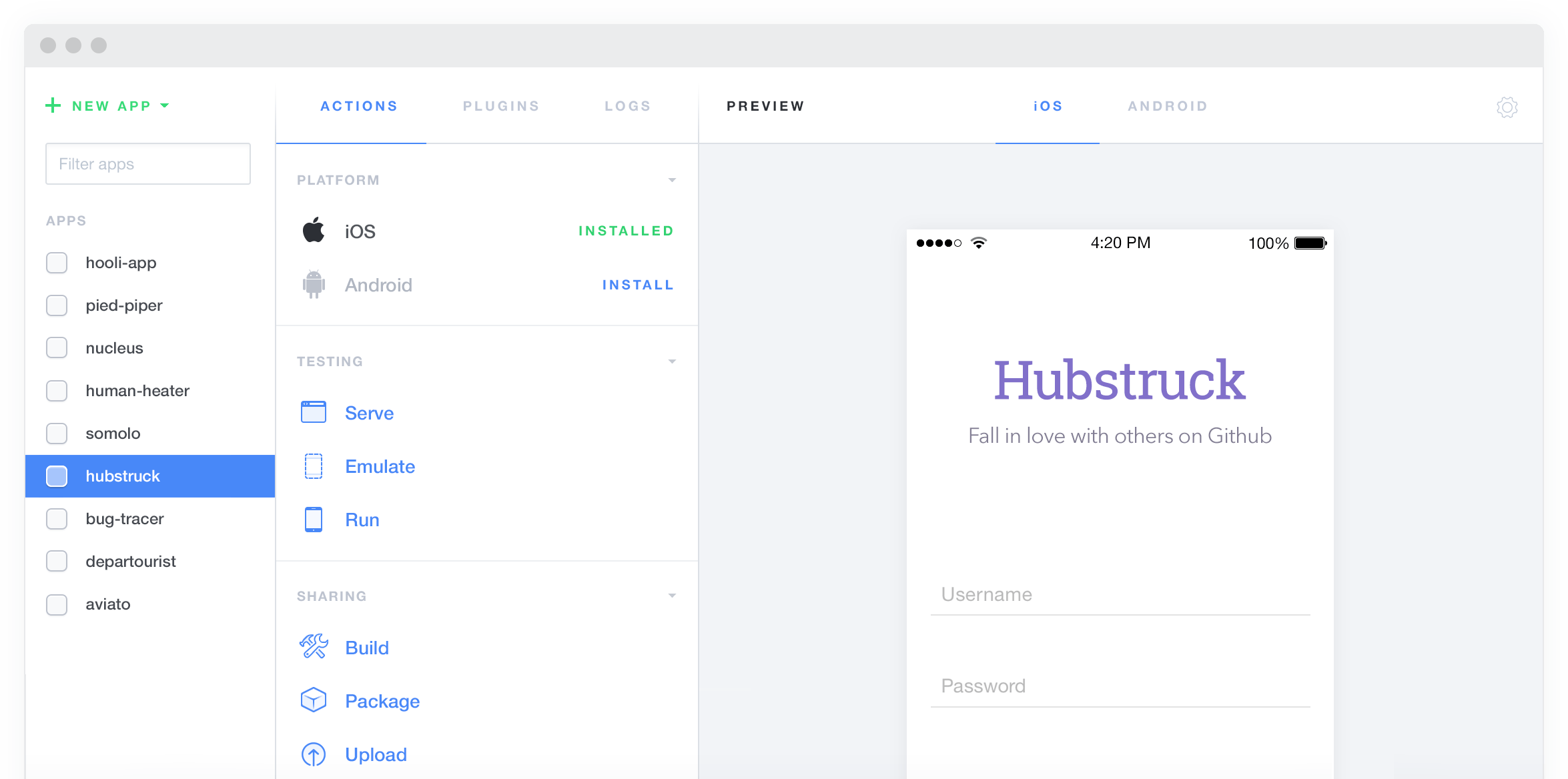
Through the above interface, you can complete the following operations:
- Create App
- Preview App
- Compile App
- Run App
- Upload App
- View Run Logs ……
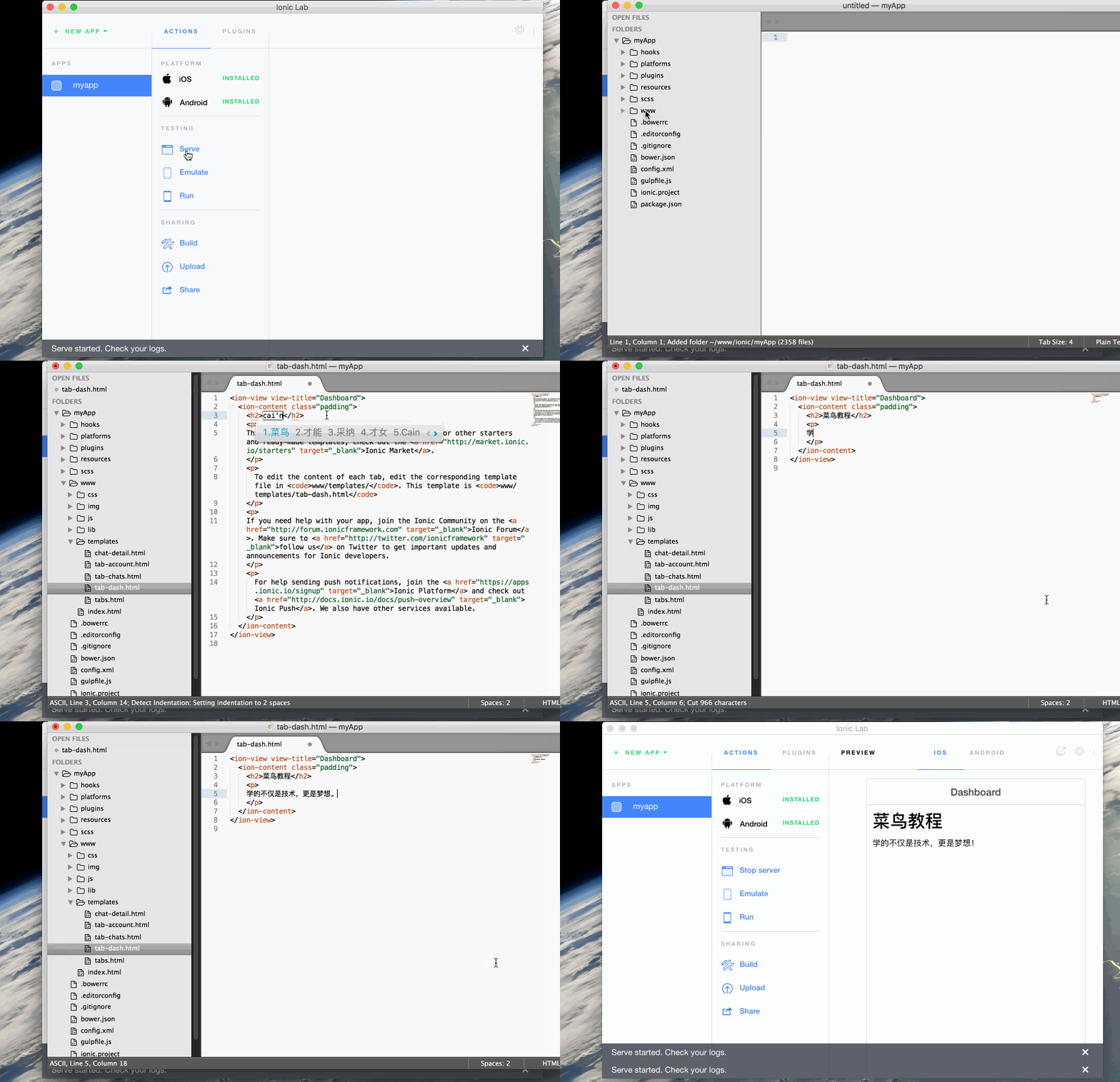
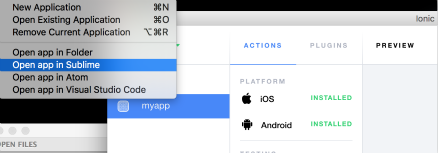
It is recommended to use Sublime Text as the editor for Ionic projects. We can directly open the project in Sublime Text through Ionic Lab, as shown below:
Gif Operation Demonstration