Using Jupyter Notebook in VS Code
VS Code (full name Visual Studio Code) is a free, open-source, cross-platform code editor developed by Microsoft.Use Jupyter Notebook in VS Code by installing an extension. VS Code's powerful code completion can be perfectly combined with Jupyter's interactive experience.
If you haven't installed VS Code yet, please go to itsofficial websitedownload and install it. The installation process is very simple—just click "Next" all the way through.
If you're not familiar with VS Code, you can refer to ourVSCode Tutorial。
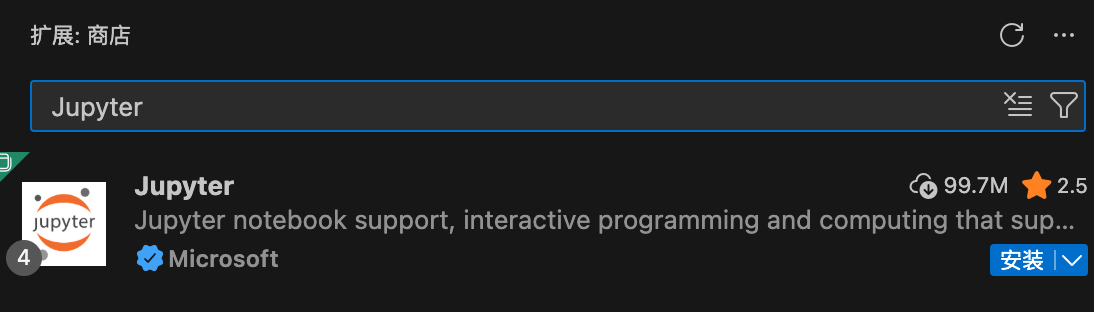
Open VS Code, click the Extensions icon in the left activity bar (shortcut Ctrl+Shift+X), search for and install the "Jupyter" extension (provided by Microsoft). Installing this extension will automatically install the Python extension.
Core Features and Operation Guide
Create Your First Jupyter Notebook
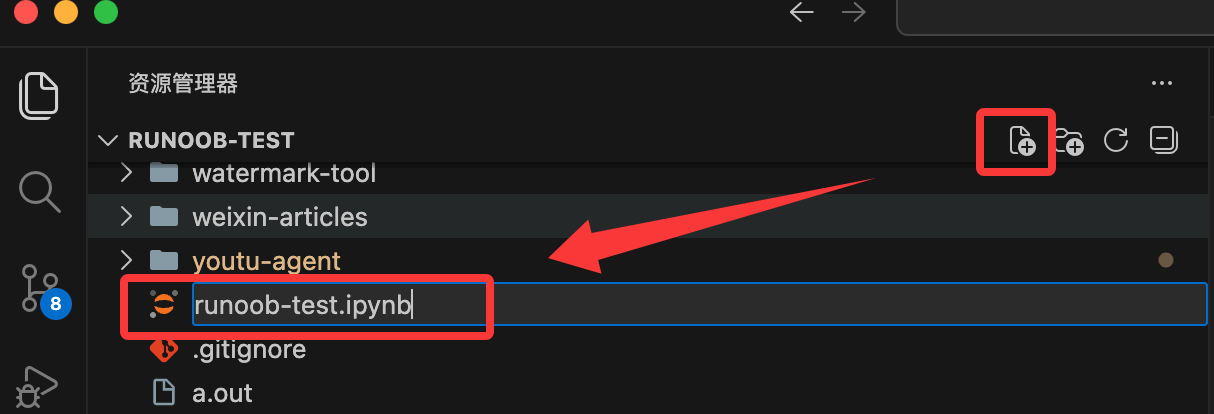
Now, let's create a brand new Jupyter Notebook file (.ipynb).
Create a new file:Simply create a new file ending with .ipynb.
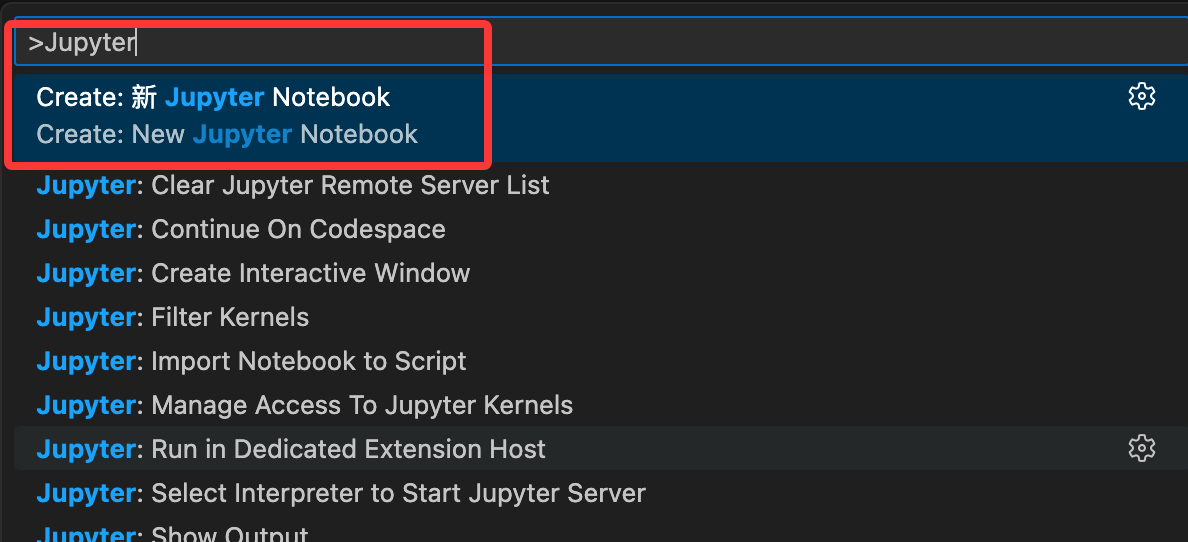
You can also create it via the Command Palette:
- In VS Code, press
Ctrl+Shift+Pto openthe Command Palette(This is a universal search box). - Type
Jupyter: Create New Jupyter Notebookand select it. - VS Code will automatically create a new file named
Untitled-1.ipynband open it in the notebook interface. You'll see the first cell is already prepared.
Configure the Runtime Environment (Kernel)
Before running code, you need to tell VS Code which Python interpreter to use:
- Click "Select Kernel" in the top-right corner of the editor.
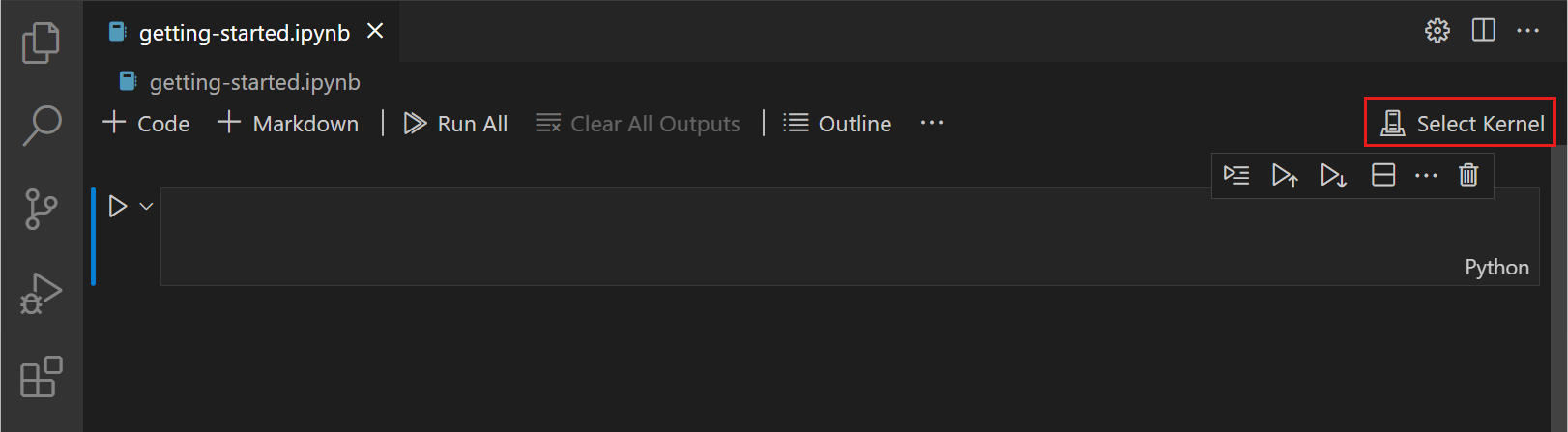
- In the pop-up list, select your installed Python version or Anaconda environment (e.g., Python 3.x.x or base (conda)).
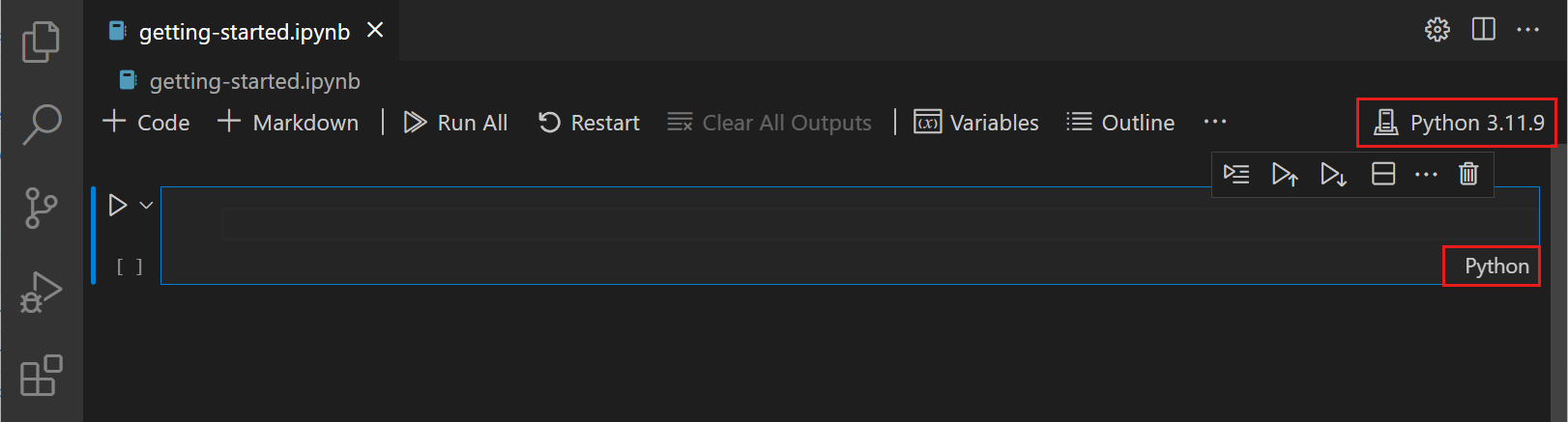
- Note: If this is your first run, VS Code may prompt you to install the ipykernel package—just click "Install".
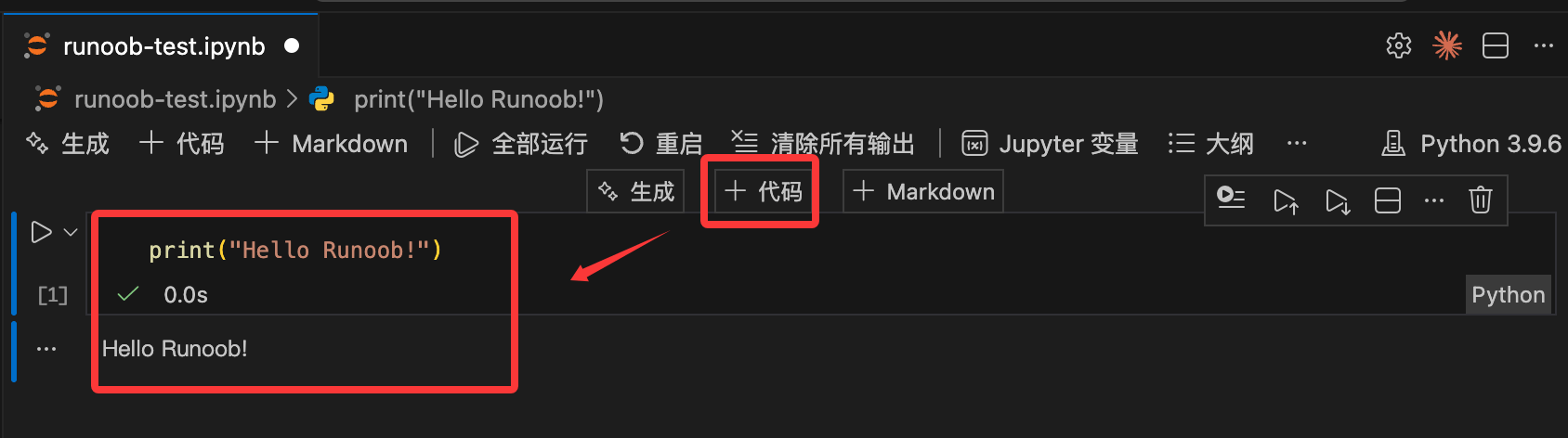
Then you can start writing and running code:
Cell Execution and Management
Run Code Cells
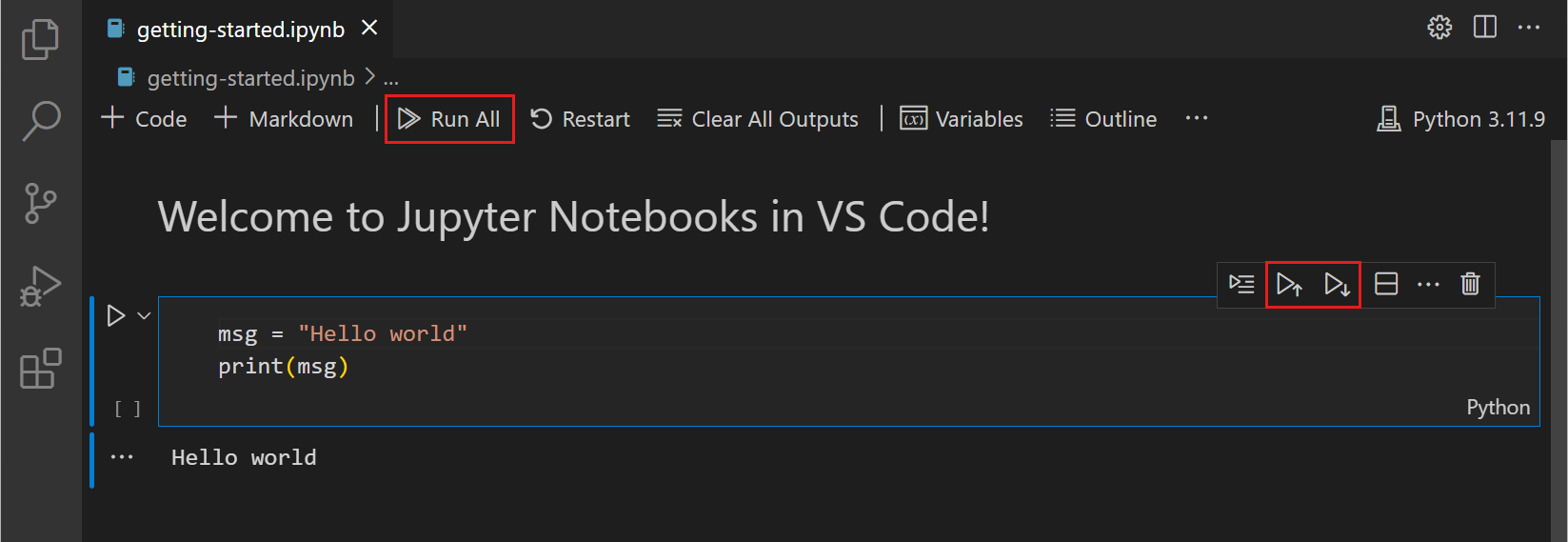
- Run a single cell: Click the left side of the cellplay icon (▶)。
- Keyboard shortcut options:
Ctrl + Enter: Run the current cell.Shift + Enter: Run the current cell andjump to/selectthe cell below.Alt + Enter: Run the current cell andinserta new cell below.
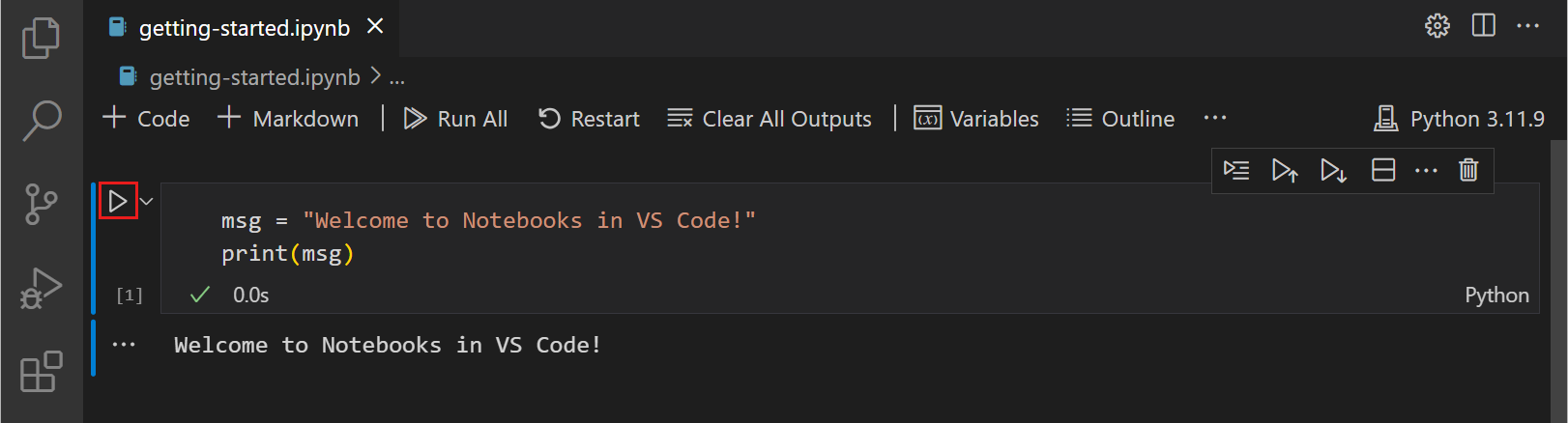
- Run multiple cells: Use the "double arrow" icon in the top toolbar toRun Allrun the entire notebook; or at a specific cell, selectRun Above(Run All Above) orRun Below(Run All Below).
- Run by section: In the Outline view, you can click the button next to a section heading to run the entire group of cells under that Markdown heading.
Cell Modes
Cells in VS Code have three states, indicated by thevertical baron the left:
- Unselected: No vertical bar.
- Command Mode: The vertical bar is solid, and you can execute keyboard commands (e.g., delete, copy).
EnterEnter edit mode;EscReturn to command mode.AInsert a cell above;BInsert below.D, D(Press twice) to delete the cell;ZUndo deletion.
- Edit Mode: The vertical bar is solid and the cell has a border; you can enter code in this mode.
Switching Formats
- In command mode: Press
Mto switch to Markdown (documentation), and pressYto switch to Code.
File Operations and Navigation
- Save:
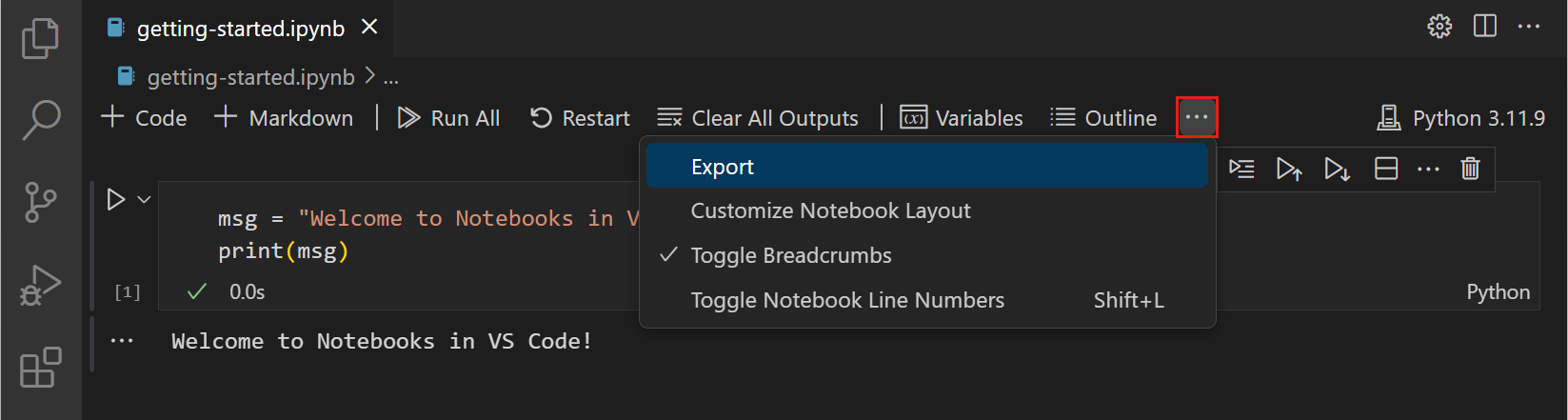
Ctrl + S。 - Export: Click the toolbar's
...> Export. Supports exporting to.pyscript, HTML, or PDF (Note: PDF export requires a TeX environment). - Outline navigation: Use the sidebar'sOutlineview to quickly jump. By default, only Markdown headings are shown; you can enable
Notebook > Outline: Show Code Cellsin settings to display code blocks. - Line number control: In command mode, press
Lto toggle line numbers for a single cell, and pressShift + Lto toggle line numbers for the entire file.
Data Science Enhancement Tools
Variable Explorer and Data Viewer
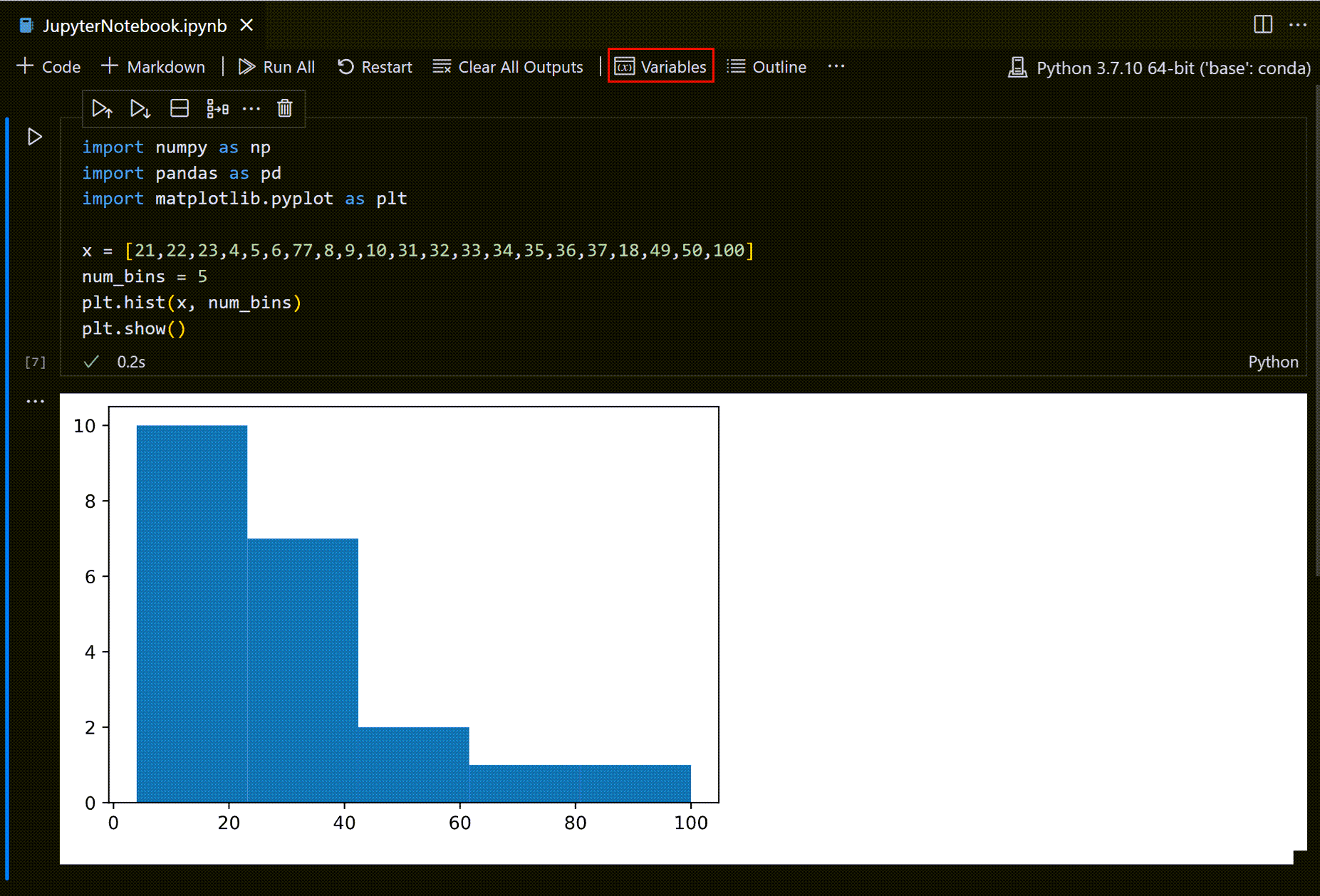
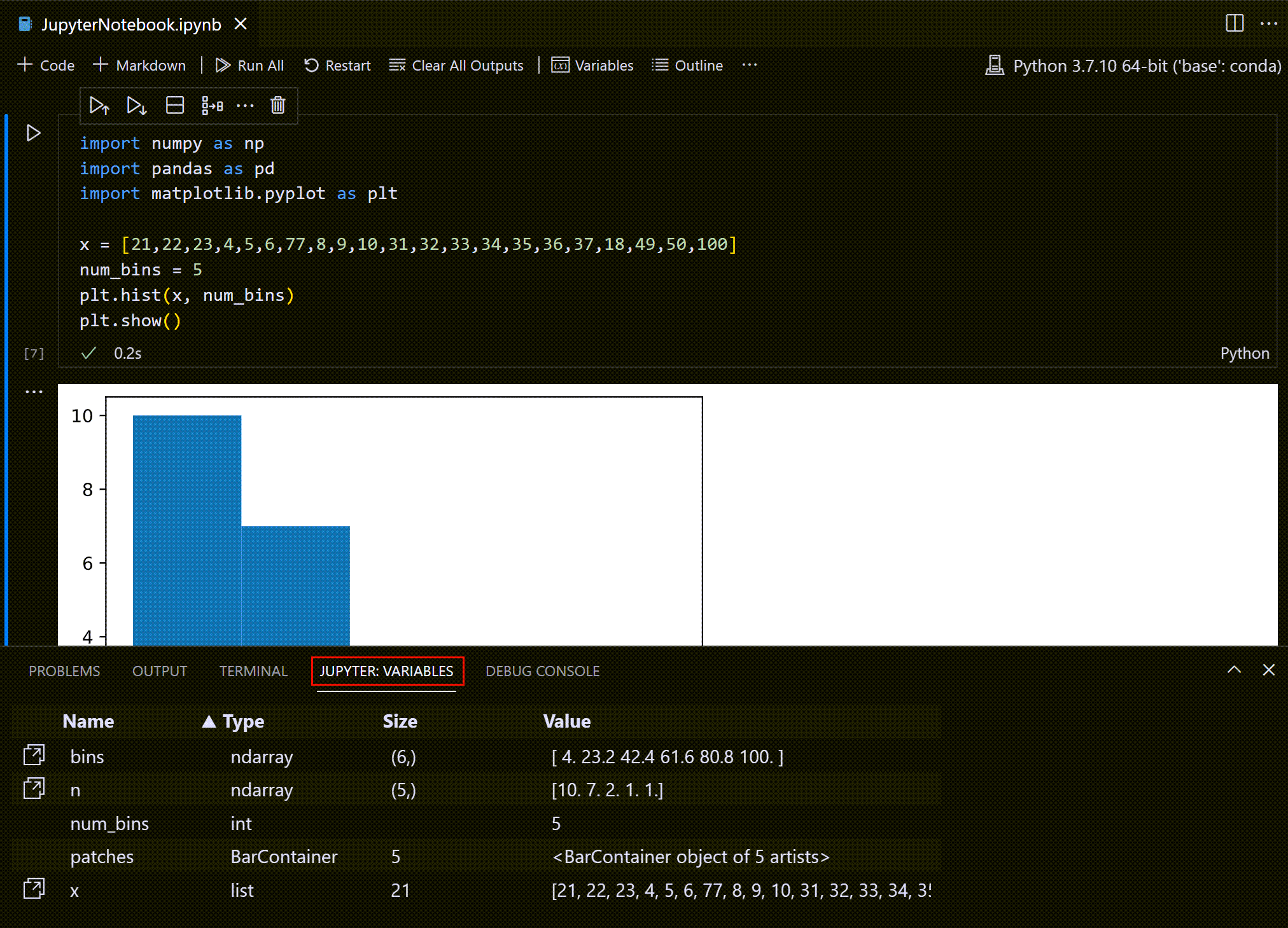
Click the toolbar'sVariablesicon to open the variables panel at the bottom.
- View details: Double-click a variable or click the icon next to it to enterData Viewer(Data Viewer).
- Filter data: Enter text in the text box at the top of a column to search; enter
=for an exact match; regular expression filtering is supported.
Saving Plots
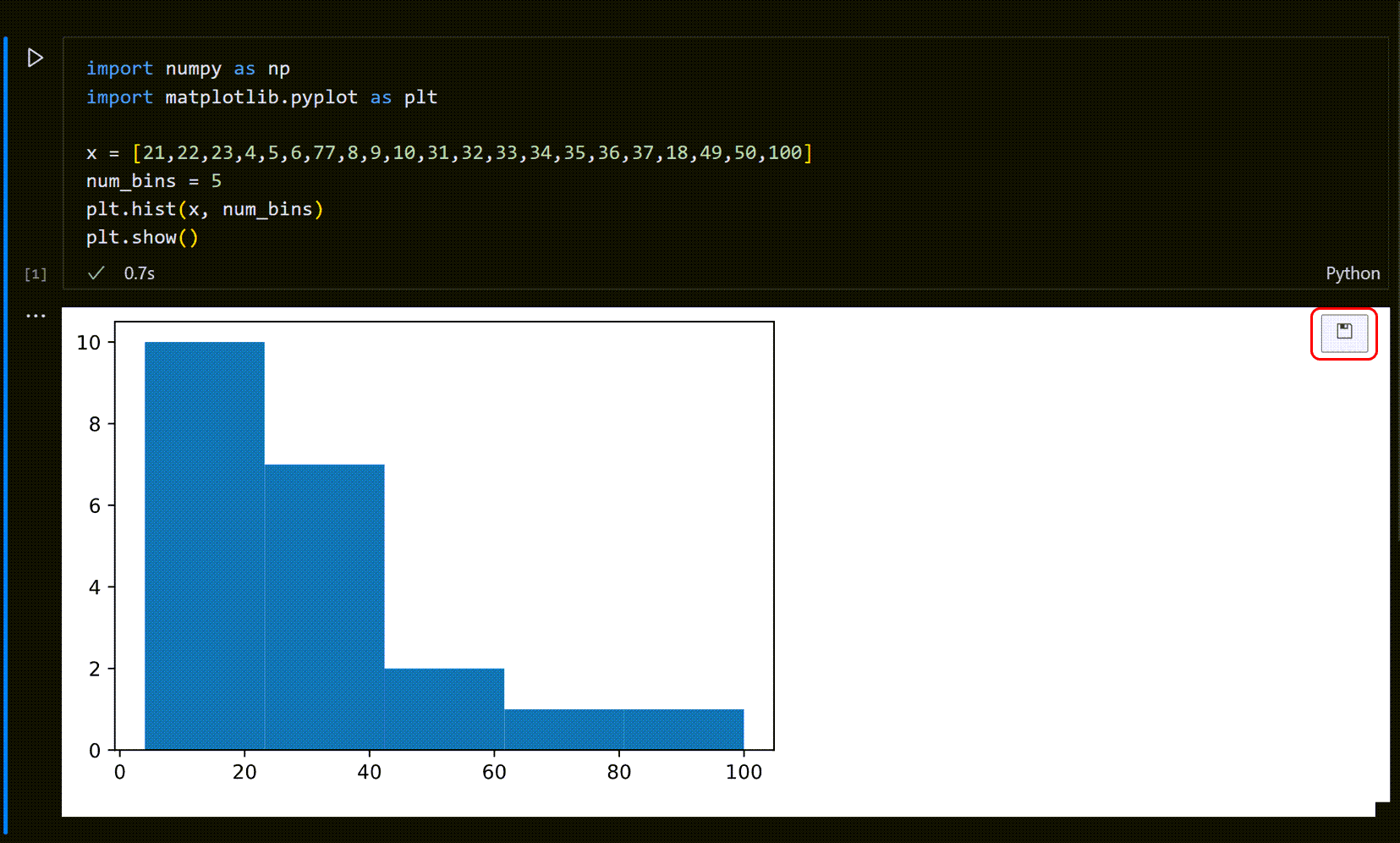
Hover over the generated chart (e.g., matplotlib output) and click theSaveicon in the top-right to save it as an image.
Debugging and Advanced Topics
Debugging Features (Debug)
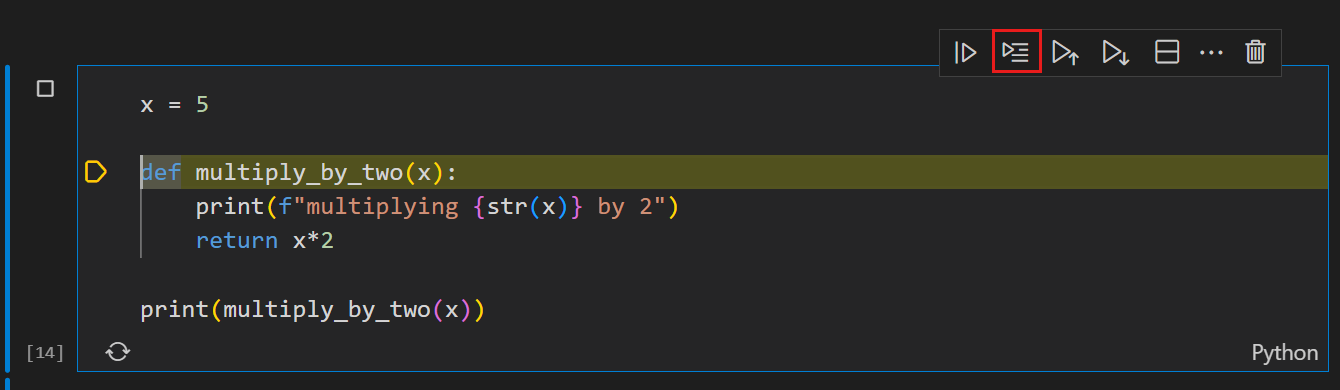
- Run by Line: Click the icon in the cell toolbar to step through code line by line without interruption.
- Full debugging: Set breakpoints on the left side of the cell, then select
Runnext to the buttonDebug Cell。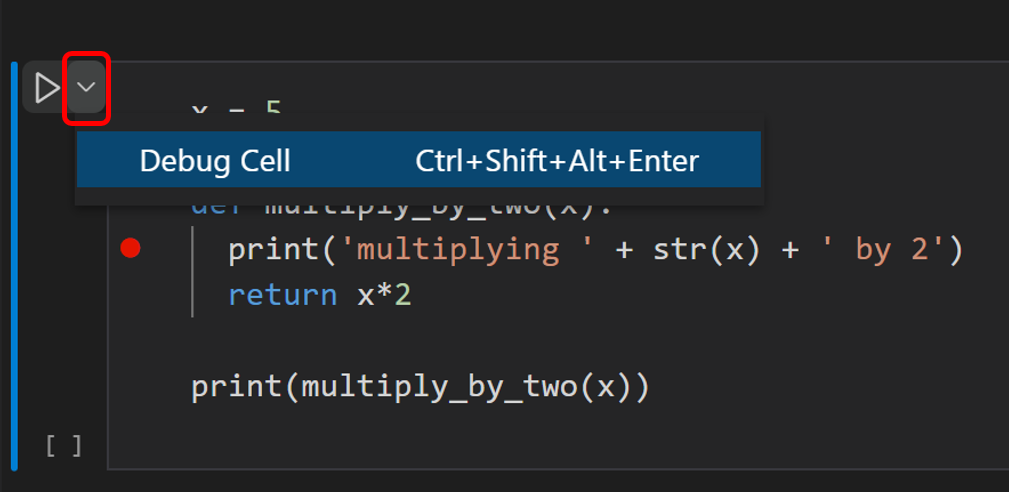
Remote Connection
If you need to use the computing power of a remote server:
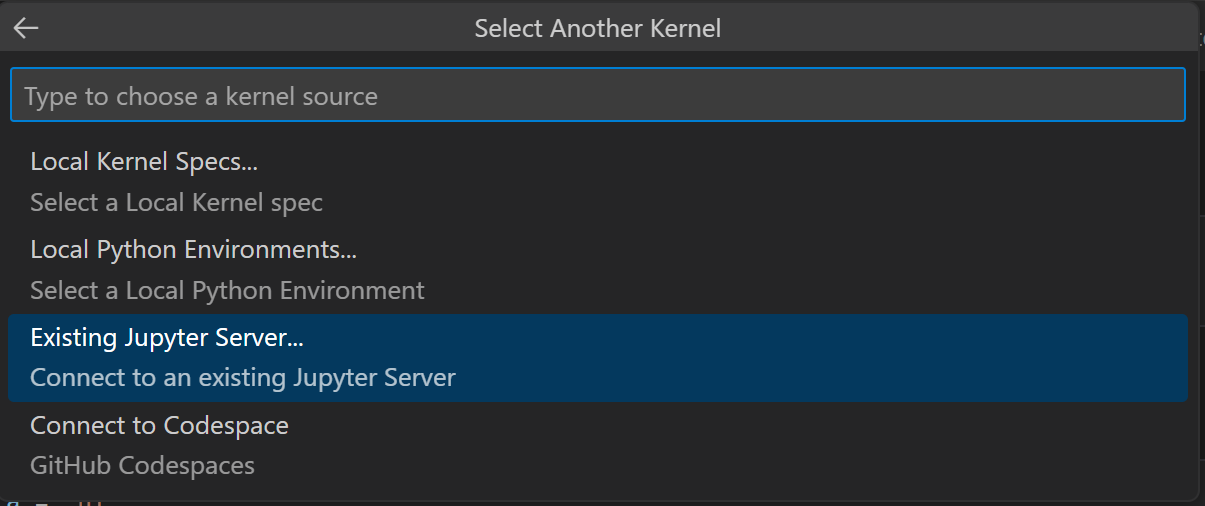
- Click the top-rightKernel Picker(Kernel selector).

- SelectExisting Jupyter Server。
- Enter the server URL that has
?token=to connect.
Diff Comparison (Diff)
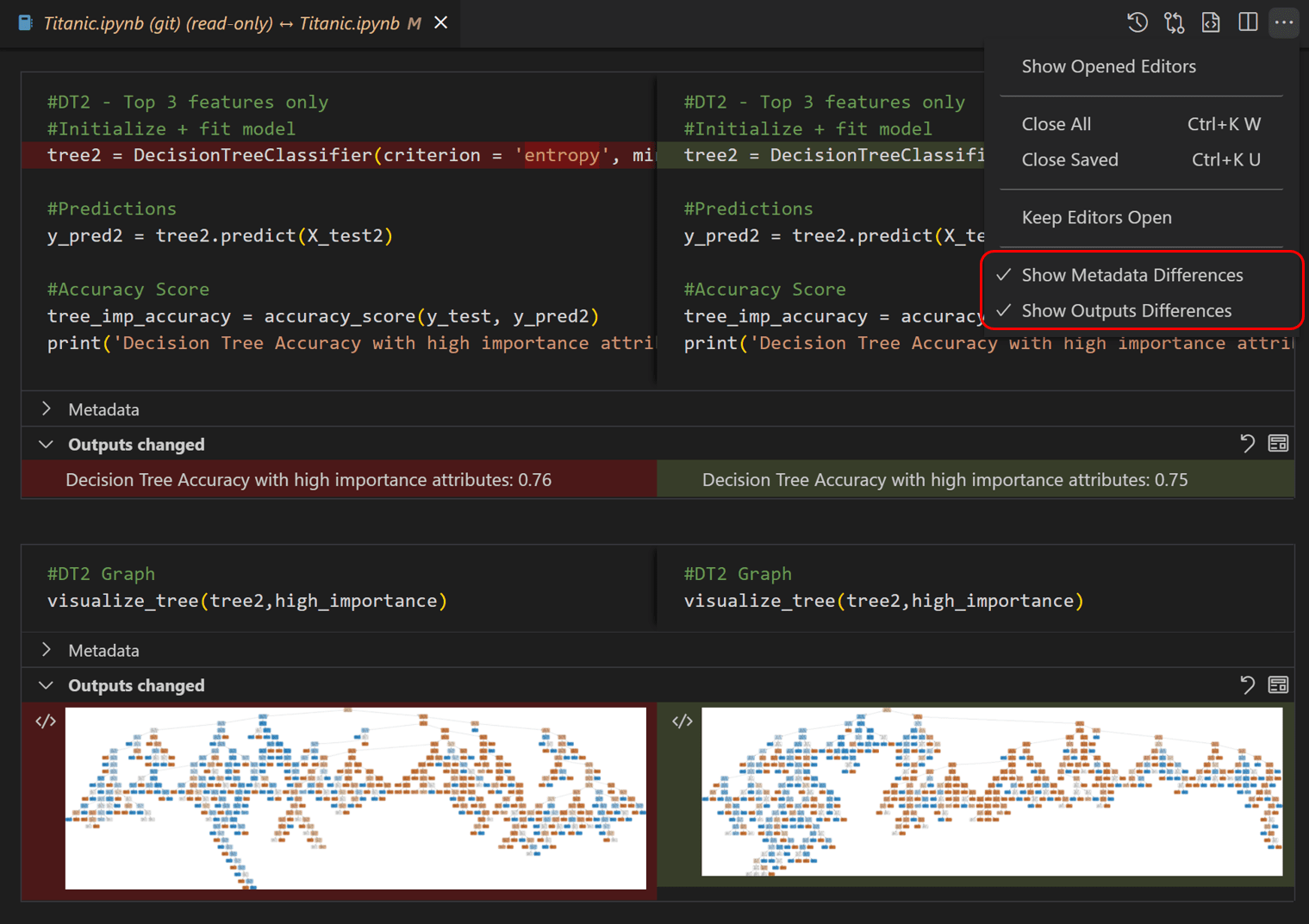
Because.ipynbthe file is essentially JSON, VS Code providesa visual diff tool. You can clearly see the specific changes in inputs, outputs, or metadata without having to read the messy raw code.