React Installation (NPM)
Before you start, make sure you have Node.js and npm installed. You can check whether they are installed with the following commands:
node -v
npm -v
If your system does not support Node.js and NPM yet, refer to ourNode.js Tutorial。
We recommend using the CommonJS module system in React, such as browserify or webpack. This tutorial uses webpack.
Using npm in China is very slow. You can use Taobao's customized cnpm (with gzip compression support) command-line tool instead of the default npm:
$ npm install -g cnpm --registry=https://registry.npmmirror.com
$ npm config set registry https://registry.npmmirror.com
Then you can use the cnpm command to install modules:
$ cnpm install [name]
For more information, see:http://npm.taobao.org/。
Use create-react-app to quickly build a React development environment
React provides an official tool, Create React App, for quickly setting up React projects.
create-react-app comes from Facebook. With this command, we can quickly build a React development environment without configuration.
The project automatically created by create-react-app is based on Webpack + ES6.
Run the following command to create a project:
$ cnpm install -g create-react-app
$ create-react-app my-app
$ cd my-app/
$ npm start
You can also use thenpxcommand to create it. npx is a tool included in npm 5.2.0 and later, used to execute local or remote npm packages:
npx create-react-app my-app
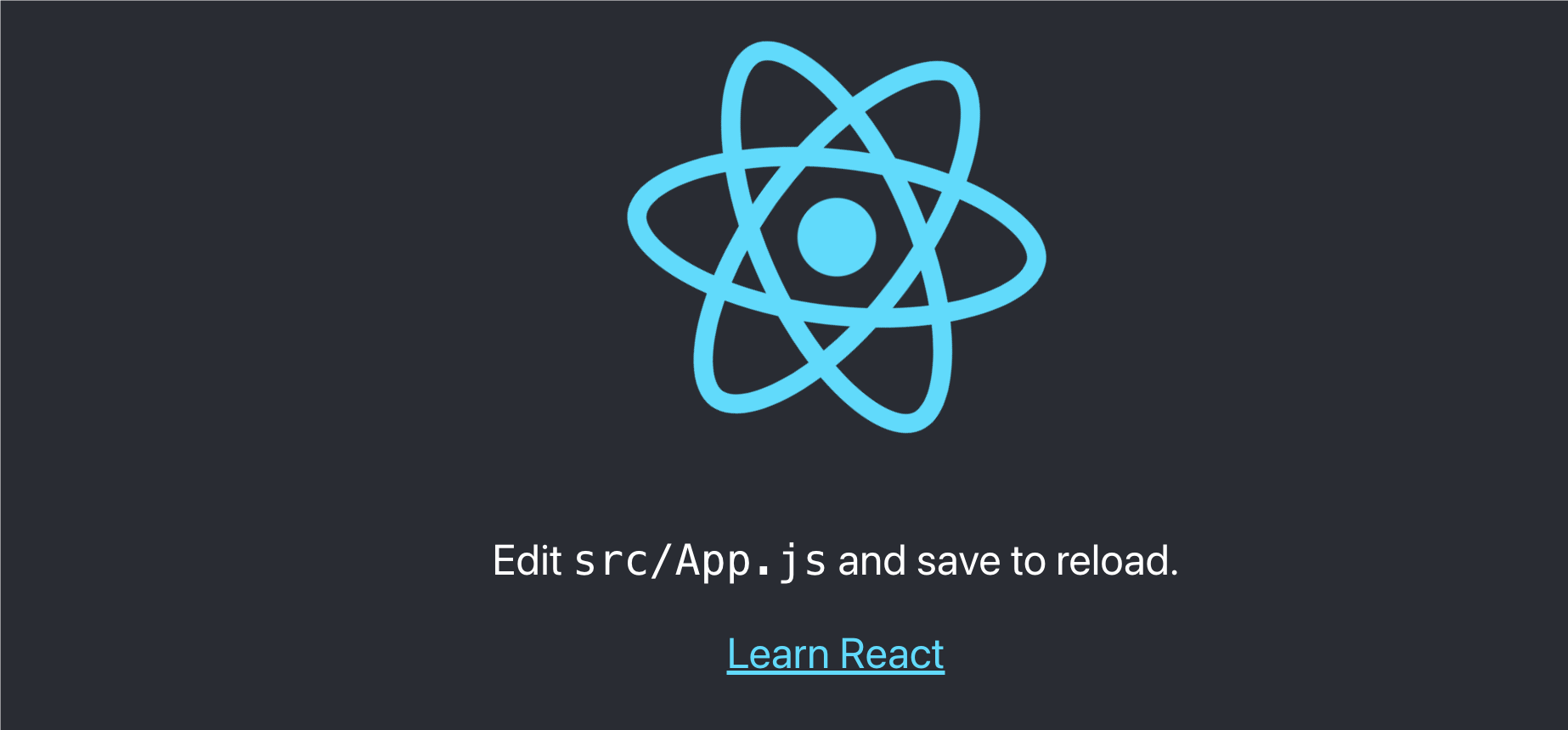
Open in the browserhttp://localhost:3000/, the result is shown in the figure below:
The project directory structure is as follows:
my-first-react-app/
├── node_modules/
├── public/
│   ├── favicon.ico
│   ├── index.html
│   ├── logo192.png
│   ├── logo512.png
│   ├── manifest.json
│   └── robots.txt
├── src/
│   ├── App.css
│   ├── App.js
│   ├── App.test.js
│   ├── index.css
│   ├── index.js
│   ├── logo.svg
│   ├── reportWebVitals.js
│   └── setupTests.js
├── .gitignore
├── package.json
├── README.md
└── yarn.lock (或 package-lock.json)
Directory and file description
node_modules/
Stores all project dependency packages. This directory is automatically generated by npm or yarn and contains all the third-party libraries and modules required for the project to run.
public/
Stores static files. Webpack will not process the files in this directory.publicThe files in this directory will be copied directly to the build directory.
favicon.ico: The small icon on the browser tab.index.html: HTML template file. React components will be mounted to thedivelement in this file.logo192.pngandlogo512.png: React logo icons of different sizes.manifest.json: Web app manifest file, used to define metadata such as the app's name and icons.robots.txt: Used to tell search engines which pages can be crawled.
src/
Stores the application's source code. This is where you mainly do development.
App.css:AppThe component's style file.App.js: The main component file, defining a basic React component.App.test.js:AppThe component's test file.index.css: Global style file.index.js: The application's entry file, responsible for rendering React components into the DOM.logo.svg: SVG file for the React logo.reportWebVitals.js: A file for performance monitoring, which can help you understand and analyze your application's performance.setupTests.js: A file used to set up the test environment.
.gitignore
Lists files and directories that Git should ignore, such asnode_modules/and the build output directory.
package.json
The project's configuration file, containing project information, scripts, dependencies, etc.
README.md
The project's README file, containing basic project information and usage instructions.
yarn.lockorpackage-lock.json
Lock file, recording the exact dependency versions to ensure consistent dependency installation across different environments.
Try modifying the src/App.js file code:
src/App.js
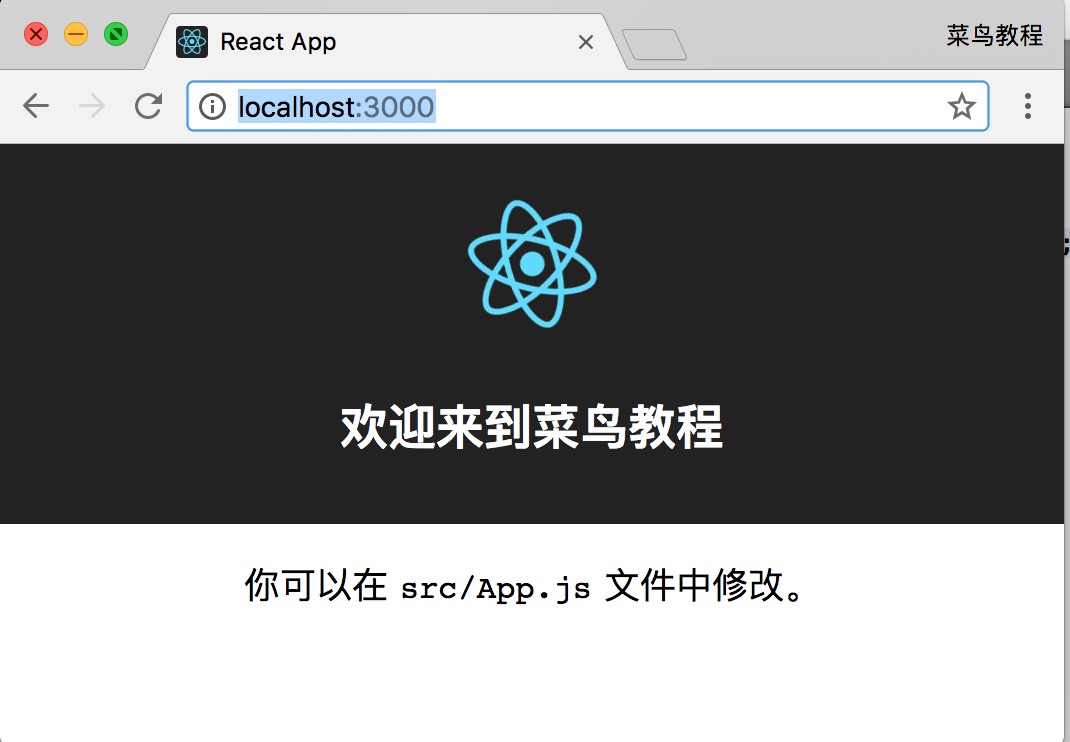
After modification, open http://localhost:3000/ (usually auto-refreshes), and the output is as follows:
src/index.js is an entry file. We can try to directly modify the src/index.js file code:
Note:In React 18, ReactDOM.render is deprecated.
Example
import ReactDOM from 'react-dom';
function Hello(props) {
return <h1>Hello {props.name}!</h1>;
}
const root = ReactDOM.createRoot(document.getElementById("root"));
// Render the Hello component and pass the name prop
root.render(<Hello name="World" />);
Then open in the browserhttp://localhost:3000/and it will output:
Hello World!
Create your first component
You can edit theApp.jsfile to create your first component. Here is a simple example that modifies theAppcomponent to display "Hello, React!":
Example
import './App.css';
function App() {
return (
<div className="App">
<header className="App-header">
<h1>Hello, React!</h1>
</header>
</div>
);
}
export default App;
After saving the file, the browser will refresh automatically, and you should see "Hello, React!" displayed on the page.
You can create more component files in thesrcdirectory, for example, create aHello.jsfile:
Hello.js file code:
function Hello() {
return <h1>Hello from a new component!</h1>;
}
export default Hello;
Then import and use this new component inApp.js:
Example
import './App.css';
import Hello from './Hello';
function App() {
return (
<div className="App">
<header className="App-header">
<Hello />
</header>
</div>
);
}
export default App;
After saving the file, the browser will refresh automatically, and you will see the content of the new component.
Other extensions