Next.js CSS Styling
In Next.js, the use of styles is very flexible; we can choose from a variety of ways to add styles to your application.
Global Styles
Global styles are CSS styles that affect the entire application. They are usually used to set base styles for the page, such as fonts, colors, layout, and so on.
Next.js imports global CSS files in app/layout.tsx.
By default, the app directory already has global styles.globals.cssIf the file does not exist, you can also create a new CSS file.
Create it in the styles directoryglobals.cssfile, then import it in app/layout.tsx.
app/globals.css file code:
body {
padding: 20px 20px 60px;
max-width: 680px;
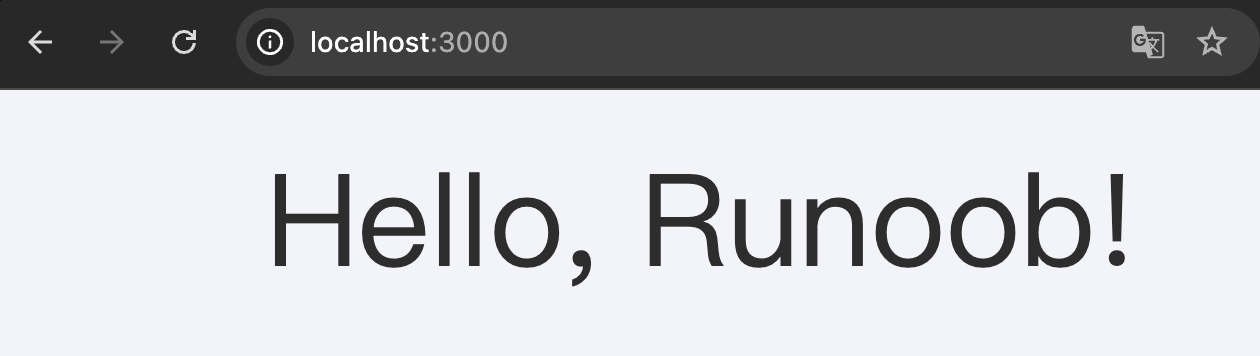
font-size:64px;
margin: 0 auto;
background-color: #F5F5FB;
color: #333;
}
Then, import this file in the root layout (app/layout.tsx) to apply the styles to every route in the application:
app/layout.tsx file code:
// These styles apply to every route in the application
import './globals.css'
export default function RootLayout({
children,
}: {
children: React.ReactNode
}) {
return (
<html>
<body>{children}</body>
</html>
)
}
Notes:Global styles can be imported into any layout, page, or component in the app directory. However, since Next.js uses React's built-in stylesheet support to integrate with Suspense, the current built-in support does not remove stylesheets when you navigate between routes. Therefore, we recommend using global styles for truly global CSS and CSS Modules for scoped CSS.
app/page.tsx code is as follows:
Example
return <div>Hello, Example!</div>;
}
Visit http://localhost:3000/ and the test output is as follows:
Sass
Next.js also supports Sass, a more feature-rich CSS preprocessor.
If you prefer to use Sass to write styles, you can enable Sass by installing the corresponding dependencies. For more on Sass, see theSass Tutorial。
Installation:
npm install sass
Next.js integrates with Sass, supporting the .scss and .sass extensions and syntax.
You can also use component-level Sass with CSS Modules, with extensions .module.scss or .module.sass.
Customizing Sass Configuration
If you want to configure Sass options, you can use the sassOptions option in next.config.js.
Example
import type { NextConfig } from 'next'
const nextConfig: NextConfig = {
sassOptions: {
additionalData: `$var: red;`, // Automatically inject these styles into every Sass file
},
}
export default nextConfig
In this way, you can configure some default Sass data or make other custom settings.
Create an SCSS file, such as styles/Button.module.scss:
Example
.button {
padding: 10px 20px;
background-color: #0070f3;
color: white;
border: none;
border-radius: 5px;
cursor: pointer;
}
Using SCSS Modules in components:
Example
import styles from '../styles/Button.module.scss';
export default function Button() {
return <button className={styles.button}>Click Me</button>;
}