CMake Installation and Configuration
Operating systems supported by CMake:
- Microsoft Windows
- Apple macOS
- Linux
- FreeBSD
- OpenBSD
- Solaris
- AIX
Install CMake
CMake can be installed on different operating systems. This article will introduce installation and configuration on Windows, Linux, and macOS.
CMake installation package download address:https://cmake.org/download/。
The download page contains source packages and binary packages:
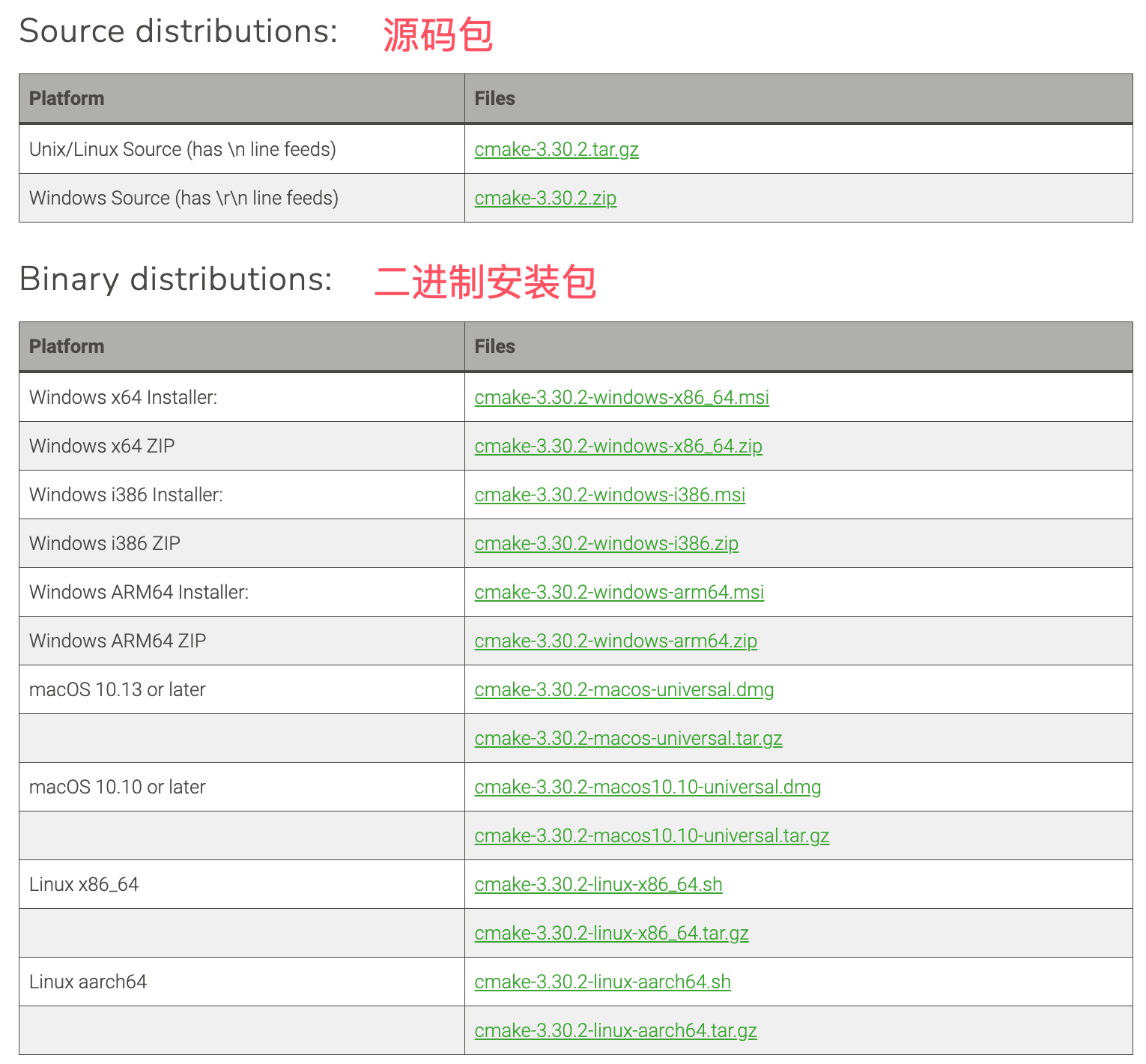
We can download the installation package suitable for our operating system from the binary package list above.
Windows
Choose the Windows version of the installation package (usually a .msi file).
After downloading, double-click the downloaded.msifile, and follow the installation wizard's instructions to install.
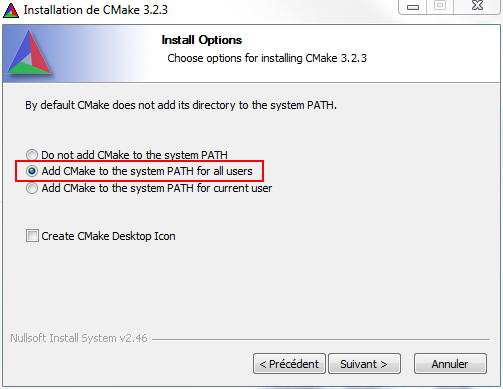
During installation, you can choose to add CMake to the system's PATH environment variable (it is recommended to select this option so that the cmake command can be used directly from the command line).
Verify installation:Open Command Prompt (CMD) or PowerShell, entercmake --version, and check whether CMake version information is displayed correctly.
macOS
Install via Homebrew
Open Terminal and execute the following installation command:
brew install cmake
Via the official installation package
Visit the CMake official website's download page, select the macOS version of the.dmgfile.
Download and run the.dmgfile, and drag the CMake icon to the Applications folder.
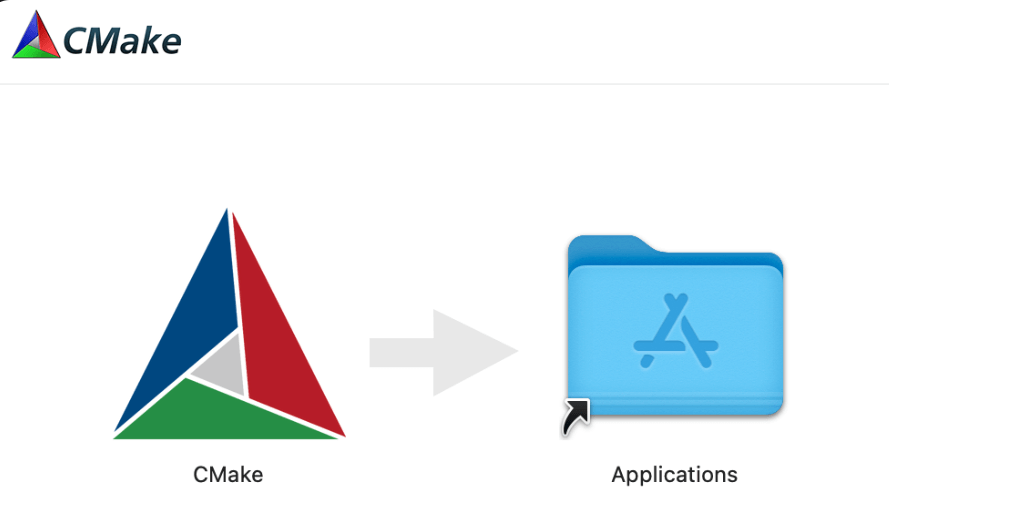
After successful installation, the commands are all in the/Applications/CMake.app/Contents/bindirectory. We need to add the environment variable to the.bash_profilefile, and use vim to edit:
vim ~/.bash_profile
Add the following content to the end of the file:
export PATH="/Applications/CMake.app/Contents/bin":"$PATH"
After adding, executesource ~/.bash_profileOr restart the terminal.
Verify installation:Open Terminal, entercmake --version, confirm that CMake has been installed correctly.
Linux
Install via package manager (applicable to most distributions):
- For Ubuntu or Debian systems:sudo apt-get install cmake
- For Fedora systems:sudo dnf install cmake
- For Arch Linux systems:sudo pacman -S cmake
Build and install from source:
Visit the CMake official website to download the source package.
Unpack the source package and enter the extracted directory.
Execute the following commands to compile and install:
./bootstrap
make
sudo make install
Verify installation:Open Terminal, entercmake --version, confirm that CMake was installed successfully.
Configure CMake
Ensure that CMake's installation path is added to the system's PATH environment variable, so that CMake can be accessed from the command line anywhere.
Windows Environment Variable Settings
If you chose to add CMake to PATH during installation, no additional configuration is needed.
If not, you can add it manually: right-click "Computer" or "This PC", select "Properties" -> "Advanced system settings" -> "Environment Variables", find Path in "System variables", click "Edit", and add CMake's installation path to it.
macOS and Linux
Usually the installer automatically configures PATH; if not, you can configure it manually.
Open Terminal, edit the~/.bash_profileor~/.zshrcfile, and add the following lines:
export PATH="/usr/local/bin:$PATH"
Runsource ~/.bash_profileorsource ~/.zshrcto make the changes take effect.
Using the CMake GUI
CMake also provides a graphical user interface (GUI), which can be used to configure projects more intuitively.
On Windows, it can usually be launched from the Start menu.
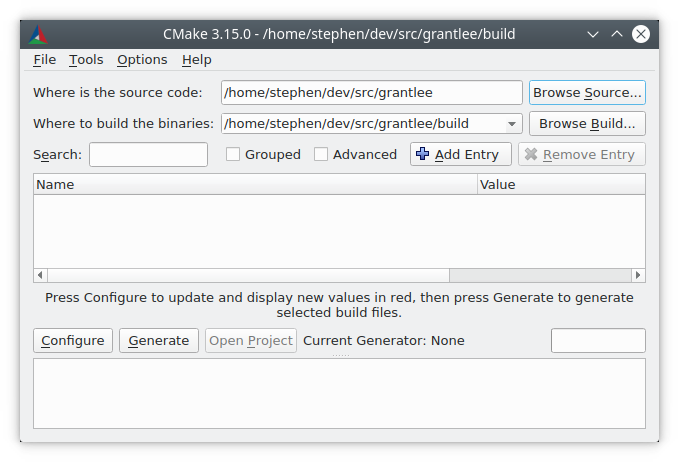
On macOS and Linux, use the terminal command cmake-gui to launch it.
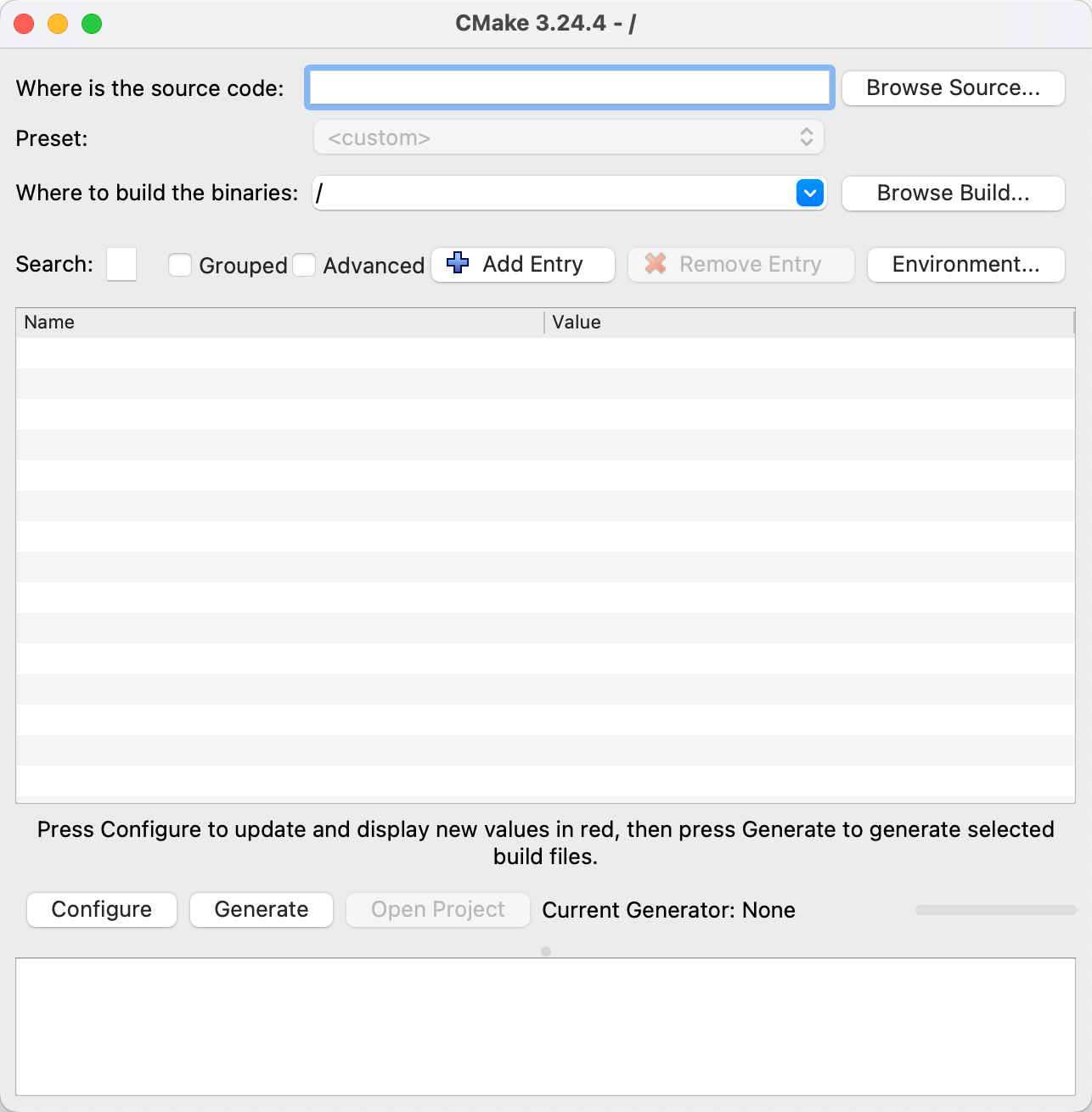
Set the source code directory and build directory:
- Source Code Directory:Points to the directory containing the CMakeLists.txt file.
- Build Directory:Points to the directory used to store generated build files. It is recommended to use a separate directory to keep the source code clean.
Configure and Generate:
- Click the "Configure" button to select the compiler and build options. CMake will check dependencies and generate the configuration.
- Click the "Generate" button, and CMake will generate build files suitable for the current platform.
Through the above steps, users can install and configure CMake, making it ready for building and managing projects.
Other Extensions