CMake Build Process
The CMake build process is divided into several main steps, from creating a build directory to executing compilation, then cleaning and reconfiguring.
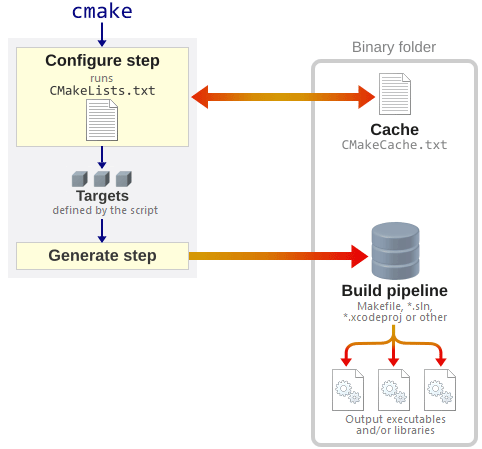
The entire process revolves around the CMakeLists.txt configuration file. After reading the configuration, CMake generates build files suitable for the current platform.
Build Process Overview
A complete CMake build process includes the following five key steps, each with its specific purpose and commands.
| Step | Operation | Command | Description |
|---|---|---|---|
| 1 | Create Build Directory | mkdir build && cd build |
Use the Out-of-source method to keep the source directory clean |
| 2 | Generate Build Files | cmake .. |
Read CMakeLists.txt, generate Makefile / Ninja / .sln, etc. |
| 3 | Compile and Build | cmake --build . |
Execute the actual compilation and linking process |
| 4 | Clean Build Files | cmake --build . --target clean |
Delete intermediate files and object files generated during compilation |
| 5 | Reconfigure and Build | cmake .. && cmake --build . |
After CMakeLists.txt changes, regenerate and recompile |
Detailed Build Process
The following details the specific operations and common options for each step.
Create Build Directory
CMake recommends usingOut-of-source(out-of-source) build method, i.e., placing build files in a separate directory outside the source code directory.
This approach keeps the source directory clean while supporting multiple different build configurations from the same source code (such as coexisting Debug and Release).
Always use the Out-of-source build method. Running cmake directly in the source directory will pollute the project structure, making generated intermediate files difficult to clean and switching build types inconvenient.

Create the build directory:
# 在项目根目录下创建 build 目录
mkdir build
Enter the build directory:
# 切换到构建目录,后续所有 cmake 命令在此执行
cd build
Generate Build Files
Run CMake in the build directory, read the CMakeLists.txt in the source directory, and generate build system files suitable for the current platform.
CMake supports multiple build system generators, such as Unix Makefiles, Ninja, Visual Studio, Xcode, etc.
Basic usage — generate default build files:
# .. 指向包含 CMakeLists.txt 的源代码目录
cmake ..
Specify the generator:
Use-GThe parameter can specify the type of build system to generate.
# 使用 Ninja 作为构建系统(速度比 Make 更快)
cmake -G "Ninja" ..
Specify the build type:
Use-DCMAKE_BUILD_TYPEThe parameter sets the compilation optimization level and debug information.
# 四种常见的构建类型:Debug / Release / RelWithDebInfo / MinSizeRel
cmake -DCMAKE_BUILD_TYPE=Release ..
Check the configuration result:
CMake will output detailed information during configuration, including the detected compiler, found libraries, defined options, etc.
If there are no errors, the build system files will be generated in the current build directory.
If an error occurs during configuration (such as not being able to find a specified library), CMake will abort and output an error message. After resolving the error, rerun the cmake command to continue.
Compile and Build
Once the build files are generated, the actual compilation and linking process can be executed.
Different build systems use different compilation commands; you can also use the generic build command provided by CMake.
Recommended method — use CMake's generic build command:
# 无论底层使用哪种构建系统,该命令都能正确编译
cmake --build .
Build a specific target:
# 只编译指定的目标(如某个可执行文件或库)
cmake --build . --target MyExecutable
Using the Makefile build system:
# 编译所有目标
make

# 使用多核并行编译(-j 参数指定并行任务数)
make -j$(nproc)

# 编译特定目标
make MyExecutable
Using the Ninja build system:
# Ninja 自动并行编译,无需手动指定 -j
ninja

# 编译特定目标
ninja MyExecutable
Using Visual Studio:
If a Visual Studio project file is generated, you can open.slnthe solution file, and select Build Solution in the IDE.
# 也可以使用 MSBuild 命令行工具编译
msbuild MyProject.sln /p:Configuration=Release
Clean Build Files
Intermediate files (.o, .obj, etc.) and object files generated during the build process can be deleted through the clean operation to free up disk space.
Use CMake's generic clean command:
cmake --build . --target clean
Using Makefile:
make clean
Using Ninja:
ninja clean
Manual cleanup:
# 删除构建目录中的所有文件,保留源代码目录不变
rm -rf build/*
The simplest and most thorough way to clean is to delete the entire build directory, then recreate it and run cmake. This is more reliable than running clean alone, because the clean target may not be defined correctly.
Reconfigure and Build
After you modify the CMakeLists.txt file or adjust project settings, you need to re-run CMake configuration and recompile.
Reconfigure:
# CMake 会自动检测变更的文件,只重新生成受影响的部分
cmake ..
Recompile:
# 编译系统会自动识别哪些源文件发生了变更,只重新编译改动的部分
cmake --build .
In most cases, after modifying CMakeLists.txt, you can simply run cmake --build . The build system will automatically detect changes to CMakeLists.txt and re-run the cmake configuration step.
Build System Comparison
CMake can generate multiple types of build system files. Below is a comparison of the three most commonly used build systems.
| Build system | Applicable platforms | Parallel compilation | Features |
|---|---|---|---|
| Unix Makefiles | Linux / macOS | Manual specification required-j |
Broadest compatibility; built into almost all Unix systems |
| Ninja | Cross-platform | Automatic parallelization | Faster speed, especially suitable for incremental compilation and large projects |
| Visual Studio | Windows | Automatic IDE management | Deep integration with the VS IDE, supporting graphical debugging and configuration |
Notes
Always use an out-of-source build.Running cmake in the source directory generates many intermediate files and pollutes version control. Adding the build directory to .gitignore is a best practice.
Prefer the cmake --build . command.This command is a cross-platform universal build entry point, and works correctly whether the underlying system is Make, Ninja, or MSBuild. It is especially recommended in scripts and CI environments.
The build type affects performance and debugging experience.Debug mode includes debug symbols and no optimization, suitable for development; Release mode enables optimization and removes debug information, suitable for production deployment. Don't use Debug mode for performance testing, and don't use Release mode for debugging code.
Other extensionsWhen encountering strange build errors, delete the build directory and start over.CMake's cache can sometimes retain stale configuration information, leading to errors that are hard to diagnose. Deleting the entire build directory and re-running cmake is the fastest way to troubleshoot.