Rust Environment Setup
Rust supports many Integrated Development Environments (IDEs) or text editors specialized for development.
The official website lists the supported tools as follows (https://www.rust-lang.org/zh-CN/tools):

This tutorial will use Visual Studio Code as our development environment (Eclipse has a version dedicated to Rust development, which is also a good choice for beginners).
Note:IntelliJ IDEA is difficult to debug after installing plugins, so developers accustomed to IDEA are recommended to use CLion, but CLion is not free.
Setting up Visual Studio Code Development Environment
First, you need to install the latest version of the Rust compiler tools and Visual Studio Code.
Rust compiler tools:https://www.rust-lang.org/zh-CN/tools/install
Visual Studio Code:https://code.visualstudio.com/Download
Rust's compilation tools depend on C language compilation tools, which means your computer must already have at least one C language compilation environment. If you are using a Linux system, you often already have GCC or clang. If you are using macOS, you need to install Xcode. If you are using the Windows operating system, you need to install Visual Studio 2013 or later (with C/C++ support) to use MSVC, or install the MinGW + GCC compilation environment (Cygwin has not been tested yet).
Installing Rust Compiler Tools
Rust compiler tools can be downloaded from the official website:https://www.rust-lang.org/zh-CN/tools/install。
For macOS, Linux, or other Unix-like systems, to download Rustup and install Rust, run the following command in the terminal:
curl --proto '=https' --tlsv1.2 -sSf https://sh.rustup.rs | sh
For Windows, downloadrustup-init.exethe executable file.
The downloaded Rustup on Windows is an executable program rustup-init.exe.
Now run the rustup-init file:
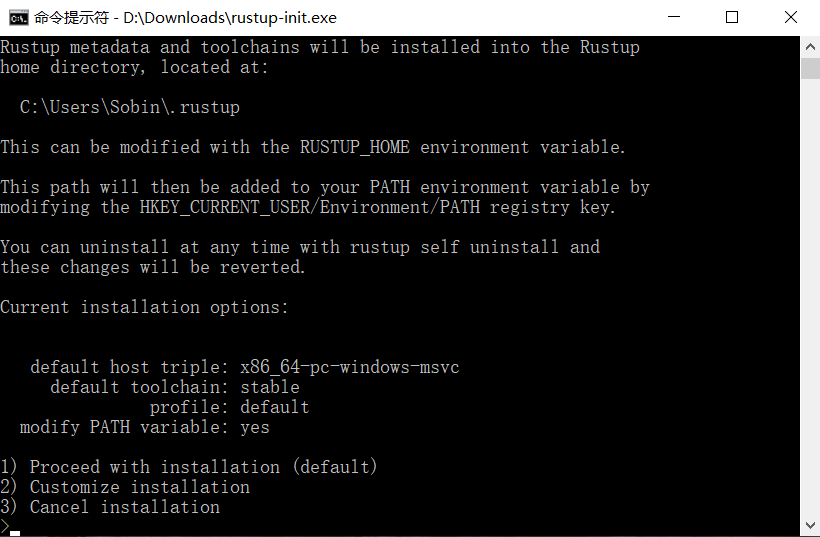
The figure above shows a command-line installation wizard.
If you have already installed MSVC (recommended), the installation process will be very simple. Enter 1 and press Enter to directly proceed to the second step.。
If you installed MinGW, then you need to enter 2 (custom installation), and the system will ask you "Default host triple?", please change the "msvc" in the image abovedefault host tripleto "gnu" and then enter it into the installer:
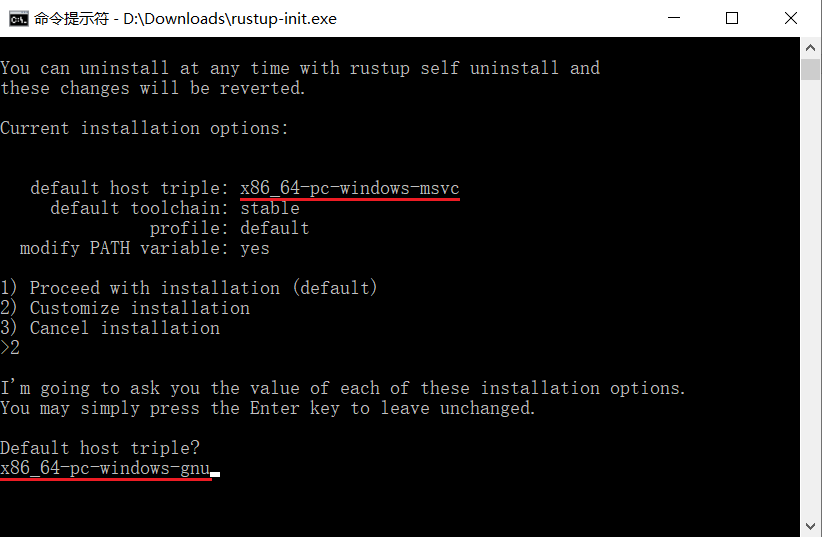
All other attributes default.
After setting all options, you will return to the installation wizard interface (the first image). At this point, just enter 1 and press Enter.
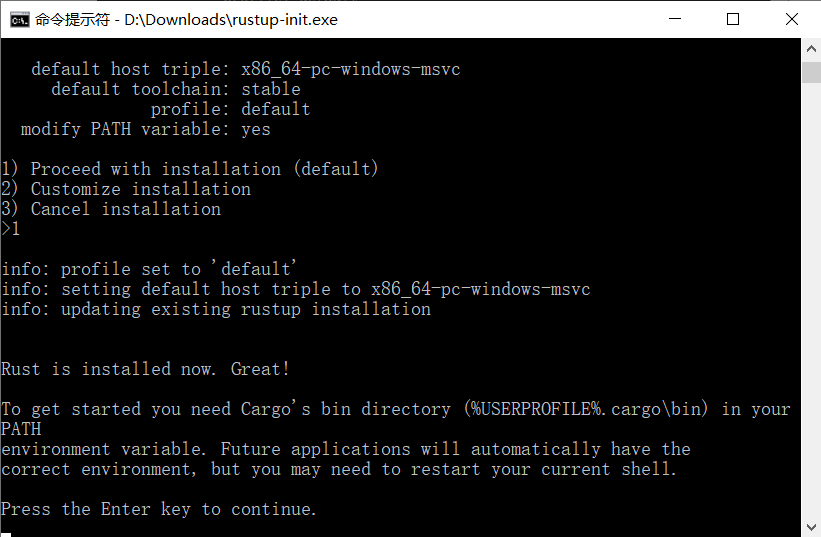
At this point, the Rust installation is complete. You can test it with the following commands:
rustc -V # 注意的大写的 V
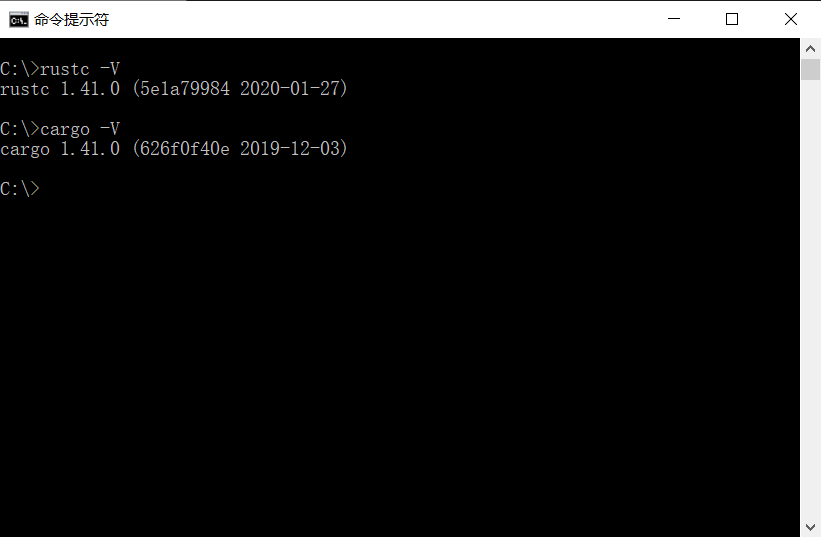
If the above two commands output the version number you installed, the installation is successful.
For more download methods, refer to:https://forge.rust-lang.org/infra/other-installation-methods.html
Setting up Visual Studio Code Development Environment
After downloading the Visual Studio Code installation package, launch the installation wizard to install it (this step will not be elaborated here).
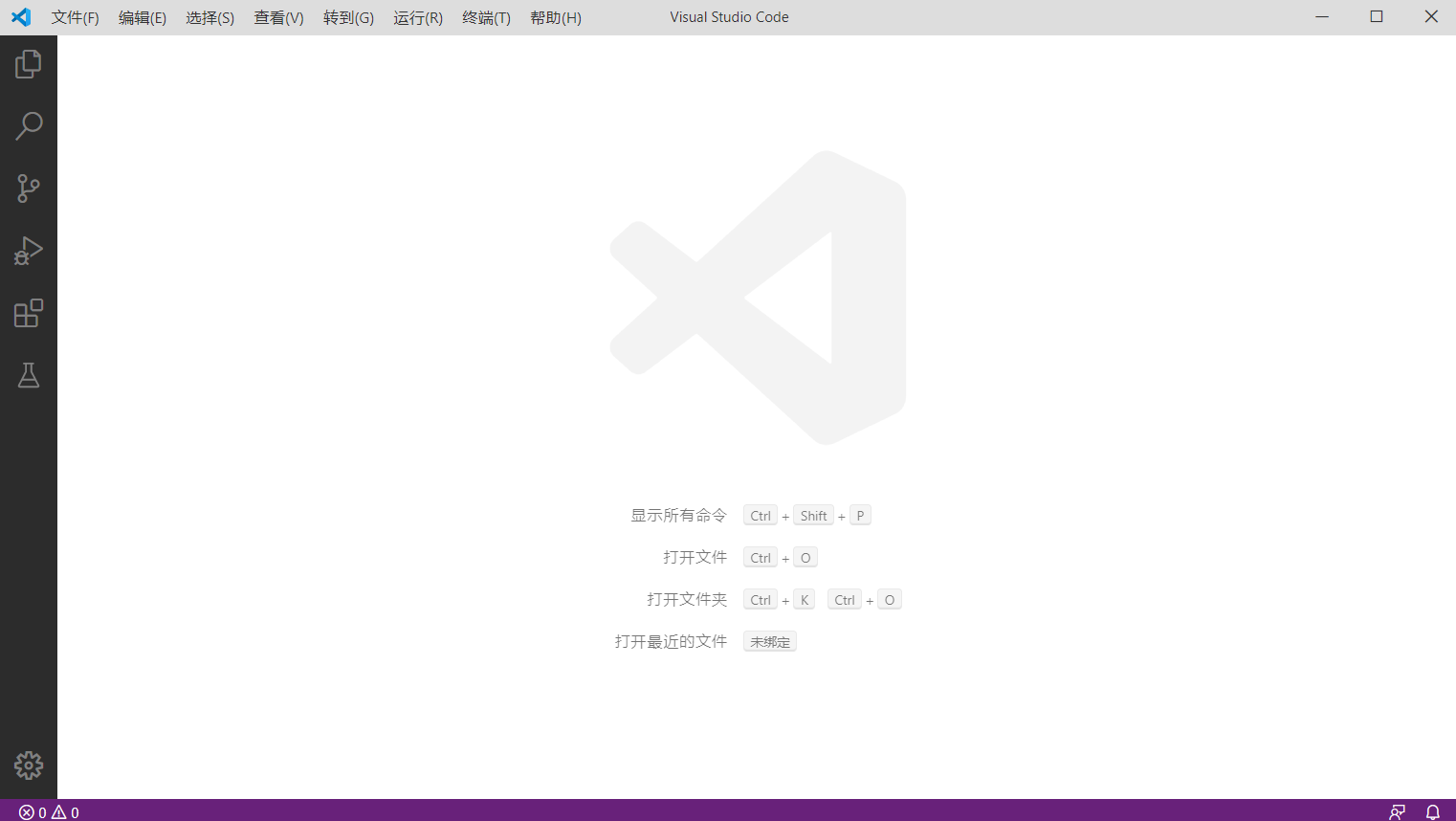
After installing Visual Studio Code (hereinafter referred to as VSCode), run VSCode.
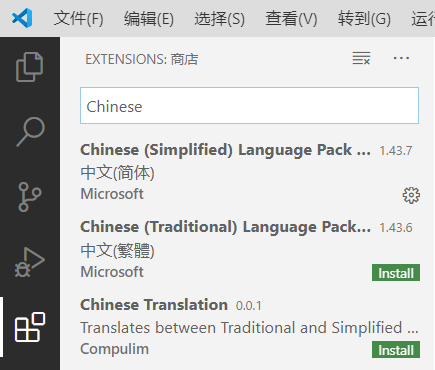
In the left sidebar, find "Extensions" and search for "Chinese". Install the Simplified Chinese extension to change the interface to Chinese. (If you prefer an English interface or your computer does not support Chinese characters, you can skip this step.)
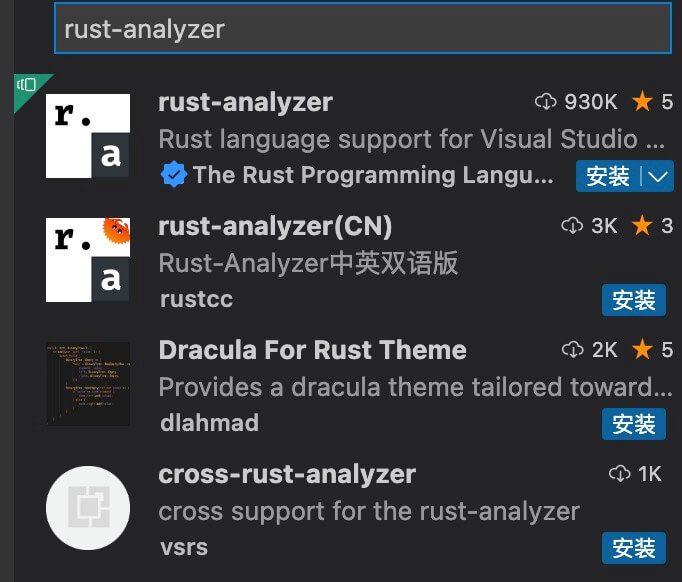
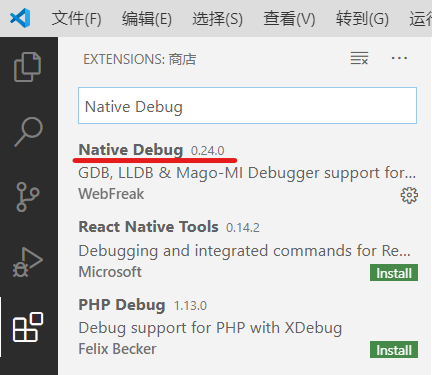
Use the same method to install the two extensions rust-analyzer and Native Debug.
Restart VSCode, and the Rust development environment is set up.
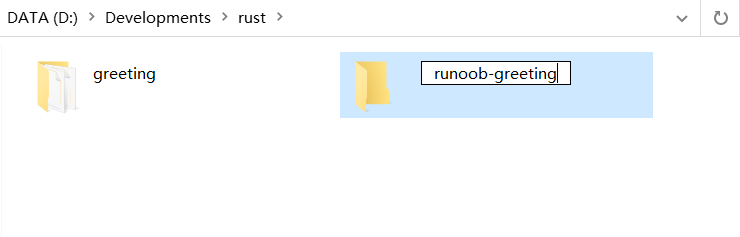
Now create a new folder, such as example-greeting.
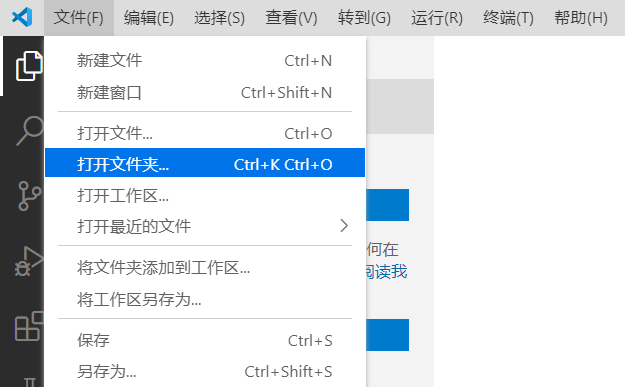
Open the newly created folder in VSCode:
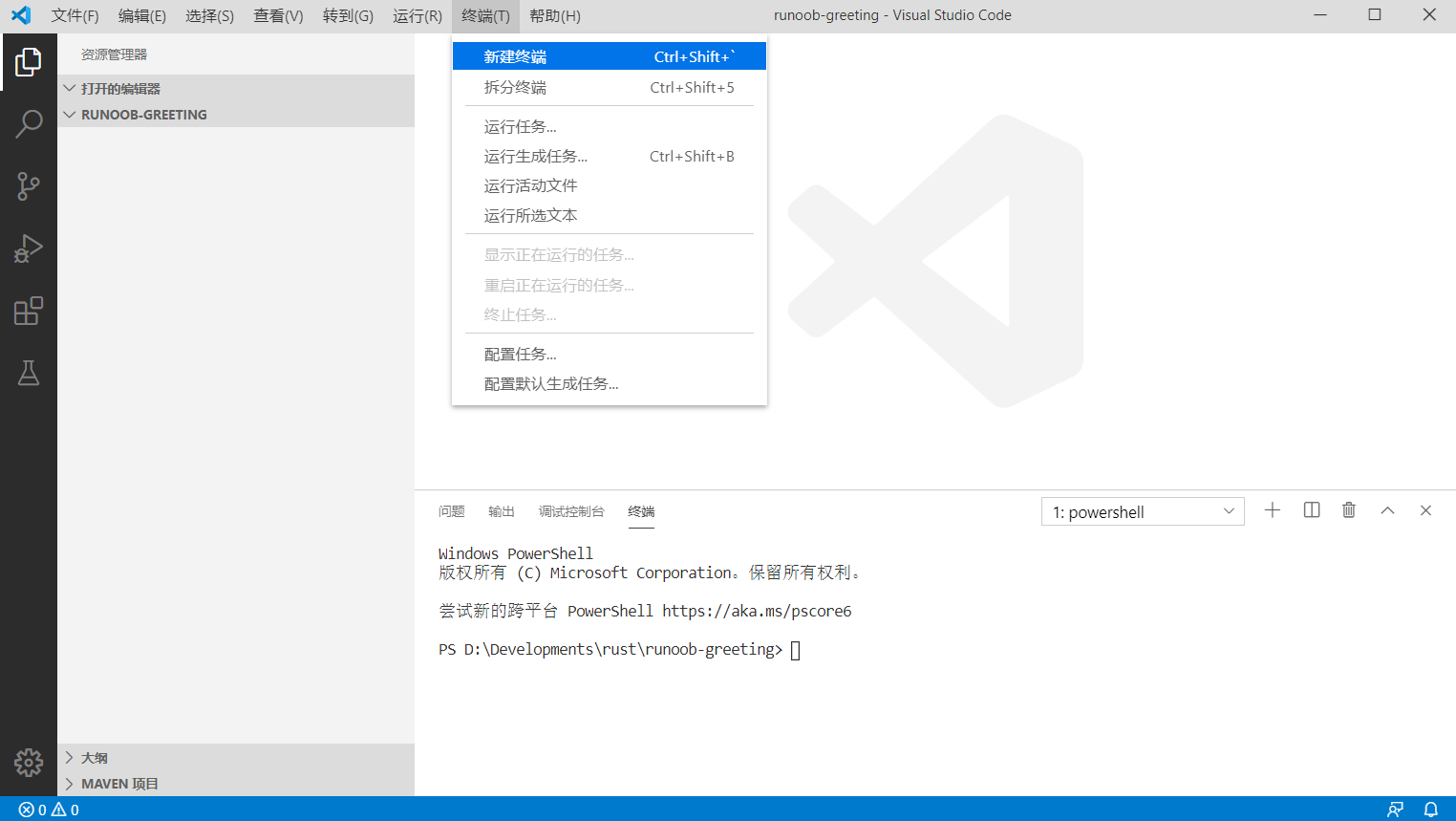
After opening the folder, select "Terminal" - "New Terminal" from the menu bar, and a new terminal will open:
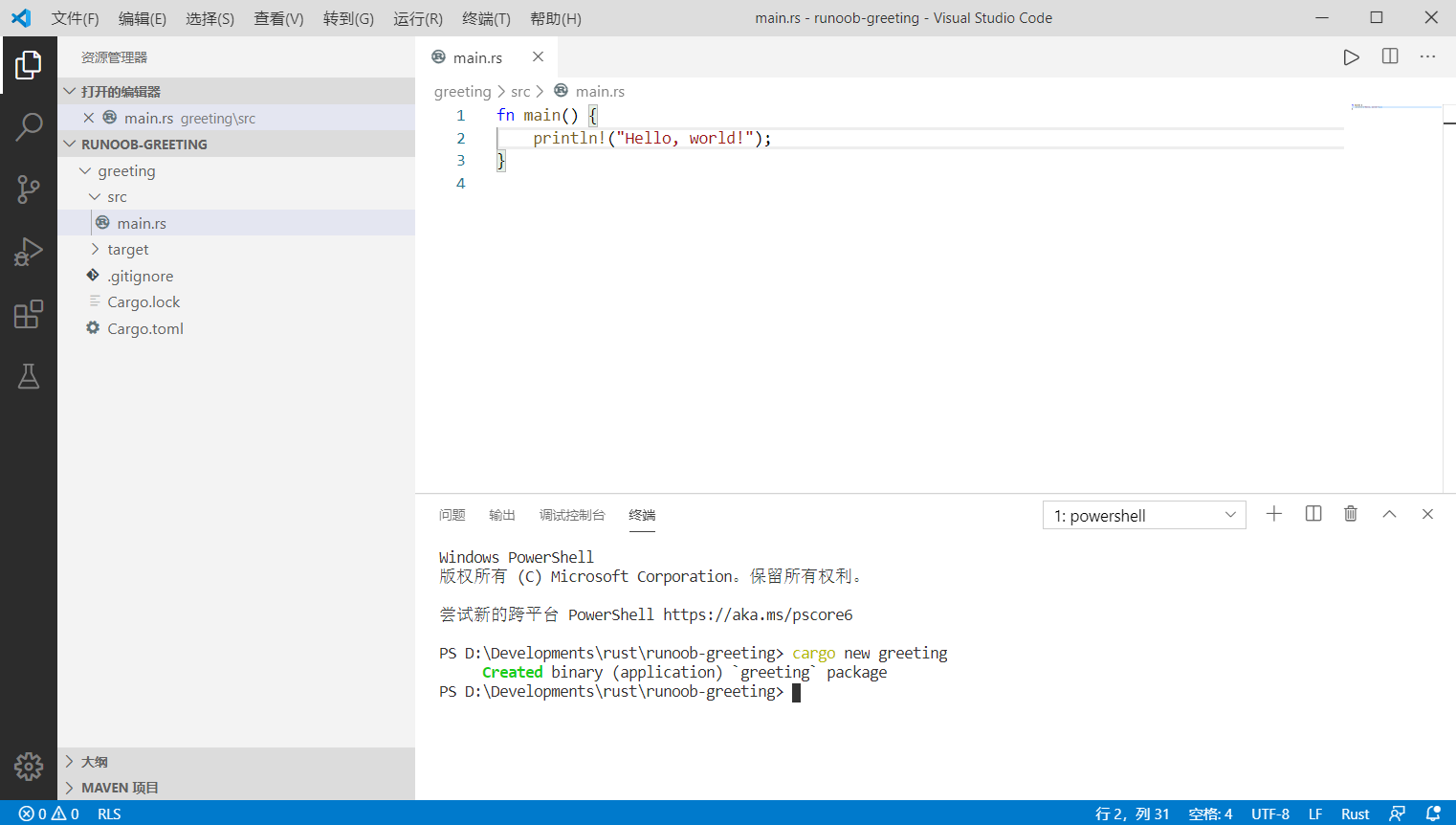
Enter the command in the terminal:
cargo new greeting
Under the current folder, a Rust project directory named greeting will be created.
Now enter the following three commands in the terminal:
cd ./greeting
cargo build
cargo run
When creating the project, the system will generate a Hello, world source program main.rs, which will then be compiled and run:
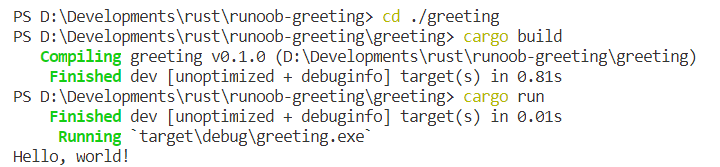
At this point, you have successfully built a Rust command-line program!
For issues related to debugging programs in VSCode, seeCargo Tutorial。
Other Extensions