Getting Started with PowerShell
PowerShell is a command-line shell + scripting environment created by Microsoft for Windows systems, primarily used for system administration and automation tasks.
InWindows 11There, just search directly in the Start menuPowerShelland that's it.
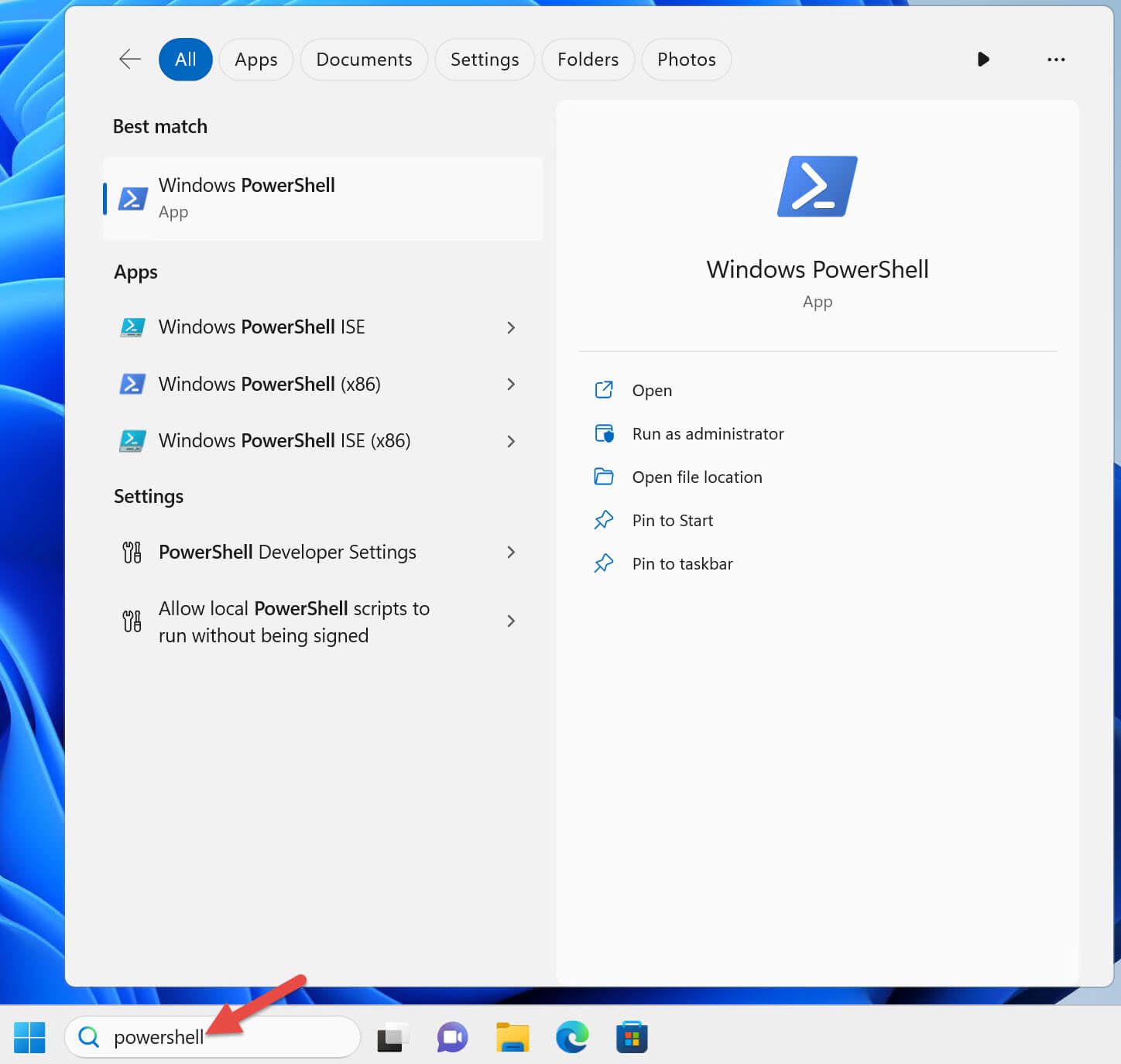
Common shortcuts include (for 64-bit systems):
| Shortcut Name | Description |
|---|---|
| Windows PowerShell | 64-bit Command Line Version |
| Windows PowerShell ISE | 64-bit Graphical Script Editor |
| Windows PowerShell (x86) | 32-bit Command Line Version |
| Windows PowerShell ISE (x86) | 32-bit Graphical Script Editor |
⚠️ Note: Windows 11 itself does not support 32-bit systems, but it still includes the x86 version of PowerShell for compatibility with legacy programs.
Ways to Launch PowerShell
Normal Launch Method
Click the Windows PowerShell shortcut to launch the PowerShell console.
The title bar of the PowerShell console will display "Windows PowerShell".

Note:Some commands can run normally when running PowerShell as a regular user, but PowerShell itself does not participate in User Account Control (UAC) and cannot prompt the user to elevate privileges.
User Account Control (UAC) Explanation
What UAC does:A Windows security feature that prevents malicious code from running with elevated privileges.
Regular user permission restrictions: When running as a regular user, attempting to execute commands that require administrator privileges will result in an error.
For example, stopping a Windows service:
Stop-Service -Name W32Time
Example error message:
Stop-Service : Service 'Windows Time (W32Time)' cannot be stopped due to
the following error: Cannot open W32Time service on computer '.'.
At line:1 char:1
+ Stop-Service -Name W32Time
+ ~~~~~~~~~~~~~~~~~~~~~~~~~~
    + CategoryInfo          : CloseError: (System.ServiceProcess.ServiceCon
   troller:ServiceController) [Stop-Service], ServiceCommandException
    + FullyQualifiedErrorId : CouldNotStopService,Microsoft.PowerShell.Comm
   ands.StopServiceCommand
Solution: You needto run PowerShell with a user elevated to local administrator privileges.A second domain user account is configured, following the principle of least privilege; it is not a domain administrator and has no elevated privileges within the domain.
Steps:
- Right-click the Windows PowerShell shortcut
- Select "Run as administrator"
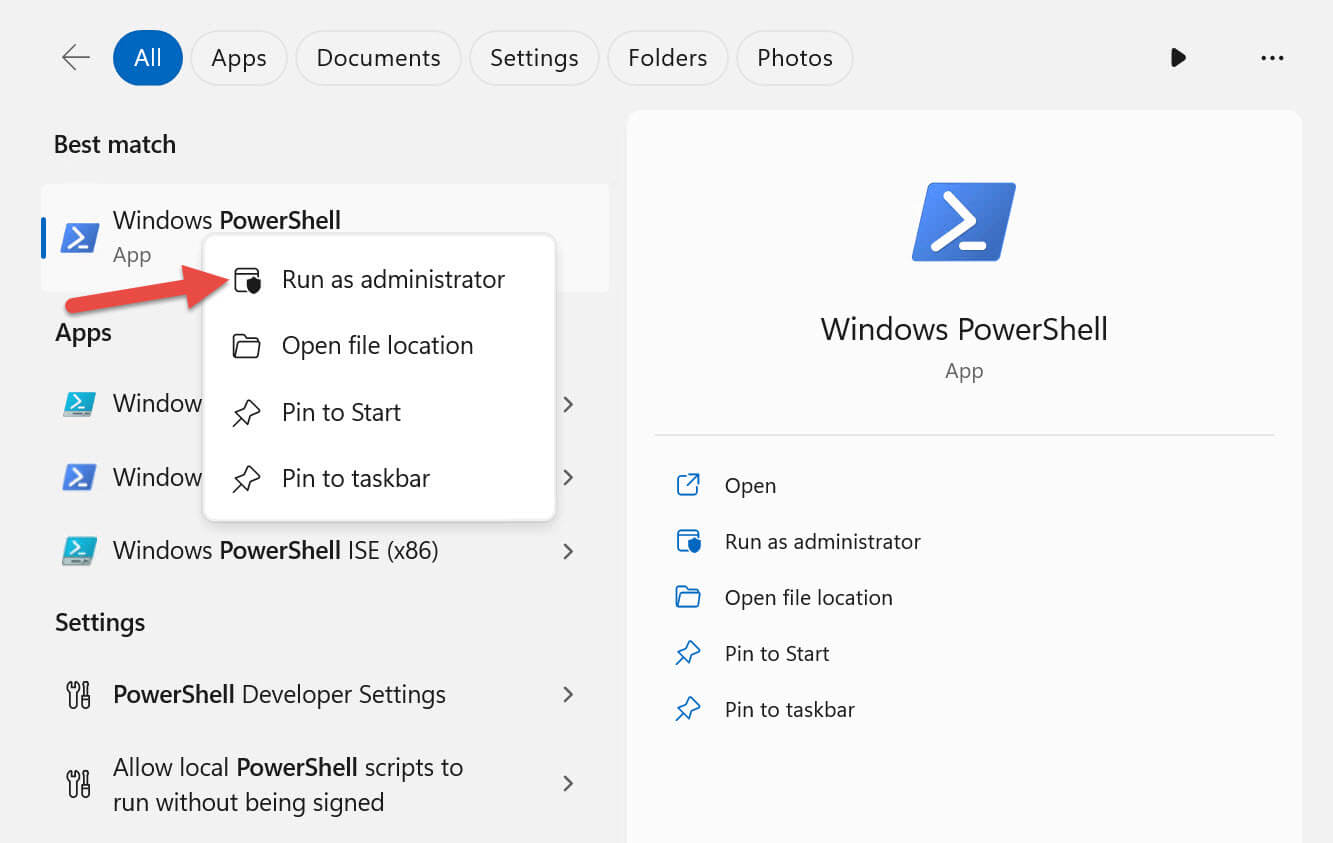
System prompt:Since you are currently logged in as a regular user, Windows will prompt you to enter local administrator credentials.

Confirm elevation:The elevated PowerShell window title bar displays "Administrator: Windows PowerShell".

Result:Running commands that require administrator privileges in the elevated PowerShell will no longer encounter UAC errors.
Privilege elevation principle: Only elevate PowerShell as administrator when absolutely necessary.
Remote computers:When targeting remote computers, there is no need to elevate PowerShell privileges. Elevation only affects local commands.
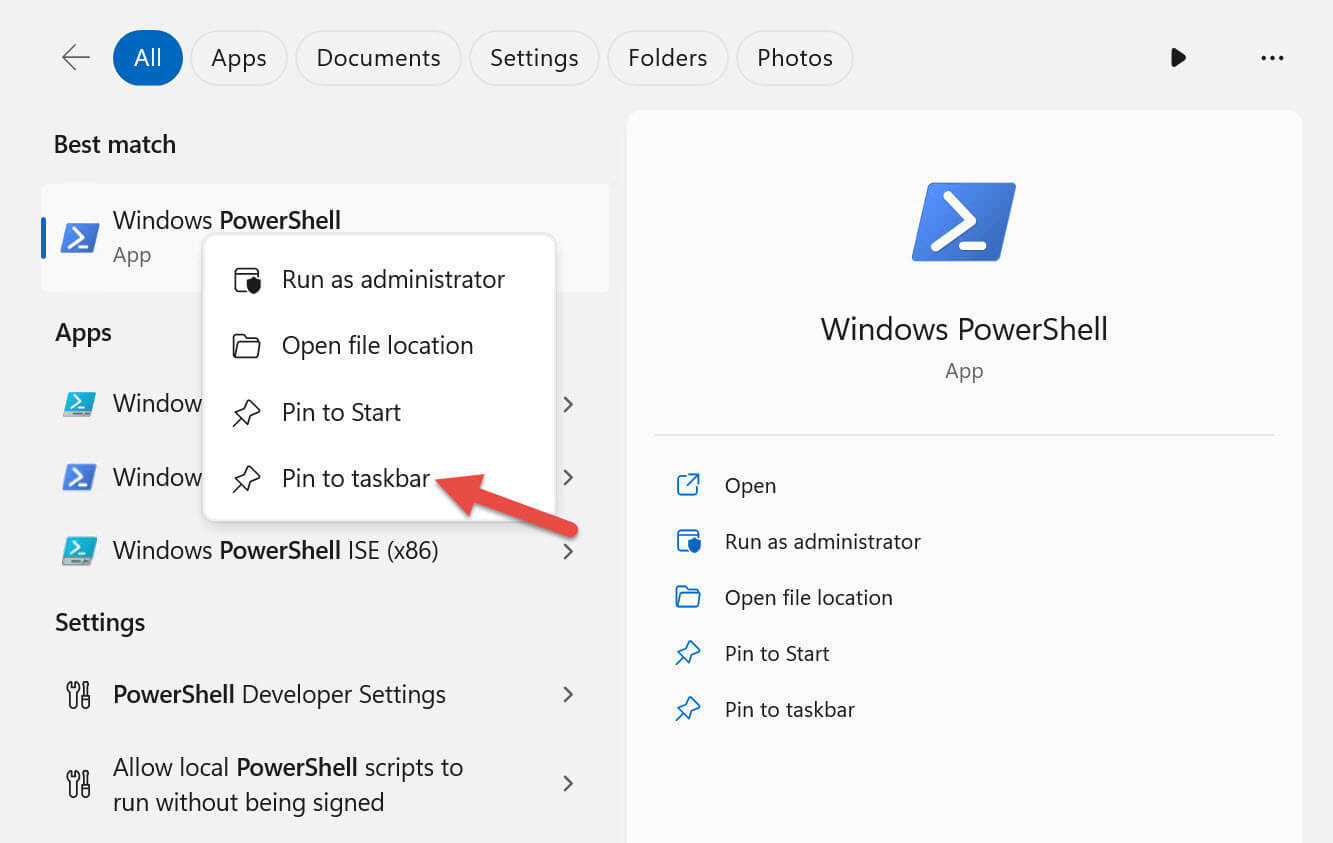
Pin shortcuts:You can pin the PowerShell or Windows Terminal shortcut to the taskbar for easy launch:
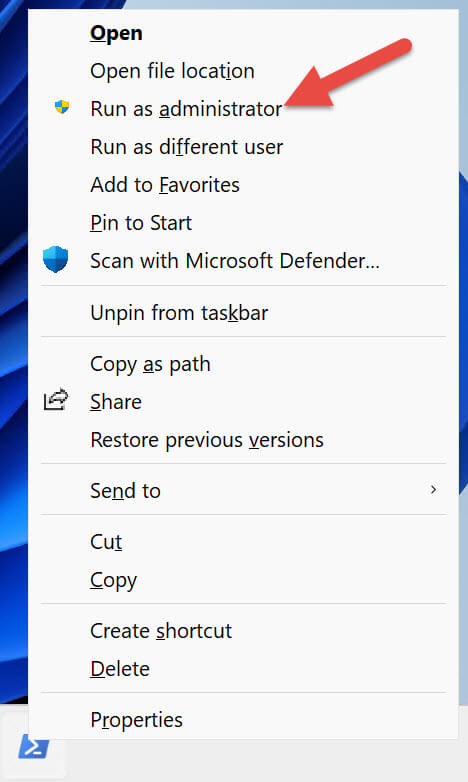
Safely launching elevated PowerShell:If you need to launch PowerShell with elevated privileges, hold down the Shift key while right-clicking the pinned PowerShell icon on the taskbar, and select "Run as administrator"
Guide to Determining PowerShell Version and Execution Policy
1. Checking the PowerShell Version
PowerShell provides an automatic variable$PSVersionTable, which contains the version and related information of the current PowerShell session.
$PSVersionTable
The output will look similar to the following:
Name                           Value
----                           -----
PSVersion                      5.1.22621.2428
PSEdition                      Desktop
PSCompatibleVersions           {1.0, 2.0, 3.0, 4.0...}
BuildVersion                   10.0.22621.2428
CLRVersion                     4.0.30319.42000
WSManStackVersion              3.0
PSRemotingProtocolVersion      2.3
SerializationVersion           1.1.0.1
Version Notes
- Windows PowerShell 5.1 is pre-installed in currently supported Windows versions and is the recommended version to use.
- PowerShell 7 (cross-platform version) is not a replacement for Windows PowerShell 5.1, but a different product installed side-by-side with it.
- PowerShell 6 (also known as PowerShell Core) is no longer supported.
2. Understanding Execution Policy
Execution policy is a security feature of PowerShell that controls the conditions under which scripts can run, preventing accidental execution of malicious scripts.
Note: The execution policy is not a security boundary; experienced users can bypass it.
Scope of Execution Policy
- It can be set for the local machine (LocalMachine), the current user (CurrentUser), or the current session (Process).
- It can also be managed for users and computers through Group Policy.
Common Windows Default Execution Policies
| Operating System Version | Default Execution Policy |
|---|---|
| Windows Server 2022 | RemoteSigned |
| Windows Server 2019 | RemoteSigned |
| Windows Server 2016 | RemoteSigned |
| Windows 11 | Restricted |
| Windows 10 | Restricted |
RestrictedIndicates that no scripts are allowed to run by default.
3. Querying the Current Execution Policy
Query the current policy:
Get-ExecutionPolicy
The output will look similar to the following:
Restricted
List execution policy settings for all scopes:
Get-ExecutionPolicy -List
The output will look similar to the following:
Scope ExecutionPolicy
        ----- ---------------
MachinePolicy       Undefined
   UserPolicy       Undefined
      Process       Undefined
  CurrentUser       Undefined
 LocalMachine       Undefined
4. Examples of How Execution Policy Affects Script Execution
Suppose there is a script fileGet-TimeService.ps1; running the command directly in the interactive command line works normally:
Get-Service -Name W32Time
However, when running the same command from within a script, PowerShell will return an error.
.\Get-TimeService.ps1
Error message:
.\Get-TimeService.ps1 : File C:\tmp\Get-TimeService.ps1 cannot be loaded
because running scripts is disabled on this system. For more information,
see about_Execution_Policies at
https:/go.microsoft.com/fwlink/?LinkID=135170.
At line:1 char:1
+ .\Get-TimeService.ps1
+ ~~~~~~~~~~~~~~~~~~~~~
    + CategoryInfo          : SecurityError: (:) [], PSSecurityException
    + FullyQualifiedErrorId : UnauthorizedAccess
5. Modifying the Execution Policy
1. Set to RemoteSigned (Recommended)
Allows running local scripts and remote scripts signed by trusted publishers.
Set-ExecutionPolicy -ExecutionPolicy RemoteSigned
- You must run PowerShell as administrator to change the execution policy for the local machine (LocalMachine).
- A confirmation prompt will appear when changing:
Do you want to change the execution policy? [Y] Yes [A] Yes to All ...
2. Modify Only the Current User's Execution Policy (No Administrator Rights Required)
Set-ExecutionPolicy -ExecutionPolicy RemoteSigned -Scope CurrentUser
6. Common Error Messages and Solutions
Error when modifying the LocalMachine policy without elevated administrator privileges:
Access to the registry key 'HKEY_LOCAL_MACHINE\SOFTWARE\Microsoft\PowerShell\1\ShellIds\Microsoft.PowerShell' is denied.
Solution: Retry after running PowerShell as administrator, or modify only the current user policy.
7. Verification After Modification
After the execution policy is changed toRemoteSigned, run the script:
.\Get-TimeService.ps1
Output:
Status   Name    DisplayName
------   ----    -----------
Running  W32Time Windows Time
8. Notes
- Scripts are plain text files with the extension
.ps1。
- It is recommended to useVisual Studio Codeor a text editor to write scripts.
- Before modifying the execution policy, please read the official documentation
about_Execution_Policiesto understand the associated security risks.
Other Extensions
.ps1。about_Execution_Policiesto understand the associated security risks.