Click the image to view a larger version
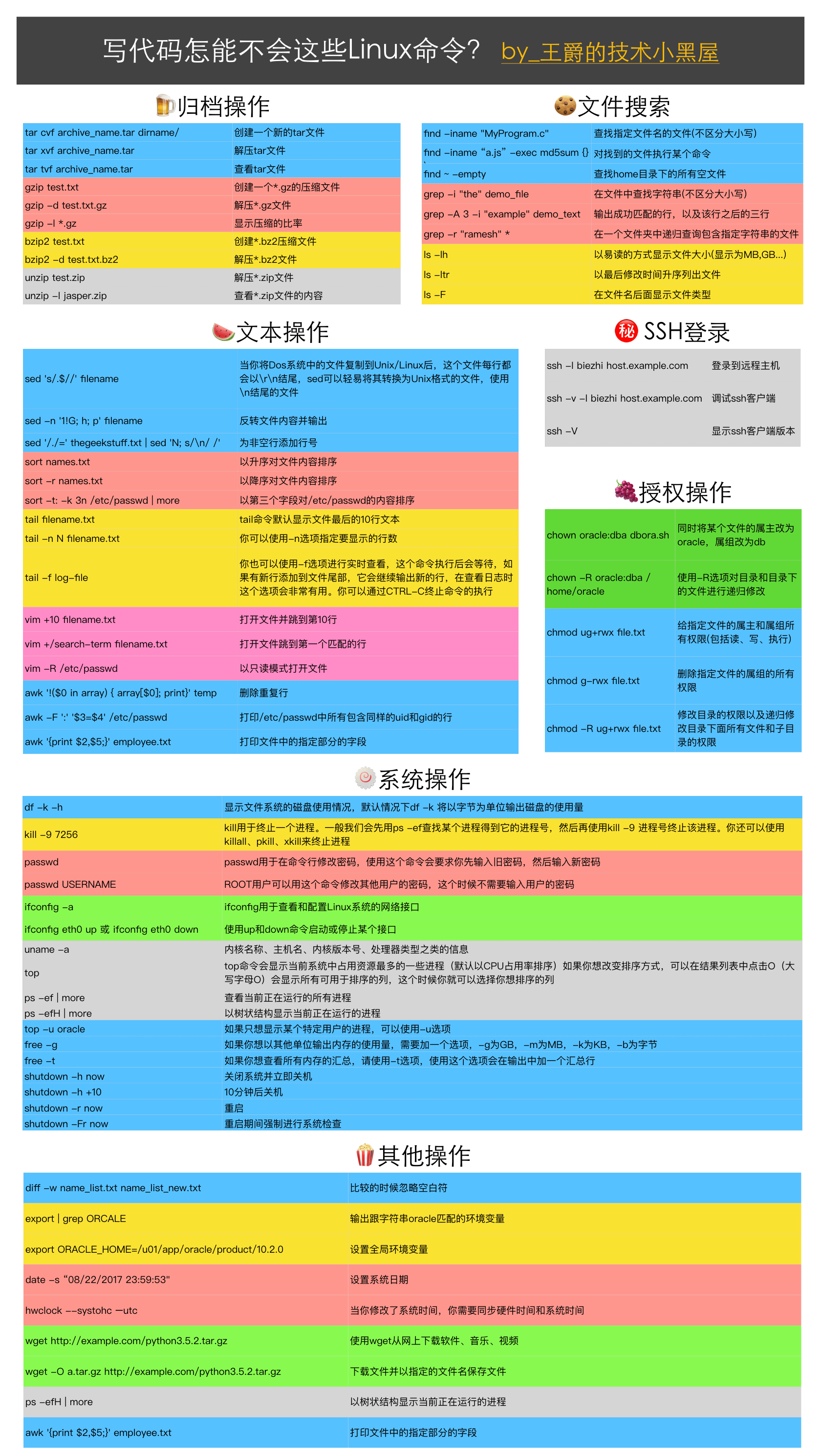
1. tar
Create a new tar file
$ tar cvf archive_name.tar dirname/
Extract a tar file
$ tar xvf archive_name.tar
View a tar file
$ tar tvf archive_name.tar
2. grep
Find a string in a file (case insensitive)
$ grep -i "the" demo_file
Output the successfully matched line, along with the three lines after that line
$ grep -A 3 -i "example" demo_text
Recursively search for files containing a specified string in a folder
$ grep -r "ramesh" *
3. find
Find files with a specified file name (case insensitive)
$ find -iname "MyProgram.c"
Execute a command on the found files
$ find -iname "MyProgram.c" -exec md5sum {} \;
Find all empty files in the home directory
$ find ~ -empty
4. ssh
Log in to a remote host
$ ssh -l jsmith remotehost.example.com
Debug ssh client
$ ssh -v -l jsmith remotehost.example.com
Display ssh client version
$ ssh -V
5. sed
When you copy files from a DOS system to Unix/Linux, every line of the file ends with \r\n. sed can easily convert it to a Unix format file, which uses \n at the end of lines
$ sed 's/.$//' filename
Reverse the file content and output it
$ sed -n '1!G; h; p' filename
Add line numbers to non-empty lines
$ sed '/./=' thegeekstuff.txt | sed 'N; s/\n/ /'
6. awk
Remove duplicate lines
$ awk '!($0 in array) { array[$0]; print}' temp
Print all lines in /etc/passwd that contain the same uid and gid
$ awk -F ':' '$3=$4' /etc/passwd
Print specified fields from a file
$ awk '{print $2,$5;}' employee.txt
7. vim
Open a file and jump to line 10
$ vim +10 filename.txt
Open a file and jump to the first matching line
$ vim +/search-term filename.txt
Open a file in read-only mode
$ vim -R /etc/passwd
8. diff
Ignore whitespace when comparing
$ diff -w name_list.txt name_list_new.txt
9. sort
Sort file content in ascending order
$ sort names.txt
Sort file content in descending order
$ sort -r names.txt
Sort the content of /etc/passwd by the third field
$ sort -t: -k 3n /etc/passwd | more
10. export
Output environment variables that match the string oracle
$ export | grep ORCALE
declare -x ORACLE_BASE="/u01/app/oracle"
declare -x ORACLE_HOME="/u01/app/oracle/product/10.2.0"
declare -x ORACLE_SID="med"
declare -x ORACLE_TERM="xterm"
Set global environment variables
$ export ORACLE_HOME=/u01/app/oracle/product/10.2.0
11. xargs
Copy all image files to an external drive
$ ls *.jpg | xargs -n1 -i cp {} /external-hard-drive/directory
Compress and package all jpd files in the system
$ find / -name *.jpg -type f -print | xargs tar -cvzf images.tar.gz
Download the pages corresponding to all URLs listed in the file
$ cat url-list.txt | xargs wget –c
12. ls
Display file size in a human-readable format (shown as MB, GB, ...)
$ ls -lh
-rw-r----- 1 ramesh team-dev 8.9M Jun 12 15:27 arch-linux.txt.gz
List files in ascending order by last modification time
$ ls -ltr
Display file type after the file name
$ ls -F
13. pwd
Output the current working directory
14. cd
cd - switches between the two most recently used directories
Using shopt -s cdspell can set up automatic spelling correction for the cd command
15. gzip
Create a *.gz compressed file
$ gzip test.txt
Decompress a *.gz file
$ gzip -d test.txt.gz
Display the compression ratio
$ gzip -l *.gz
     compressed        uncompressed  ratio uncompressed_name
          23709               97975  75.8% asp-patch-rpms.txt
16. bzip2
Create a *.bz2 compressed file
$ bzip2 test.txt
Decompress a *.bz2 file
bzip2 -d test.txt.bz2
17. uzip
Decompress a *.zip file
$ unzip test.zip
View the contents of a *.zip file
$ unzip -l jasper.zip
Archive:  jasper.zip
Length     Date   Time    Name
--------    ----   ----    ----
40995  11-30-98 23:50   META-INF/MANIFEST.MF
32169  08-25-98 21:07   classes_
15964  08-25-98 21:07   classes_names
10542  08-25-98 21:07   classes_ncomp
18. shutdown
Shut down the system and power off immediately
$ shutdown -h now
Shut down after 10 minutes
$ shutdown -h +10
Reboot
$ shutdown -r now
Force a system check during reboot
$ shutdown -Fr now
19. ftp
The usage of the ftp command and the sftp command is basically similar: connect to an FTP server and download multiple files
$ ftp IP/hostname
ftp> mget *.html
Display the list of files on the remote host
ftp> mls *.html -
/ftptest/features.html
/ftptest/index.html
/ftptest/othertools.html
/ftptest/samplereport.html
/ftptest/usage.html
20. crontab
View a user's crontab entries
$ crontab -u john -l
Set up a scheduled task that runs every ten minutes
*/10 * * * * /home/ramesh/check-disk-space
21. service
The service command is used to run System V init scripts, which are usually located in /etc/init.d. This command can directly run scripts in this folder without adding the path
View service status
$ service ssh status
View the status of all services
$ service --status-all
Restart a service
$ service ssh restart
22. ps
The ps command is used to display information about running processes. The ps command has many options; only a few are listed here
View all currently running processes
$ ps -ef | more
Display currently running processes in a tree structure. The H option indicates displaying the process hierarchy
$ ps -efH | more
23. free
This command is used to display the current memory usage of the system, including used memory, available memory, and swap memory
By default, free outputs memory usage in bytes
$ free
             total       used       free     shared    buffers     cached
Mem:       3566408    1580220    1986188          0     203988     902960
-/+ buffers/cache:     473272    3093136
Swap:      4000176          0    4000176
If you want to output memory usage in other units, you need to add an option: -g for GB, -m for MB, -k for KB, -b for bytes
$ free -g
             total       used       free     shared    buffers     cached
Mem:             3          1          1          0          0          0
-/+ buffers/cache:          0          2
Swap:            3          0          3
If you want to view a summary of all memory, use the -t option. Using this option adds a summary line to the output
$ free -t
             total       used       free     shared    buffers     cached
Mem:       3566408    1592148    1974260          0     204260     912556
-/+ buffers/cache:     475332    3091076
Swap:      4000176          0    4000176
Total:     7566584    1592148    5974436
24. top
The top command displays the processes currently occupying the most resources in the system (sorted by CPU usage by default). If you want to change the sorting method, you can press O (uppercase O) in the result list to display all columns available for sorting, and then you can select the column you want to sort by
Current Sort Field:  P  for window 1:Def
Select sort field via field letter, type any other key to return

  a: PID        = Process Id              v: nDRT       = Dirty Pages count
  d: UID        = User Id                 y: WCHAN      = Sleeping in Function
  e: USER       = User Name               z: Flags      = Task Flags
  ........
If you only want to display processes of a specific user, you can use the -u option
$ top -u oracle
25. df
Display disk usage of the file system. By default, df -k outputs disk usage in bytes
$ df -k
Filesystem           1K-blocks      Used Available Use% Mounted on
/dev/sda1             29530400   3233104  24797232  12% /
/dev/sda2            120367992  50171596  64082060  44% /home
Using the -h option displays disk usage in a more human-readable format
$ df -h
Filesystem                  Size   Used  Avail Capacity  iused      ifree %iused  Mounted on
/dev/disk0s2               232Gi   84Gi  148Gi    37% 21998562   38864868   36%   /
devfs                      187Ki  187Ki    0Bi   100%      648          0  100%   /dev
map -hosts                   0Bi    0Bi    0Bi   100%        0          0  100%   /net
map auto_home                0Bi    0Bi    0Bi   100%        0          0  100%   /home
/dev/disk0s4               466Gi   45Gi  421Gi    10%   112774  440997174    0%   /Volumes/BOOTCAMP
//app@izenesoft.cn/public  2.7Ti  1.3Ti  1.4Ti    48%        0 18446744073709551615    0%   /Volumes/public
Use the -T option to display the file system type
$ df -T
Filesystem    Type   1K-blocks      Used Available Use% Mounted on
/dev/sda1     ext4    29530400   3233120  24797216  12% /
/dev/sda2     ext4   120367992  50171596  64082060  44% /home
26. kill
kill is used to terminate a process. Generally we first use ps -ef to find a process and get its process number, then use kill -9 process number to terminate it. You can also use killall, pkill, or xkill to terminate processes
$ ps -ef | grep vim
ramesh    7243  7222  9 22:43 pts/2    00:00:00 vim

$ kill -9 7243
27. rm
Confirm before deleting a file
$ rm -i filename.txt
Using shell metacharacters in file names can be very useful. Print the file names and confirm before deleting them
$ rm -i file*
Recursively delete all files under a folder and also delete the folder itself
$ rm -r example
28. cp
Copy file1 to file2, preserving the file's permissions, owner, and timestamp
$ cp -p file1 file2
Copy file1 to file2. If file2 exists, it will prompt whether to overwrite
$ cp -i file1 file2
29. mv
Rename file1 to file2. If file2 exists, it will prompt whether to overwrite
$ mv -i file1 file2
Note that if the -f option is used, no prompt will be shown
-v outputs the renaming process. This option is very convenient when file names contain wildcards
$ mv -v file1 file2
30. cat
You can view the contents of multiple files at once. The following command prints the contents of file1 first, then prints the contents of file2
$ cat file1 file2
The -n option adds line numbers to the beginning of each line
$ cat -n /etc/logrotate.conf
/var/log/btmp {
missingok
3        monthly
4        create 0660 root utmp
5        rotate 1
6 }
31. mount
To mount a file system, you need to create a directory first, then mount the file system to that directory
# mkdir /u01

# mount /dev/sdb1 /u01
You can also add it to fstab for automatic mounting, so that whenever the system reboots, the file system will be loaded
/dev/sdb1 /u01 ext2 defaults 0 2
32. chmod
chmod is used to change the permissions of files and directories
Give the owner and group of the specified file all permissions (including read, write, and execute)
$ chmod ug+rwx file.txt
Remove all permissions of the group of the specified file
$ chmod g-rwx file.txt
Change the permissions of a directory, and recursively change the permissions of all files and subdirectories under the directory
$ chmod -R ug+rwx file.txt
33. chown
chown is used to change the owner and group of a file
Simultaneously change the owner of a file to oracle and the group to db
$ chown oracle:dba dbora.sh
Use the -R option to recursively modify a directory and the files under it
$ chown -R oracle:dba /home/oracle
34. passwd
passwd is used to change a password on the command line. Using this command requires you to enter the old password first, then enter a new password
$ passwd
The superuser can use this command to change other users' passwords. In this case, there is no need to enter the user's password
# passwd USERNAME
passwd can also delete a user's password. This command can only be operated by the root user. After the password is deleted, the user can log in to the system without entering a password
# passwd -d USERNAME
35. mkdir
Create a directory named temp in the home directory
$ mkdir ~/temp
Use the -p option to create all non-existent directories along a path
$ mkdir -p dir1/dir2/dir3/dir4/
36. ifconfig
ifconfig is used to view and configure network interfaces of a Linux system
View all network interfaces and their status
$ ifconfig -a
Use the up and down commands to start or stop an interface
$ ifconfig eth0 up
$ ifconfig eth0 down
37. uname
uname can display some important system information, such as kernel name, host name, kernel version, processor type, and so on
$ uname -a Linux john-laptop 2.6.32-24-generic #41-Ubuntu SMP Thu Aug 19 01:12:52 UTC 2010 i686 GNU/Linux
38. whereis
When you don't know the location of a command, you can use the whereis command. The following uses whereis to find the location of ls
$ whereis ls
ls: /bin/ls /usr/share/man/man1/ls.1.gz /usr/share/man/man1p/ls.1p.gz
When you want to find the location of an executable program, but the program is not in whereis's default directories, you can use the -B option and specify a directory as the argument for this option. The following command looks for the lsmk command in the /tmp directory
$ whereis -u -B /tmp -f lsmk
lsmk: /tmp/lsmk
39. whatis
whatis displays description information for a command
$ whatis ls
ls        (1)  - list directory contents

$ whatis ifconfig
ifconfig (8)         - configure a network interface
40. locate
The locate command can display the path of a specified file (or group of files). It uses a database created by updatedb
The following command will display all files in the system that contain the string crontab
$ locate crontab
/etc/anacrontab
/etc/crontab
/usr/bin/crontab
/usr/share/doc/cron/examples/crontab2english.pl.gz
/usr/share/man/man1/crontab.1.gz
/usr/share/man/man5/anacrontab.5.gz
/usr/share/man/man5/crontab.5.gz
/usr/share/vim/vim72/syntax/crontab.vim
41. man
Display the man page for a command
$ man crontab
Some commands may have multiple man pages; each man page corresponds to one command type
$ man SECTION-NUMBER commandname
Man pages can generally be divided into 8 command types
- User commands
- System calls
- C library functions
- Devices and network interfaces
- File formats
- Games and screensavers
- Environment, tables, and macros
- System administrator commands and background-running commands
For example, when we run whatis crontab, you can see that crontab has two command types, 1 and 5. So we can use the following command to view the man page for command type 5
$ whatis crontab
crontab (1)          - maintain crontab files for individual users (V3)
crontab (5)          - tables for driving cron

$ man 5 crontab
42. tail
The tail command displays the last 10 lines of text in a file by default
$ tail filename.txt
You can use the -n option to specify the number of lines to display
$ tail -n N filename.txt
You can also use the -f option to view in real time. After this command is executed, it will wait. If new lines are added to the end of the file, it will continue to output the new lines. This option is very useful when viewing logs. You can terminate the command by pressing CTRL-C.
$ tail -f log-file
43. less
This command can display the file contents without loading the entire file, which is very useful when viewing large log files.
$ less huge-log-file.log
When you open a file with the less command, the following two keys will help you a lot; they are used to scroll forward and backward.
CTRL+F – forward one window
CTRL+B – backward one window
44. su
su命令用于切换用户账号,超级用户使用这个命令可以切换到任何其他用户而不用输入密码
$ su - USERNAME
Execute a command with another username. In the example below, user john executes the ls command using the username raj, and then returns to john's account after execution.
[john@dev-server]$ su - raj -c 'ls'

[john@dev-server]$
Log in as a specified user and use the specified shell program instead of the default one.
$ su -s 'SHELLNAME' USERNAME
45. mysql
MySQL may be the most widely used database on Linux. Even if you have not installed MySQL on your server, you can still use the MySQL client to connect to a remote MySQL server.
To connect to a remote database, you need to enter the password.
$ mysql -u root -p -h 192.168.1.2
Connect to a local database.
$ mysql -u root -p
You can also enter the database password in the command line. Just add the password as an argument after -p. It can be written directly after p without a space.
46. yum
Install Apache using yum.
$ yum install httpd
Update Apache.
$ yum update httpd
Uninstall/remove Apache.
$ yum remove httpd
47. rpm
Install Apache using rpm.
# rpm -ivh httpd-2.2.3-22.0.1.el5.i386.rpm
Update Apache.
# rpm -uvh httpd-2.2.3-22.0.1.el5.i386.rpm
Uninstall/remove Apache.
# rpm -ev httpd
48. ping
Ping a remote host, sending only 5 data packets.
$ ping -c 5 gmail.com
49. date
Set the system date.
# date -s "01/31/2010 23:59:53"
When you have modified the system time, you need to synchronize the hardware time and the system time.
# hwclock –systohc

# hwclock --systohc –utc
50. wget
Use wget to download software, music, and videos from the internet.
$ wget http://prdownloads.sourceforge.net/sourceforge/nagios/nagios-3.2.1.tar.gz
Download a file and save it with a specified filename.
$ wget -O taglist.zip http://www.vim.org/scripts/download_script.php?src_id=7701
Translation: https://zhuanlan.zhihu.com/p/28674639
Original: http://www.thegeekstuff.com/2010/11/50-linux-commands/