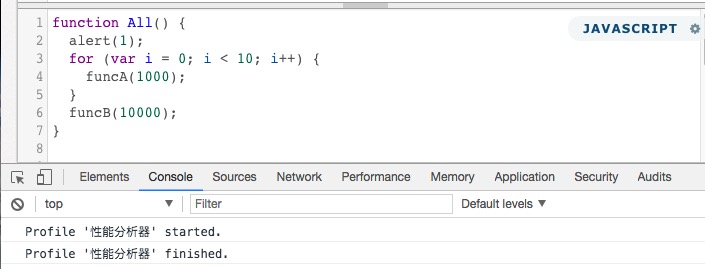
The Console object is used for JavaScript debugging.
JavaScript does not have a native Console object by default; it is a built-in object provided by the host object (i.e., the browser). It is used to access the debugging console, and its behavior may vary in different browsers.
Two common uses of the Console object:
- Display error messages when web page code runs.
- Provide a command-line interface to interact with web page code.
Taking Chrome as an example, we can open the Console window by pressing F12 or Control+Shift+I (PC) / Alt+Command+I (Mac).
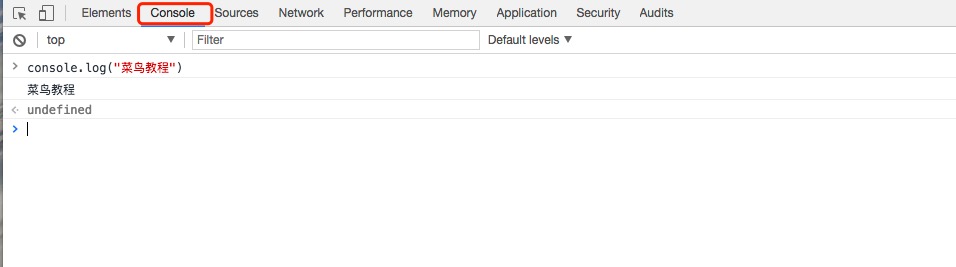
Console Object Methods
| Method | Description | Example |
|---|---|---|
| assert() | The assert method accepts two parameters: the first is an expression, and the second is a string. Only when the first parameter is false will it output the second parameter; otherwise, nothing is output. |
// 实例 console.assert(true === false, "判断条件不成立") // Assertion failed: 判断条件不成立 |
| clear() | Clear all output in the current console and move the cursor back to the first line. | console.clear() |
| count() | Used for counting; outputs how many times it has been called. |
(function() {
  for (var i = 0; i < 5; i++) {
    console.count('count');
  }
})(); |
| error() | When outputting information, it adds a red cross at the front to indicate an error, and also displays the stack where the error occurred. | console.error("Error: %s (%i)", "Server is not responding",500) |
| group() | Used to group displayed information; the information can be collapsed and expanded. |
console.group('第一层');
  console.group('第二层');

    console.log('error');
    console.error('error');
    console.warn('error');

  console.groupEnd();
console.groupEnd(); |
| groupCollapsed() | Very similar to the console.group method, with the only difference being that the content of this group is collapsed (not expanded) when first displayed. |
console.groupCollapsed('第一层');
  console.groupCollapsed('第二层');

    console.log('error');
    console.error('error');
    console.warn('error');

  console.groupEnd();
console.groupEnd();
|
| groupEnd() | Ends the inline group. |
console.group('Group One');
console.group('Group Two');

// some code

console.groupEnd(); // Group Two 结束
console.groupEnd(); // Group One 结束
|
| info() | Alias of console.log; outputs information. | console.info("example") |
| log() | Outputs information. | console.log("example") |
| table() | Displays composite-type data as a table. |
var arr= [
         { num: "1"},
         { num: "2"},
         { num: "3" }
    ];
console.table(arr);

var obj= {
     a:{ num: "1"},
     b:{ num: "2"},
     c:{ num: "3" }
};
console.table(obj);
|
| time() | Starts timing. |
console.time('计时器1');
for (var i = 0; i < 100; i++) {
  for (var j = 0; j < 100; j++) {}
}
console.timeEnd('计时器1');
console.time('计时器2');
for (var i = 0; i < 1000; i++) {
  for (var j = 0; j < 1000; j++) {}
}
console.timeEnd('计时器2');
|
| timeEnd() | Ends timing. |
console.time('计时器1');
for (var i = 0; i < 100; i++) {
  for (var j = 0; j < 100; j++) {}
}
console.timeEnd('计时器1');
console.time('计时器2');
for (var i = 0; i < 1000; i++) {
  for (var j = 0; j < 1000; j++) {}
}
console.timeEnd('计时器2');
|
| trace() | Traces the call stack of a function. |
function d(a) {
  console.trace();
  return a;
}
function b(a) {
  return c(a);
}
function c(a) {
  return d(a);
}
var a = b('123');
|
| warn() | Outputs a warning message. | console.warn("警告") |
Common Console Debugging Commands
Example
Try it »
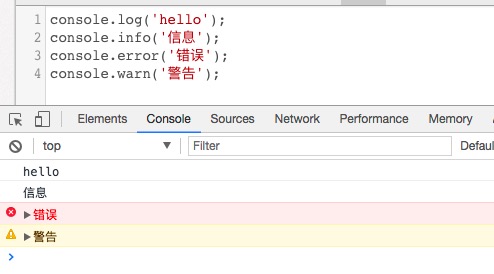
The most commonly used one is console.log.
The console methods mentioned above support the printf placeholder format. Supported placeholders are: character (%s), integer (%d or %i), floating point (%f), and object (%o):
| Placeholder | Purpose |
|---|---|
| %s | String |
| %d or %i | Integer |
| %f | Floating point |
| %o | Expandable DOM |
| %O | Lists the properties of the DOM |
| %c | Formats a string according to the provided CSS style |
Effect:

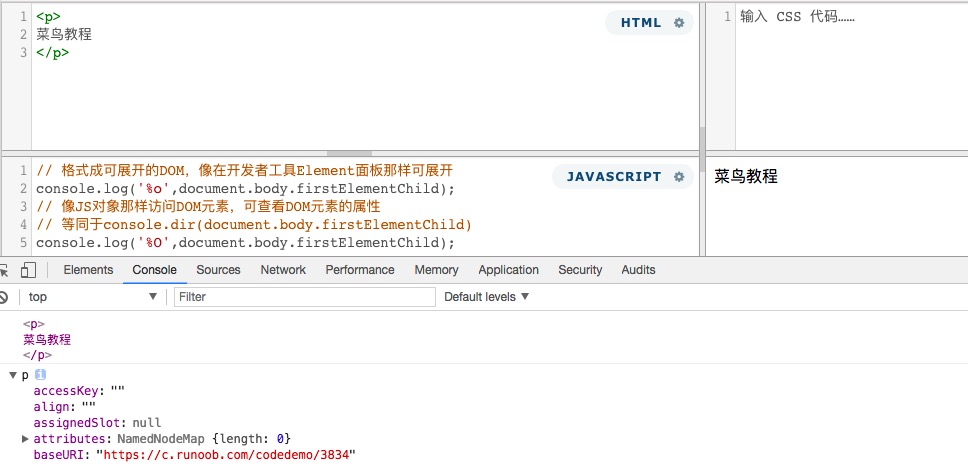
%o and %O are both used to output Object objects. For ordinary Object objects, there is no difference between them, but when printing DOM nodes, they differ:
Example
Try it »
Effect:
The %c placeholder is the most commonly used. When using the %c placeholder, the corresponding following parameter must be a CSS statement, used to render the output content with CSS. There are two common output methods: text styling and image output.
Text output
Example
Try it »
Effect:
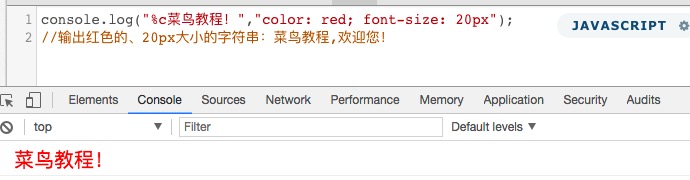
In addition to ordinary text, you can also output character art like a panel. This character art can be generated online:
General method: Use an online tool to generate character art, then copy it into Sublime, delete the line breaks at the beginning of each line, and replace them with \n. In the end, only one line of code remains, ensuring there are no line breaks. Then put it into the console.log("") code. Of course, you can also combine it with %c to create cooler effects (console output does not wrap by default).
Image output
Example
Try it »
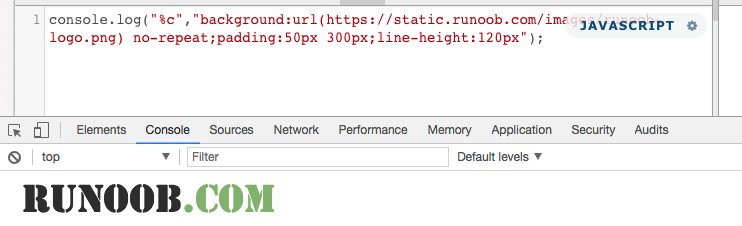
Since console cannot define img, a background image is used instead. In addition, console does not support width and height, so spaces and font-size are used instead; you can also use padding and line-height instead of width and height.
3. Information Grouping
Example
Try it »
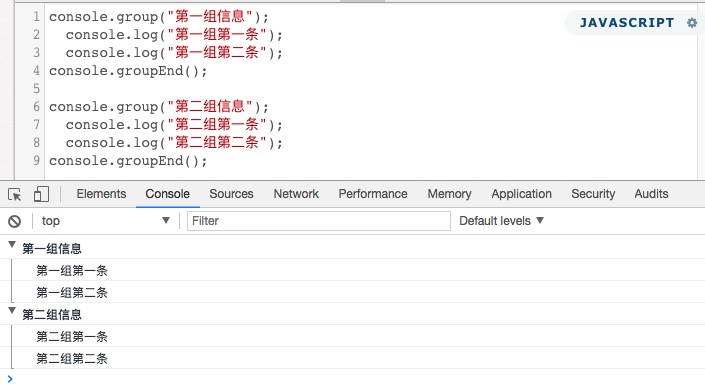
4. Viewing Object Information
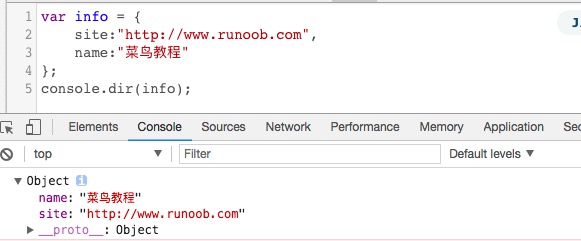
5. Displaying the Content of a Node
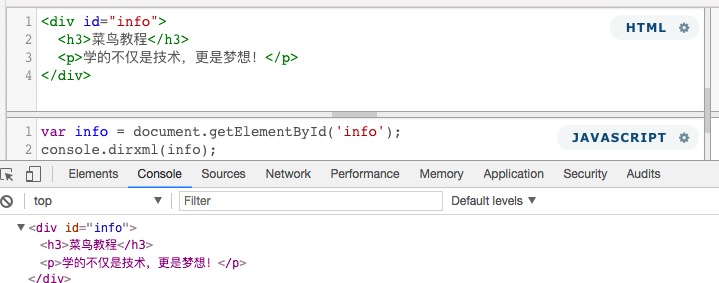
console.dirxml() is used to display the HTML/XML code contained in a node of the web page.
Example
Try it »
6. Checking Whether a Variable is True
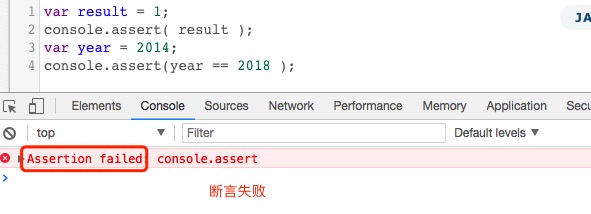
console.assert() is used to determine whether an expression or variable is true. If the result is false, it outputs a corresponding message in the console and throws an exception.
Example
Try it »
1 is a non-zero value, so it is true; while the second assertion is false, and the console displays an error message.
7. Tracing the Call Trail of a Function
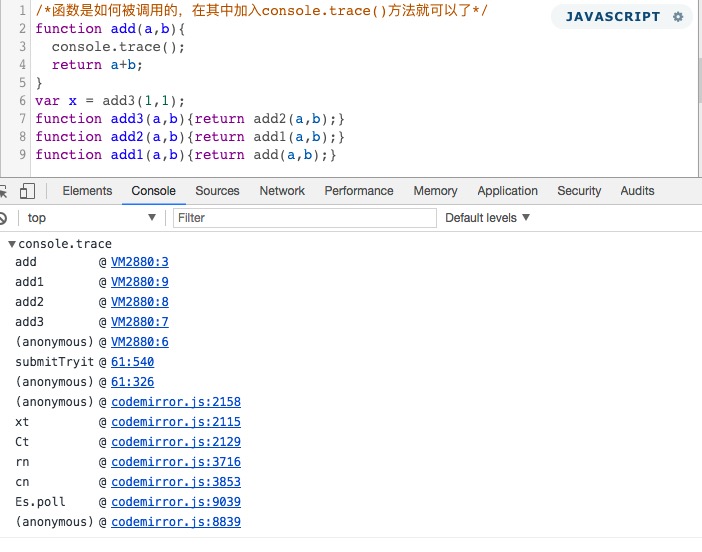
console.trace() is used to trace the call trail of a function.
Example
Try it »
Console output:
8. Timing Function
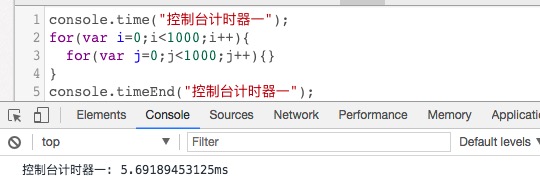
console.time() and console.timeEnd() are used to display the running time of code.
Example
Try it »
9. Performance Profiling with console.profile()
Performance profiling (Profiler) analyzes the running time of each part of a program to find bottlenecks. The method used is console.profile().
Example
Try it »