Basic Usage
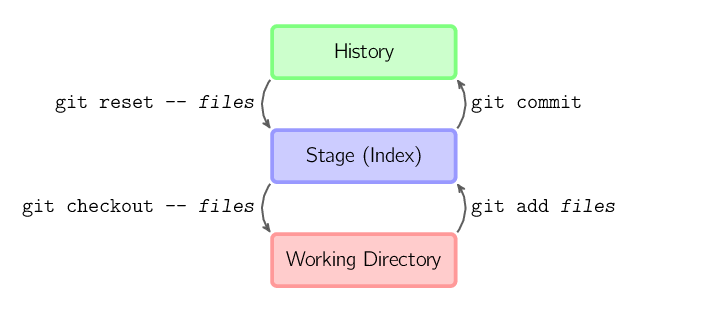
The four commands above copy files between the working directory, the staging directory (also called the index), and the repository.
git add filesPut the current file into the staging area.git commitGenerate a snapshot of the staging area and commit.git reset -- filesUsed to undo the lastgit add files, you can also usegit resetto undo all files in the staging area.git checkout -- filesCopy files from the staging area to the working directory to discard local modifications.
You can usegit reset -p, git checkout -p, or git add -pto enter interactive mode.
You can also skip the staging area and directly retrieve files from the repository or directly commit code.
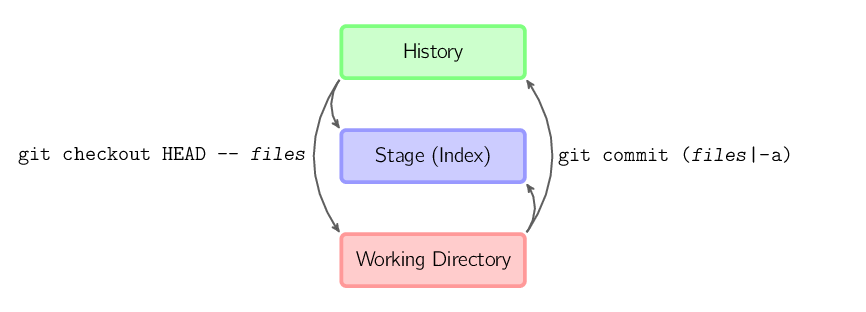
git commit -aEquivalent to runninggit addadding all files in the current directory to the staging area and then running.git commit.git commit filesMake a commit that includes the last commit plus a snapshot of the files in the working directory. And the files are added to the staging area.git checkout HEAD -- filesRoll back to copy the last commit.
Conventions
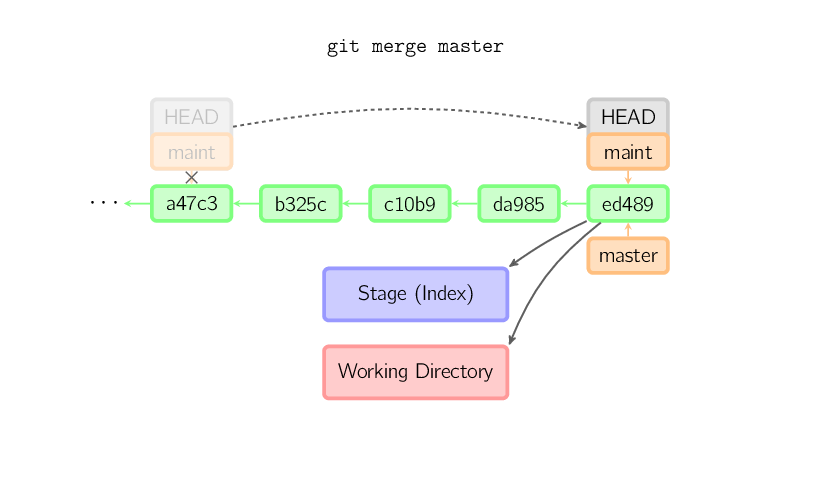
In the following text, images are used in the form below.
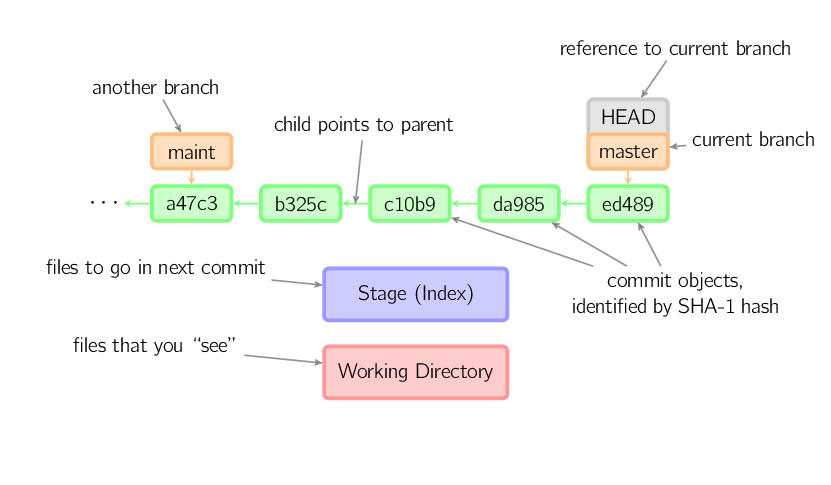
The green 5-character strings represent commit IDs, pointing to their parent nodes respectively. Branches are shown in orange, each pointing to a specific commit. The current branch is identified by theHEADidentifier. This picture shows the last 5 commits,ed489is the latest commit.masterbranch points to this commit, anothermaintbranch points to the grandparent commit node.
Command Details
Diff
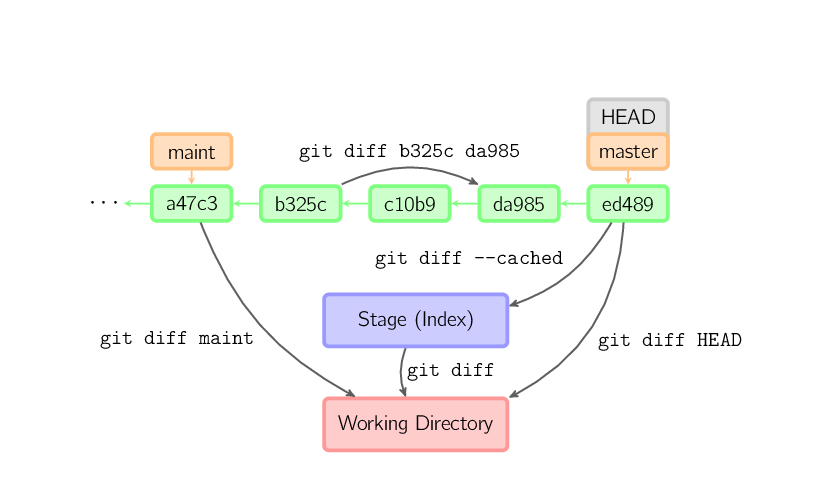
There are many ways to view the differences between two commits. Below are some examples.
Commit
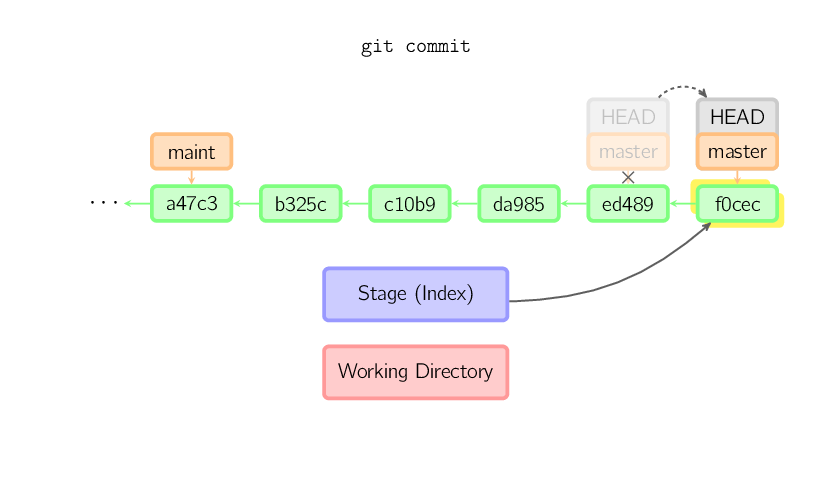
When committing, git uses the files in the staging area to create a new commit, and sets the current node as the parent node. Then it points the current branch to the new commit node. In the figure below, the current branch ismaster. Before running the command,masterpoints toed489, after committing,masterpoints to the new nodef0cecand usesed489as the parent node.
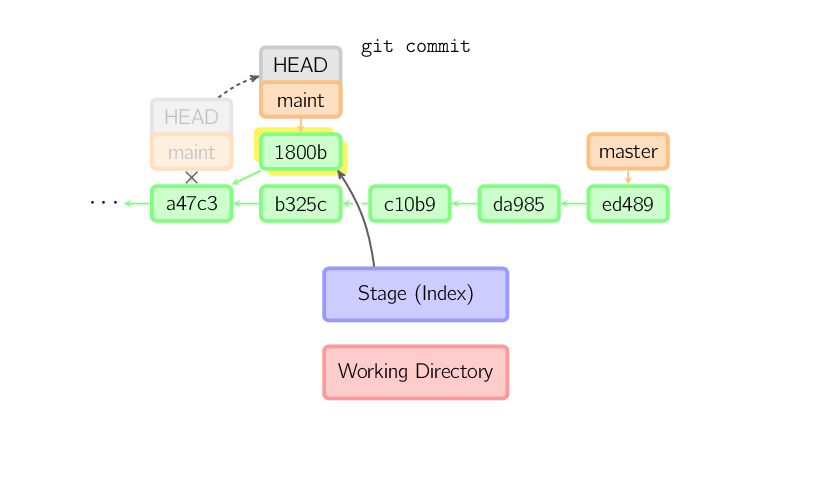
Even if the current branch is the grandparent of a commit, git does the same. In the figure below, at themastergrandparent node of the branch,mainta commit is made on the branch, generating1800b. In this way,maintthe branch is no longermasterthe grandparent node of the branch. At this point, merging (or rebasing) is necessary.
If you want to change a commit, usegit commit --amend. git will make a new commit using the same parent node as the current commit, and the old commit will be cancelled.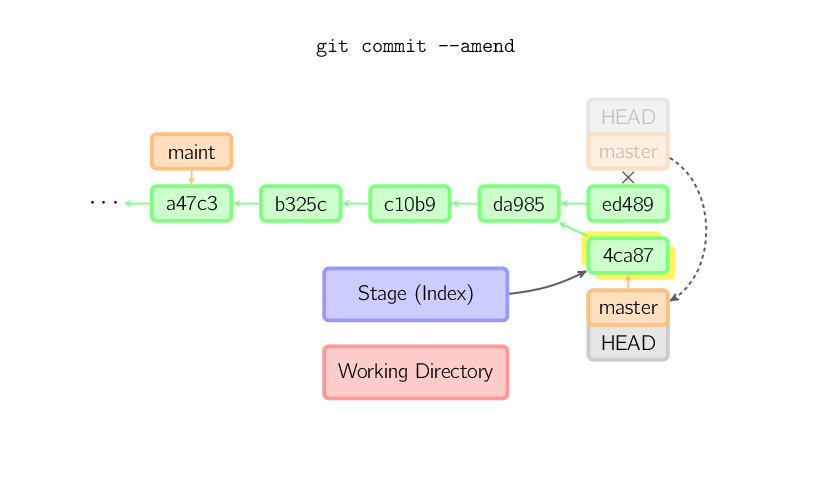
Another example is a detached HEAD commit, which will be discussed later.
Checkout
The checkout command is used to copy files from a historical commit (or staging area) to the working directory, and can also be used to switch branches.
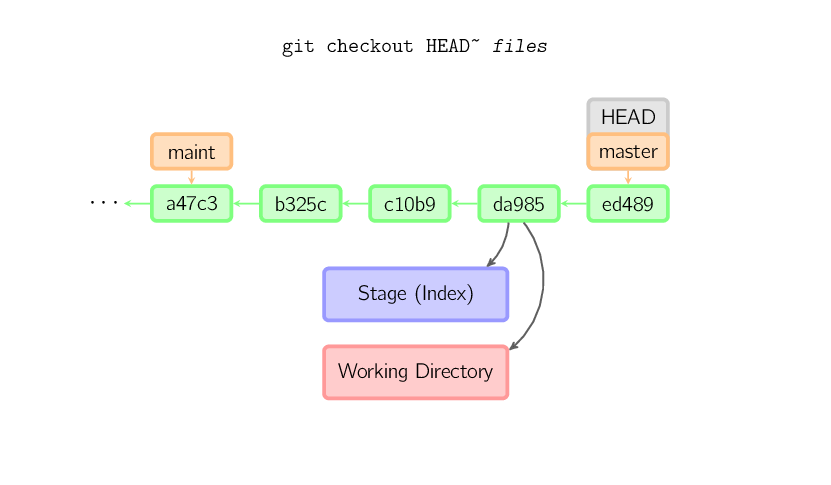
When a file name is given (or the -p option is enabled, or both the file name and -p option are enabled together), git copies files from the specified commit to the staging area and working directory. For example,git checkout HEAD~ foo.cwill, from the commit nodeHEAD~(i.e., the parent node of the current commit node),foo.ccopy the file to the working directory and add it to the staging area. (If no commit node is specified in the command, the content is copied from the staging area.) Note that the current branch does not change.
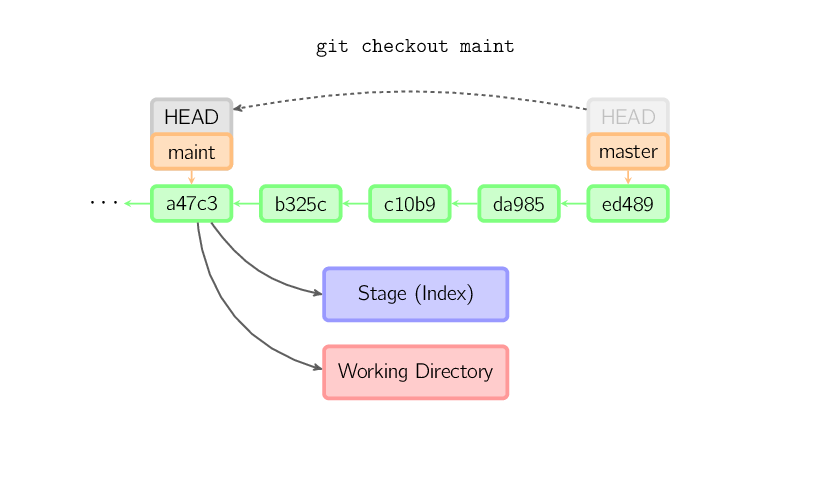
When no file name is specified, but a (local) branch is given, then theHEADidentifier moves to that branch (that is, we "switch" to that branch), and then the contents of the staging area and working directory will beHEADconsistent with the corresponding commit node. All files in the new commit node (a47c3 in the figure below) will be copied (to the staging area and working directory); files that exist only in the old commit node (ed489) will be deleted; files that belong to neither of the above will be ignored and unaffected.
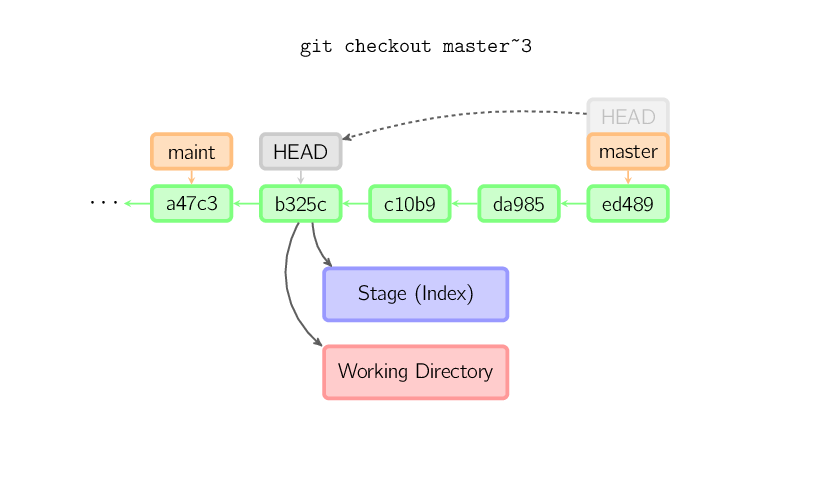
If neither a file name nor a branch name is specified, but rather a tag, remote branch, SHA-1 value, or a similarmaster~3thing, you get an anonymous branch, calleddetached HEAD(detachedHEADidentifier). This makes it convenient to switch between historical versions. For example, if you want to compile git version 1.6.6.1, you can rungit checkout v1.6.6.1(this is a tag, not a branch name), compile, install, and then switch back to another branch, for examplegit checkout master. However, when a commit operation involves a "detached HEAD", its behavior is slightly different; see below for details.
Commit operations when the HEAD identifier is in a detached state
WhenHEADWhen in a detached state (not attached to any branch), commit operations can proceed normally, but no named branch is updated. (You can think of this as updating an anonymous branch.)
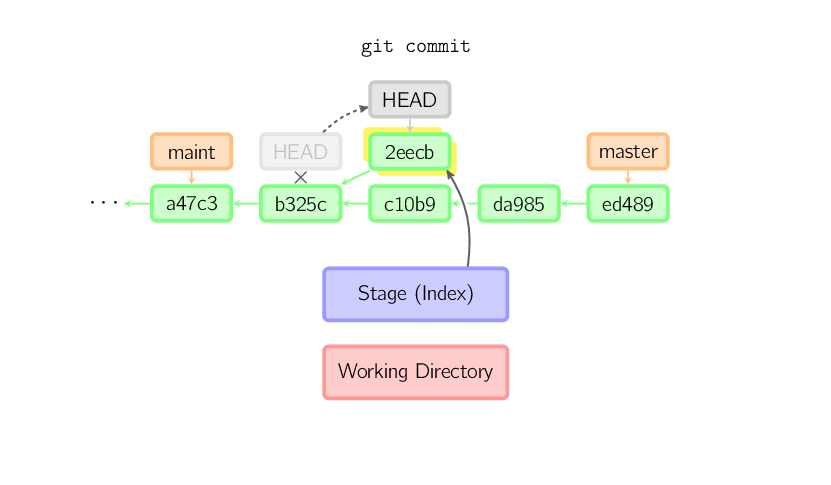
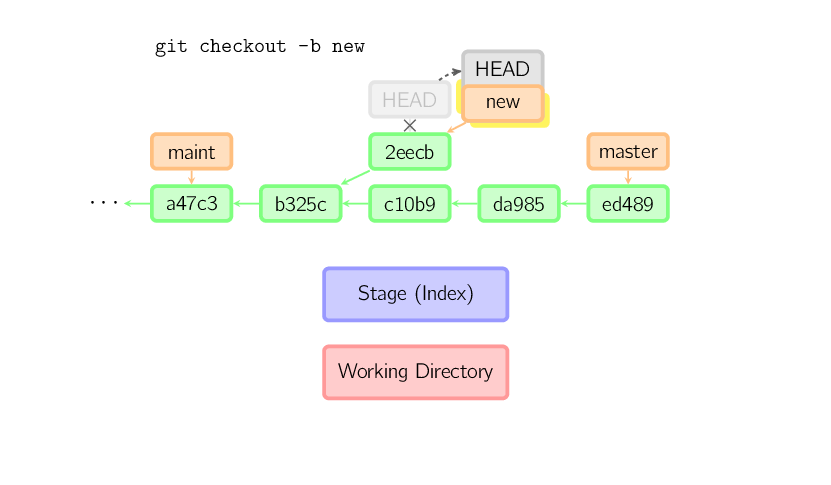
Once you switch to another branch afterwards, for examplemaster, then this commit node may never be referenced again, and will be discarded. Note that after this command, nothing will reference2eecb。
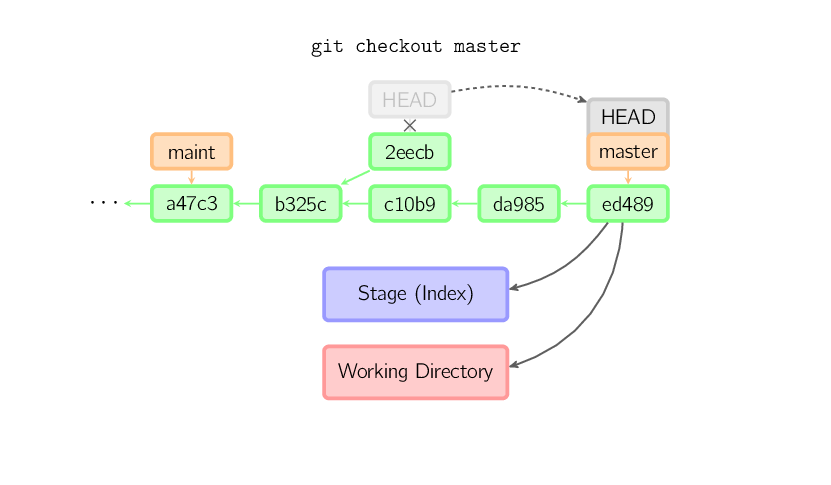
But if you want to save this state, you can use the commandgit checkout -b nameto create a new branch.
Reset
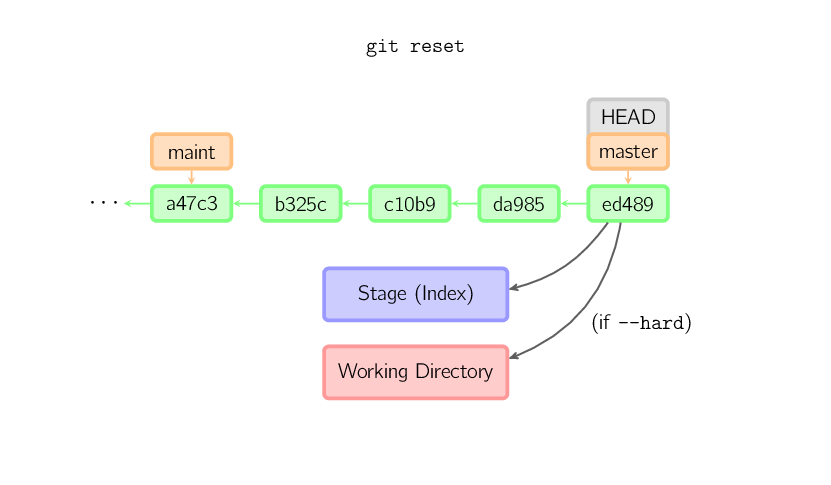
The reset command points the current branch to another location, and selectively changes the working directory and index. It is also used to copy files from the historical repository to the index without changing the working directory.
If no option is given, the current branch points to that commit. If the--hardoption is used, the working directory is also updated; if the--softoption is used, neither changes.
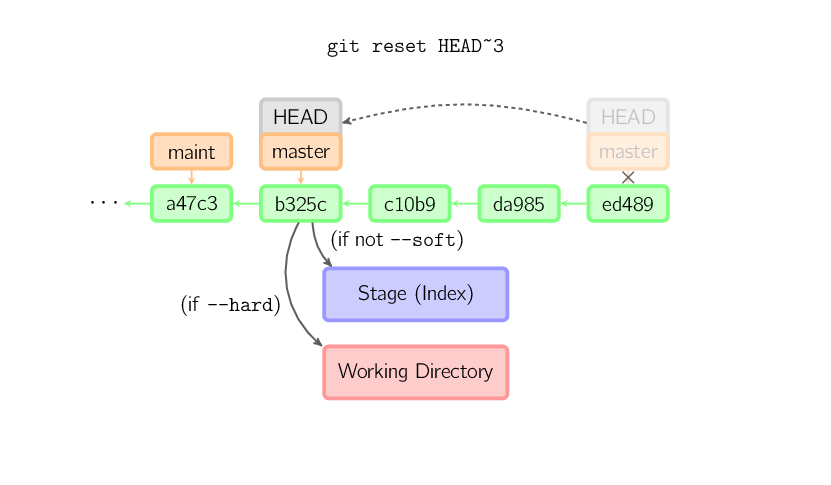
--hardoption is used, the working directory is also the same.
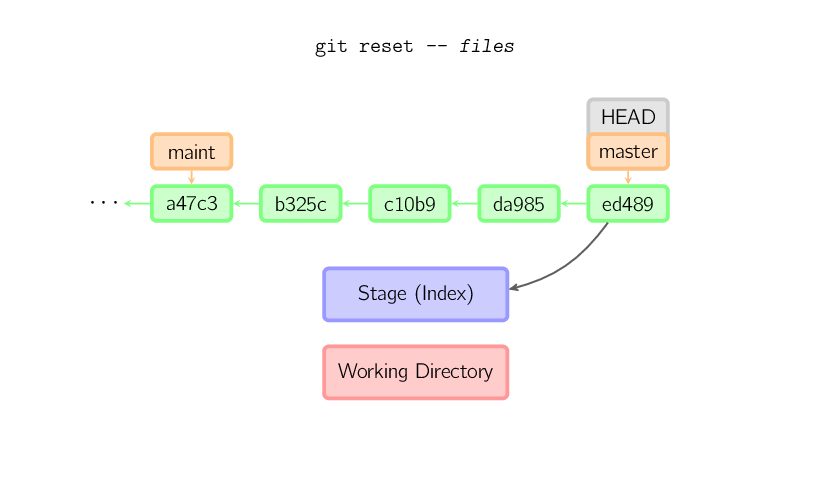
 If a file name is given (or
-poption), the effect is similar to checkout with a file name, except that the index is updated.
Merge
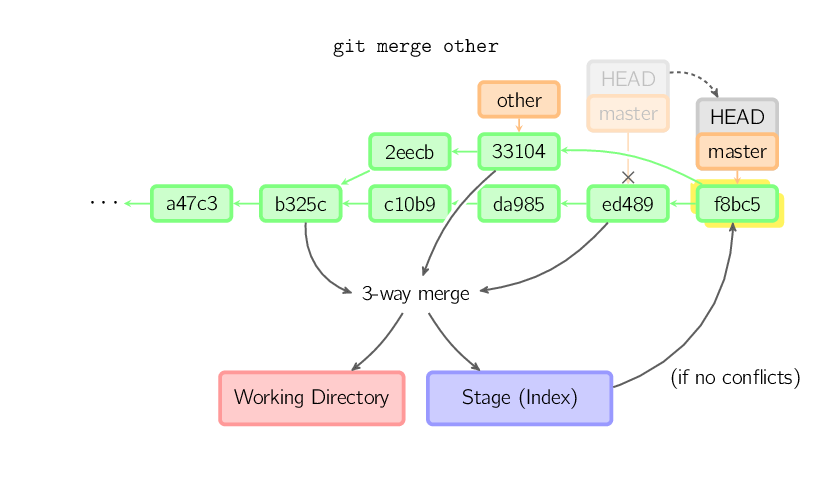
The merge command merges different branches. Before merging, the index must be identical to the current commit. If another branch is the grandparent of the current commit, the merge command will do nothing. The other case is if the current commit is the grandparent of another branch, resulting in afast-forwardmerge. The pointer simply moves, and does not generate a new commit.
 Otherwise, it is a real merge. By default, the current commit (ed489as shown below) and another commit (33104) and their common grandparent node (b325c) perform athree-way merge.. The result is that the current directory and index are saved first, and then together with the parent node33104a new commit is made.
Cherry Pick
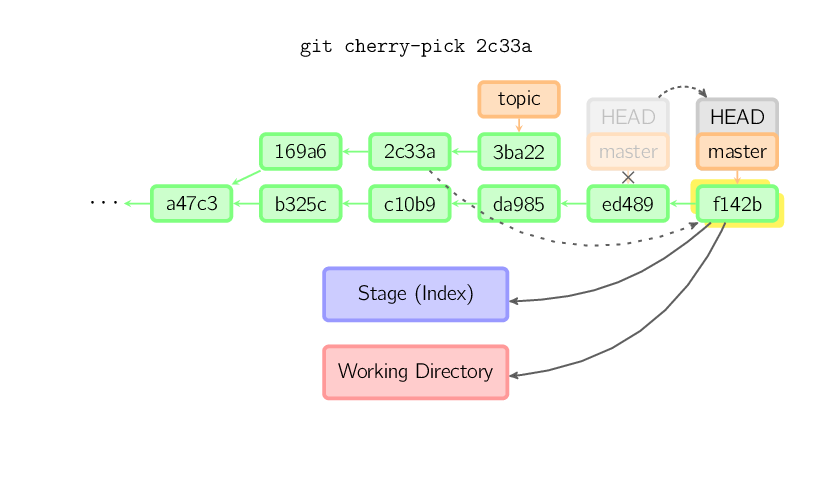
The cherry-pick command "copies" a commit node and makes an identical new commit on the current branch.
Rebase
Rebasing is an alternative to the merge command. Merge combines two parent branches into one commit, and the commit history is not linear. Rebasing replays the history of another branch on the current branch, making the commit history linear. In essence, this is an automated cherry-pick that linearizes.
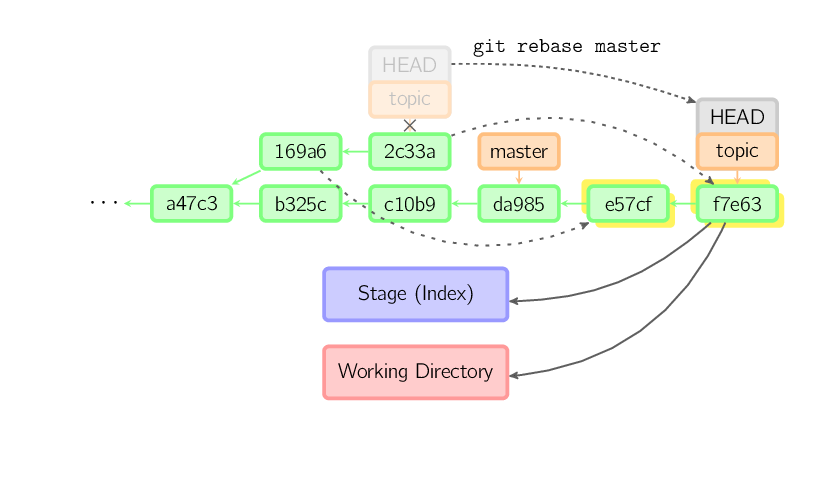
The above commands are all performed on thetopicbranch, not themasterbranch; on themasterbranch they are replayed, and the branch is pointed to the new node. Note that the old commits are not referenced and will be reclaimed.
To limit the rollback range, use the--ontooption. The following command, on themasterbranch, replays the current branch from169a6the recent commits since, that is,2c33a。
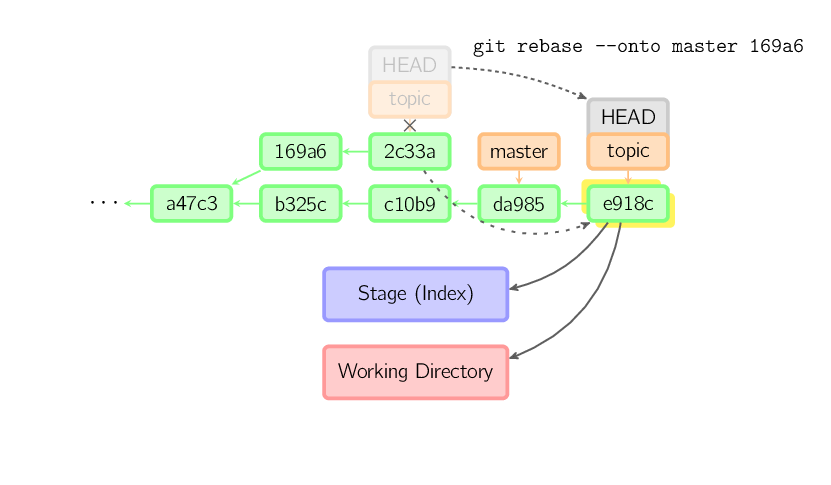
There is alsogit rebase --interactiveto make it more convenient for you to complete some complex operations, such as discarding, rearranging, modifying, and merging commits. There are no pictures illustrating these; see here for details:git-rebase(1)
Technical Notes
File contents are not actually stored in the index (.git/index) or in commit objects, but are stored separately in the database as blobs (.git/objects), and are verified with SHA-1 values. The index file uses identification codes to list relevant blob files and other data. For commits, they are stored in a tree (treeform, also identified by the corresponding hash value. Trees correspond to folders in the working directory, and the trees or blob objects contained in a tree correspond to the corresponding subdirectories and files. Each commit stores the identification code of its parent tree.
If you commit with detached HEAD, the last commit will be referenced by the reflog for HEAD. But it becomes invalid after a while and is eventually reclaimed, similar togit commit --amendorgit rebasein nature.
Original link: http://marklodato.github.io/visual-git-guide/index-zh-cn.html