Eclipse Code Templates
Use code templates
Eclipse provides the ability to improve work efficiency and code predictability by defining and using code templates.
When developing Java programs, we often need to write the main method:
public static void main(String[]args) {

}
If we write it letter by letter, it is a repetitive and meaningless task. At this time, we can use Eclipse code templates to quickly complete these tasks.
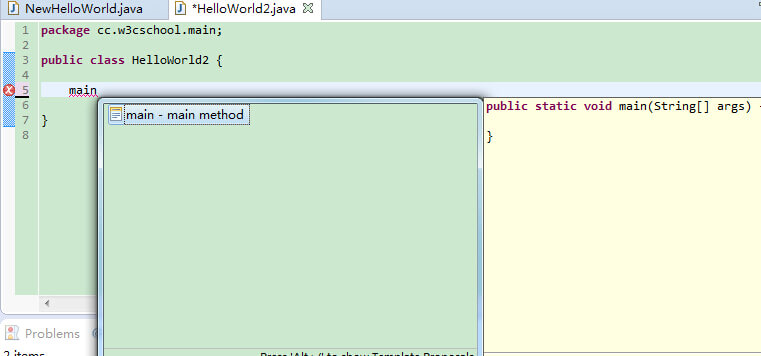
We just need to type "main" in the class body, then use Eclipse's code assist shortcut (default is Alt+/), and after pressing Enter, we can see that Eclipse automatically completes the full definition of the main method for us:
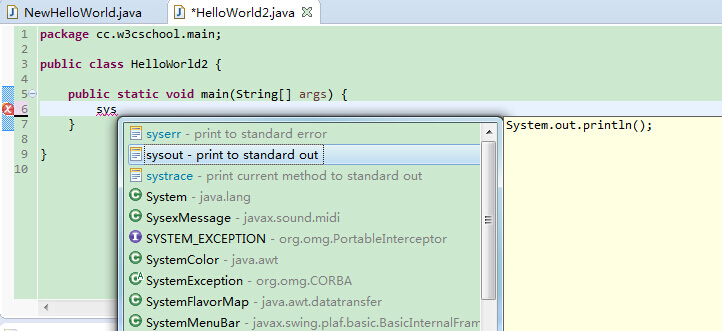
If we want to use System.out.println(), we just need to type "syso" and then press Alt+/:
Customize code templates
Eclipse also provides a great number of code templates. We can view the list of all defined code templates via Windows->Preferences->Java->Editor->Templates (you can type Templates in the search box to find it).
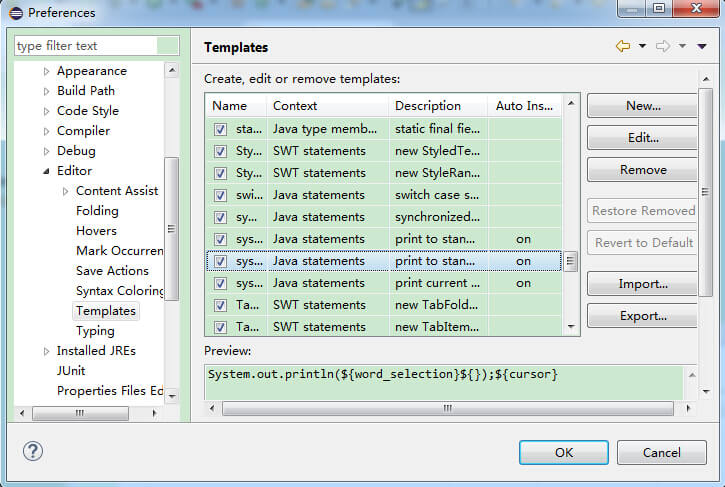
In the pop-up window, select the "sysout" template and click "Edit" on the right side, as shown below:
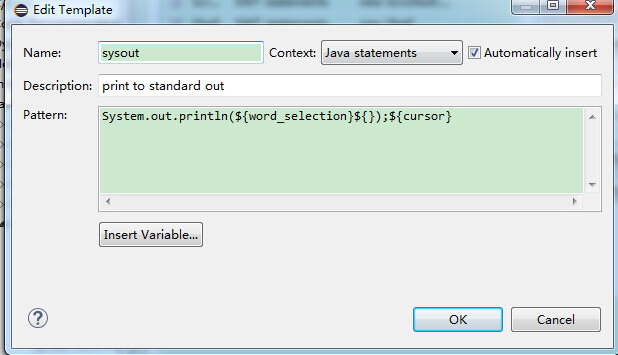
The editing panel is the core focus because everything is configured here. Let's first familiarize ourselves with the five key items in this panel.
- Name:Name is actually the code abbreviation that can be used later.
- Context:Template context specifies where the code template can take effect. For Java, it includes at least these four:
- Java type members: the code corresponding to the template is a class member. Strictly speaking, the "psvm" template should choose this one.
- Java statements: the code corresponding to the template is a statement block.
- Java: the most general one, as long as it is Java code.
- Java doc, as the name implies.
- ${cursor} represents the cursor.
- ${date} represents the current date string.
- ${time} represents the current time string.
- ${line_selection} makes the current line selected
- ${word_selection} makes the current word selected
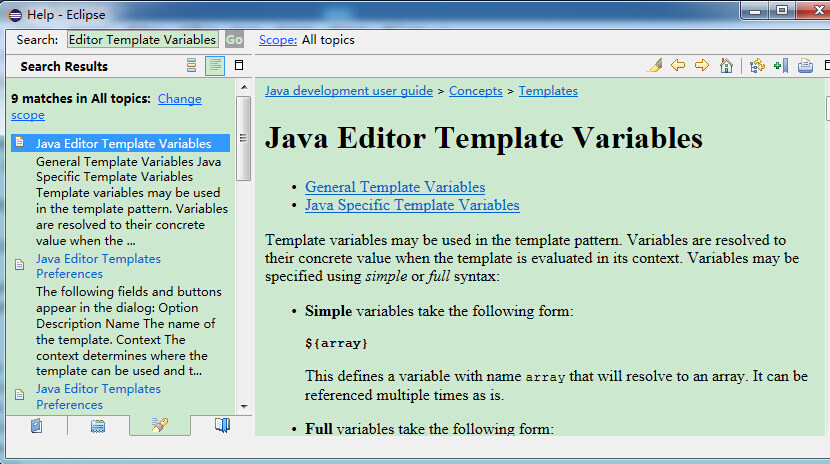
For more content on custom code templates, you can click the Help Contents option in the Help menu, type "Java Editor Template Variables" in the search bar of the dialog that appears, and select Java Editor Template Variables to view the specific documentation description: