Eclipse shortcuts
About Shortcuts
Many operations in Eclipse provide shortcut key functions, allowing us to control various Eclipse features well through the keyboard:
- Use shortcuts to bind menus or menu items
- Use shortcut keys to associate dialog windows, views, or editors
- Use shortcut keys to associate function buttons on the toolbar
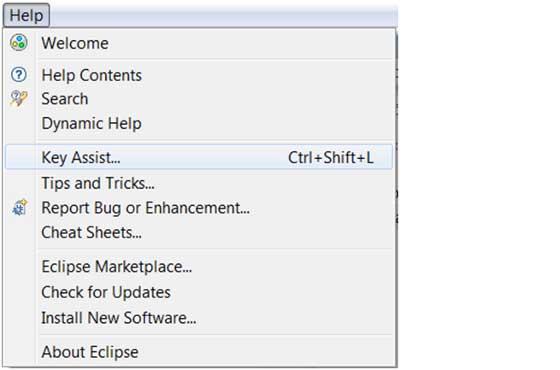
The Eclipse shortcut list can be opened via the shortcut Ctrl + Shift + L.
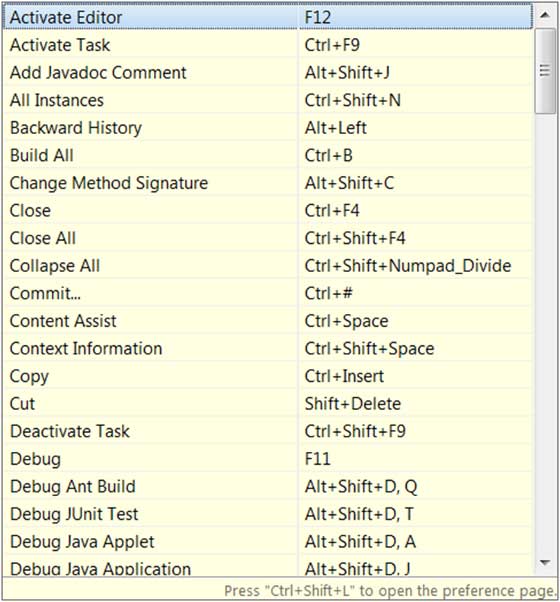
Set Shortcuts
The shortcut keys provided by the Eclipse system are sometimes hard to remember, or sometimes no shortcut key is provided at all; in such cases, you need to manually set shortcut keys yourself.
We can enter the shortcut management interface by clicking window->preferences->general->keys (or directly searching for keys):
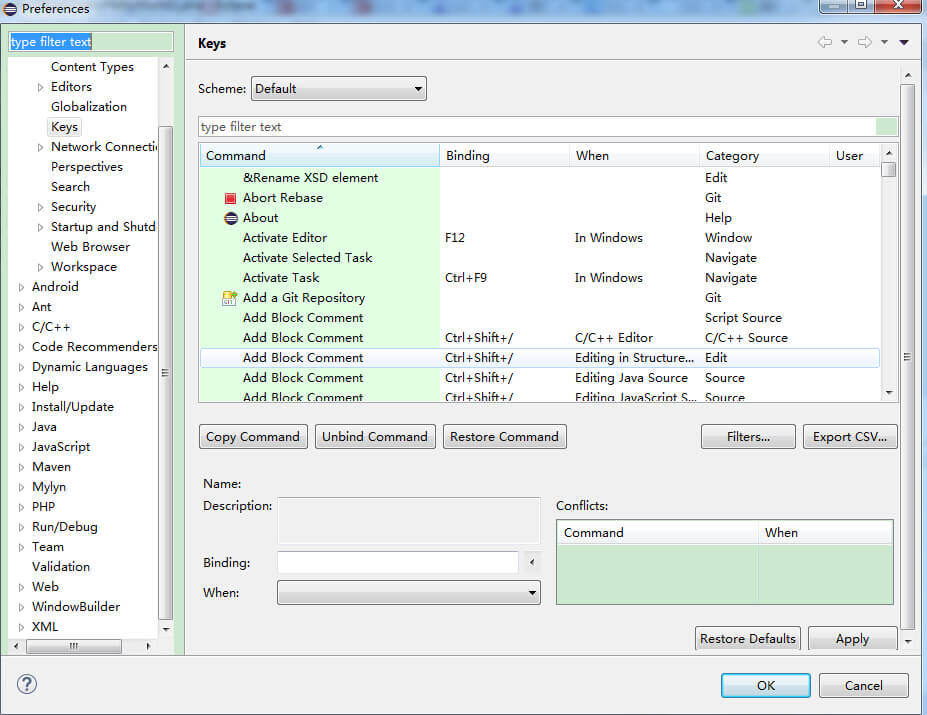
Here you can find the shortcut keys for all functions. When you need to modify or add one, click the command to be modified or added, and set the shortcut key in the Binding field: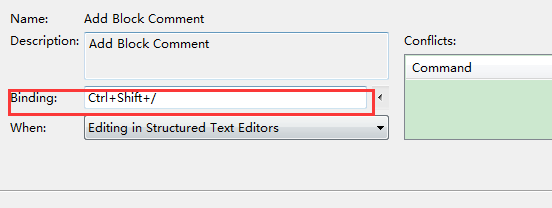
After setting the shortcut key, you also need to set when the shortcut key can be used. Eclipse provides various scenarios to choose from; generally, select 'In Windows' (i.e., when the Eclipse window is active).
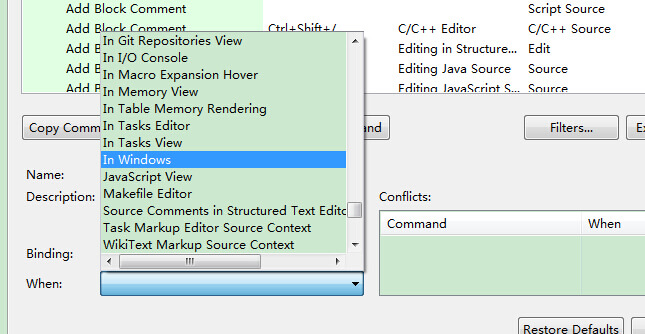
After completing the above steps, click the OK button to finish the settings.
Eclipse common shortcuts
| Shortcuts | Description |
|---|---|
| Edit | |
| Ctrl+1 | Quick Fix (the most classic shortcut key; needless to say, it can solve many problems, such as importing classes, surrounding with try-catch, etc.) |
| Ctrl+Shift+F | Format current code |
| Ctrl+Shift+M | Add class import |
| Ctrl+Shift+O | Organize imports for classes (it has the same effect as Ctrl+Shift+M, and can also help you remove unused imports; very useful) |
| Ctrl+Y | Redo (the opposite of undo Ctrl+Z) |
| Alt+/ | Content Assist (saves you so many keystrokes; extremely commonly used) |
| Ctrl+D | Delete current line or multiple lines |
| Alt+↓ | Swap the current line with the line below (especially practical; saves you from cutting and then pasting) |
| Alt+↑ | Swap the current line with the line above (same as above) |
| Ctrl+Alt+↓ | Copy current line to next line (duplicate) |
| Ctrl+Alt+↑ | Copy current line to previous line (duplicate) |
| Shift+Enter | Insert a blank line below the current line (the mouse can be at any position on the current line, not necessarily the end) |
| Ctrl+/ | Comment current line, press again to uncomment |
| Select | |
| Alt+Shift+↑ | Select enclosing element |
| Alt+Shift+← | Select previous element |
| Alt+Shift+→ | Select next element |
| Shift+← | Select characters to the left from the cursor position |
| Shift+→ | Select characters to the right from the cursor position |
| Ctrl+Shift+← | Select the word to the left of the cursor |
| Ctrl+Shift+→ | Select the word to the right of the cursor |
| Move | |
| Ctrl+← | Move the cursor to the beginning of the word on the left, equivalent to 'b' in vim |
| Ctrl+→ | Move the cursor to the end of the word on the right, equivalent to 'e' in vim |
| Search | |
| Ctrl+K | Quickly locate the next occurrence based on the selected word (if no word is selected, search for the word from the last search) |
| Ctrl+Shift+K | Quickly navigate to the previous occurrence based on the selected word |
| Ctrl+J | Forward incremental search (after pressing Ctrl+J, each letter you type is quickly matched and located to a word by the editor; if no match is found, the status bar displays 'not found'. Particularly useful when searching for a word. To exit this mode, press the Escape key.) |
| Ctrl+Shift+J | Reverse incremental search (same as the previous one, except it searches from back to front) |
| Ctrl+Shift+U | List all lines containing the string |
| Ctrl+H | Open search dialog |
| Ctrl+G | Declaration in workspace |
| Ctrl+Shift+G | References in workspace |
| Navigate | |
| Ctrl+Shift+T | Search classes (including projects and associated third-party JAR packages) |
| Ctrl+Shift+R | Search for files in the project |
| Ctrl+E | Quickly display the dropdown list of the current Editor (pages not currently displayed are shown in bold) |
| F4 | Open Type Hierarchy |
| F3 | Jump to declaration |
| Alt+← | Previous edited page |
| Alt+→ | Go to the next edited page (of course, this is relative to the previous item) |
| Ctrl+PageUp/PageDown | In the editor, switch between opened files |
| Debug | |
| F5 | Step Into |
| F6 | Step Over |
| F7 | Step Return |
| F8 | Resume |
| Ctrl+Shift+D | Display variable value |
| Ctrl+Shift+B | Set or remove breakpoint on current line |
| Ctrl+R | Run to line (extremely useful, saves many breakpoints) |
| Refactoring (refactoring shortcut keys generally start with Alt+Shift) | |
| Alt+Shift+R | Rename method names, attributes, or variable names (this is one of my favorites, especially renaming variables and classes; it saves a lot of labor compared to manual methods) |
| Alt+Shift+M | Extract code within a function into a method (this is one of the most commonly used refactoring methods, especially useful for a big chunk of messy code) |
| Alt+Shift+C | Change method signature (quite practical; if N functions call this method, one modification does it all) |
| Alt+Shift+L | Extract local variable (you can directly extract some magic numbers and strings into a variable, especially when they are called in multiple places) |
| Alt+Shift+F | Convert a local variable in a Class into a field variable (a quite practical feature) |
| Alt+Shift+I | Inline variable (it might be inappropriate to say 'merge variable'; it's Inline) |
| Alt+Shift+V | Move functions and variables (not commonly used) |
| Alt+Shift+Z | Undo for refactoring (Undo) |
| Other | |
| Alt+Enter | Display properties of the currently selected resource. Under Windows, this is the shortcut key for viewing file properties, commonly used to check the actual path of a file in Windows. |
| Ctrl+↑ | Text editor: scroll up one line |
| Ctrl+↓ | Text editor: scroll down one line |
| Ctrl+M | Maximize the current Editor or View (press again to restore) |
| Ctrl+O | Quickly display Outline (for those who don't open the Outline window, this shortcut key is indispensable) |
| Ctrl+T | Quickly display the inheritance hierarchy of the current class |
| Ctrl+W | Close the current Editor (under Windows, this also closes open dialogs, as well as QQ, WangWang, browsers, etc.) |
| Ctrl+L | Text editor: go to line |
| F2 | Show tooltip description |