Docker install MongoDB
MongoDB is a free, open-source, cross-platform document-oriented NoSQL database program.
1. View available MongoDB versions
Visit the MongoDB mirror repository address:https://hub.docker.com/_/mongo?tab=tags&page=1。
You can view other versions of MongoDB via Sort by; the default is the latest version.mongo:latest。
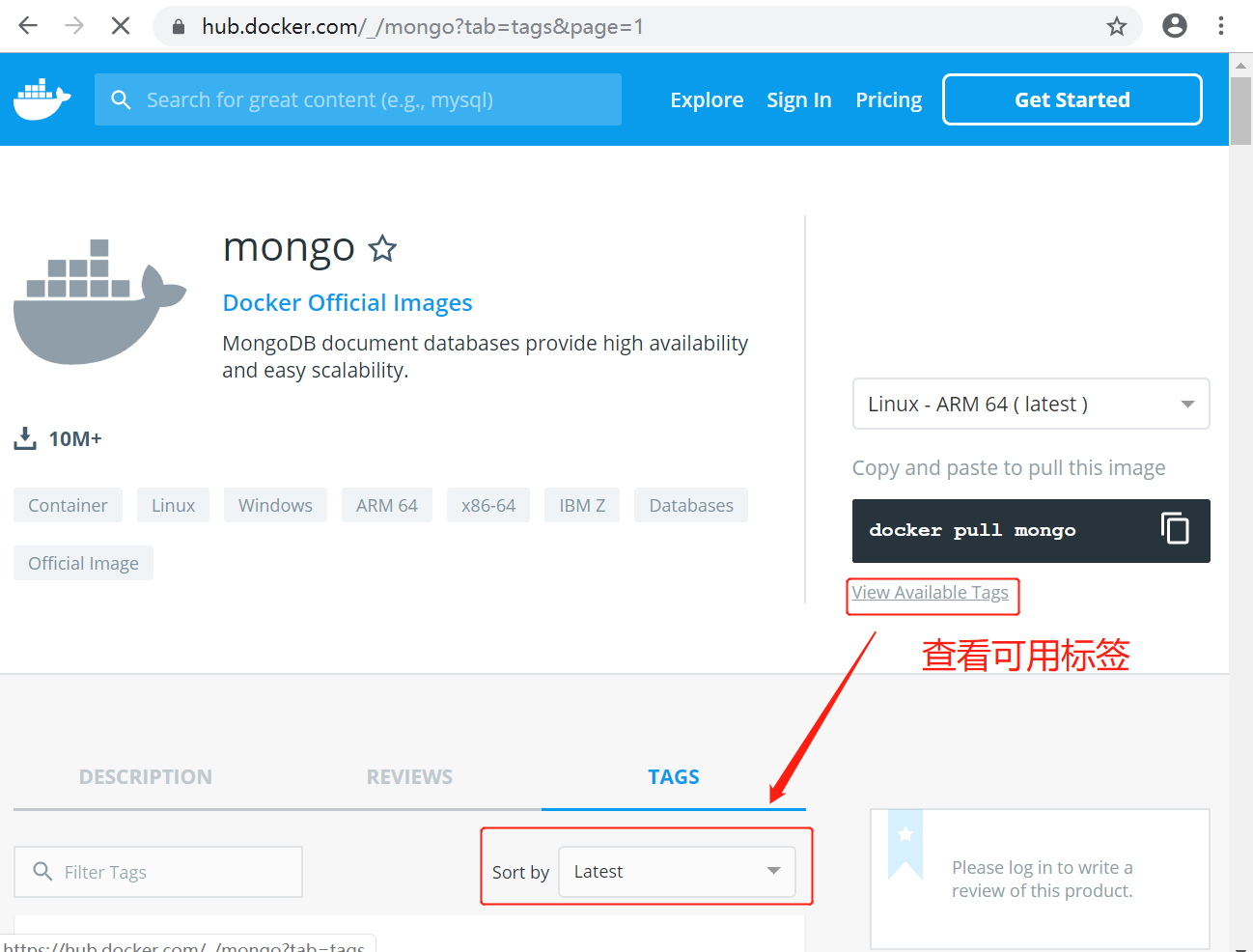
You can also find other versions you want from the dropdown list:
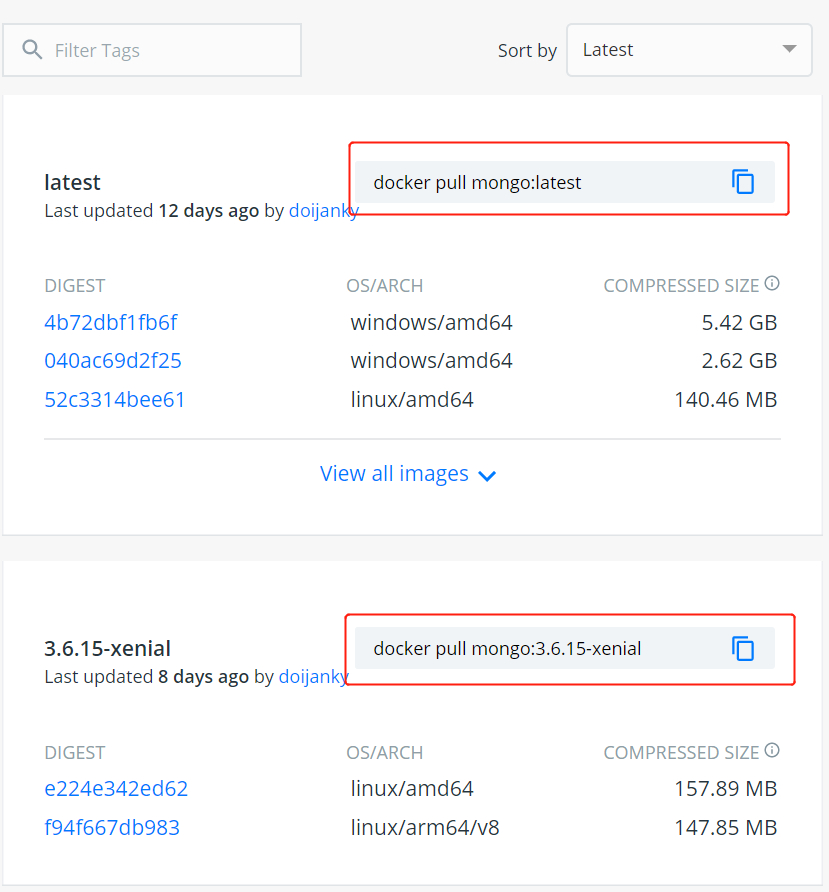
In addition, we can also use thedocker search mongocommand to view available versions:
$ docker search mongo
NAME                              DESCRIPTION                      STARS     OFFICIAL   AUTOMATED
mongo                             MongoDB document databases ...   1989      [OK]
mongo-express                     Web-based MongoDB admin int...   22        [OK]
mvertes/alpine-mongo              light MongoDB container          19                   [OK]
mongooseim/mongooseim-docker      MongooseIM server the lates...   9                    [OK]
torusware/speedus-mongo           Always updated official Mon...   9                    [OK]
jacksoncage/mongo                 Instant MongoDB sharded cluster  6                    [OK]
mongoclient/mongoclient           Official docker image for M...   4                    [OK]
jadsonlourenco/mongo-rocks        Percona Mongodb with Rocksd...   4                    [OK]
asteris/apache-php-mongo          Apache2.4 + PHP + Mongo + m...   2                    [OK]
19hz/mongo-container              Mongodb replicaset for coreos    1                    [OK]
nitra/mongo                       Mongo3 centos7                   1                    [OK]
ackee/mongo                       MongoDB with fixed Bluemix p...  1                    [OK]
kobotoolbox/mongo                 https://github.com/kobotoolb...  1                    [OK]
valtlfelipe/mongo                 Docker Image based on the la...  1                    [OK]
2. Pull the latest MongoDB image
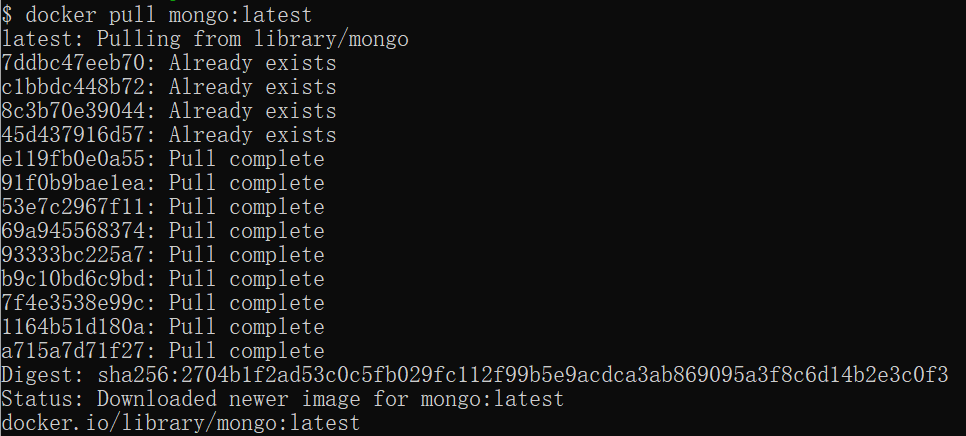
Here we pull the official latest version image:
$ docker pull mongo:latest
3. View local images
Use the following command to check whether mongo is installed:
$ docker images

In the above figure, we can see that we have installed the latest version (latest) of the mongo image.
4. Run the container
After installation, we can use the following command to run the mongo container:
docker run -d -p 27017:27017 --name my-mongo-container mongo
Parameter description:
-d: Run the container in the background.-p 27017:27017: Map port 27017 of the host to port 27017 of the container.--name my-mongo-container: Specify a name for the container, here it ismy-mongo-container, you can change it as needed.
5. Installation successful
Finally, we can usedocker psUse the command to view the container's running information:
# docker ps
CONTAINER ID   IMAGE      ...   PORTS                    NAMES
d53e5d57668b   mongo      ...  :::27017->27017/tcp   my-mongo-container
You should be able to see a container namedmy-mongo-containerMongoDB container running.
Next, we can use a MongoDB client (such as mongo shell) to connect to the running MongoDB container.
You can use the following command to connect to MongoDB:
$ mongosh --host 127.0.0.1 --port 27017
Current Mongosh Log ID: 656d34911ff5455b0c3afdc0
Connecting to:          mongodb://127.0.0.1:27017/?directConnection=true&serverSelectionTimeoutMS=2000&appName=mongosh+2.1.0
Using MongoDB:          7.0.4
Using Mongosh:          2.1.0

For mongosh info see: https://docs.mongodb.com/mongodb-shell/
...
This will connect to port 27017 on the local host. You can adjust it according to the port mapped earlier.
The bash shell command to enter the MongoDB container is as follows:
docker exec -it my-mongo-container bashRemember to stop and delete containers when they are no longer needed. You can use the following commands:
docker stop my-mongo-container
docker rm my-mongo-container
other extensions