Docker Install Apache
Method 1: docker pull httpd
SearchDocker HubThe httpd image on Docker Hub:
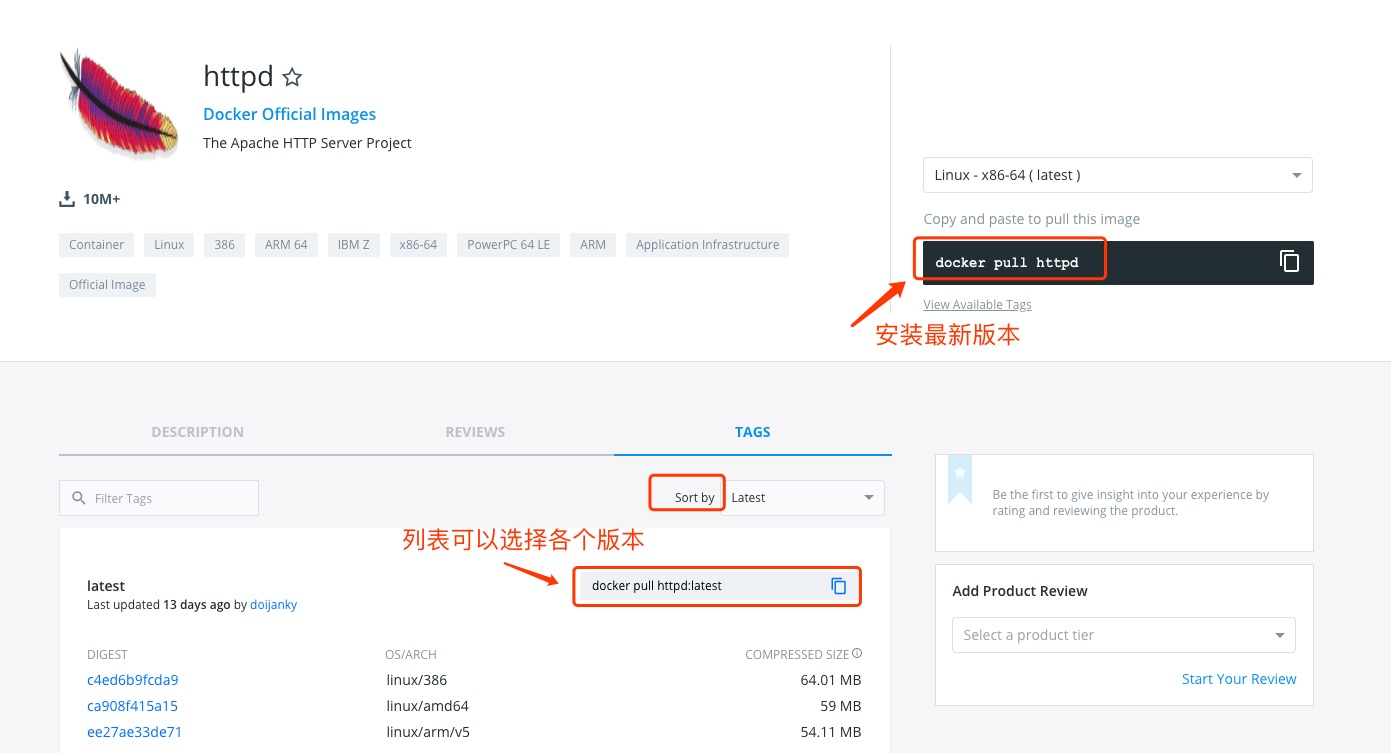
You can use Sort by to view other versions of httpd; the default is the latest version.httpd:latest。
In addition, we can also use the docker search httpd command to view the available versions:
example@example:~/apache$ docker search httpd
NAME                           DESCRIPTION                  STARS  OFFICIAL AUTOMATED
httpd                          The Apache HTTP Server ..    524     [OK]
centos/httpd                                                7                [OK]
rgielen/httpd-image-php5       Docker image for Apache...   1                [OK]
microwebapps/httpd-frontend    Httpd frontend allowing...   1                [OK]
lolhens/httpd                  Apache httpd 2 Server        1                [OK]
publici/httpd                  httpd:latest                 0                [OK]
publicisworldwide/httpd        The Apache httpd webser...   0                [OK]
rgielen/httpd-image-simple     Docker image for simple...   0                [OK]
solsson/httpd                  Derivatives of the offi...   0                [OK]
rgielen/httpd-image-drush      Apache HTTPD + Drupal S...   0                [OK]
learninglayers/httpd                                        0                [OK]
sohrabkhan/httpd               Docker httpd + php5.6 (...   0                [OK]
aintohvri/docker-httpd         Apache HTTPD Docker ext...   0                [OK]
alizarion/httpd                httpd on centos with mo...   0                [OK]
...
Here we pull the official image.
example@example:~/apache$ docker pull httpd
After the download is complete, we can find the image with REPOSITORY httpd in the local image list.
example@example:~/apache$ docker images httpd
REPOSITORY     TAG        IMAGE ID        CREATED           SIZE
httpd          latest     da1536b4ef14    23 seconds ago    195.1 MB
Method 2: Build via Dockerfile
Create Dockerfile
First, create a directory apache to store related items for later.
example@example:~$ mkdir -p ~/apache/www ~/apache/logs ~/apache/conf
The www directory will be mapped to the application directory configured by the apache container.
The logs directory will be mapped to the log directory of the apache container.
The configuration files in the conf directory will be mapped to the configuration files of the apache container.
Enter the created apache directory and create a Dockerfile.
FROM debian:jessie

# add our user and group first to make sure their IDs get assigned consistently, regardless of whatever dependencies get added
#RUN groupadd -r www-data && useradd -r --create-home -g www-data www-data

ENV HTTPD_PREFIX /usr/local/apache2
ENV PATH $PATH:$HTTPD_PREFIX/bin
RUN mkdir -p "$HTTPD_PREFIX" \
    && chown www-data:www-data "$HTTPD_PREFIX"
WORKDIR $HTTPD_PREFIX

# install httpd runtime dependencies
# https://httpd.apache.org/docs/2.4/install.html#requirements
RUN apt-get update \
    && apt-get install -y --no-install-recommends \
        libapr1 \
        libaprutil1 \
        libaprutil1-ldap \
        libapr1-dev \
        libaprutil1-dev \
        libpcre++0 \
        libssl1.0.0 \
    && rm -r /var/lib/apt/lists/*

ENV HTTPD_VERSION 2.4.20
ENV HTTPD_BZ2_URL https://www.apache.org/dist/httpd/httpd-$HTTPD_VERSION.tar.bz2

RUN buildDeps=' \
        ca-certificates \
        curl \
        bzip2 \
        gcc \
        libpcre++-dev \
        libssl-dev \
        make \
    ' \
    set -x \
    && apt-get update \
    && apt-get install -y --no-install-recommends $buildDeps \
    && rm -r /var/lib/apt/lists/* \
    \
    && curl -fSL "$HTTPD_BZ2_URL" -o httpd.tar.bz2 \
    && curl -fSL "$HTTPD_BZ2_URL.asc" -o httpd.tar.bz2.asc \
# see https://httpd.apache.org/download.cgi#verify
    && export GNUPGHOME="$(mktemp -d)" \
    && gpg --keyserver ha.pool.sks-keyservers.net --recv-keys A93D62ECC3C8EA12DB220EC934EA76E6791485A8 \
    && gpg --batch --verify httpd.tar.bz2.asc httpd.tar.bz2 \
    && rm -r "$GNUPGHOME" httpd.tar.bz2.asc \
    \
    && mkdir -p src \
    && tar -xvf httpd.tar.bz2 -C src --strip-components=1 \
    && rm httpd.tar.bz2 \
    && cd src \
    \
    && ./configure \
        --prefix="$HTTPD_PREFIX" \
        --enable-mods-shared=reallyall \
    && make -j"$(nproc)" \
    && make install \
    \
    && cd .. \
    && rm -r src \
    \
    && sed -ri \
        -e 's!^(\s*CustomLog)\s+\S+!\1 /proc/self/fd/1!g' \
        -e 's!^(\s*ErrorLog)\s+\S+!\1 /proc/self/fd/2!g' \
        "$HTTPD_PREFIX/conf/httpd.conf" \
    \
    && apt-get purge -y --auto-remove $buildDeps

COPY httpd-foreground /usr/local/bin/

EXPOSE 80
CMD ["httpd-foreground"]
In the Dockerfile, the COPY httpd-foreground /usr/local/bin/ copies httpd-foreground from the current directory into the image as the startup script for the httpd service, so we need to create a script file httpd-foreground locally.
#!/bin/bash
set -e

# Apache gets grumpy about PID files pre-existing
rm -f /usr/local/apache2/logs/httpd.pid

exec httpd -DFOREGROUND
Grant execute permission to the httpd-foreground file.
example@example:~/apache$ chmod +x httpd-foreground
Create an image via a Dockerfile, and replace it with your own name.
example@example:~/apache$ docker build -t httpd .
After the creation is complete, we can find the just-created image in the local image list.
example@example:~/apache$ docker images httpd
REPOSITORY     TAG        IMAGE ID        CREATED           SIZE
httpd          latest     da1536b4ef14    23 seconds ago    195.1 MB
Use the apache image.
Run container
docker run -p 80:80 -v $PWD/www/:/usr/local/apache2/htdocs/ -v $PWD/conf/httpd.conf:/usr/local/apache2/conf/httpd.conf -v $PWD/logs/:/usr/local/apache2/logs/ -d httpd
Command description:
-p 80:80:The first port 80 is the host port, while the latter is the container port, which maps the container's port 80 to the host's port 80.
-v $PWD/www/:/usr/local/apache2/htdocs/:Mount the www directory under the current directory on the host to /usr/local/apache2/htdocs/ in the container.
-v $PWD/conf/httpd.conf:/usr/local/apache2/conf/httpd.conf:Mount the conf/httpd.conf file under the current directory on the host to /usr/local/apache2/conf/httpd.conf in the container.
-v $PWD/logs/:/usr/local/apache2/logs/:Mount the logs directory under the current directory on the host to /usr/local/apache2/logs/ in the container.
For more detailed commands, refer to:Docker run Command
Check the container startup status:
example@example:~/apache$ docker ps
CONTAINER ID  IMAGE   COMMAND             ... PORTS               NAMES
79a97f2aac37  httpd   "httpd-foreground"  ... 0.0.0.0:80->80/tcp  sharp_swanson
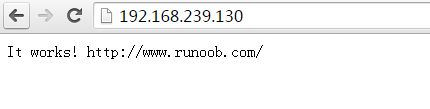
Access via browser