Cursor Model Settings
Cursor's power lies in its full utilization of large model capabilities.
Cursor has many built-in large models. Of course, we can also customize the model settings, and the setup is very simple.
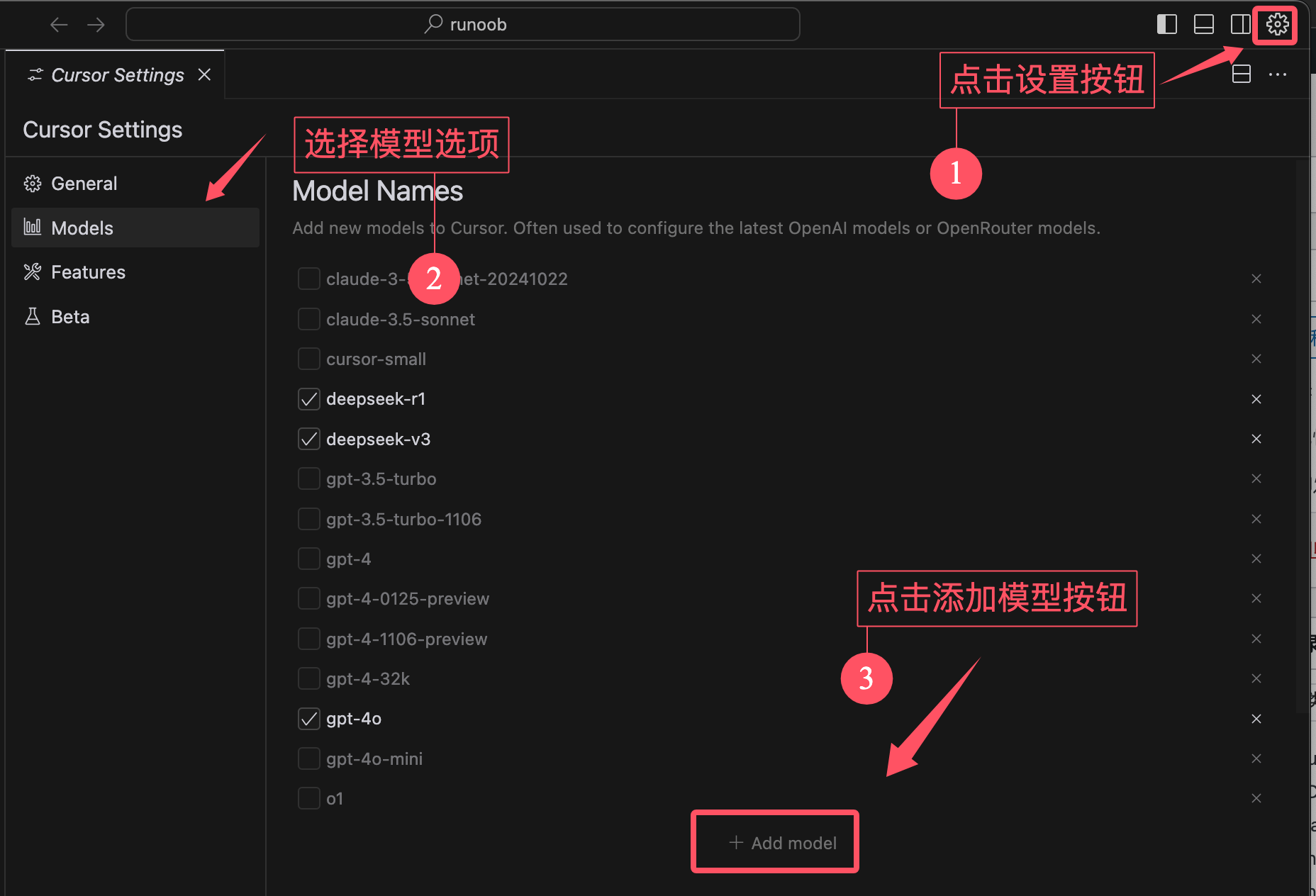
1. Open settings
Click the gear icon in the top right corner to open the settings interface.
SelectModelsYou can see that the system has already configured some large models by default. Select the model you want, such as GPT-3.5 or GPT-4.
We can click the Add Model button at the bottom of the list.
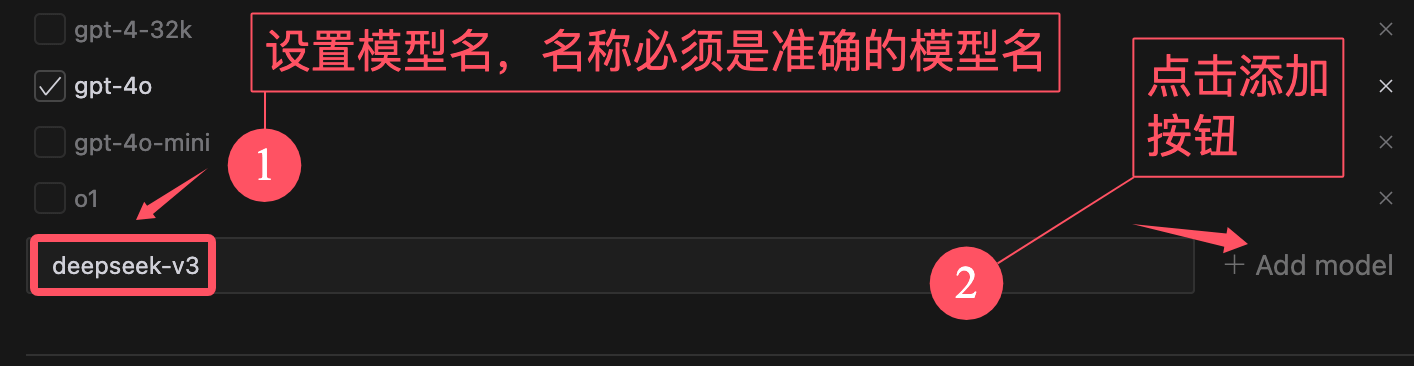
After clicking the button, an input box will appear. We enter the model name, for exampledeepseek-v3anddeepseek-r1。
Note:The model name must not be entered incorrectly.
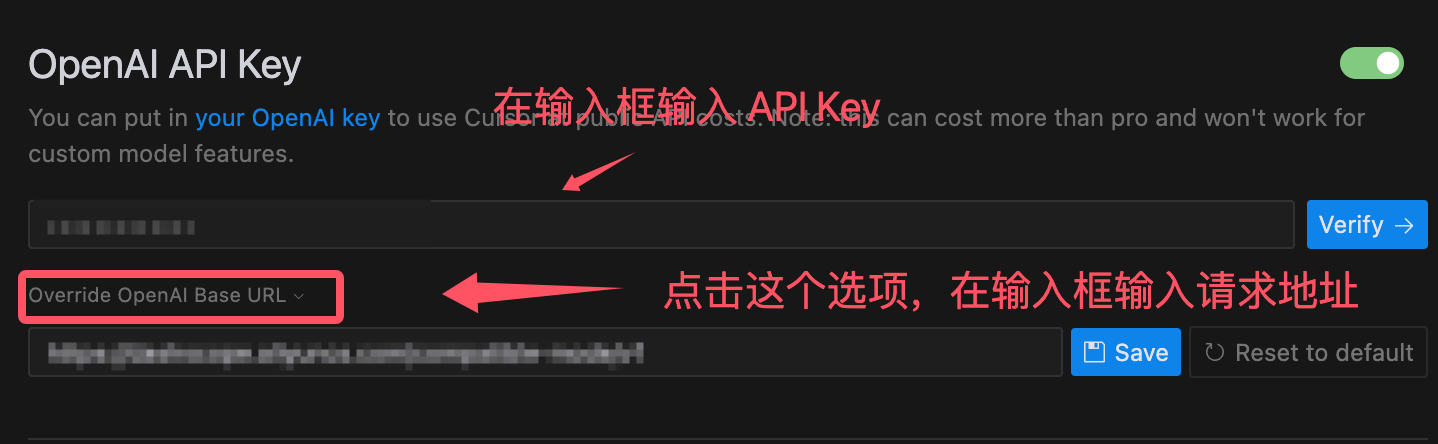
The API key and request address need to be obtained from the official source of the large model. Of course, if a third-party platform provides them, that also works. For example, DeepSeek can be obtained from the official website.https://platform.deepseek.com/usageApply:
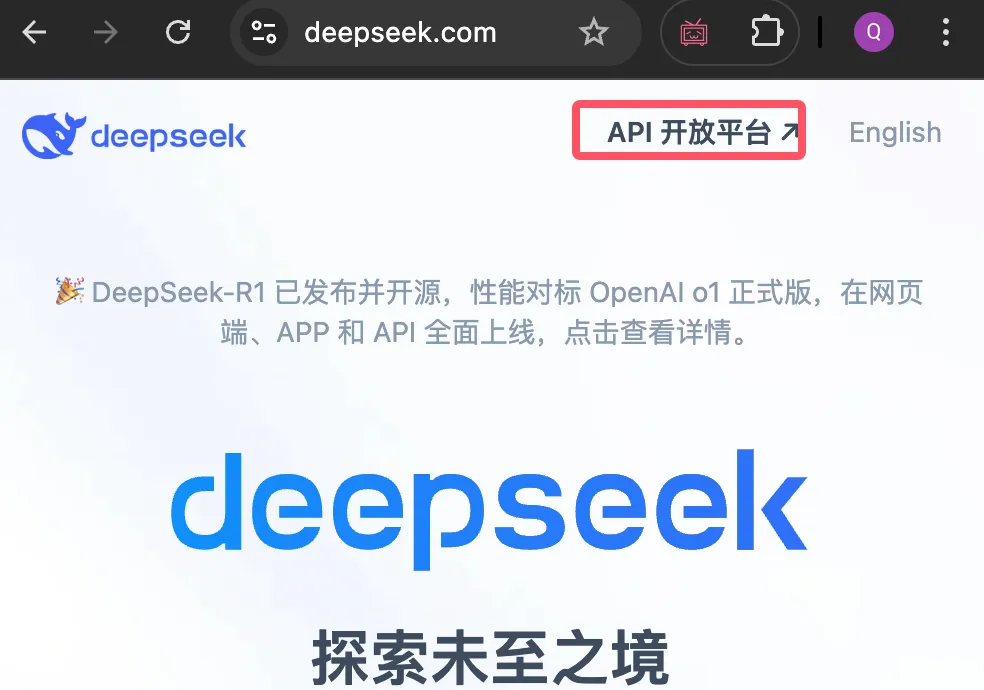
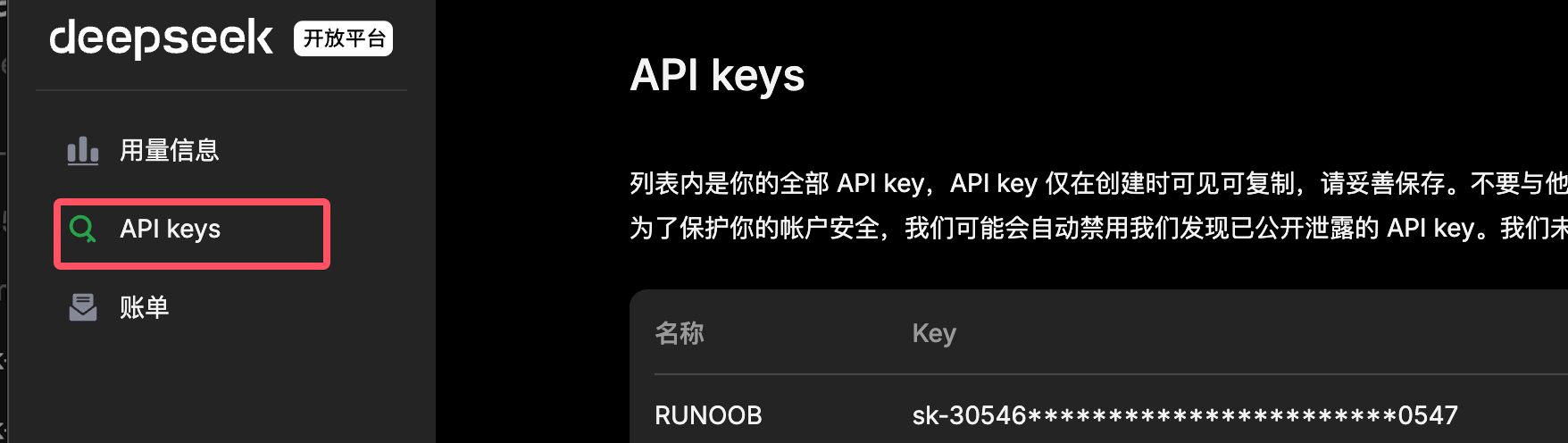
The official API documentation will specify the request address. DeepSeek's is:https://api.deepseek.com/chat/completions。
After the setup is complete, we can clickVerifyClick the button to see if the setup was successful. If there is no error message, it means it succeeded. The model we added will also appear in the model list. We uncheck the other ☑️ and check the following two ☑️, then we can start using it.
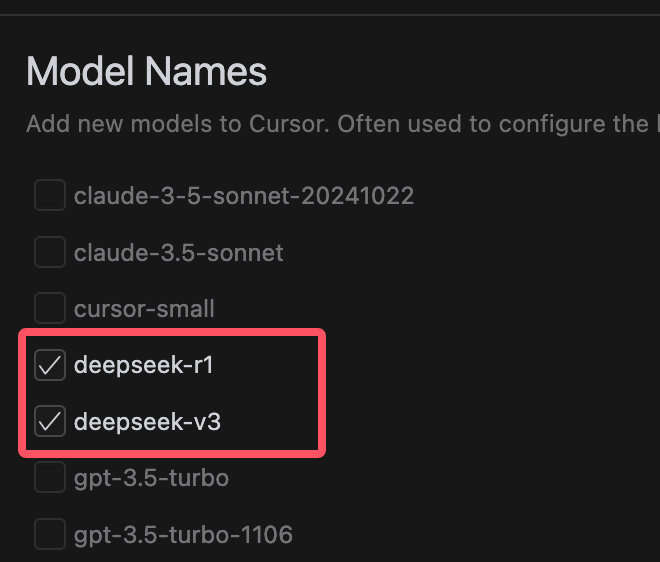
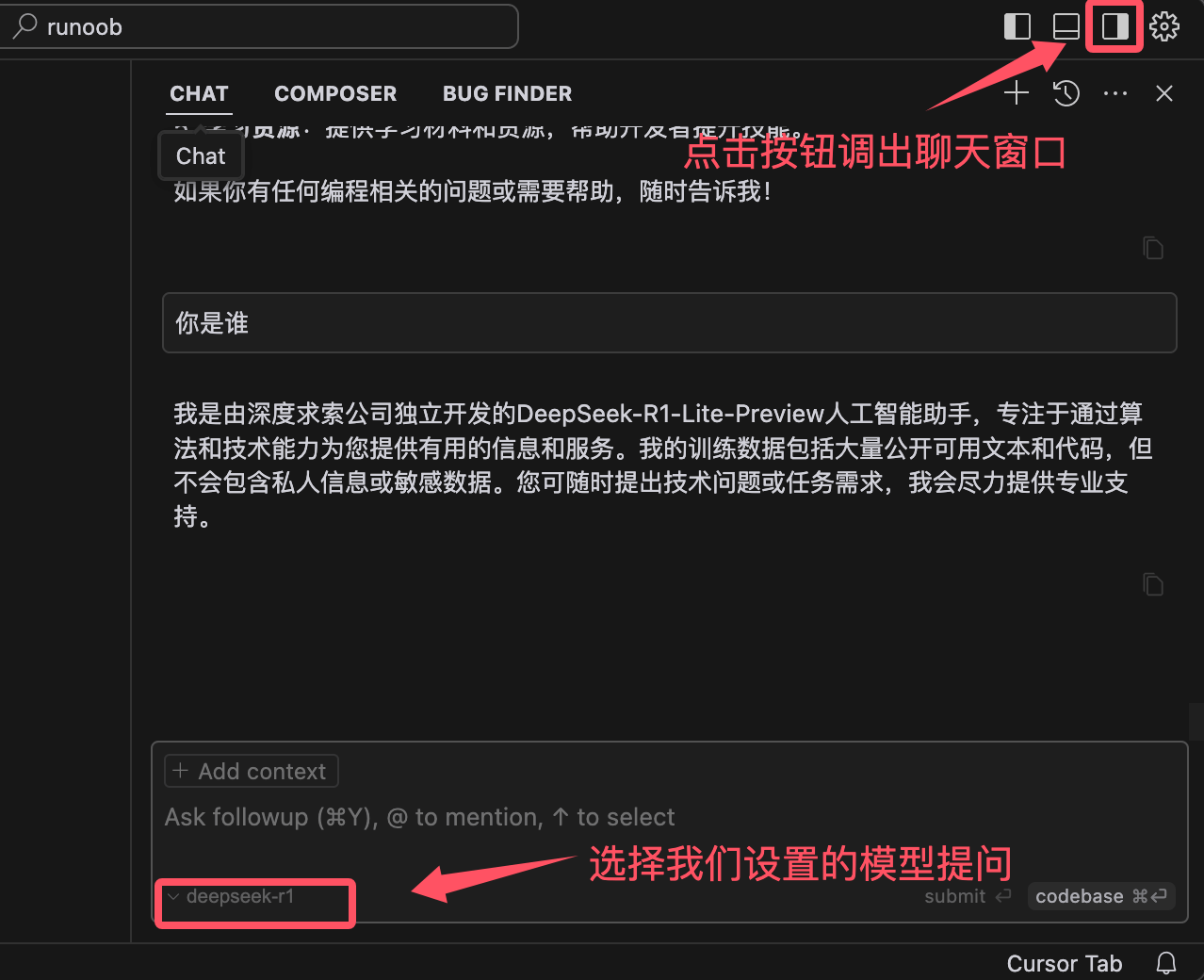
Next, let's try chatting. Click the small icon in the top right corner to open the chat window, then select the deepseek-r1 model, and we can begin: