Cursor code/cursor Command
Cursor is a modern code editor based on Visual Studio Code (VS Code), so it inherits the powerful features of VS Code, such as those to be introduced in this article.codecommand.
In Visual Studio Code,codeorcursorThe command is a command-line tool used to quickly open VS Code and perform some code-related operations.
The code command directly helps developers launch VS Code from the terminal or command prompt, or handle specific tasks.
The most common way is to usecodeorcursorThe command to directly open a file directory from the command line; in this case, you need to install the code command first.
Cursor supports setting the terminal startup command tocodeor cursor, to quickly launch the editor. If VS Code is already installed locally,codeCommands are generally used in VS Code, Cursor usescursorcommand.
Enabling Cursor's code command is very simple. First, open the command palette:
- macOS system shortcut:⇧⌘P(command + shift + p)
- Windows/Linux Shortcuts:Ctrl + Shift + P
Search and Install >shell command:
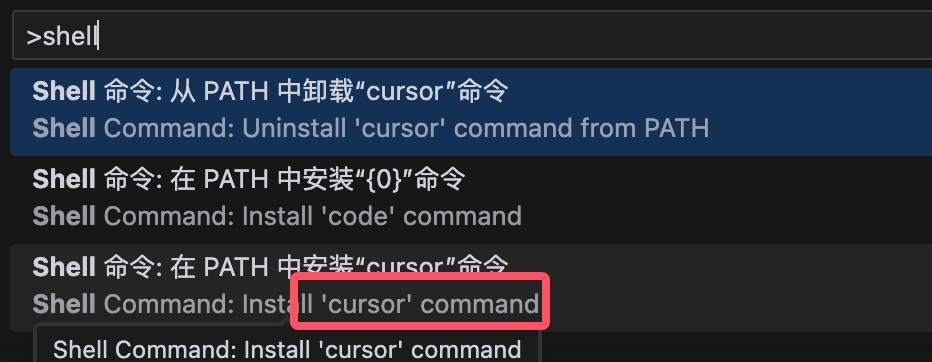
Then selectInstall 'cursor' command in PATH - Shell Command: Install 'cursor' command in PATHThis adds it to the system PATH.cursorCommand references.
We can open files, install extensions, change the display language, and even view diagnostic information via the command line.
Throughcursor --versionView version information:
# cursor --version
0.45.14
906121b8c0bdf041c14a15dac228e66ab5505260
arm64
The following are some commonly used command-line options, which can be used via thecursor --helpView Command:
Cursor 0.45.14

Usage: cursor [options][paths...]

To read from stdin, append '-' (e.g. 'ps aux | grep code | cursor -')

Options
  -d --diff <file> <file>                    Compare two files with each
                                             other.
  -m --merge <path1> <path2> <base> <result> Perform a three-way merge by
                                             providing paths for two modified
                                             versions of a file, the common
                                             origin of both modified versions
                                             and the output file to save merge
                                             results.
  -a --add <folder>                          Add folder(s) to the last active
                                             window.
  -g --goto <file:line[:character]>          Open a file at the path on the
                                             specified line and character
                                             position.
  -n --new-window                            Force to open a new window.
  -r --reuse-window                          Force to open a file or folder in
                                             an already opened window.
  -w --wait                                  Wait for the files to be closed
                                             before returning.
  --locale <locale>                          The locale to use (e.g. en-US or
                                             zh-TW).
  --user-data-dir <dir>                      Specifies the directory that user
                                             data is kept in. Can be used to
                                             open multiple distinct instances
                                             of Code.
  --profile <profileName>                    Opens the provided folder or
                                             workspace with the given profile
                                             and associates the profile with
                                             the workspace. If the profile
                                             does not exist, a new empty one
                                             is created.
  -h --help                                  Print usage.
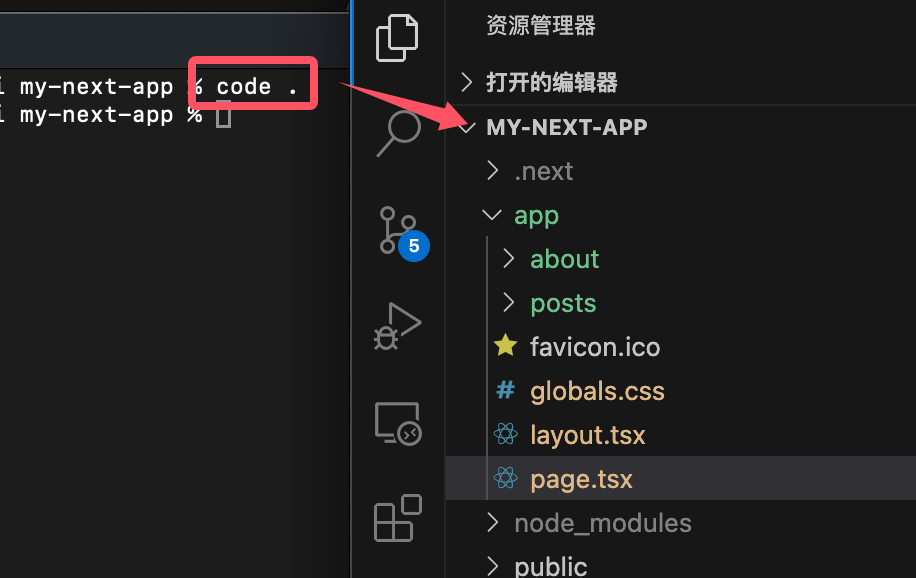
We can use it in the command line tocursor .command to open a folder in Cursor:
| Command | Feature Description |
|---|---|
code <路径> |
Open a file or folder |
cursor . |
Open current directory as workspace |
cursor --new-window |
Open in new window |
cursor --diff |
Compare the contents of two files |
cursor --wait |
Wait for the window to close before returning to the terminal |
cursor --disable-extensions |
Run VS Code with all extensions disabled |
cursor --install-extension <扩展名> |
Install specified extension |
cursor --list-extensions |
List all installed extensions |
cursor --uninstall-extension <扩展名> |
Uninstall specified extension |