Cursor Open Directory
We can open a code file in Cursor, and opening a directory (folder) in Cursor is a simple process; the operations are all very simple.
First, let's open the installed Cursor. When Cursor is opened for the first time, you will see a project'sOpen a folderButton.
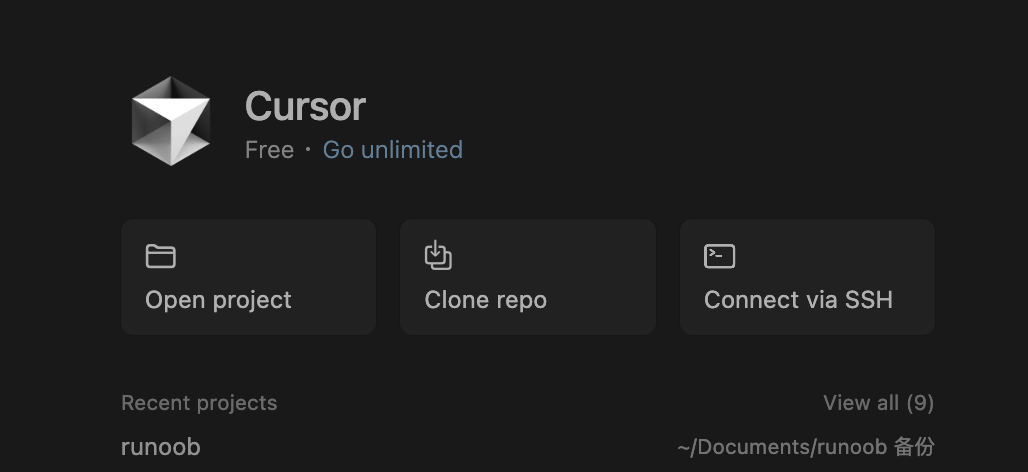
In the middle area of the welcome screen, there are three core buttons:
-
Open project:Open a local project folder, suitable for local developers to directly import existing projects.
-
Clone repo:Clone a project directly from a Git repository, supports entering a Git repository address and pulling the code with one click, very convenient for remote collaboration or open-source project learning.
-
Connect via SSH:Connect to a project on a remote server via SSH, very suitable for remote development scenarios, especially for debugging projects on cloud servers.
Recent projects:List recently opened projects.
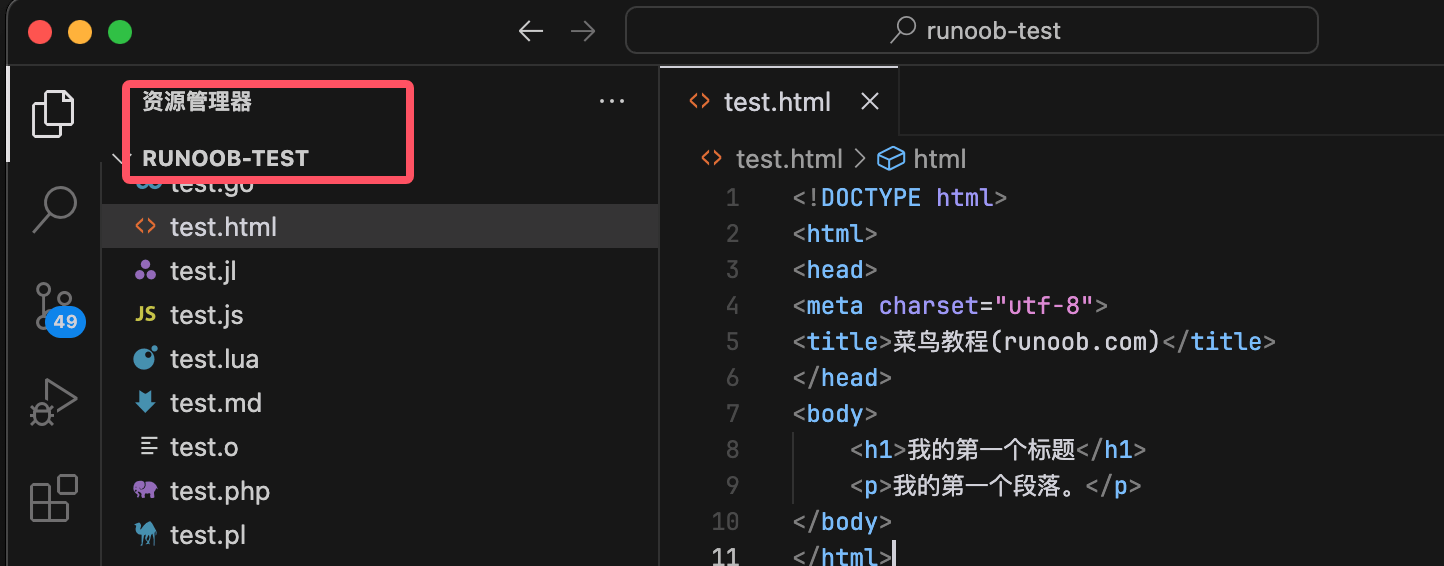
We can also open an existing file or directory (folder), for example, we open a example-test. After opening the directory, it will be displayed in the Explorer:
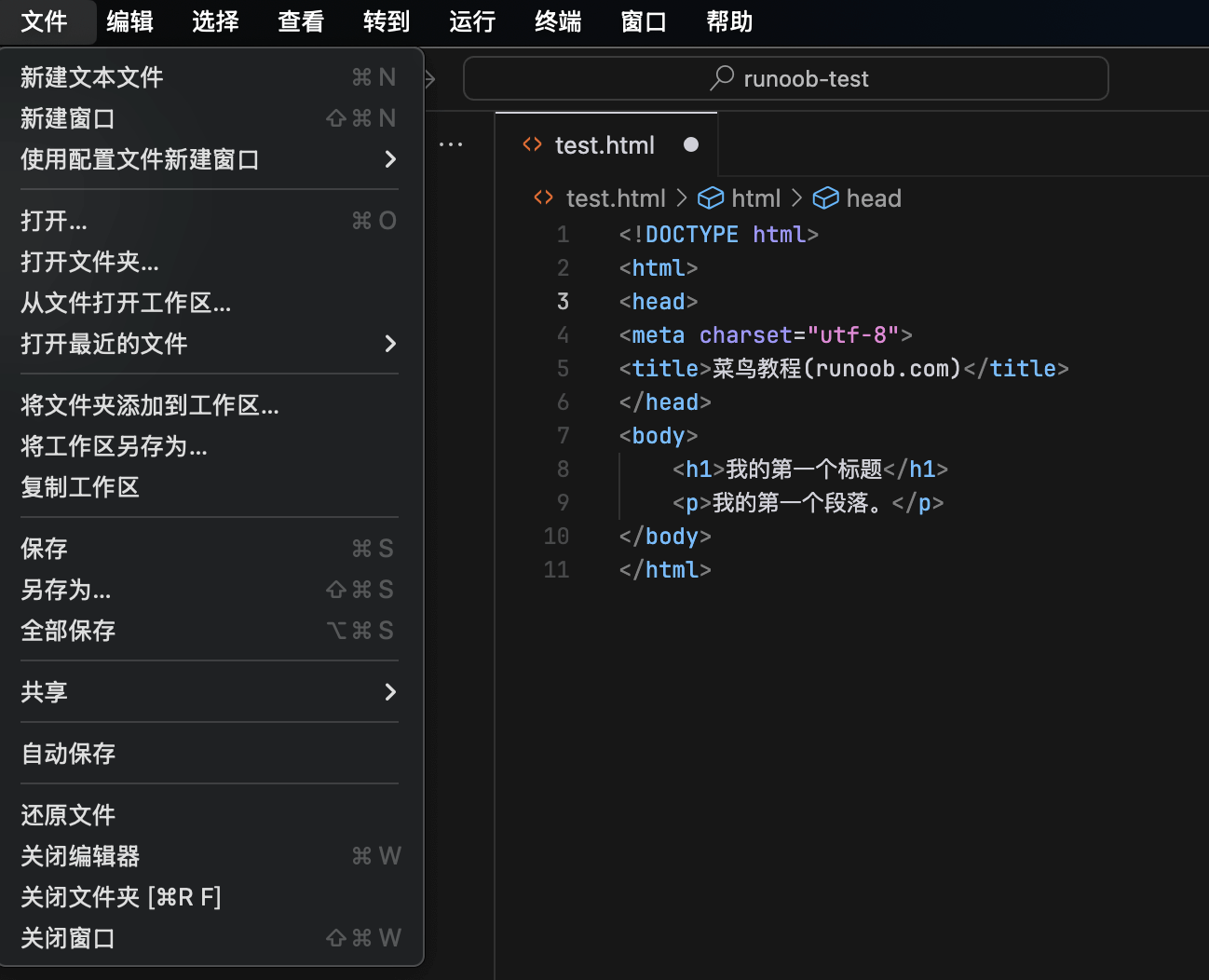
Of course, you can also operate directly from the menu bar to create or open file directories:
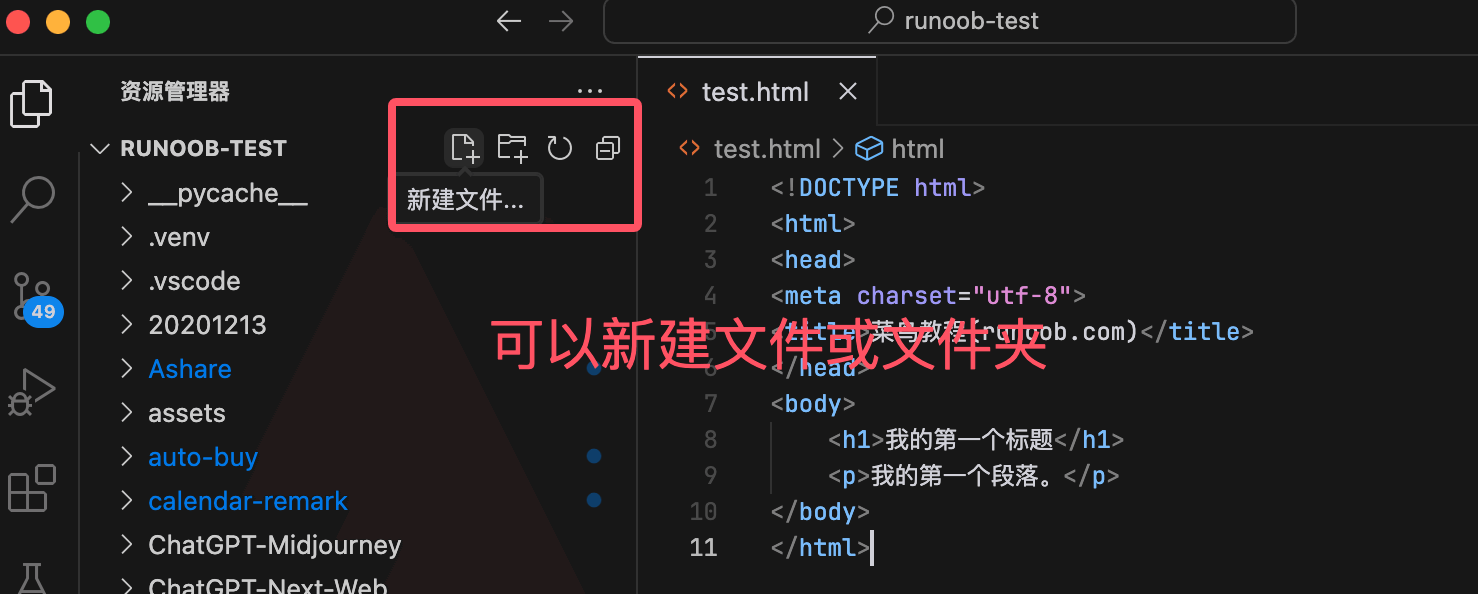
On the right side of the opened directory, you can create new files, create new directories, refresh, and collapse directories under that directory: