In our daily development, we often encounter this situation: there are several projects on hand, each with different requirements, and thus different projects must depend on different versions of the NodeJS runtime environment. Without a suitable tool, this problem would be very tricky.
nvmnvm came into being as the times require. nvm is a node management tool on Mac, somewhat similar to rvm for managing Ruby. If you need to manage node on Windows, the official recommendation is to usenvmwornvm-windowsHowever, nvm-windows is not a simple port of nvm, and they have no relationship at all. But all the commands introduced below can be run in nvm-windows.
The difference between nvm and n
Another node version management tool is the great TJ'sncommand. The n command exists as a node module, while nvm is an external shell script independent of node/npm, so the n command is more limited compared to nvm.
Since the module paths installed by npm are all/usr/local/lib/node_modules, when using n to switch between different node versions, the global node/npm directory is actually shared. Therefore, it cannot well satisfy the requirement of "using different global node modules according to different node versions."
Uninstall globally installed node/npm
The node installation package downloaded from the official website will automatically install to the global directory after running. During use, you will often encounter somepermission issues, so it is recommended to uninstall the globally installed node/npm according to the following methods.
First, open your Finder, pressshift+command+G, open the "Go to Folder" window, enter the following directories respectively, and after entering, deletenodeandnode_modulesrelated files and folders:
- Open/usr/local/lib, deletenodeandnode_modulesrelated files and folders
- Open/usr/local/include, deletenodeandnode_modulesrelated files and folders
- If you usedbrew install nodeto install NodeJS, then you also need to execute in the terminalbrew uninstall nodecommand to uninstall
- Check all the following under your personal home folderlocal、libandincludefolders, and delete allnodeandnode_modulesrelated files and folders
- Open/usr/local/binand deletenodeexecutable files
You may also need to enter some additional commands in your terminal:
sudo rm /usr/local/bin/npm
sudo rm /usr/local/share/man/man1/node.1
sudo rm /usr/local/lib/dtrace/node.d
sudo rm -rf ~/.npm
sudo rm -rf ~/.node-gyp
sudo rm /opt/local/bin/node
sudo rm /opt/local/include/node
sudo rm -rf /opt/local/lib/node_modules
Windows installation
First and most importantly: be sure to uninstall the installed NodeJS, otherwise conflicts will occur. Then downloadnvm-windowsthe latest installation package and install it directly.
OS X/Linux installation
Unlike Windows, we don't necessarily have to uninstall the existing NodeJS first. Of course, we still recommend uninstalling it first. In addition, you also need a C++ compiler. Linux distributions generally don't need to worry about it; for example, Ubuntu can directly usebuild-essentialsuite; for OS X, you can useX-Codecommand line tools. Just run this command:
xcode-select --install
On Linux: (if it is a Debian distribution)
sudo apt-get install build-essential
Then we can use
curl -o- https://raw.githubusercontent.com/creationix/nvm/v0.33.0/install.sh | bash
or
wget -qO- https://raw.githubusercontent.com/creationix/nvm/v0.33.0/install.sh | bash
to download from remoteinstall.shscript and execute it. Note that this version numberv0.33.0will change with project development. At any time, throughthe official latest installation commandto check the latest installation version is beneficial.
Install multiple versions of node/npm
For example, if we want to install version 4.2.2, we can use the following command:
nvm install 4.2.2
nvm followsSemantic Versioningnaming rules. For example, if you want to install the latest4.2version of the series, you can run:
nvm install 4.2
nvm will look for4.2.xthe highest version to install.
You can use the following command to list all available versions on the remote server:
nvm ls-remote
For Windows, it is:
nvm ls available
Switch between different versions
Whenever we install a new version of Node, the global environment will automatically set this new version as the default.
nvm provides thenvm usecommand. The usage of this command is similar to theinstallcommand.
For example, switch to4.2.2:
nvm use 4.2.2
Switch to the latest4.2.x:
nvm use 4.2
Switch to iojs:
nvm use iojs-v3.2.0
Switch to the latest version:
nvm use node
Every time a switch is executed, the system will link the node executable to the file of the specific version.
We can also use nvm to set aliases for different version numbers:
nvm alias awesome-version 4.2.2
We give4.2.2this version number a name calledawesome-version, and then we can run:
nvm use awesome-version
The following command can remove the alias:
nvm unalias awesome-version
In addition, you can also setdefaultthis special alias:
nvm alias default node
List installed instances
nvm ls
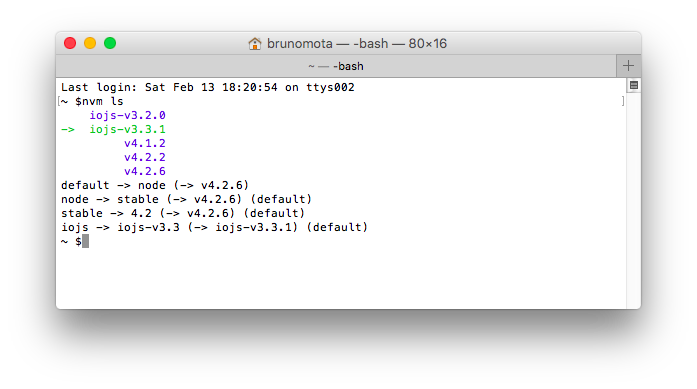
The green arrow above is the version currently in use, and the aliases that have been set are also listed below.
Use different versions of Node in projects
We can create a.nvmrcfile in the project directory to specify the Node version to use. Then execute in the project directorynvm useand that's it..nvmrcThe file content only needs to follow the semantic versioning rules mentioned above. There is also a tool calledavn, which can automate this process.
How should npm be used in multiple environments?
Each version of Node comes with a different version of npm. You can usenpm -vto view the npm version. Globally installed npm packages are not shared across different Node environments, because this would cause compatibility issues. They are placed in directories of different versions, for example~/.nvm/versions/node/<version>/lib/node_modules</version>such a directory. This also saves us the trouble of usingsudoin Linux. Because this is the user's home folder, it will not cause permission issues.
But here comes the problem: do all the npm packages we have installed need to be reinstalled? Fortunately, we have a way to solve our problem. Run the following command to import from a specific version to the new version of Node we are going to install:
nvm install v5.0.0 --reinstall-packages-from=4.2
Other commands
Directly run a specific version of Node
nvm run 4.2.2 --version
Run a specific version of Node in a subprocess of the current terminal
nvm exec 4.2.2 node --version
Confirm the path of a certain version of Node
nvm which 4.2.2
Install other implementations of Node, such as iojs (a Node implementation based on ES6, which has now been merged with Node)
nvm install iojs-v3.2.0
Quick commands:
- nvm install nodeInstall the latest version of Node
- nvm install iojsInstall the latest version of iojs
- nvm install unstableInstall the latest unstable version of Node
Original link: http://bubkoo.com/2017/01/08/quick-tip-multiple-versions-node-nvm/