To view disk space on Linux, you can use thedfandducommand.
df
df views the file system in units of disk partitions, allowing you to obtain information such as how much space on the hard disk has been used and how much space remains.
For example, we use thedf -hcommand to view disk information,-hthe option is to display appropriately according to size:
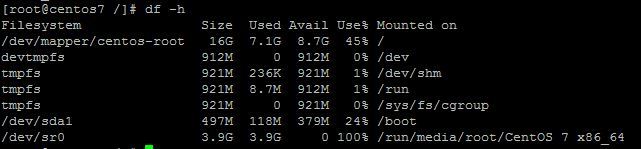
Display content parameter description:
- Filesystem: Filesystem
- Size: Partition size
- Used: Used capacity
- Avail: Available capacity
- Use%: Used percentage
- Mounted on: Mount point
Related commands:
- df -hl: View remaining disk space
- df -h: View the partition size of each root path
- du -sh [directory name]: Return the size of the directory
- du -sm [folder]: Return the total size in MB of the folder
- du -h [directory name]: View the sizes of all files under the specified folder (including subfolders)
du
duThe original English meaning isdisk usage, which means to display disk space usage and is used to view the total size of the current directory.
For example, to view the size of the current directory:
# du -sh
605M    .
Display the space occupied by the specified file:
# du log2012.log
300     log2012.log
Display the space occupied by the test directory in a readable format:
# du -h test
608K    test/test6
308K    test/test4
4.0K    test/scf/lib
4.0K    test/scf/service/deploy/product
4.0K    test/scf/service/deploy/info
12K     test/scf/service/deploy
16K     test/scf/service
4.0K    test/scf/doc
4.0K    test/scf/bin
32K     test/scf
8.0K    test/test3
1.3M    test
The du command is used to view the total size of the current directory:
- -s: For each Names parameter, only give the total number of data blocks occupied.
- -a: Recursively display the number of data blocks occupied by each file in the specified directory and each file in its subdirectories. If neither -s nor -a is specified, only the number of disk blocks occupied by each directory in Names and its subdirectories is shown.
- -b: List disk space usage in bytes (the system defaults to kilobytes).
- -k: List disk space usage in units of 1024 bytes.
- -c: Add a total at the end (system default setting).
- -l: Calculate the sizes of all files; for hard-linked files, calculate them multiple times.
- -x: Skip directories on different file systems and do not count them.
- -h: Use K, M, G as units to improve the readability of the information.