Eclipse has powerful editing features. As the saying goes, to do a good job, one must first sharpen one's tools. Mastering Eclipse shortcuts can greatly improve work efficiency.
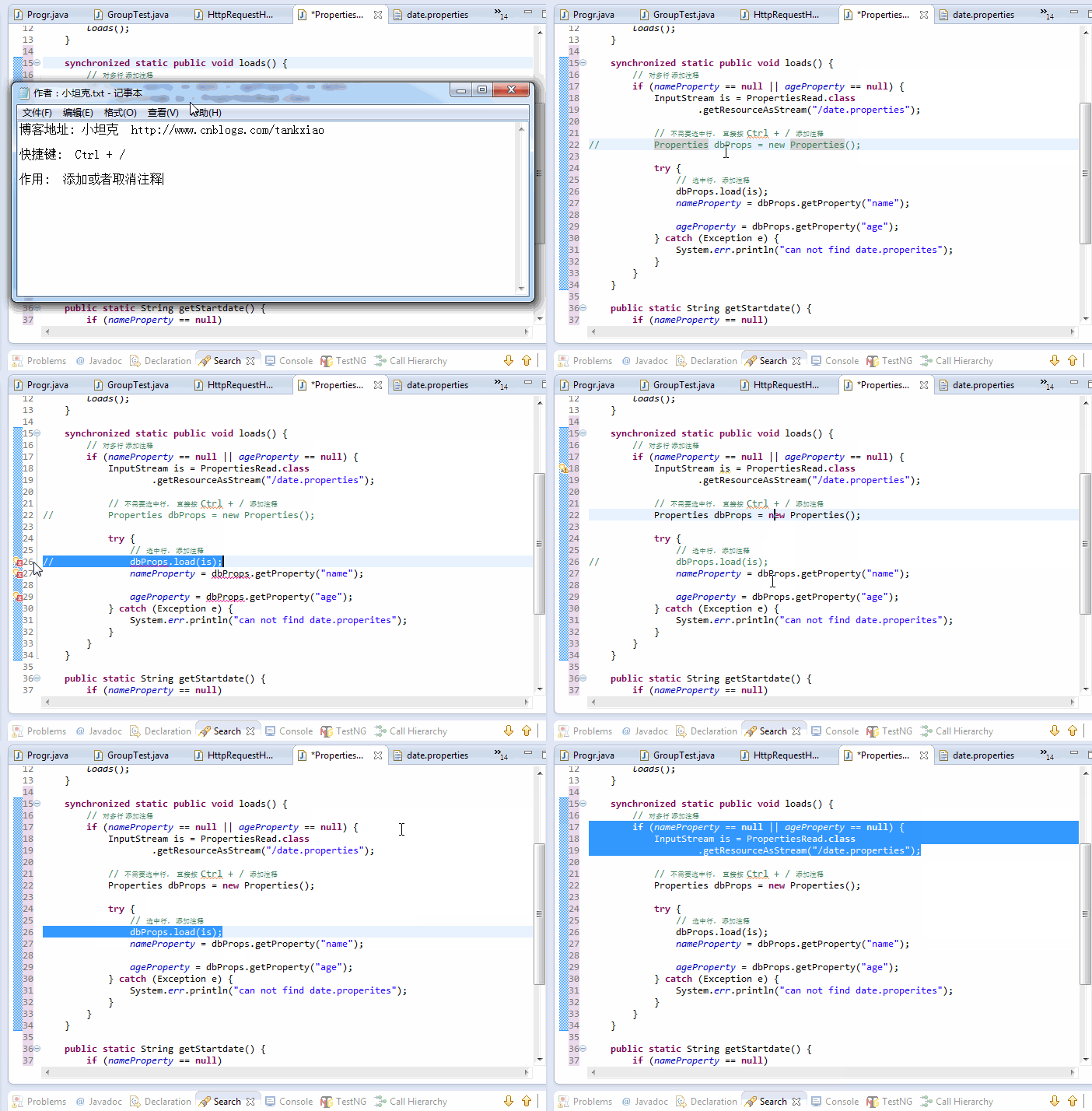
Comment Ctrl+/
Can add comments to or remove comments from the line where the cursor is or the selected lines. It can also add or remove comments on multiple lines.
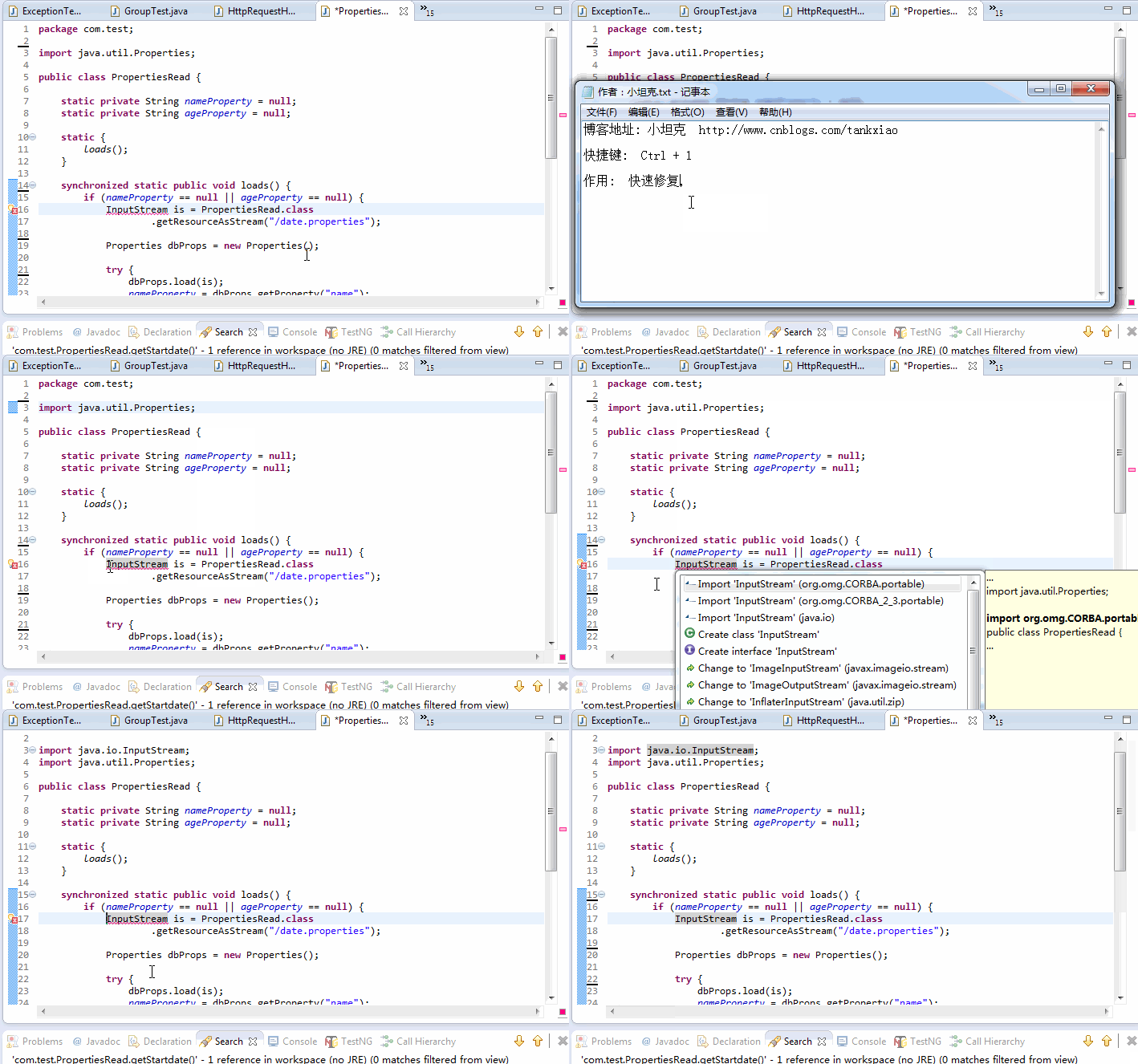
Quick Fix Ctrl + 1
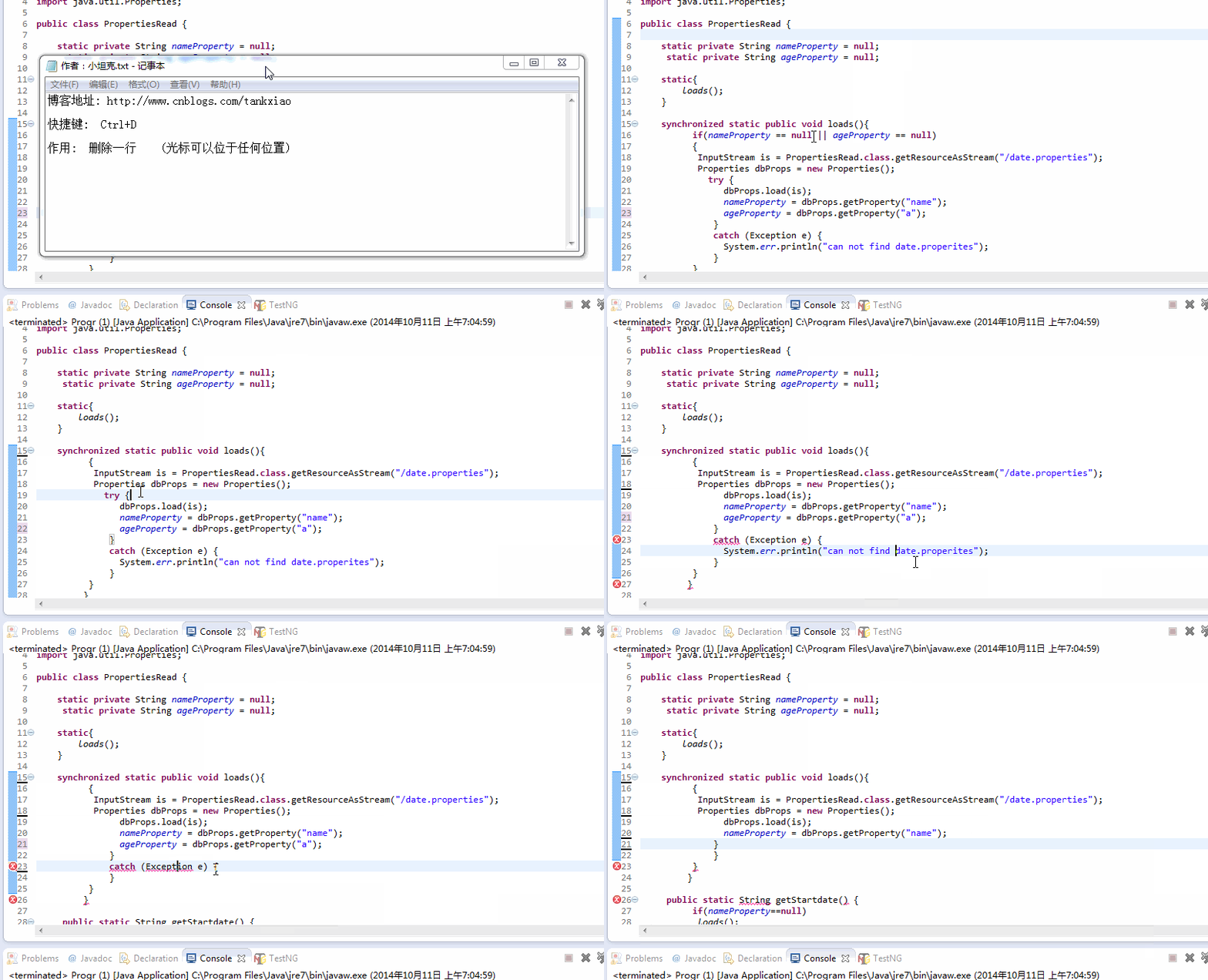
Delete current line Ctrl+D
No matter where the cursor is on the line, press Ctrl+D to delete the current line. Of course, it can also delete blank lines, so you don't have to press the delete key many times to delete a line.
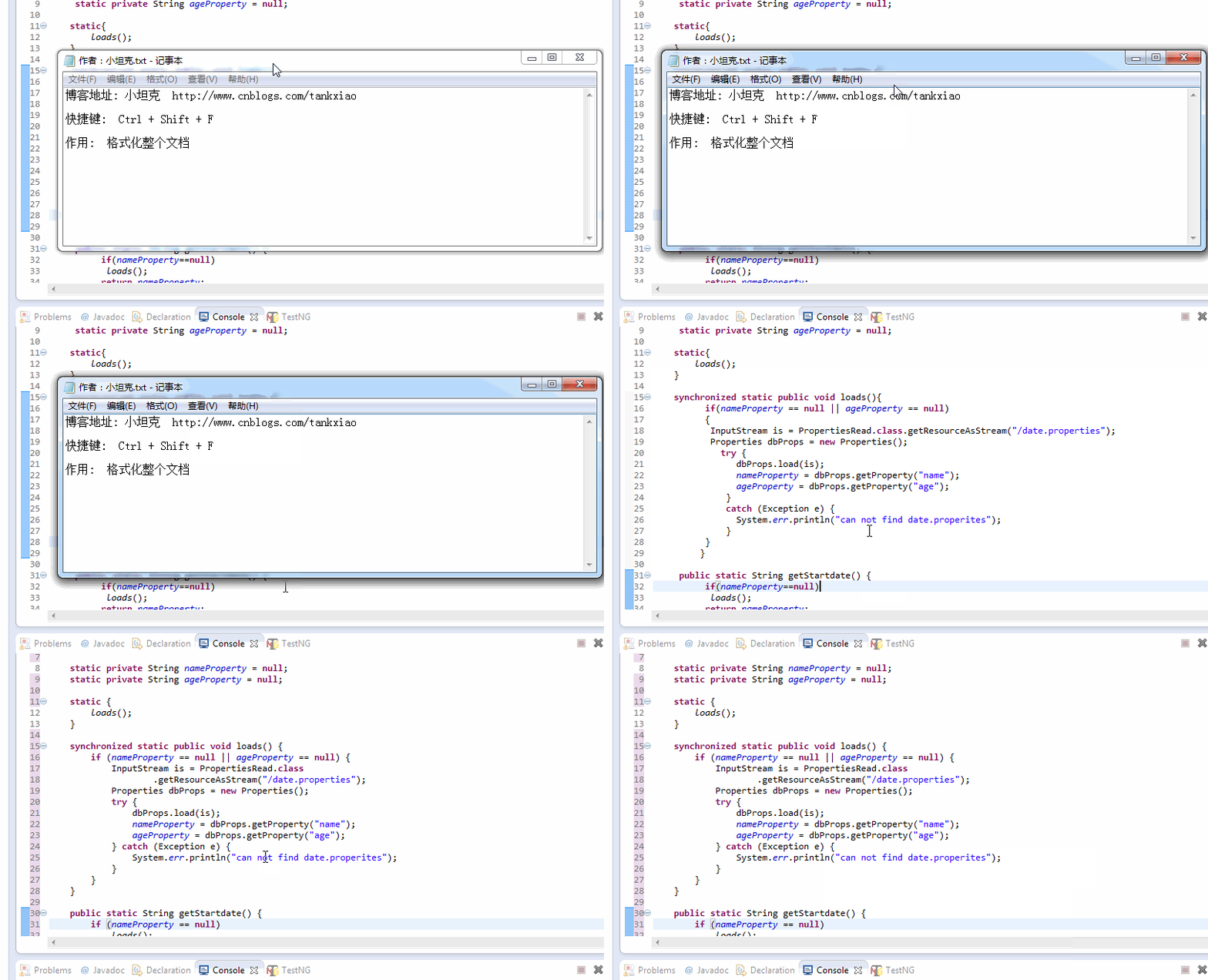
Format entire document Ctrl+Shift+F
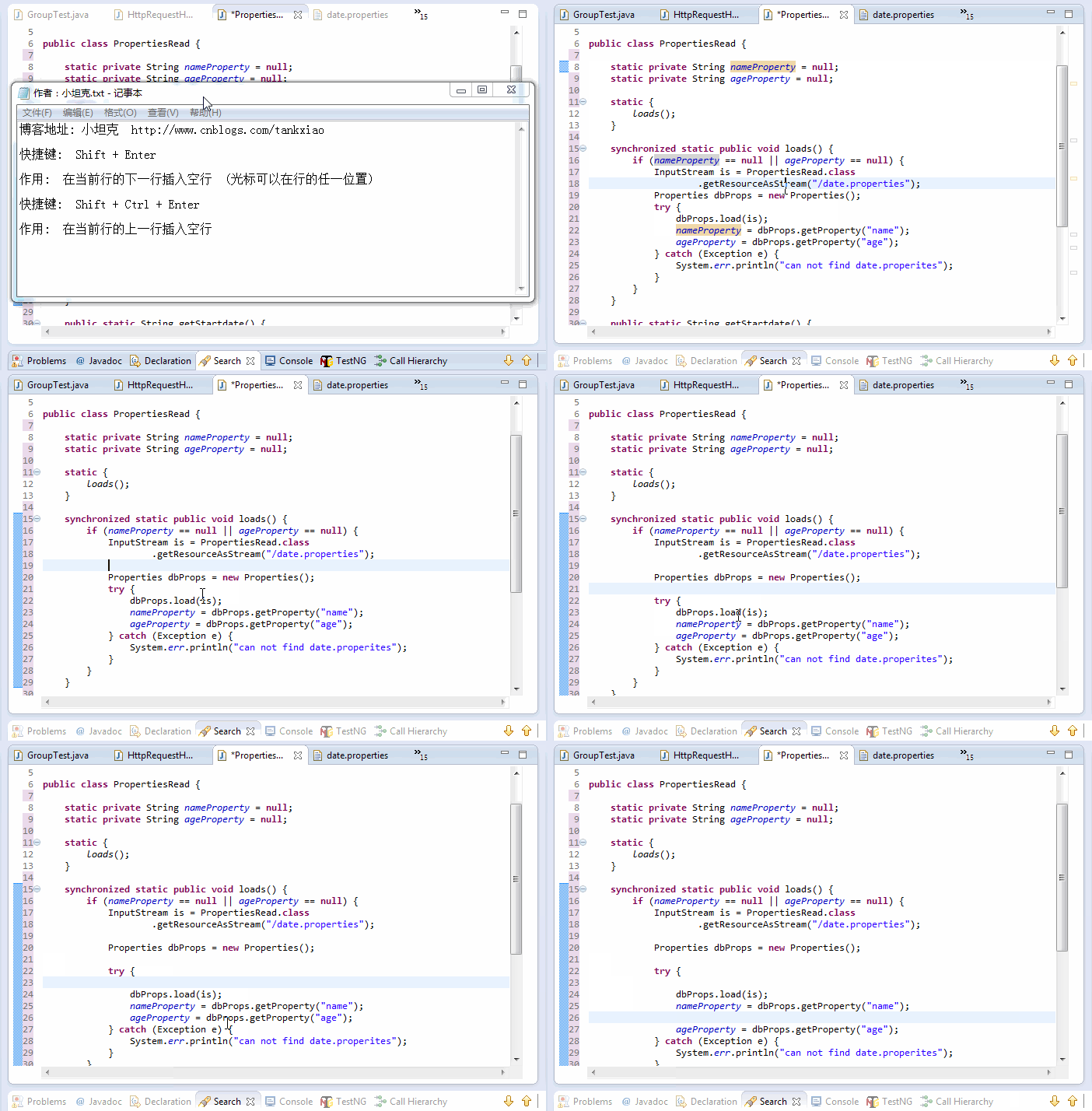
Insert blank line Shift + Enter
Shift+Enter inserts a blank line below the current line (at this time, the mouse can be anywhere on the current line, not necessarily at the end).
Shift + Ctrl + Enter inserts a blank line above the current line.
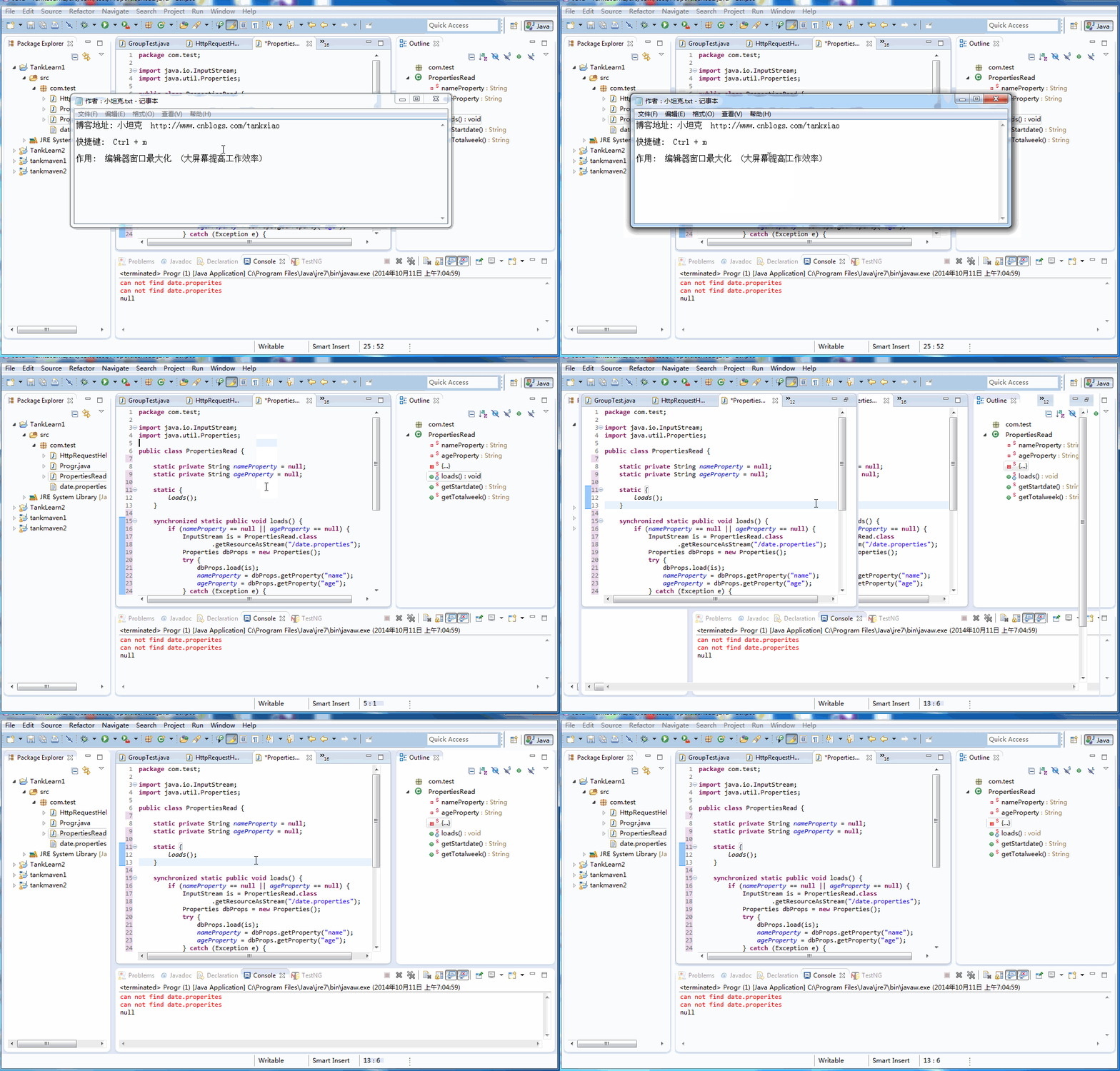
Maximize editor window Ctrl + M
A large screen can improve work efficiency. Ctrl + M can maximize the editor window.
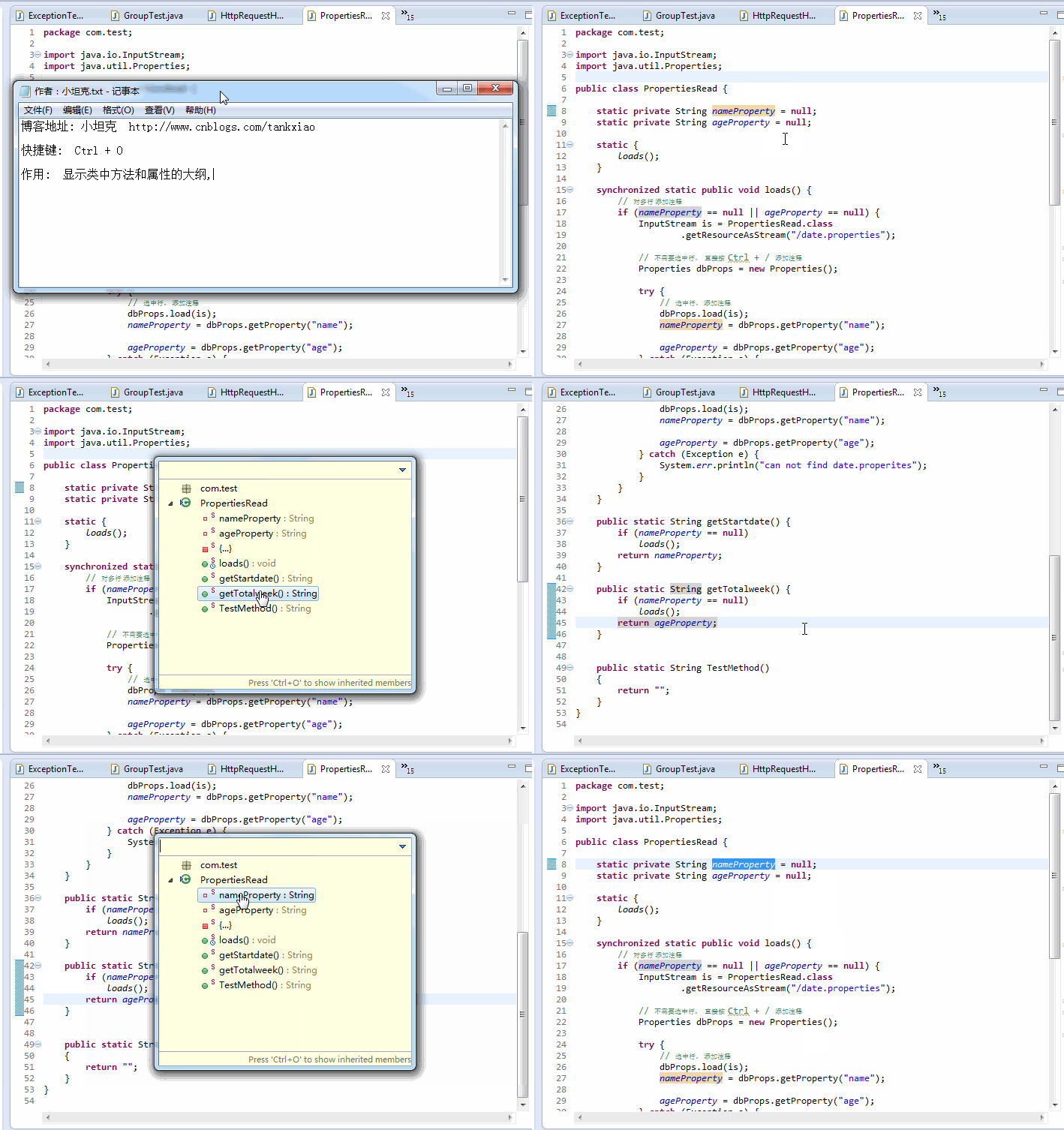
Show Outline Ctrl + O
Shows the outline of methods and properties in the class, allowing you to quickly locate the methods and properties of the class.
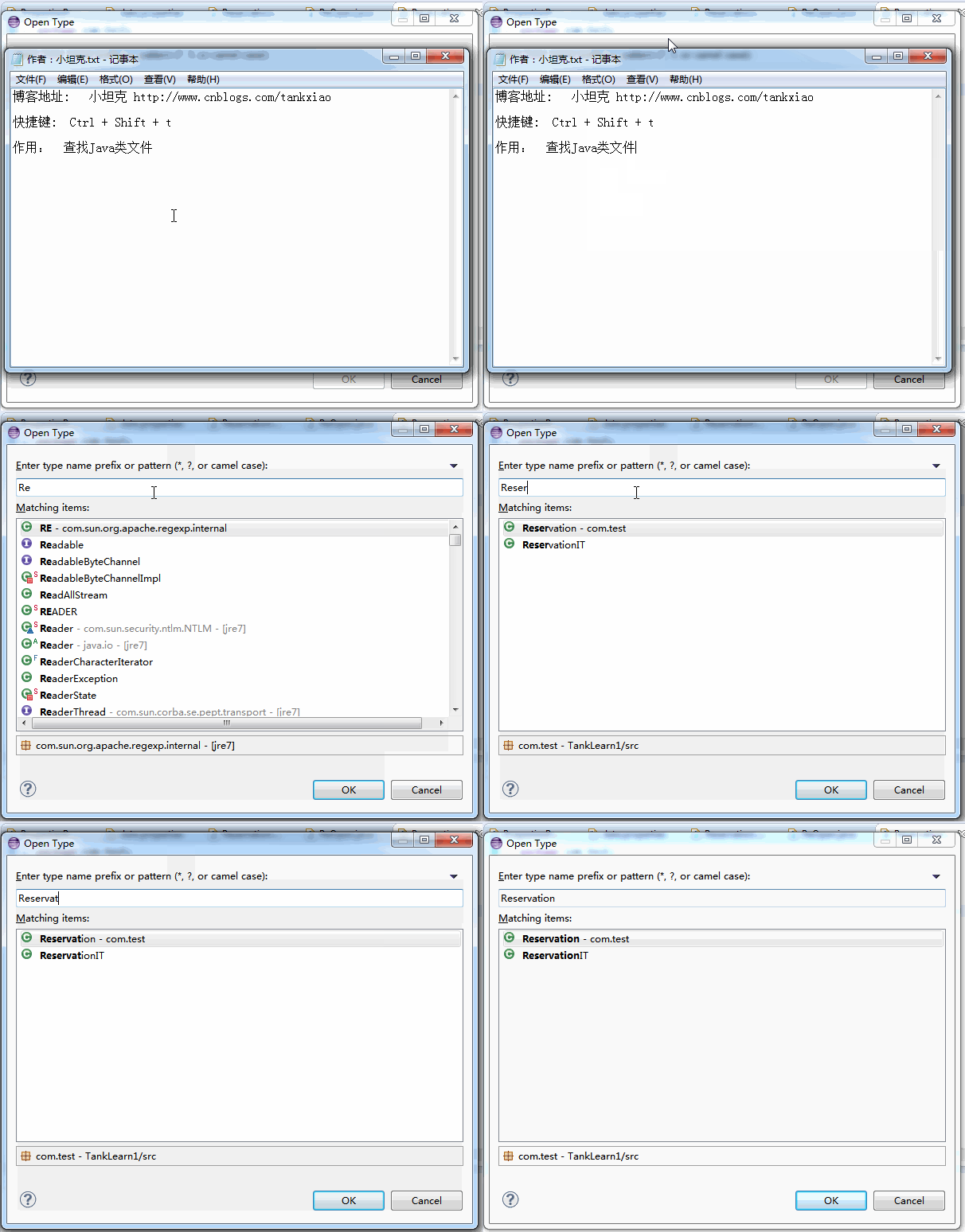
Find Java class file Ctrl + Shift + T
Finds Java class files in the workspace build path. Don't suffer from not being able to find classes. You can also use wildcards such as "*" and "?".
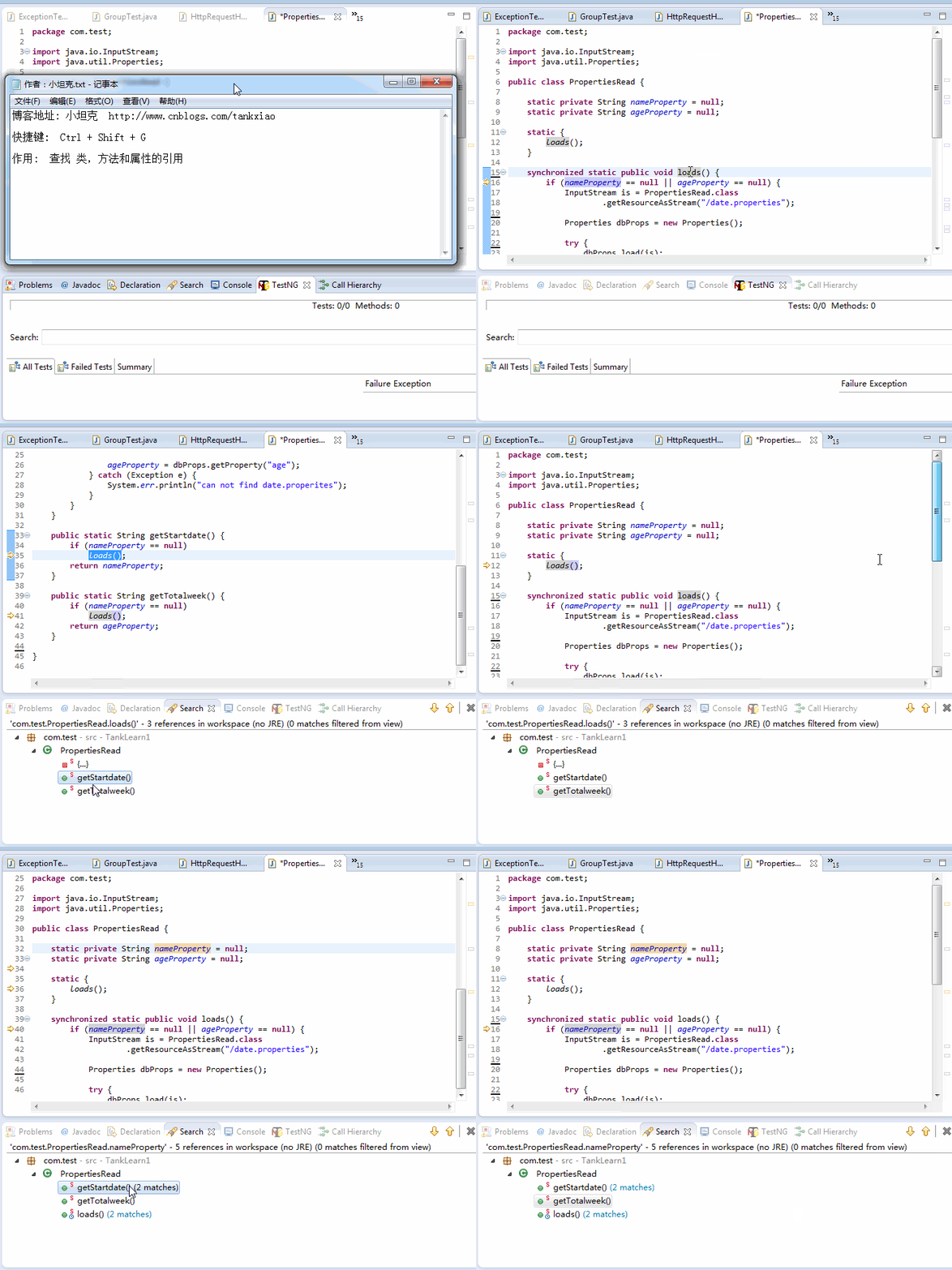
Find References Ctrl+Shift+G
Finds references to classes, methods, and properties. This is a very practical shortcut. For example, if you want to modify code that references a certain method, you can use the [Ctrl+Shift+G] shortcut to quickly locate all places that reference this method.
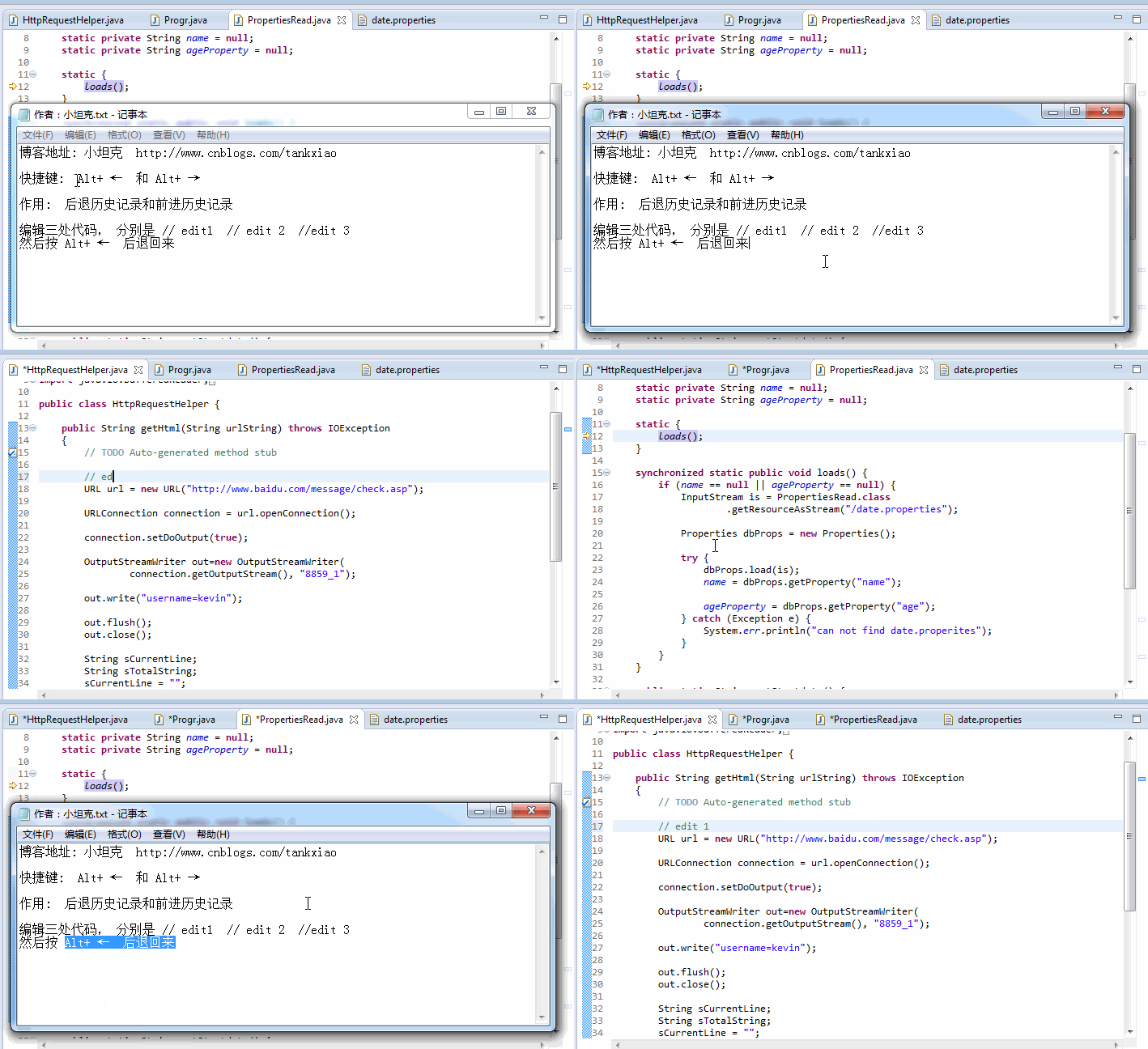
Back History Alt+←, Alt+→
Back history and forward history are very useful when tracking code. Users may have searched several related places but may not remember clearly. You can use these two shortcuts to trace the order of searches.
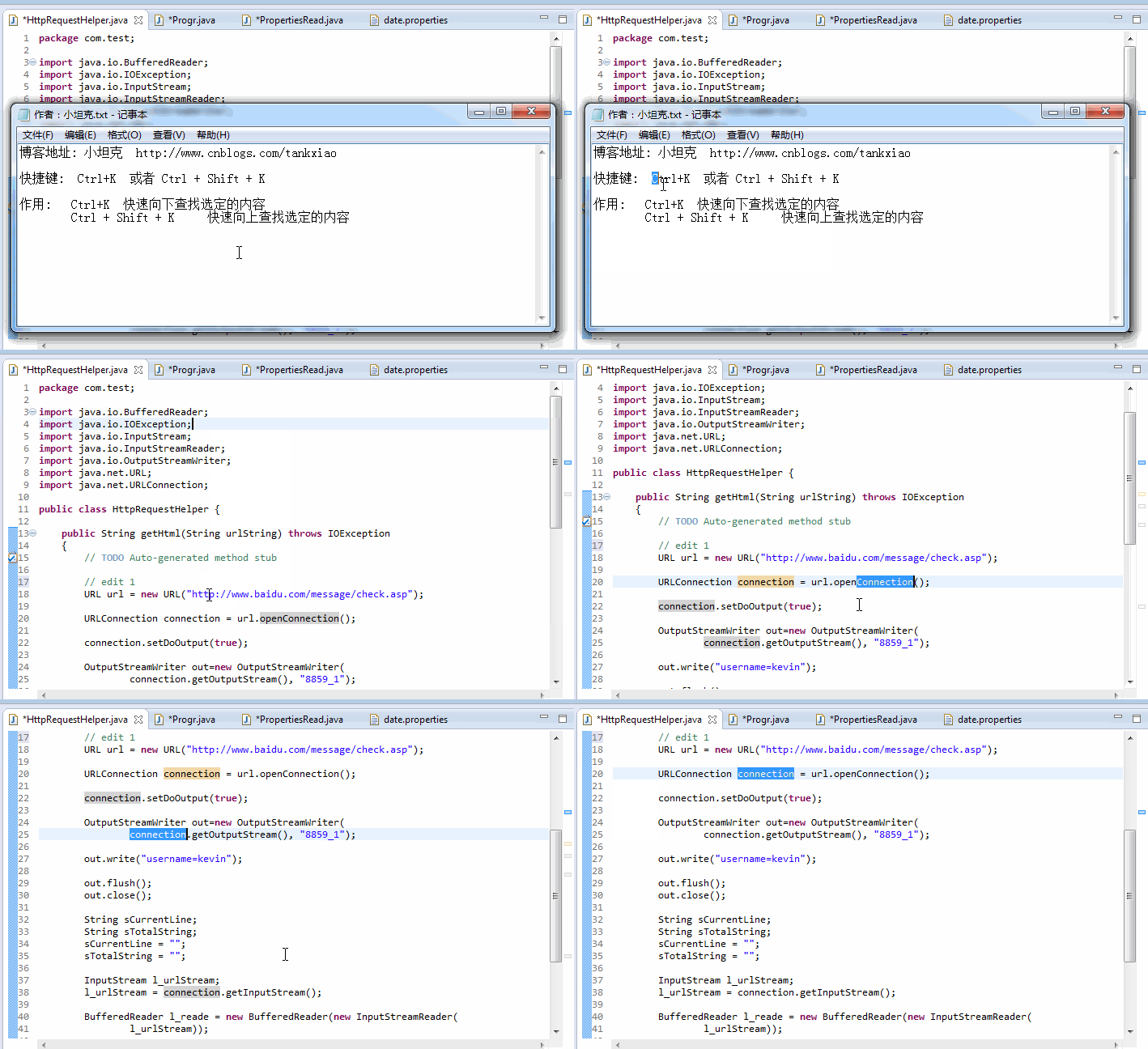
Quick find selected content Ctrl+K
Ctrl + K quickly searches downward for the selected content. From now on, you no longer need to click the find dialog with the mouse.
Ctrl + Shift + K quickly searches upward for the selected content.
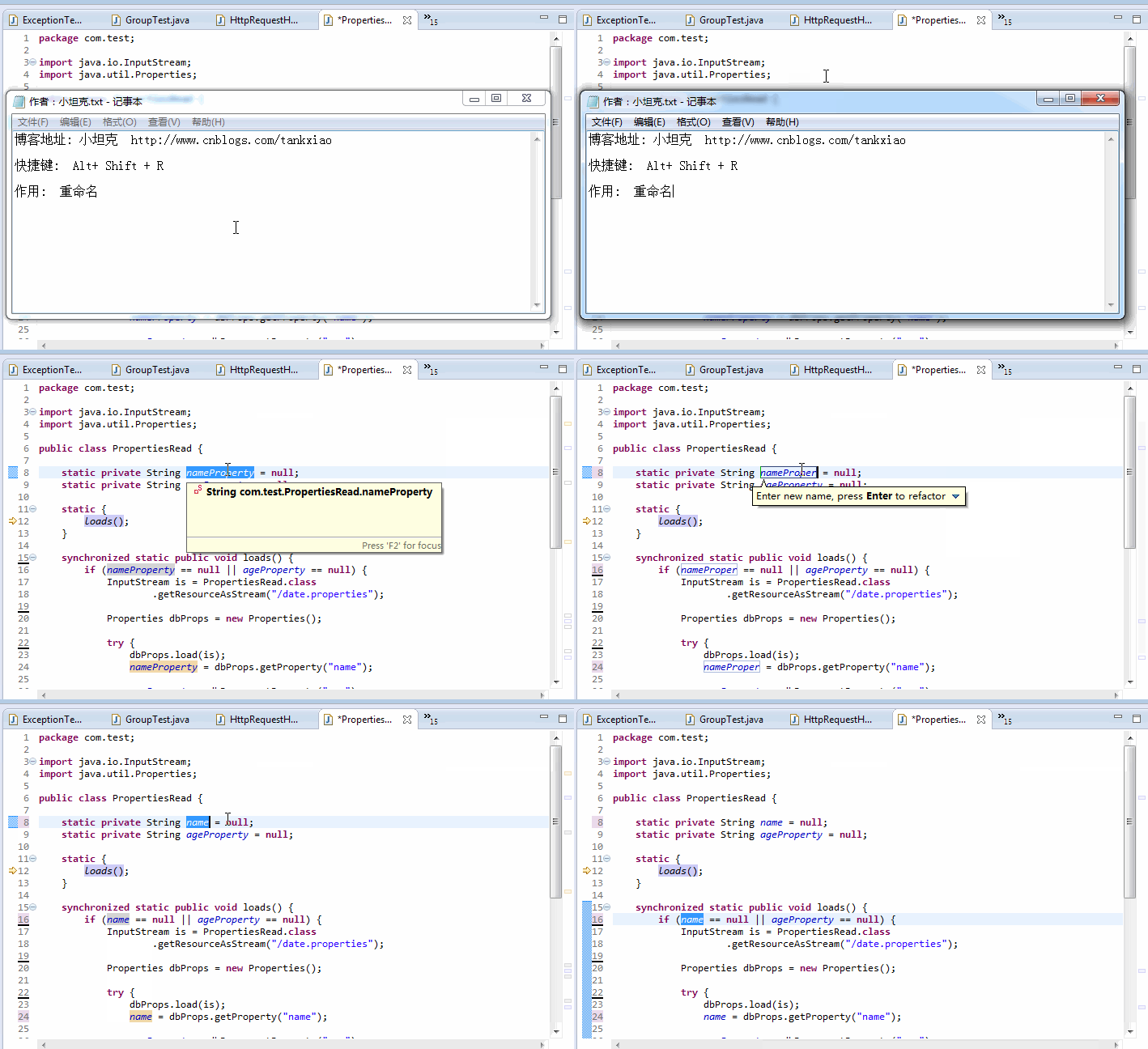
Rename Alt+Shift+R
Source: http://www.cnblogs.com/TankXiao/p/4018219.html