Selenium Installation
Before you start using Selenium, you need to install it first. The following are the detailed steps for installing Selenium.
Selenium supports multiple programming languages, but this tutorial series will use Python as an example.
If you have not installed Python yet, you can install it by following the steps below:
- VisitPython official website。
- Download the Python installer suitable for your operating system.
- Run the installer and make sure to check the "Add Python to PATH" option during installation.
- After installation, open the command line (Command Prompt or PowerShell on Windows, Terminal on macOS and Linux) and enter
python --versionorpython3 --version, and check whether Python was installed successfully.
You can also refer to the following for Python content:Python Tutorial
to install Selenium.pipis Python's package management tool, used to install and manage Python libraries.pipOpen the command line and enter the following command to install Selenium:
If you are using Python 3, you may need to use
pip install selenium
After installation, you can check whether Selenium was installed successfully with the following command:pip3:
pip3 install selenium
If the Selenium version information is displayed, the installation was successful.
pip show selenium
Download Browser Driver
Download Browser Driver
Different browsers require different drivers. The following are download addresses for common browser drivers:
, see the ChromeDriver documentation:
- Chrome: ChromeDriverChromeDriver IntroductionDownload the driver that matches your browser version, and add its path to the system environment variables, or place the driver file in the directory where the Python script is located.。
- Firefox: GeckoDriver
- Edge: EdgeDriver
Using Selenium
Using Selenium
The following is a simple example showing how to use Selenium to open a web page and get the page title.
1. Import Selenium
1. Import Selenium
module:webdriver2. Start the Browser
from selenium import webdriver
2. Start the Browser
Select a browser and initialize the WebDriver:
driver = webdriver.Chrome(executable_path='path/to/chromedriver')
Example
Example
# Or use Firefox browser
driver = webdriver.Chrome(executable_path='/path/to/chromedriver')
# Or use Edge browser
# driver = webdriver.Firefox(executable_path='/path/to/geckodriver')
Starting from Selenium 4, there has been a change in the way browser drivers are managed: Selenium 4 attempts to automatically detect the browser version installed on the system and download the corresponding driver. This means users no longer need to manually download and set the driver path, unless they need a specific version of the driver.
# driver = webdriver.Edge(executable_path='/path/to/msedgedriver')
Example
Example
driver = webdriver.Chrome() Due to the network environment in China, automatically detecting and downloading the driver requires a different network environment, so it is recommended to manually download the driver and then specify the driver path.
In Selenium 4, the driver path is no longer set directly in webdriver.Chrome; instead, it is set by introducing a Service object. This avoids deprecation warnings and ensures the driver is loaded correctly. For example:
Example
Example
from selenium.webdriver.chrome.service import Service as ChromeService
service = ChromeService(executable_path="PATH_TO_DRIVER")
options = webdriver.ChromeOptions()
driver = webdriver.Chrome(service=service, options=options)
have placed it in the system PATH, or have placed it in the directory where the Python script is located, you can omitchromedriverthe parameter:executable_path3. Open a Web Page
driver = webdriver.Chrome()
3. Open a Web Page
method to open a web page:get4. Get the Page Title
driver.get('https://www.baidu.com')
4. Get the Page Title
property to get the title of the current page:title5. Close the Browser
print(driver.title)
5. Close the Browser
6. Complete Example
driver.quit()
6. Complete Example
Example
Example
from selenium.webdriver.chrome.service import Service as ChromeService
# Open a website
service = ChromeService(executable_path="/EXAMPLE/Downloads/chromedriver-mac-arm64/chromedriver")
options = webdriver.ChromeOptions()
driver = webdriver.Chrome(service=service, options=options)
# Get the page title
driver.get("https://www.baidu.com")
# Close the browser
print(driver.title)
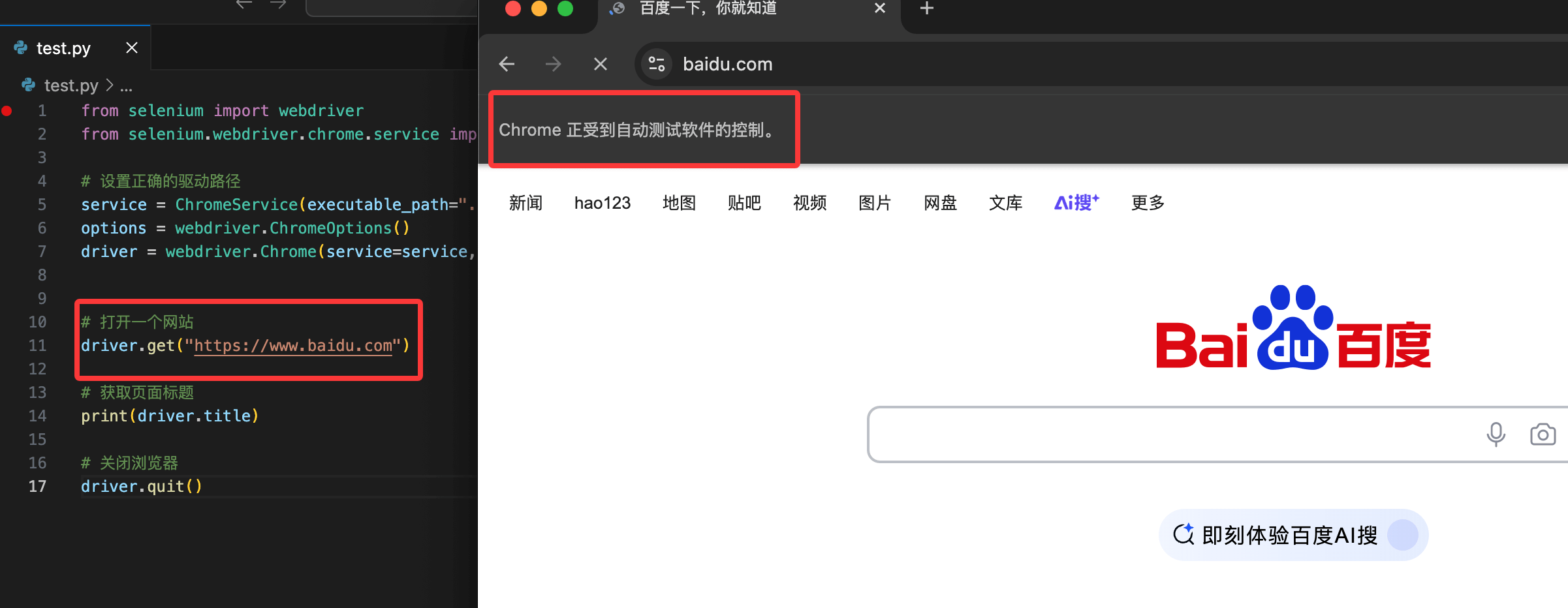
After the above code is executed successfully, it will open the browser and open the web page, as shown below:
driver.quit()
After it finishes opening, it will output the page title:
Use window.stop() to Forcefully Stop Page Loading
Baidu it, and you'll know.
Use window.stop() to Forcefully Stop Page Loading
Example
Example
from selenium.webdriver.chrome.service import Service as ChromeService
# Open a website
service = ChromeService(executable_path="/EXAMPLE/Downloads/chromedriver-mac-arm64/chromedriver")
options = webdriver.ChromeOptions()
driver = webdriver.Chrome(service=service, options=options)
# Wait for the page to load completely
driver.get("https://www.baidu.com")
# You can adjust the waiting time as needed
time.sleep(2) # Forcefully stop the page loading
# Get the page title
driver.execute_script("window.stop();")
# Close the browser
print(driver.title)
Common Operations
driver.quit()
Common Operations
1. Find Elements
1. Find Elements
method to find elements on the page. For example, find an input box and enter text:find_elementExample
Example
input_element.send_keys('Selenium')
2. Click a Button
method to click a button:clickExample
Example
button_element.click()
3. Wait for Page Load
to wait for the element to appear:WebDriverWaitExample
Example
from selenium.webdriver.support.ui import WebDriverWait
from selenium.webdriver.support import expected_conditions as EC
wait = WebDriverWait(driver, 10)
element = wait.until(EC.presence_of_element_located((By.NAME, 'q')))