Git Basic Operations
Git's job is to create and save snapshots of your project and compare them with subsequent snapshots.
This chapter will introduce the commands for creating and committing snapshots of your project.
The 6 commonly used Git commands are:git clone、git push、git add 、git commit、git checkout、git pullWe will introduce this in detail later.
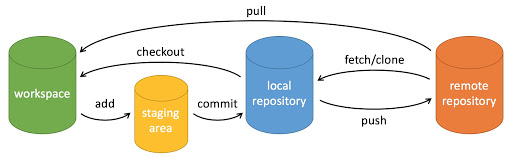
Description:
- workspace: working directory
- staging area: staging area/cache area
- local repository: repository or local repository
- remote repository: remote repository
A simple operation step:
$ git init
$ git add .
$ git commit
- git init - Initialize a repository.
- git add . - Add files to the staging area.
- git commit - Add the contents of the staging area to the repository.
Create repository commands
The following table lists the commands for creating a Git repository:
| Command | Description |
|---|---|
git init |
Initialize repository |
git clone |
Copy a remote repository, i.e., download a project. |
Commit and modify
Git's job is to create and save snapshots of your project and compare them with subsequent snapshots.
The following table lists the commands for creating and committing snapshots of your project:
| Command | Description |
|---|---|
git add |
Add files to the staging area |
git status |
View the current status of the repository, showing files that have changed. |
git diff |
Compare file differences, i.e., the differences between the staging area and the working directory. |
git difftool |
Use an external diff tool to view and compare file changes. |
git range-diff |
Compare the differences between two commit ranges. |
git commit |
Commit the staging area to the local repository. |
git reset |
Rollback version. |
git rm |
Delete files from the staging area and the working directory. |
git mv |
Move or rename files in the working directory. |
git notes |
Add comment. |
git checkout |
Branch switch. |
git switch (Git 2.23 版本引入) |
Switch branches more clearly. |
git restore (Git 2.23 版本引入) |
Restore or revert changes to files. |
git show |
Display detailed information about Git objects. |
SubmitLog
| Command | Description |
|---|---|
git log |
View historical commit records |
git blame <file>
|
View the historical modification records of the specified file in list form. |
git shortlog |
Generate a concise summary of the commit log |
git describe |
Generate a readable string that describes the current commit based on Git's tag system. |
farCourseOperation
| Command | Description |
|---|---|
git remote |
Remote repository operations |
git fetch
|
Fetch the repository from the remote |
git pull
|
Download remote code and merge |
git push
|
Upload code to remote and merge |
git submodule
|
Manage projects containing other Git repositories. |
Git File States
Git file states are divided into three types: Working Directory, Staging Area, and Local Repository. Understanding these concepts and how they interact is the key to mastering Git.
Working Directory
The working directory is the project files you see on your local computer. It is where you actually operate on files, including viewing, editing, deleting, and creating files. All changes to files first occur in the working directory.
Files in the working directory may have the following states:
- Untracked: A newly created file that has not been recorded by Git.
- Modified: A file tracked by Git has been modified, but these changes have not yet been committed to Git's records.
Staging Area
The staging area, also called the Index, is a temporary storage area used to hold changes that are about to be committed to the local repository. You can selectively add changes from the working directory to the staging area, so you can commit changes from multiple files at once without having to commit changes from all files.
- Usage
git add <filename>The command adds files from the working directory to the staging area. - Usage
git add .The command adds all changes in the current directory to the staging area.
git add <filename>  # 添加指定文件到暂存区
git add .           # 添加所有更改到暂存区
Local Repository
The local repository is a.gitdatabase hidden in the directory, which is used to store all commit history of the project. Each time you commit changes, Git saves the contents of the staging area into the local repository.
Usagegit commit -m "commit message"The command commits changes in the staging area to the local repository.
git commit -m "commit message" # 提交暂存区的更改到本地仓库
File State Transition Process
Untracked: Newly created files are initially untracked. They exist in the working directory but are not tracked by Git.
touch newfile.txt  # 创建一个新文件
git status         # 查看状态,显示 newfile.txt 未跟踪
Tracked:
Throughgit addAfter the command adds an untracked file to the staging area, the file becomes tracked.
git add newfile.txt  # 添加文件到暂存区
git status           # 查看状态,显示 newfile.txt 在暂存区
Modified: After making changes to a tracked file, these changes are shown as modified, but these changes have not yet been added to the staging area.
echo "Hello, World!" > newfile.txt  # 修改文件
git status                          # 查看状态,显示 newfile.txt 已修改
Staged:
Usagegit addAfter the command adds modified files to the staging area, the files enter the staged state, waiting to be committed.
git add newfile.txt  # 添加文件到暂存区
git status           # 查看状态,显示 newfile.txt 已暂存
Committed:
Usagegit commitAfter the command commits the changes in the staging area to the local repository, these changes are recorded, and the file status returns to tracked.
git commit -m "Added newfile.txt"  # 提交更改
git status                         # 查看状态,工作目录干净
other extensions