Eclipse Quick Fix
Use Quick Fix
In the Eclipse editor, when you type letters, the editor performs error analysis on what you have typed.
The Java editor uses Java syntax to detect errors in the code. When it finds errors or warnings:
- Highlights errors with red squiggly lines
- Highlights warnings with yellow squiggly lines
- Displays errors and warnings in the Problems view.
- Displays yellow light bulbs along with warning and error markers on the vertical ruler.
The Quick Fix dialog provides solutions. The Quick Fix dialog can be invoked in the following ways:
- Place the mouse pointer over the squiggly line
- Click the light bulb
- Place the mouse pointer over the highlighted text and select the Quick Fix item on the Edit menu, or press the shortcut key Ctrl + 1.
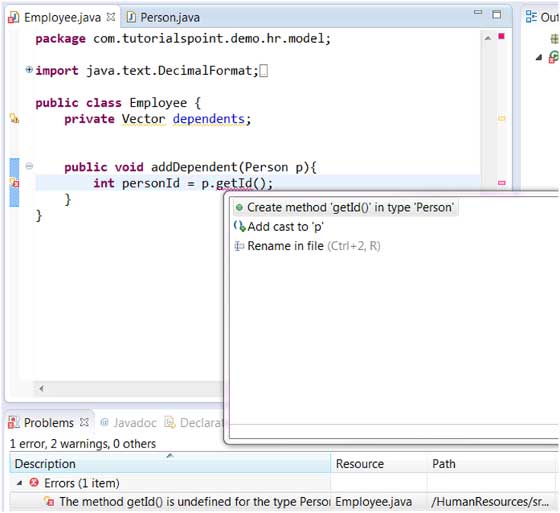
In the above diagram, getId is highlighted because there is no method named getId() in the Person class. In the pop-up fix options, select "Create method 'getId()' in type 'Person'" to add the getId() method to the Person class.
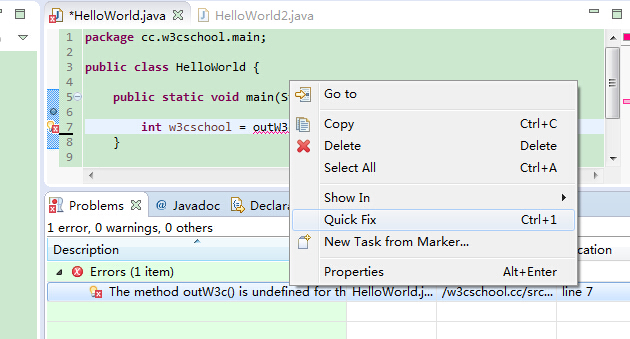
You can also right-click the error item in the Problems view, then select the Quick Fix menu item to display the Quick Fix dialog, as shown in the figure below:
 other extensions