Eclipse Window Description
Eclipse Workbench
First, let's take a look at the Eclipse Workbench user interface and the various components within it.
The Workbench is a collection of multiple windows. Each window contains a menu bar, toolbar, shortcut bar, and one or more perspectives.
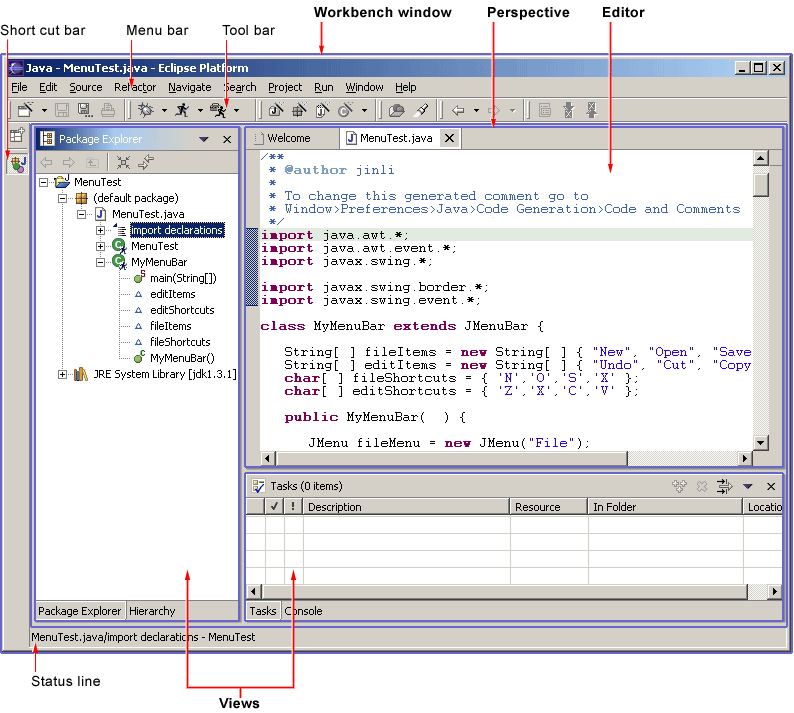
A perspective is a visual container that contains a series of views and content editors.
Views exist entirely within a specific perspective and cannot be shared, while any open content editor can be shared across perspectives.
If two or more perspectives have the same view open, they share the same instance of that view, although the view's layout may differ between perspectives.
Perspectives, editors, and views in different Workbench windows cannot be shared.
A perspective is like a page in a book. It exists in a window, coexisting with other perspectives. Just like a page in a book, you can only see one perspective at a time.
The main menu bar of the workbench typically includes top-level menus such as File, Edit, Navigate, Project, Window, and Help.
Other top-level menus are located between the Edit and Project menus, and are often context-related. This context includes the currently active perspective, the topmost editor, and the active view.
In the File menu, you can find a New submenu, which includes menu items for creating Project, Folder, and File.
The File menu also contains Import and Export menu items, used to import files into the Workbench and export them.
In the Edit menu, you can find commands like Cut, Copy, Paste, and Delete. These commands are called global commands and act on the active part.
That is to say, if you use the Delete command while the Navigator is active, the actual operation is performed by the Navigator.
In the Project menu, you can find project-related commands, such as Open Project, Close Project, and Rebuild Project.
In the Run menu, you can see commands related to running and debugging application code, as well as launching external tools such as Ant scripts.
In the Window menu, you can find the Open Perspective submenu to open different perspectives according to the needs of your development tasks.
You can also see the perspective layout management menu bar. The Show View submenu is used to add views to the current Workbench window.
Additionally, you can modify the Workbench's functional preferences configuration through the Preferences menu item.
If you are a plugin developer, you can provide the platform with new views, editors, wizards, menus, and tool items. These are all defined using XML. Once a plugin is registered, it can integrate seamlessly with the existing components in the platform.
Eclipse Multi-window
Eclipse can open multiple windows at the same time. Select Window -> New Window in the menu bar to open multiple windows.
You can use Alt + Tab to switch between multiple windows.
other extensions