Creating an XML File in Eclipse
Open the New XML File Wizard
You can use the New XML File wizard to create XML files. There are several ways to open the wizard:
- Click the File menu and select New > Other
- Click the New dropdown
 ) Select Other
 - Keyboard shortcut: ctrl + N
In the wizard dialog, you can perform the following operations:
- Enter XML in the input box, and the wizard associated with XML will be displayed.
- In the expanded XML category, select XML File.
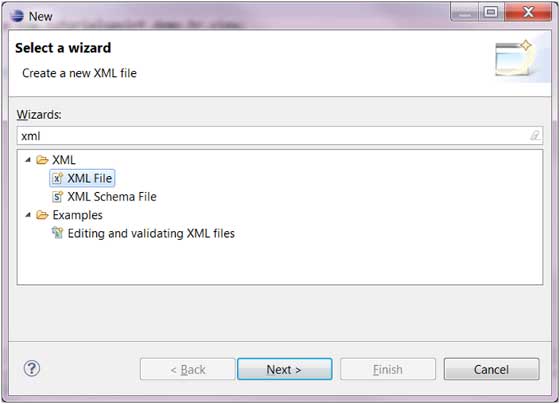
- Click the Next button to enter the New XML File wizard.
Note:
Next, in the wizard, we can also perform the following operations:
- Click the File menu and select New > XML File
- Click the XML File button on the toolbar (
 )
)
Use the New XML File Wizard
In the New XML File wizard, we can perform the following operations:
- Enter or select the folder to which the XML file belongs.
- Enter the XML file name
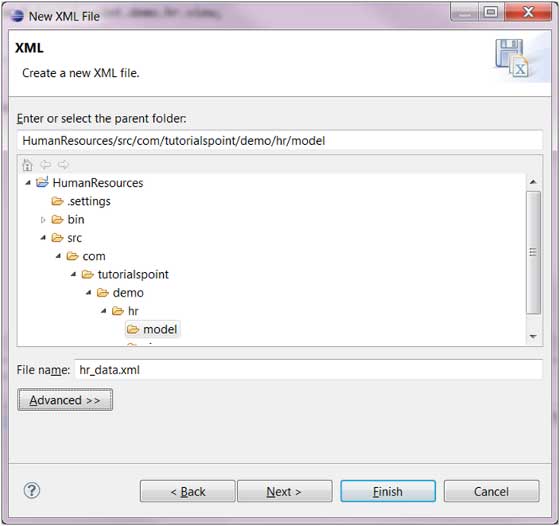
- Click the Next button to configure the DTD, XML Schema (XML Schema Definition Language), or you can directly click the Finish button to complete the creation of the XML file.
View the newly created XML file
In the Package Explorer view, we can see the newly created XML file, and in the XML editor on the right, we can modify the newly created XML file.
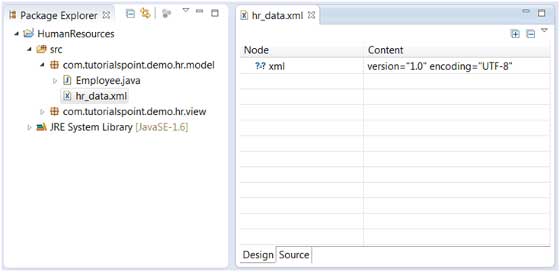
The XML editor can be used to design XML files in View mode or Source mode.
other extensions