Dash Callback Functions
Dash allows developers to use Python to create dynamic, responsive user interfaces.
One of Dash's core features is the callback function, which enables the user interface to update in real time based on user input or actions.
Callback functions are the core mechanism in Dash for handling user interactions. They allow you to dynamically update the application's layout or data when the user interacts with the application. In simple terms, a callback function is a Python function that is triggered when specific inputs change, and it updates outputs based on changes in these inputs.
A typical Dash callback function consists of the following parts:
- Input: Specifies which component property changes will trigger the callback function.
- Output: Specifies which component properties will be updated after the callback function executes.
- State: Optional parameter, used to pass data that does not trigger the callback but needs to be used within the callback.
- Callback function body: Contains the actual logic code, used to process inputs and generate outputs.
Basic Structure of Callback Functions
@app.callback(
    Output(component_id='output-component', component_property='output-property'),
    Input(component_id='input-component', component_property='input-property')
)
def update_output(input_value):
    # 根据输入值计算输出值
    return output_value
Output:Specifies the output target of the callback function.
component_id: The ID of the target component.component_property: The property of the target component (e.g.children、valueetc.).
Input:Specifies the input source of the callback function.
component_id: The ID of the input component.component_property: The property of the input component (e.g.value、n_clicksetc.).
callback function:
Receives input values, computes and returns output values.
The function name can be customized (e.g.
update_output)。
Example
The following example shows how to dynamically update text content based on the value of an input box:
Example
# Create Dash App
app = Dash(__name__)
# Define Layout
app.layout = html.Div([
dcc.Input(id='input', type='text', placeholder='Please enter content...'),
html.Div(id='output')
])
# Define the callback function
@app.callback(
Output('output', 'children'),
Input('input', 'value')
)
def update_output(input_value):
return f'You entered: {input_value}'
# Run the app
if __name__ == '__main__':
app.run_server(debug=True)
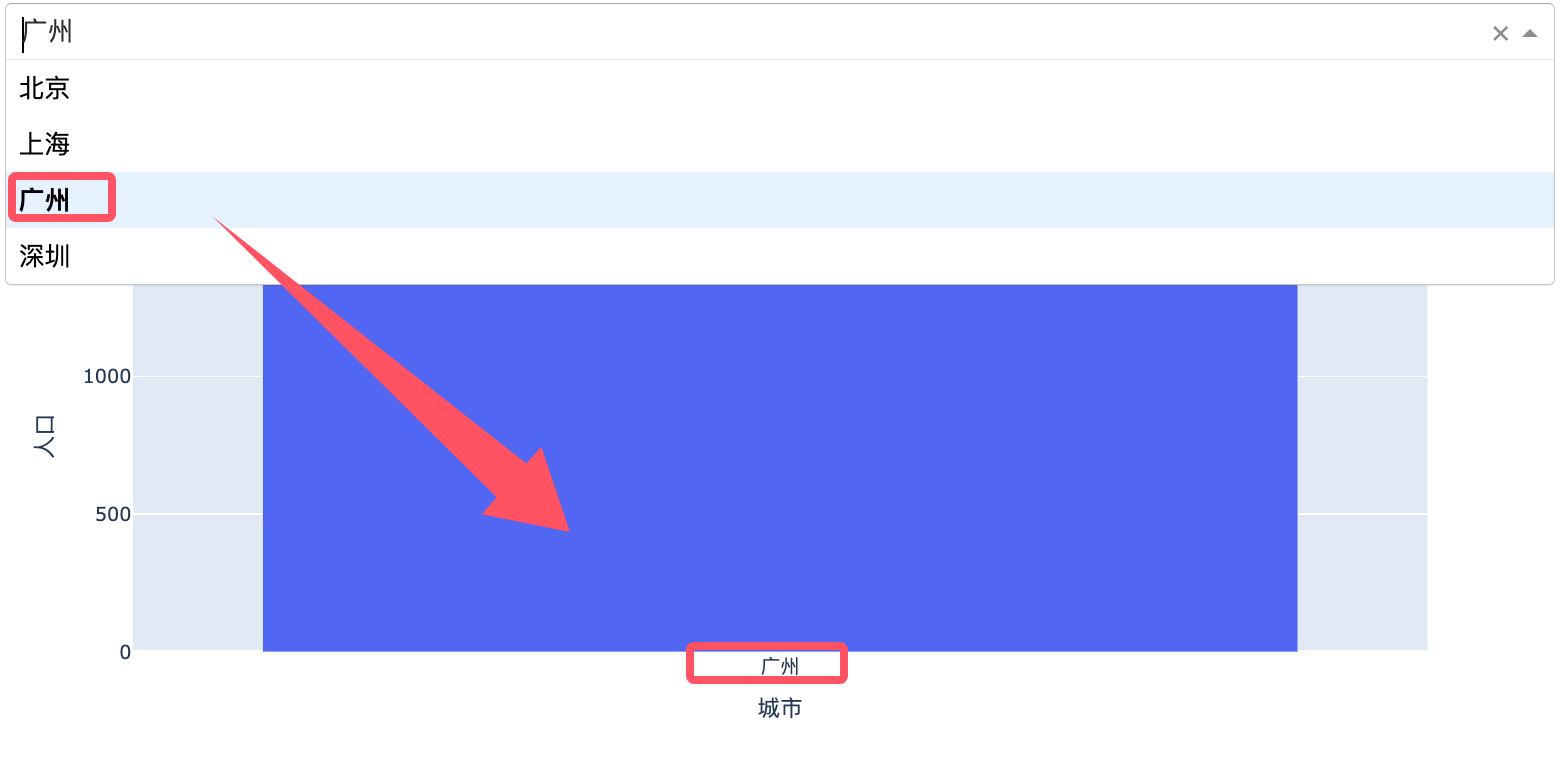
The following example shows how to dynamically update a chart based on the selection in a dropdown menu:
Example
import plotly.express as px
import pandas as pd
# Create Dash App
app = Dash(__name__)
# Sample Data
df = pd.DataFrame({
'city': ['Beijing', 'Shanghai', 'Guangzhou', 'Shenzhen'],
'Population': [2171, 2424, 1490, 1303]
})
# Define Layout
app.layout = html.Div([
dcc.Dropdown(
id='dropdown',
options=[{'label': city, 'value': city} for city in df['city']],
value='Beijing' # Default value
),
dcc.Graph(id='graph')
])
# Define the callback function
@app.callback(
Output('graph', 'figure'),
Input('dropdown', 'value')
)
def update_graph(selected_city):
filtered_df = df[df['city'] == selected_city]
fig = px.bar(filtered_df, x='city', y='Population', title=f'{selected_city} population data')
return fig
# Run the app
if __name__ == '__main__':
app.run_server(debug=True)
After the above code runs, when you select a city in the dropdown menu, the chart dynamically updates to display the population data for that city.
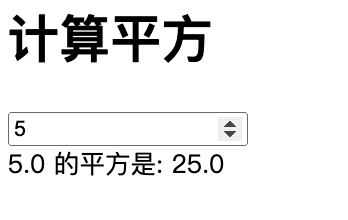
In the following example, after the user enters a number, the square of that number is displayed:
Example
# Create Dash App
app = Dash(__name__)
# Define Layout
app.layout = html.Div([
html.H1("Calculate Square"), # Heading
dcc.Input(
id='number-input', # Input box ID
type='number', # Input Type Is Number
placeholder='Please enter a number...', # Input Placeholder Text
value='' # Initial value is empty
),
html.Div(id='output') # Div for displaying results
])
# Define the callback function
@app.callback(
Output('output', 'children'), # Output to the children property of the Div with id 'output'
Input('number-input', 'value') # input comes from the value attribute of the input element with id 'number-input'
)
def calculate_square(number):
if number is None or number == '': # If input is empty
return 'Please enter a number.'
try:
number = float(number) # Convert input to float
square = number ** 2 # Calculate Square
return f'The square of {number} is: {square}' # Return Result
except ValueError: # If the input is not a number
return 'Please enter a valid number.'
# Run the app
if __name__ == '__main__':
app.run_server(debug=True) # Start the app, debug=True enables debug mode
Code explanation:
1. Layout section:
-
Usage
html.H1Create a heading "Calculate Square". -
Usage
dcc.InputCreate a numeric input box,idisnumber-input, the type isnumber。 -
Usage
html.DivCreate an area for displaying results,idisoutput。
2. Callback function:
-
Usage
@app.callbackThe decorator defines the callback function. -
input is
number-inputof the input fieldvalueProperty. -
output is
outputDiv'schildrenProperty. -
In the callback function:
-
Check whether the input is empty.
-
Convert the input to a float and compute the square.
-
Return the formatted result.
-
3. Run the application: Useapp.run_server(debug=True)Launch the app,debug=TrueIndicates that debug mode is enabled. The running result is displayed as follows:
How Callback Functions Work
1. Binding Inputs and Outputs
In Dash, the inputs and outputs of a callback function are specified throughInputandOutputSpecified by the object.InputThe object specifies which component property changes will trigger the callback function, whileOutputThe object specifies which properties of which components will be updated after the callback function executes.
2. Triggering Callback Functions
When the user performs an action on the interface (e.g., entering text, clicking a button, etc.), the relevant component properties change. Dash detects these changes and automatically calls the callback function bound to them.
3. Execution of Callback Functions
When the callback function executes, Dash passes the current values of the input properties as parameters to the callback function. The callback function performs calculations or processing based on these input values and returns new values for the output properties. Dash automatically updates the returned values to the specified component properties.
Advanced Usage of Callback Functions
1. Multiple Inputs and Outputs
A callback function can have multiple inputs and outputs. For example:
Example
[Output('output-div-1', 'children'),
Output('output-div-2', 'children')],
[Input('input-1', 'value'),
Input('input-2', 'value')]
)
def update_outputs(input1, input2):
return f'Input 1: {input1}', f'Input 2: {input2}'
In this example, the callback functionupdate_outputshas two inputs and two outputs. Wheninput-1orinput-2the value of ... changes, the callback function is triggered, and it updates the ... of the two output components.childrenProperty.
2. Using State
Sometimes, you may need to use data in a callback that does not trigger the callback. In this case, you can useStateObject.Stateobject andInputSimilar to the object, but it does not trigger the callback function.
Example
Output('output-div', 'children'),
[Input('submit-button', 'n_clicks')],
[State('input-text', 'value')]
)
def update_output(n_clicks, input_value):
if n_clicks is None:
return 'No clicks yet'
return f'Button clicked {n_clicks} times. Input: {input_value}'
In this example,n_clicksis the input that triggers the callback, whileinput_valueIt is the state used in the callback function. The callback function will only be triggered when the button is clicked, but the current value of the input field can be used within the callback.
3. Preventing Duplicate Execution of Callback Functions
In some cases, callback functions may be triggered frequently, causing performance issues. To avoid this, you can usedash.no_updateto prevent unnecessary updates.
Example
Output('output-div', 'children'),
[Input('input-text', 'value')]
)
def update_output(input_value):
if not input_value:
return dash.no_update
return f'You have entered: {input_value}'
In this example, if the input box value is empty, the callback function will not update the output component.
Common Problems and Solutions
1. Callback Function Not Triggered
If the callback function does not trigger as expected, it may be due to one of the following reasons:
- Input or output ID mismatch: ensure
InputandOutputThe component IDs in match the IDs in the layout. - Attribute name error: ensure
InputandOutputEnsure the property names in ... are correct. - Callback function not registered: Ensure the callback function is correctly registered in the application.
2. Slow Callback Function Execution
If the callback function executes slowly, consider the following optimization methods:
- Reduce the computational load of the callback function: Try to avoid performing complex calculations in the callback function.
- Use cache: For repeated calculation results, caching can be used to reduce computation time.
- Asynchronous callback: For long-running tasks, asynchronous callbacks can be used to avoid blocking the main thread.