Cursor Installation
Cursor is a cross-platform code editor that supports Windows, macOS, and Linux systems.
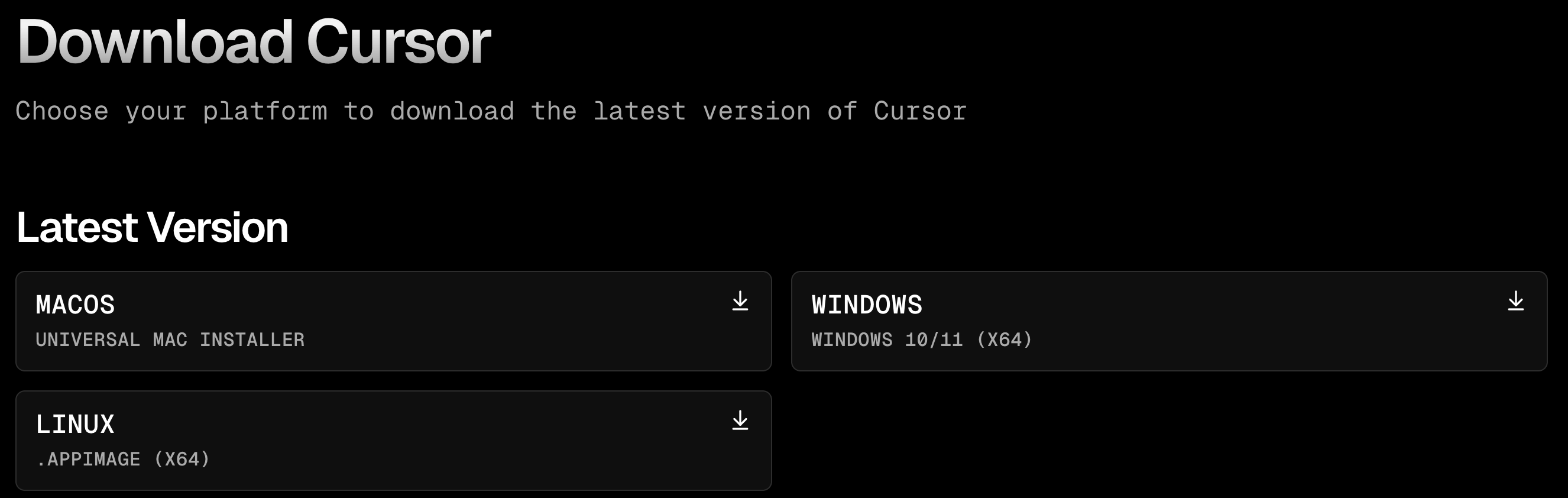
Cursor official website download page:https://www.cursor.com/downloads。
Minimum system requirements:
| Operating system | Version Requirements | Architecture Support |
|---|---|---|
| Windows | Windows 10 version 1903 or higher | x64, ARM64 |
| macOS | macOS 10.15 Catalina or higher | Intel x64, Apple Silicon (M1/M2) |
| Linux | Ubuntu 18.04+, Debian 10+, RHEL 8+, SUSE 15+ | x64, ARM64 |
Hardware Requirements:
- Memory (RAM): Minimum 4GB, 8GB or more recommended
- Storage Space: At least 2GB of available disk space
- Processor: x64 or ARM64 processor with SSE2 support
- Network Connection: Stable internet connection (required for AI features)
- Display: Resolution of at least 1024x768
By default, visit the Cursor official websitehttps://www.cursor.com/, and the page will automatically match the installer based on your system. For example, since I'm on macOS, a Download for macOS button will appear:

- Windows: Download
.exeInstallation Package - macOS: Download
.dmgDisk Image - Linux: Download
.deb(Ubuntu/Debian) or.rpm(RHEL/SUSE) package
1. Windows system
Open your browser and visit the Cursor official website:https://www.cursor.com/。
Click the "Download for Windows" button on the page to download the Cursor installer (exe file).

Double-click the downloaded installer to launch the installation program.
Follow the prompts to choose the installation path; it is recommended to use the default path.
Click the "Install" button and wait for the installation to complete.
After the installation is complete, click the "Finish" button to launch the Cursor editor.
2. macOS system
Open your browser and visit the Cursor official website:https://www.cursor.com/, click the "Download for Mac" button on the page to download the Cursor installer (dmg file).
Double-click the downloaded .dmg file and drag the Cursor application icon into the "Applications" folder to complete the installation.
Open the "Applications" folder, double-click the Cursor icon to launch the editor.
3. Linux system
Open your browser and visit the Cursor official website:https://www.cursor.com/, click the "Download for Linux" button on the page, and choose the installer package (deb or rpm file) suitable for your Linux distribution.

Debian/Ubuntu system:
sudo dpkg -i cursor_<version>_amd64.deb
sudo apt-get install -f
Fedora/Red Hat system:
Use the following command to install the rpm package:
sudo rpm -ivh cursor_<version>_x86_64.rpm
Registration and Login
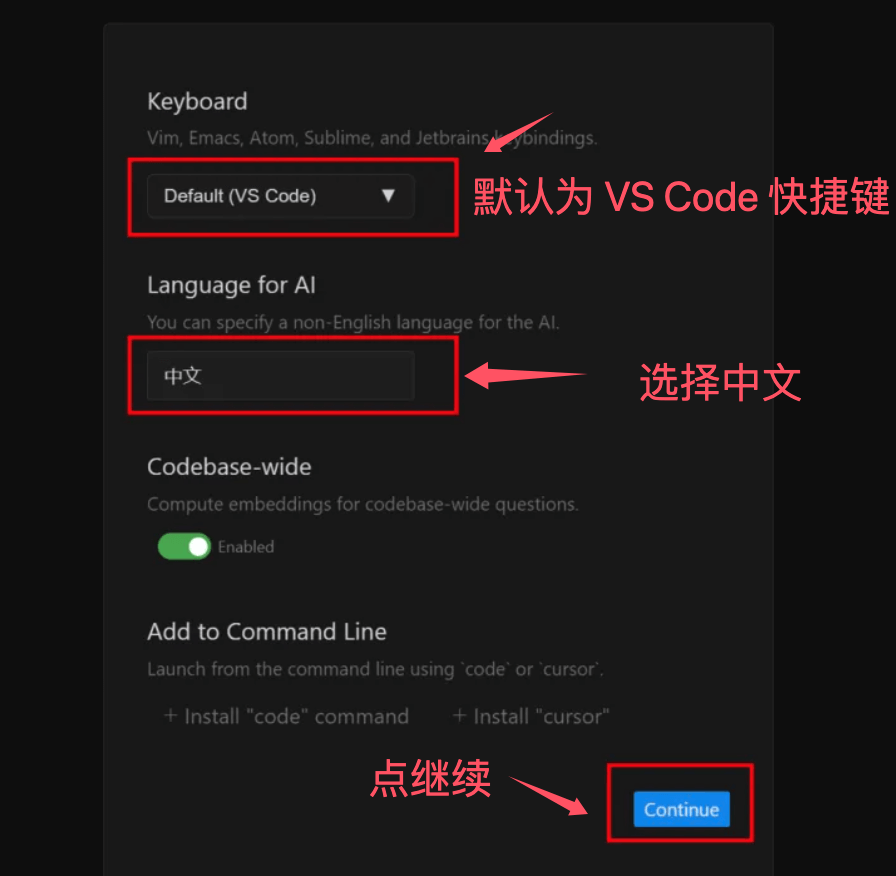
After the installation package is installed, some configuration settings need to be set; we choose Chinese as the language:
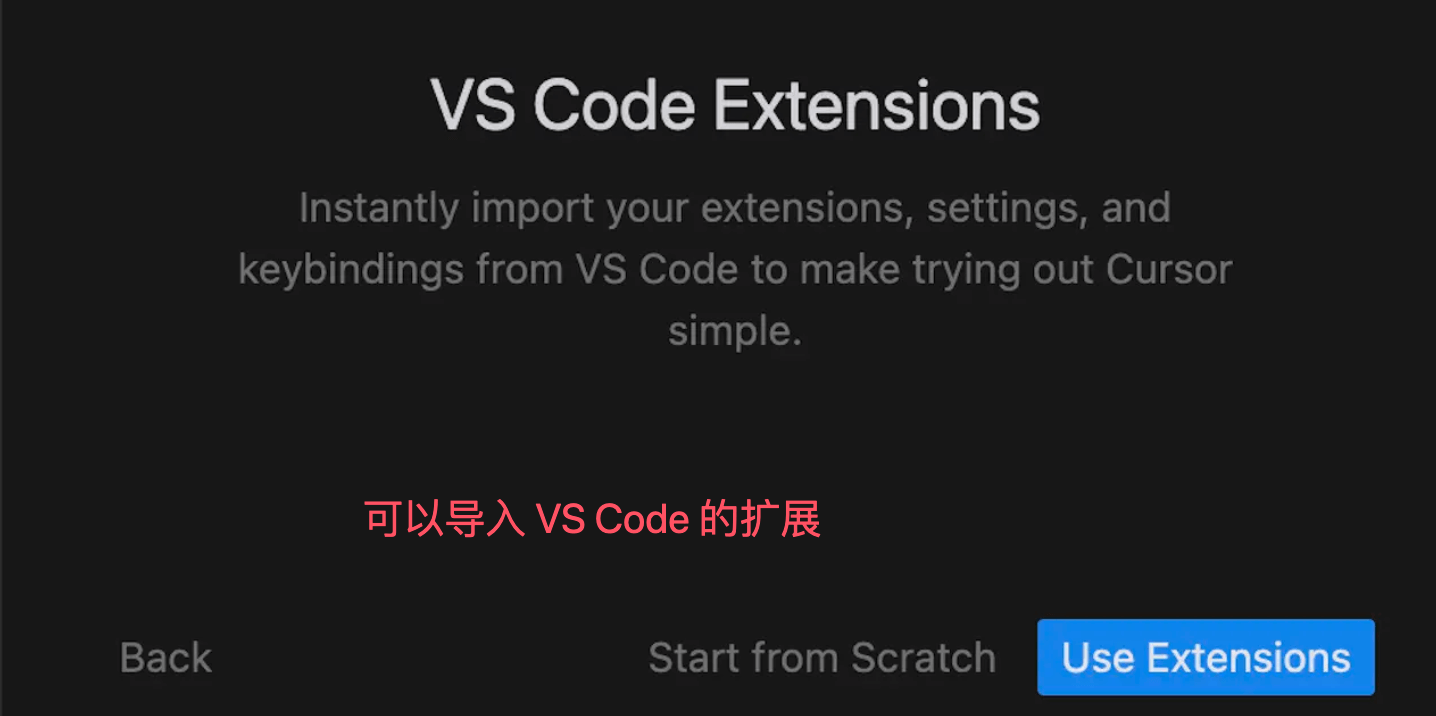
If VS Code was previously installed on this machine, you can import VS Code extensions:
When using Cursor for the first time, you need to register a new account or log in with an existing account. You can also use GitHub and other authorized login methods.
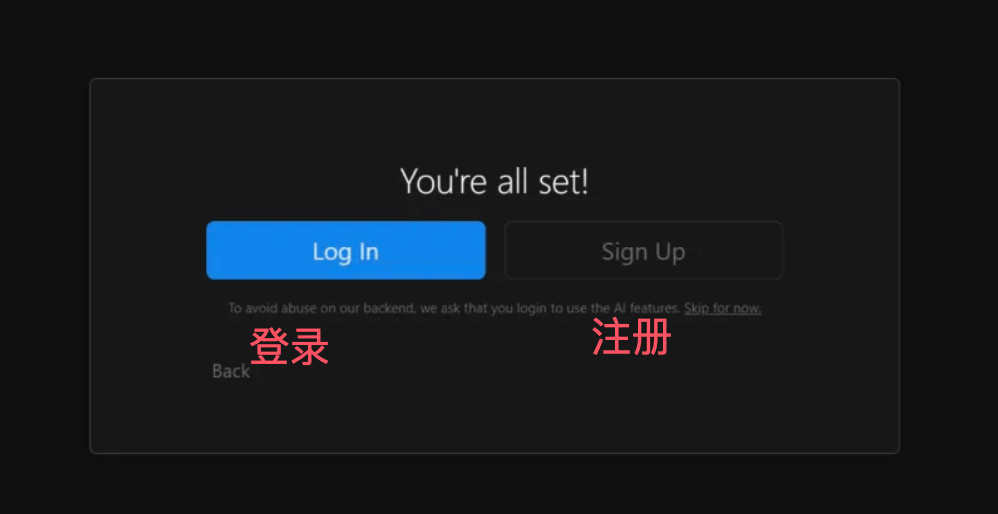
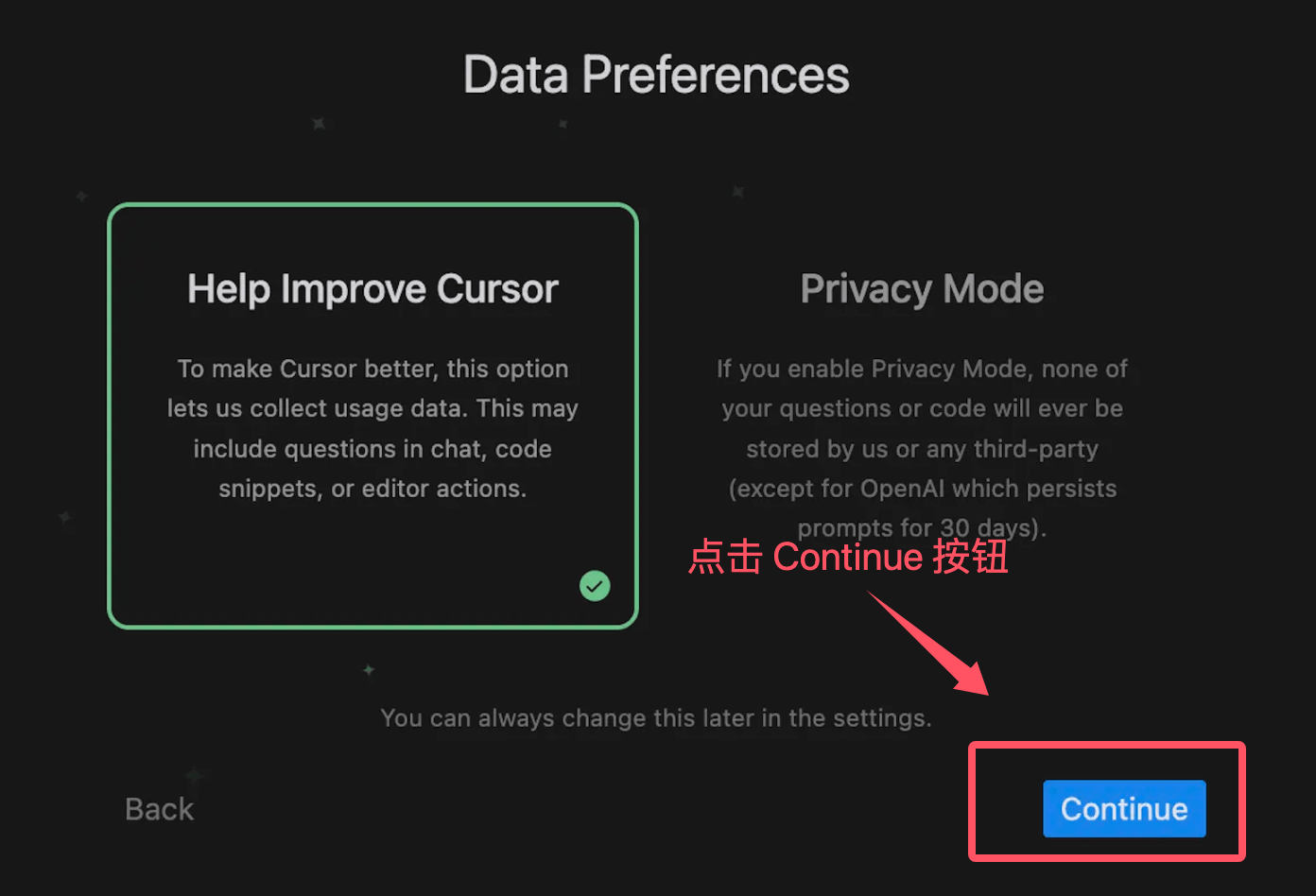
Just keep the default options checked here, clickContinueButton to complete setup: