OpenCV Getting Started Example
Next, let's look at a simple OpenCV example. We will implement the following features:
Read an image.
Display the image.
Save the image.
Add simple user interaction.
You can use the following image as an example:
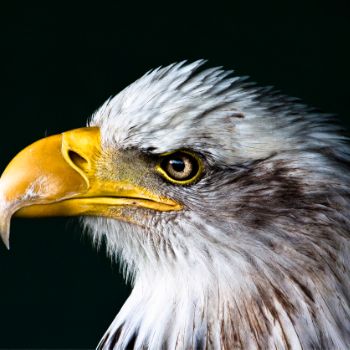
The following code is saved indisplay_image.pyfile:
Example (Python)
import cv2
# 1. Read the image
# Replace with the actual image path, here it is "bird.jpg" in the current directory
image_path = "./bird.jpg"
image = cv2.imread(image_path)
# Check whether the image was successfully read
if image is None:
print(Error: Unable to load image, please check whether the path is correct.)
exit()
# 2. Display the image
# Create a window named "Display Image" and display the image in it
cv2.imshow("Display Image", image)
# 3. Wait for the user to press a key
# Parameter 0 means wait indefinitely until the user presses any key
key = cv2.waitKey(0)
# 4. Perform actions based on the user's key press
if key == ord('s'): # If the 's' key is pressed
# Save the image
output_path = "saved_image.jpg"
cv2.imwrite(output_path, image)
print(fImage saved as {output_path})
else: # If another key is pressed
print(Image was not saved.)
# 5. Close all windows
cv2.destroyAllWindows()
python display_image.py
A pop-up window displays as follows:
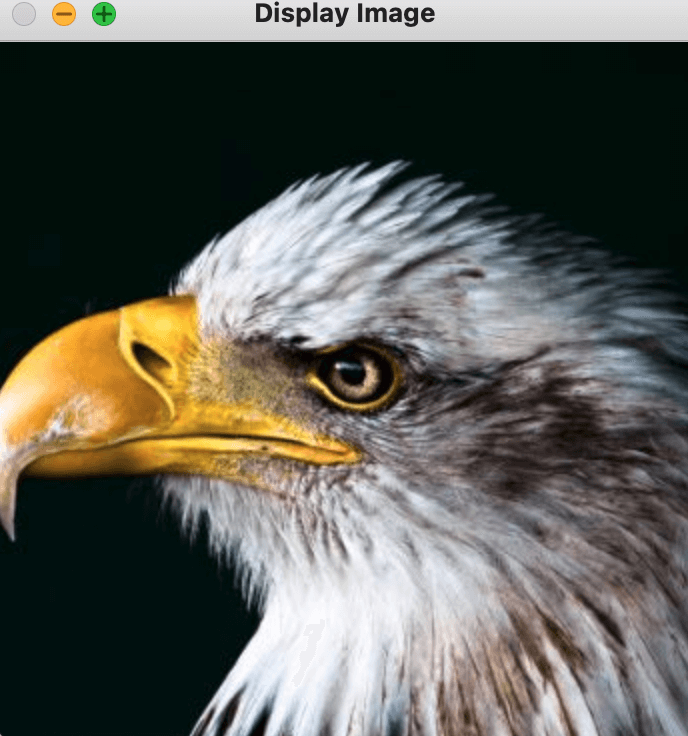
In the displayed image window, press theskey to save the image, or press any other key to exit.
The C++ code for the above example is as follows:
Example (C++)
#include <iostream>
using namespace cv;
using namespace std;
int main() {
// 1. Read the image
// Replace with the actual image path, here it is "bird.jpg" in the current directory
string image_path = "./bird.jpg";
Mat image = imread(image_path);
// Check whether the image was successfully read
if (image.empty()) {
cout << Error: Unable to load image, please check whether the path is correct. << endl;
return -1;
}
// 2. Display the image
// Create a window named "Display Image" and display the image in it
namedWindow("Display Image", WINDOW_AUTOSIZE);
imshow("Display Image", image);
// 3. Wait for the user to press a key
// Parameter 0 means wait indefinitely until the user presses any key
int key = waitKey(0);
// 4. Perform actions based on the user's key press
if (key == 's') { // If the 's' key is pressed
// Save the image
string output_path = "saved_image.jpg";
imwrite(output_path, image);
cout << Image saved as << output_path << endl;
} else { // If another key is pressed
cout << Image was not saved. << endl;
}
// 5. Close all windows
destroyAllWindows();
return 0;
}
Extended Exercises
Next, we can try making some code modifications.
1. Change the window title:Change "Display Image" to another name, for example "My Image".
cv2.imshow("My Image", image)2. Save in a different format:Change "saved_image.jpg" to "saved_image.png" and observe the saved result.
# 4. 根据用户按键执行操作
if key == ord('s'):  # 如果按下 's' 键
    # 保存图像
    output_path = "saved_image.png"
    cv2.imwrite(output_path, image)
    print(f"图像已保存为 {output_path}")
3. Add more interactions:For example, press the 'q' key to exit the program directly.
if key == ord('s'):  # 如果按下 's' 键
    # 保存图像
    output_path = "saved_image.jpg"
    cv2.imwrite(output_path, image)
    print(f"图像已保存为 {output_path}")
elif key == ord('q'):  # 如果按下 'q' 键
    print("程序已退出。")
else:  # 如果按下其他键
    print("图像未保存,程序已退出。")
ord('q')Return the character'q''s ASCII code value.If the user presses
'q'key, print a prompt message"The program has exited.", then the program will continue to executecv2.destroyAllWindows()close the window and exit.